تم تحديثه
SMT [Sir Pickle]
Get this and other exclusive indicators in Sir Pickle Indicators
This indicator is part of nilstrades_'s Paid Space. Subscribe for $49.00/month to use it on your charts along with the author's other exclusive indicators. You pay right on TradingView and get access straight away.
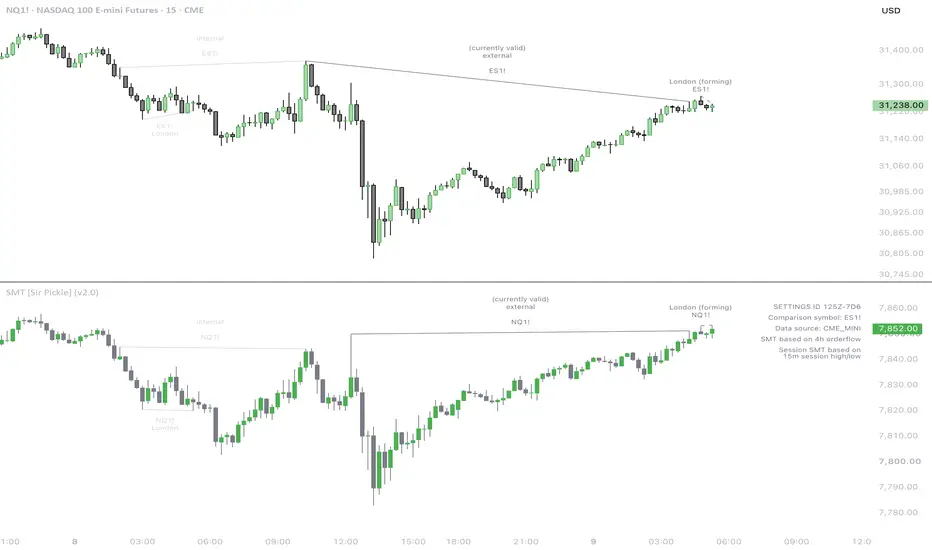
Explore Sir Pickle IndicatorsSMT shows divergences between two correlated markets, for example Nasdaq and S&P 500 futures, or EURUSD and GBPUSD. It does not compare just any recent highs and lows. Every SMT is measured at a higher-timeframe point of interest (a fair value gap, the swing that started the current higher-timeframe leg, or the previous day, week, month or year) or at the Asia or London session high or low. By default, the higher timeframe is chosen automatically from your chart timeframe, for example the 4h on a 15m chart. It marks where one market takes that level while the other market doesn't, and alerts you when the divergence is confirmed.
The comparison symbol is chosen automatically for many futures, CFDs, forex pairs and crypto, and its candles are shown in the indicator pane.
__________________
What it shows on the chart
How it works
SMT types
The examples describe the bullish case, drawn below the candles. The bearish case is mirrored.
Settings
What makes it different
SMT puts every divergence into a higher-timeframe context. It does not look for divergence between the latest swings on the chart. It measures it only at higher-timeframe points of interest (the internal and external range liquidity of the current higher-timeframe leg, and the previous day, week, month or year) and at the Asia and London session highs and lows. By default, the higher timeframe is chosen automatically from your chart timeframe. An SMT on your chart therefore always belongs to a specific higher-timeframe level.
Each SMT is confirmed as soon as a swing on the chart timeframe confirms the move, at the close of the first candle after the low or high, and confirmed SMT lines don't change afterwards. It also picks the comparison symbol automatically for many markets and brokers, and can follow the bias of the Orderflow indicator.
The divergence rules, the level selection and the timeframe alignment are our own implementation, which is why the source code is protected. This description explains the concepts so you can decide whether the tool fits your trading.
How to use it
SMT is meant as confluence for your own trading setups, not as a signal on its own. For example, when price reaches a higher-timeframe level where you expect a reaction, an SMT at that level shows that the correlated market did not take its level. The entry itself then follows your own setup on the chart timeframe.
Alerts
Notes and limitations
The comparison symbol is chosen automatically for many futures, CFDs, forex pairs and crypto, and its candles are shown in the indicator pane.
__________________
What it shows on the chart
- SMT lines on both symbols: on your chart for the chart symbol, and in the indicator pane for the comparison symbol. Each line runs from the level to the point where the divergence formed. Bullish SMT is drawn below the candles, bearish SMT above them.
- Labels with the name of the other symbol and, optionally, the SMT type: internal, external, prev D/W/M, Asia or London.
- Forming SMT (optional): dashed lines while a divergence is in place but not confirmed yet.
- Comparison candles in the indicator pane, green for up candles and gray for down candles.
- Info text in the pane: the comparison symbol and its data source, the higher timeframe the SMT is based on, and whether session SMT and Orderflow Connect are active.
- Messages in the pane when no comparison symbol was found, when the comparison data does not reach back far enough, when the Orderflow Connect source is not selected, or when the chosen higher timeframe is not available on your chart timeframe.
How it works
- Comparison symbol: with auto-assign on, the indicator picks the correlated market for the chart symbol: Nasdaq 100 and S&P 500, Dow and Russell 2000 (futures and CFDs), gold and silver, crude oil and gasoline futures, WTI and Brent CFDs, major forex pairs (for example EURUSD and GBPUSD), USDCAD, USDCHF and USDJPY with the dollar index, and Bitcoin with Ethereum (other crypto with Bitcoin). Micro futures are compared with the full-size futures of the other market. For CFDs and forex, it uses the same data source as the chart where it can, checks for different ticker names, and otherwise falls back to a default source.
- Higher timeframe: the higher timeframe is chosen automatically from your chart timeframe, for example the 4h on a 15m chart or the daily on a 1h chart. The info text shows the timeframe in use. You can also choose it yourself (see Settings).
- Divergence: an SMT forms when one symbol takes its level and the other symbol holds its own level at the same time.
- Confirmation: an SMT is confirmed as soon as a swing confirms the move: at the close of the first candle that makes a higher low (bullish) or a lower high (bearish) after the divergence. The line is drawn and the alert is sent at that close, and the line ends at the low or high that formed the divergence. Confirmed SMT lines don't change afterwards.
- Orderflow Connect: in this mode, SMT follows the bias of the "Orderflow [Sir Pickle]" indicator on three of its timeframes: the one closest to the automatic higher timeframe, and the active ones directly below and above it. On a 15m chart, for example, these are 1h, 4h and the daily. Bullish SMT is drawn while at least one of them shows a bullish IRL reacting or a bearish IRL failing, bearish SMT while at least one shows a bearish IRL reacting or a bullish IRL failing. Without such a status, no SMT is drawn. The bias at the moment the SMT is confirmed counts: an SMT against the bias is skipped and not drawn later.
SMT types
The examples describe the bullish case, drawn below the candles. The bearish case is mirrored.
- External SMT: one symbol takes the higher-timeframe swing low that started the current bullish leg (external range liquidity), while the other symbol holds above its own swing low.
- Internal SMT: both symbols formed a bullish fair value gap on the higher timeframe (internal range liquidity). One symbol trades into its gap, while the other stays above its own gap.
- Previous D/W/M candle sweep SMT: one symbol takes the low of the previous day, week, month or year, while the other symbol doesn't. It uses the previous candle of the higher timeframe when that is the daily or higher, for example the previous day on a 1h chart.
- Asia and London session SMT: one symbol takes the Asia or London session low, while the other symbol doesn't. Session SMT runs on charts below 1h, and not on Saturdays for crypto.
Settings
- Comparison Symbol and Auto-assign Comparison Symbol: auto-assign is on by default. Turn it off to compare with the symbol you choose (default: the dollar index, TVC:DXY).
- Higher timeframe: Auto (default) chooses the higher timeframe from your chart timeframe, as described above. The other options are 15m, 1h, 4h, D, W, M and 12M (yearly). A timeframe you select is also used in Orderflow Connect mode. You can choose the automatic timeframe or the one directly below or above it, for example 1h, 4h or the daily on a 15m chart. Any other choice shows a message in the pane that names the timeframes you can use.
- Mode: "no filter" (default) shows SMT in both directions, on the higher timeframe chosen for your chart. "🔗 Orderflow Connect" follows the bias of the Orderflow indicator, as described above. For that mode, add the Orderflow indicator to the chart and select its "Orderflow Connect" output in the "🔗 Orderflow Connect" field.
- SMT types: Show Internal SMT, Show External SMT, Show Previous D/W/M Candle Sweep SMT and Show Asia/London Session SMT can each be switched on or off (all on by default).
- Only show the most recent SMT: on by default. Older SMT drawings are removed when a new SMT appears, for each type separately ("... for each type", on by default) or across all types.
- Show SMT while forming: on by default. Shows dashed lines before a swing confirms the SMT.
- Styling: show labels (on by default), add the SMT type to the labels (on by default, needs labels), the colors of bearish SMT (Divergence DOWN), bullish SMT (Divergence UP) and the info text (all gray by default), and the text size of the labels and of the info text (default 10).
- Alerts: the switch "Read this tooltip if you want to activate alerts" only carries the setup instructions in its tooltip. Schedule DND (off by default) pauses alerts during a time window in New York time (default 16:00 to 02:00). DND only applies to intraday timeframes.
What makes it different
SMT puts every divergence into a higher-timeframe context. It does not look for divergence between the latest swings on the chart. It measures it only at higher-timeframe points of interest (the internal and external range liquidity of the current higher-timeframe leg, and the previous day, week, month or year) and at the Asia and London session highs and lows. By default, the higher timeframe is chosen automatically from your chart timeframe. An SMT on your chart therefore always belongs to a specific higher-timeframe level.
Each SMT is confirmed as soon as a swing on the chart timeframe confirms the move, at the close of the first candle after the low or high, and confirmed SMT lines don't change afterwards. It also picks the comparison symbol automatically for many markets and brokers, and can follow the bias of the Orderflow indicator.
The divergence rules, the level selection and the timeframe alignment are our own implementation, which is why the source code is protected. This description explains the concepts so you can decide whether the tool fits your trading.
How to use it
- Add SMT to a chart of a supported market. The indicator pane shows the comparison symbol and its candles.
- Check the info text: the comparison symbol, its data source and the higher timeframe the SMT is based on. To use a different higher timeframe, select it in the Higher timeframe setting.
- Choose the SMT types. Session SMT needs a chart below 1h.
- Optional: add the Orderflow indicator, set Mode to "🔗 Orderflow Connect" and select its "Orderflow Connect" output.
- Create an alert on the indicator with the condition "Any alert() function call", with one alert per timeframe. Watchlist alerts work for symbols that auto-assign supports.
SMT is meant as confluence for your own trading setups, not as a signal on its own. For example, when price reaches a higher-timeframe level where you expect a reaction, an SMT at that level shows that the correlated market did not take its level. The entry itself then follows your own setup on the chart timeframe.
Alerts
- An alert for every confirmed SMT, with the chart timeframe, both symbols and the SMT type. Forming SMT sends no alert.
- If you change the settings, create the alert again: an existing alert keeps the settings it was created with. Removing the indicator from the chart does not stop its alerts.
- Schedule DND pauses alerts on intraday timeframes during the chosen window.
- The SMT value in the Data Window is 1 or 2 for a bullish SMT and -1 or -2 for a bearish SMT, on the candle that confirms it (1 and -1: the chart symbol took the level, 2 and -2: the comparison symbol did), and 0 otherwise. You can use it in other scripts.
Notes and limitations
- SMT needs a correlated comparison symbol. Auto-assign covers the markets listed above. For other symbols, turn it off and choose a symbol.
- Confirmed SMT lines don't change afterwards. Forming lines update until the SMT is confirmed or no longer valid.
- TradingView loads less history for a comparison symbol than for the chart symbol, for example in Bar Replay. Where the comparison data is missing, no SMT is shown and the pane says so.
- If the two symbols trade at different hours, for example a CFD and a future, their candles may not line up exactly.
- Works up to the monthly timeframe. Session SMT only runs on charts below 1h.
- An SMT means that the two markets diverged at a level. It is not a recommendation to trade.
ملاحظات الأخبار
v2.0- The "Higher timeframe" setting is replaced by three switches: 1, 2 and 3 timeframes higher, in any combination. 2 timeframes higher is on by default and is the automatic timeframe of earlier versions (for example the 4h on a 15m chart). 1 and 3 timeframes higher are the timeframes directly below and above it (the 1h and the daily on a 15m chart), and 5m is now available as a higher timeframe on 1m charts. The swing that confirms each SMT still forms on the chart timeframe.
- With more than one higher timeframe on, labels and alerts name the timeframe of each SMT. An SMT that two timeframes find at the same lines is drawn once and named with both timeframes, with one alert.
- New output "SMT for All-in-One" (in the Data Window) for the SMT confluence of the All-in-One indicator.
- An SMT that still counts shows "(currently valid)" in its labels. Once it stops counting, that text is removed and its lines and labels turn lighter.
- SMTs of different types at the same lines no longer write their labels over each other: they share one label that names them all, for example "internal + London". While only some of them still count, it says which, for example "(London currently valid)". Each SMT keeps its own alert.
- A message in the pane when no higher timeframe is switched on.
- A SETTINGS ID at the top right of the pane, above the info text: a short code of the settings that change the SMTs (higher timeframes, SMT types, auto-assign), the chart timeframe and the comparison symbol in use (its name, without the broker). Two charts with the same code find the same SMTs.
- New last section "Import settings via ID": "Import settings from SETTINGS ID" uses the settings of a pasted SMT SETTINGS ID (higher timeframes, SMT types, auto-assign), and the SETTINGS ID on the chart then ends with "(imported)". The chart timeframe and the comparison symbol stay your chart's; the SETTINGS ID notes when they differ from the pasted one. "Show SETTINGS ID on chart" (on) shows it, and "Show settings on chart" (off) lists the settings it holds under it.
- New: on the chart's first candle, SMT reads older candles of the higher timeframes that the chart's history covers with few candles (for example the weekly on a 1h chart), so their swings and levels from before the chart's history are known from the first candles on. The session SMT and the previous candle sweep still start with the chart's first full session or higher-timeframe candle.
- Fixed: with auto-assign on, a forex or crypto chart whose data source doesn't list the comparison symbol stopped with a runtime error. SMT now falls back to the default data source, and shows its "No comparison symbol found" message if the symbol isn't there either.
- Fixed: a runtime error when an SMT line starts more than 10,000 candles back, for example with a comparison symbol whose data is incomplete. Such lines and their labels are now placed by time, at the same place.
- The settings' tooltips are rewritten: shorter and in plain words.
- Removed: the Orderflow Connect mode and its source setting. SMT now always shows SMT in both directions, as the default "no filter" did.
- Removed: the old "SMT" value in the Data Window. "SMT for All-in-One" is the only SMT value there now.
ملاحظات الأخبار
v2.01New
- Comparison candle colors: New settings at the end of "Styling" set the colors of the comparison candles in the indicator pane: Candle Body and Candle Border (each with an up and a down color) and Candle Wick.

إخلاء المسؤولية
لا يُقصد بالمعلومات والمنشورات أن تكون، أو تشكل، أي نصيحة مالية أو استثمارية أو تجارية أو أنواع أخرى من النصائح أو التوصيات المقدمة أو المعتمدة من TradingView. اقرأ المزيد في شروط الاستخدام.
إخلاء المسؤولية
لا يُقصد بالمعلومات والمنشورات أن تكون، أو تشكل، أي نصيحة مالية أو استثمارية أو تجارية أو أنواع أخرى من النصائح أو التوصيات المقدمة أو المعتمدة من TradingView. اقرأ المزيد في شروط الاستخدام.