
More exclusive indicators from Trendoscope
Subscribe to Trendoscope® Pattern Suite for $69.99/month to get exclusive indicators by this author. You pay right on TradingView and can use them on your charts straight away.
Explore Trendoscope® Pattern Suite🎲 Overview
Chart Patterns Screener is an advanced Pine Script designed to automatically detect and display classical chart patterns on TradingView. It is a specialized, fine-tuned version of the popular Auto Chart Patterns indicator, optimized specifically for use with the Pine Screener.
🎲 How to Use This Script as Indicator
Since most of the settings are inherited from Auto Chart Patterns, let us first discuss on how to use the indicator before dwelving into the settings.
When you first add the indicator to a chart, you may see a large note or minimal visuals.
This is intentional.

Not to worry, This script is not designed to be used as a regular chart indicator. It was built primarily for scanning across many symbols using TradingView’s Pine Screener utility.
Two Ways to Use It on Chart (if still needed):
🎲 How to Use This Script with Pine-Screener
🎯 Add Script to Favourites
You must add this script to your favourites before it appears in the Pine Screener. You can do so by clicking on "Add to favourites" button in the top right corner of the script publication page.

🎯 Open Pine Screener Utility
Pine Screener can be opened directly through the direct link - tradingview.com/pine-screener/ or we can go through the menus on tradingview home page to find the utility.

🎯 Load Your watchlist
Watchlist can be created manually or through other screeners.
Here is a video publication on how to use Tradingivew default stock screener which also explains how to create a watchlist by using the utility.
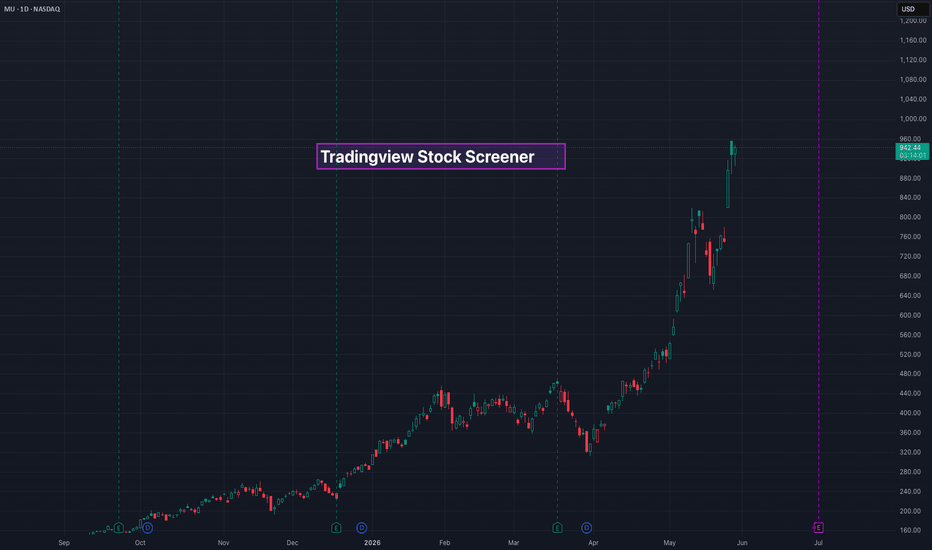
For this demonstration, let us use one of the pre-existing watchlist. Also note that pine-screener has a limitation that watchlist can contain maxium 1000 symbols.

🎯 Load the script/Indicator to Pine-Screener
Click on "Choose Indicator" dropdown and select the Chart Pattern Screener [Trendoscope®] from the alphabetically sorted list of indicators. Please note that the dropdown will only have the indicators that are marked as favourites.

Indicator settings and timeframe can be further changed to suit the needs.

🎯 Select Scanning Criteria and Scan
Indicator settings can have some options shown by default. However, users can click on the + symbol next to "Scan" button to explore other options Availlable.

All the filter options have number of patterns of specific types actively present on each instruments. Hence, in order to filter the symbols having these types of patterns, we just need to set the condition if the value is more than 0

Examples
To find symbols with any active pattern:
To find specific patterns (example):
Once you set the conditions, you can click on Scan to filter the watchlist

🎲 Settings Overview
🎯 Screener Settings
This group of settings contain parameters that are related to screener functionality.
A pattern formed 1000 bars ago may not really mean anything as all the trading opportunity of that pattern would be already over. Hence, in order to find active patterns we need to limit on how many bars back we should check. We provide two options to identify how far we need to look back

🎯 Chart Pattern Settings
These settings are same as what is defined in Auto Chart Patterns [Trendoscope®].

🎲 Refernces
Chart Patterns Screener is an advanced Pine Script designed to automatically detect and display classical chart patterns on TradingView. It is a specialized, fine-tuned version of the popular Auto Chart Patterns indicator, optimized specifically for use with the Pine Screener.
🎲 How to Use This Script as Indicator
Since most of the settings are inherited from Auto Chart Patterns, let us first discuss on how to use the indicator before dwelving into the settings.
When you first add the indicator to a chart, you may see a large note or minimal visuals.
This is intentional.
Not to worry, This script is not designed to be used as a regular chart indicator. It was built primarily for scanning across many symbols using TradingView’s Pine Screener utility.
Two Ways to Use It on Chart (if still needed):
- Goto the settings of the script and disable the "Note" checkbox. This will let you use the script as an indicator - however the features as indicator are limited when compared to the original Auto Chart Patterns [Trendoscope®]
- Use the original Auto Chart Patterns [Trendoscope®]
🎲 How to Use This Script with Pine-Screener
🎯 Add Script to Favourites
You must add this script to your favourites before it appears in the Pine Screener. You can do so by clicking on "Add to favourites" button in the top right corner of the script publication page.
🎯 Open Pine Screener Utility
Pine Screener can be opened directly through the direct link - tradingview.com/pine-screener/ or we can go through the menus on tradingview home page to find the utility.
🎯 Load Your watchlist
Watchlist can be created manually or through other screeners.
Here is a video publication on how to use Tradingivew default stock screener which also explains how to create a watchlist by using the utility.
For this demonstration, let us use one of the pre-existing watchlist. Also note that pine-screener has a limitation that watchlist can contain maxium 1000 symbols.
🎯 Load the script/Indicator to Pine-Screener
Click on "Choose Indicator" dropdown and select the Chart Pattern Screener [Trendoscope®] from the alphabetically sorted list of indicators. Please note that the dropdown will only have the indicators that are marked as favourites.
Indicator settings and timeframe can be further changed to suit the needs.
🎯 Select Scanning Criteria and Scan
Indicator settings can have some options shown by default. However, users can click on the + symbol next to "Scan" button to explore other options Availlable.
- Current Patterns - contain the number of any pattern available on specific instrument. Hence, they can be used to catch symbols having any pattern on the chart.
- Other options however are to catch symbols having specific type of patterns
All the filter options have number of patterns of specific types actively present on each instruments. Hence, in order to filter the symbols having these types of patterns, we just need to set the condition if the value is more than 0
Examples
To find symbols with any active pattern:
- Set condition: Current Patterns > 0
To find specific patterns (example):
- Set condition: Rising Wedge > 0 to filter symbols having Rising Wedge patterns
- Set condition: Ascending Channel > 0 to filter symbols having Ascending Channel patterns
- Set condition: Contracting Triangle > 0 to filter symbols having Contracting Triangle patterns
Once you set the conditions, you can click on Scan to filter the watchlist
🎲 Settings Overview
🎯 Screener Settings
This group of settings contain parameters that are related to screener functionality.
A pattern formed 1000 bars ago may not really mean anything as all the trading opportunity of that pattern would be already over. Hence, in order to find active patterns we need to limit on how many bars back we should check. We provide two options to identify how far we need to look back
- Fixed - In the fixed option, we rely on the Fixed number of bars to look back for active patterns. If Fixed bars are 20, this means, we only look for patterns that are formed in last 20 bars.
- Relative - This is slightly complex option where number of bars to look before depends on the size of the pattern. We set the percentage of size as number of bars through input. This means, if the pattern spawns 100 bars, the screener will flag it only if it is formed within 20 bars (considering 20% is set as relative percent). However, bigger pattern spawing 150 bars will be flagged if it has formed within 30 bars.
🎯 Chart Pattern Settings
These settings are same as what is defined in Auto Chart Patterns [Trendoscope®].
🎲 Refernces

Trial - trendoscope.com/trial
Subscribe - trendoscope.com/pricing
Blog - docs.trendoscope.com
Subscribe - trendoscope.com/pricing
Blog - docs.trendoscope.com
إخلاء المسؤولية
لا يُقصد بالمعلومات والمنشورات أن تكون، أو تشكل، أي نصيحة مالية أو استثمارية أو تجارية أو أنواع أخرى من النصائح أو التوصيات المقدمة أو المعتمدة من TradingView. اقرأ المزيد في شروط الاستخدام.
Trial - trendoscope.com/trial
Subscribe - trendoscope.com/pricing
Blog - docs.trendoscope.com
Subscribe - trendoscope.com/pricing
Blog - docs.trendoscope.com
إخلاء المسؤولية
لا يُقصد بالمعلومات والمنشورات أن تكون، أو تشكل، أي نصيحة مالية أو استثمارية أو تجارية أو أنواع أخرى من النصائح أو التوصيات المقدمة أو المعتمدة من TradingView. اقرأ المزيد في شروط الاستخدام.