Perfect Checklist
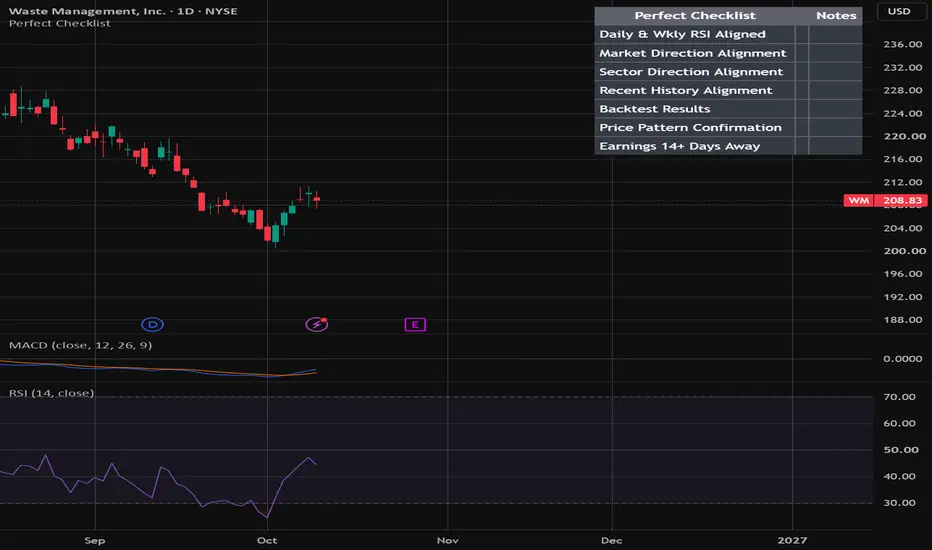
🛠️ 1. Active Features built into the Script
• Isolated Status Line Display: Every background indicator configuration is hidden from your upper-left chart information strip, leaving only your custom text ticker (e.g., HD) completely clean and viewable. You can make copies of the script in the pine editor window and number them so that you can use a separate checklist on more than 1 ticker at a time.
• Smart 3-Column Chart Layout: Dynamically draws a clean visual grid displaying your checklist text lines, matching dropdown status symbols, and custom written notes.
• Auto-Collapsing Table Rows: Activating or deactivating criteria lines in your settings panel instantly re-sizes the on-chart table layout so no blank lines clutter your trading screen.
• Reordered Live Copy Logger: Automatically bundles your current workspace setups into a cleanly formatted, live text block arranged exactly like your chart: [Text Description] [Status Icon] [Notes]. More on that in section 3 below.
📐 2. Essential Chart Layout Settings
To ensure your status line shows your literal typed text letters instead of messy numeric positional formulas or indicator text spam, configure your chart properties exactly like this:
1. Open your TradingView Chart Settings (right-click the background grid and select Settings, or double click the chart).
2. Navigate to the Status Line panel tab.
3. Check the box next to "Arguments" (or Inputs in status line). This forces your literal text string ticker entry to load.
4. Uncheck the box next to "Values" (or Values in status line). This eliminates irrelevant trailing calculation metrics from clogging your bar.
📋 3. How to Copy Your Live Trade Checklist Data
Because you can't click or highlight text straight off an on-chart visual table, use your built-in custom logger shortcut:
1. Move your mouse cursor onto your checklist table display or the text ticker on your chart layout.
2. Right-click directly on the indicator and select Pine Logs... from the contextual action menu.
3. A clean data sub-panel terminal window will instantly open.
4. Every single time you toggle an entry row checkbox, pick a new dropdown symbol, or edit a notes field on your chart, a fresh text block immediately updates inside that console which you can copy to a text box on your layout for adding to your chart directly, formatted just like the checklist indicator for a more permanent addition to your chart.

Haftungsausschluss
Die Informationen und Veröffentlichungen sind nicht als Finanz-, Anlage-, Handels- oder andere Arten von Ratschlägen oder Empfehlungen gedacht, die von TradingView bereitgestellt oder gebilligt werden, und stellen diese nicht dar. Lesen Sie mehr in den Nutzungsbedingungen.
Haftungsausschluss
Die Informationen und Veröffentlichungen sind nicht als Finanz-, Anlage-, Handels- oder andere Arten von Ratschlägen oder Empfehlungen gedacht, die von TradingView bereitgestellt oder gebilligt werden, und stellen diese nicht dar. Lesen Sie mehr in den Nutzungsbedingungen.