Mis à jour
Multi-Timeframe FVGs [ufo]
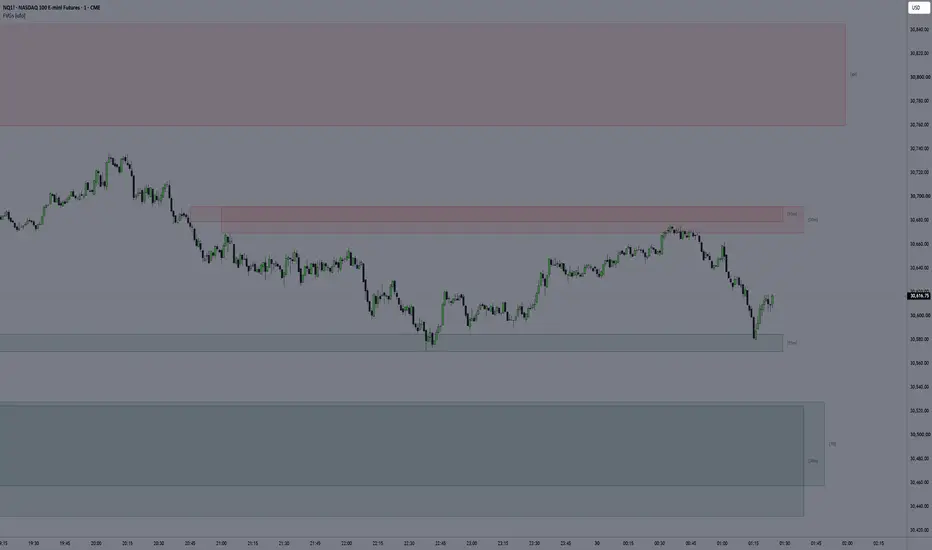
Multi-Timeframe FVGs shows Fair Value Gaps (FVGs) from up to six timeframes on one chart, higher or lower than the chart timeframe. Each gap is tracked after it forms (tapped, fill %, touches or invalidated), and you choose how much of that is shown.
Key features

The same type of 15-minute FVG with different settings. The left box shows the default display.
What is an FVG
A Fair Value Gap (FVG) is a three-candle pattern where the middle candle moves so fast that the wicks of the first and third candle do not overlap. The space between those wicks is a price range that was only traded briefly, in one direction. Many traders watch FVGs as areas where price may return to or react.
How it works
Settings
How to use
Limitations
Key features
- Fill tracking: boxes and lines can shrink as price fills them, or show the filled part in a second color. Labels can show the fill %, touches and the time the FVG formed.
- Hover details: hover over a label to see everything about an FVG: when it formed, its levels, size, fill % and touches.
- Higher and lower timeframes: e.g. daily FVGs on a 5-minute chart, or 15-minute FVGs on a 1-hour chart, found on the real 15-minute candles.
- Less clutter: lookback per timeframe (last X FVGs, hours, days or nearest to price), hide nested FVGs, minimum size, direction and session filters, extend only the nearest FVGs, or a minimal line or bracket display.
- Potential FVGs: optionally see a gap while its third candle is still forming.
- Alerts: new FVG, first tap and EQ (50%) tapped, each sent once per FVG.
The same type of 15-minute FVG with different settings. The left box shows the default display.
What is an FVG
A Fair Value Gap (FVG) is a three-candle pattern where the middle candle moves so fast that the wicks of the first and third candle do not overlap. The space between those wicks is a price range that was only traded briefly, in one direction. Many traders watch FVGs as areas where price may return to or react.
How it works
- Detection: for timeframes equal to or higher than the chart, the script uses the last three completed candles of that timeframe, so an FVG appears once candle 3 has closed and confirmed FVGs do not repaint. Lower timeframes (Show TFs Below Chart TF) are read from the candles of that timeframe inside each chart candle. A pattern with a price gap between two of its candles (no trading at all in between, e.g. an opening gap) is not counted as an FVG.
- Tracking: an FVG is tapped when a wick trades into it. Fill % is how deep price has traded in, touches counts separate entries, and EQ tapped is the first time price reaches the middle (50%), called the EQ.
- Invalidation: Wick fill, Body fill, Wick fill EQ or Body fill EQ (or None). Body rules use the candle bodies of the FVG's own timeframe. Invalidated FVGs are removed or kept in their own colors.
- Display: extended FVGs are placed in a column per timeframe to the right of price, so timeframes do not overlap. The script stays below TradingView's limit of 500 boxes, lines and labels, so drawings are not removed without notice.
Settings
- Timeframe & Lookback: six timeframes, each with a lookback of the last X FVGs, X hours, X days, or the X nearest FVGs above and below price.
- Filters: Hide nested FVGs (an FVG inside a same-direction FVG of a higher timeframe), Show Potential FVGs (dashed, marked with * in the label, e.g. 15m*), Show TFs Below Chart TF, Only show FVGs near price (ATR based), Min. FVG size (ticks or % ATR), Session (only FVGs that formed inside a time window, e.g. 09:30 - 16:00 New York time) and Direction (bullish, bearish or both).
- FVG Display: Include Volume Imbalance (extends the FVG to a gap between the bodies of two neighboring candles within its three candles), Draw FVG from (candle 1 to 4), Box Length (Extend, Fixed bars or Extend nearest), Offset / TF Spacing, Display (Box, Line or Bracket), border, and EQ or Quadrant levels.
- FVG Status: Invalidated when, Fill Display (Shrink or Two-tone), Tapped FVG Color and Show Invalidated FVGs.
- FVG Labels: timeframe style, extra text, position, Fill Info (fill %, touches or both), Time (open time of candle 2 in a selectable time zone; daily and higher FVGs show the date) and Hover Details (all details of the FVG when you hover over a label next to the FVG).
- Colors: one global color pair, or colors per timeframe.
- Alerts: New FVG, Tapped and EQ tapped, filtered by direction and timeframe.
How to use
- Choose up to six timeframes and a lookback for each. Turn on Show TFs Below Chart TF to add timeframes lower than your chart.
- Use the filters, Extend nearest or the Line / Bracket display to keep the chart readable, and Fill Display or Fill Info to see how far each FVG has been filled.
- For alerts, choose the events in the Alerts settings, then create an alert with the condition "FVGs [ufo]" and "Any alert() function call".
Limitations
- For timeframes equal to or higher than the chart, touches are counted per chart candle, so leaving and re-entering an FVG within one candle counts as one touch. A lower chart timeframe counts touches more precisely.
- Lower timeframe FVGs start at the chart candle that contains them. TradingView limits how many lower timeframe candles a script can load, so very low timeframes on a high chart timeframe (e.g. 1-minute FVGs on a daily chart) only reach back a limited time.
- Potential FVGs repaint by design: they update live and disappear if the gap closes before candle 3 closes. They have no alerts or tracking.
- While the market is closed, extended FVGs end at the next session open instead of in their timeframe columns, and brackets show as a plain line. Both return to normal when the market opens.
- The Hours / Days lookback counts chart bars (closed markets are not included), up to 5,000 bars back.
- Up to 200 FVGs are stored per timeframe. Alerts are sent on realtime bars only.
- This is an analysis tool. It does not give buy or sell signals or predict how price will react to an FVG.
Notes de version
Updated- Potential FVGs: choose their own display (Box, Line or Bracket) and line style (solid, dashed or dotted), separate from the confirmed FVGs.
- Invalidated when → Tapped: invalidates an FVG as soon as price trades into it.

Clause de non-responsabilité
Les informations et publications ne sont pas destinées à être, et ne constituent pas, des conseils ou recommandations financiers, d'investissement, de trading ou autres fournis ou approuvés par TradingView. Pour en savoir plus, consultez les Conditions d'utilisation.
Clause de non-responsabilité
Les informations et publications ne sont pas destinées à être, et ne constituent pas, des conseils ou recommandations financiers, d'investissement, de trading ou autres fournis ou approuvés par TradingView. Pour en savoir plus, consultez les Conditions d'utilisation.