OPEN-SOURCE SCRIPT
Options Strikes
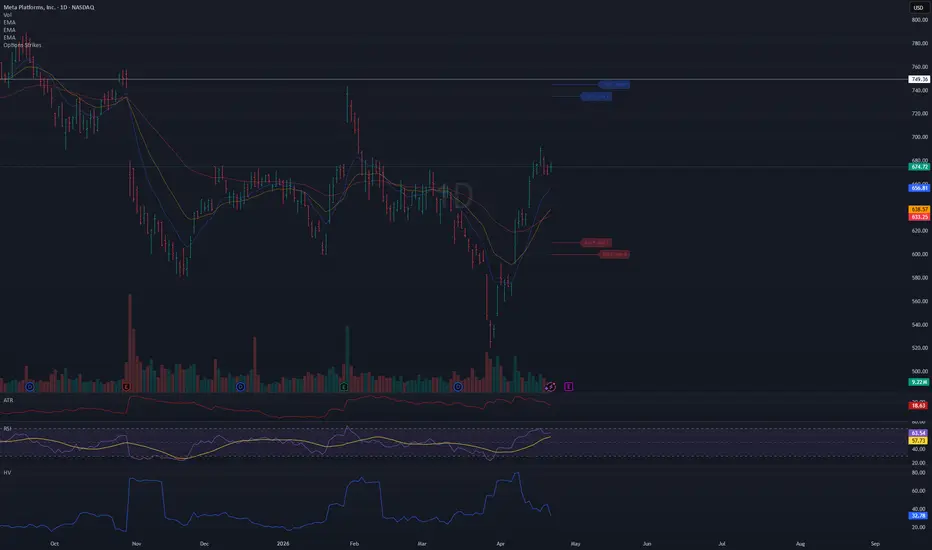
● Title: Options Strikes
Short description:
Visualize your open options positions on any chart — horizontal lines from entry to expiration, color-coded by Put/Call.
---
Full description:
Track up to 8 options contracts directly on your price chart. Each contract draws a horizontal line from your open date to the expiration date (4:00 PM ET), so you always see where your strikes sit relative to price and how much time is left.
Features
- Up to 8 contracts simultaneously — Put and Call
- Lines run from your open date to 4:00 PM ET on expiration day
- Puts in red, Calls in blue (colors and opacity customizable)
- Compact label at the end of each line: 610 P May 1
- Labels can be toggled on/off
- Calendar pickers for both Open date and Expiration date
- Auto-enable — a contract activates as soon as you enter a Strike value; set Strike to 0 to disable it
- Ticker filter — set a symbol (e.g. META) so lines only appear on that specific chart, useful when switching between
tickers
- Works on any symbol and any timeframe
How to use
1. Add the indicator to your chart
2. Open Settings → Inputs
3. For each contract: enter a Strike, select Type (Put/Call), pick Open date and Exp date
4. The line appears automatically — no need to toggle anything
5. Optionally set the Ticker field to lock this instance to a specific symbol
Tips
- Leave Ticker blank → lines show on every chart
- Open date defaults to today — change it only if you entered the position on a previous day
- To remove a contract, set its Strike back to 0
- Use contracts 5–8 for additional positions
- Adjust colors and line width in the Style group
Short description:
Visualize your open options positions on any chart — horizontal lines from entry to expiration, color-coded by Put/Call.
---
Full description:
Track up to 8 options contracts directly on your price chart. Each contract draws a horizontal line from your open date to the expiration date (4:00 PM ET), so you always see where your strikes sit relative to price and how much time is left.
Features
- Up to 8 contracts simultaneously — Put and Call
- Lines run from your open date to 4:00 PM ET on expiration day
- Puts in red, Calls in blue (colors and opacity customizable)
- Compact label at the end of each line: 610 P May 1
- Labels can be toggled on/off
- Calendar pickers for both Open date and Expiration date
- Auto-enable — a contract activates as soon as you enter a Strike value; set Strike to 0 to disable it
- Ticker filter — set a symbol (e.g. META) so lines only appear on that specific chart, useful when switching between
tickers
- Works on any symbol and any timeframe
How to use
1. Add the indicator to your chart
2. Open Settings → Inputs
3. For each contract: enter a Strike, select Type (Put/Call), pick Open date and Exp date
4. The line appears automatically — no need to toggle anything
5. Optionally set the Ticker field to lock this instance to a specific symbol
Tips
- Leave Ticker blank → lines show on every chart
- Open date defaults to today — change it only if you entered the position on a previous day
- To remove a contract, set its Strike back to 0
- Use contracts 5–8 for additional positions
- Adjust colors and line width in the Style group
Open-source script
In true TradingView spirit, the creator of this script has made it open-source, so that traders can review and verify its functionality. Kudos to the author! While you can use it for free, remember that republishing the code is subject to our House Rules.

Disclaimer
The information and publications are not meant to be, and do not constitute, financial, investment, trading, or other types of advice or recommendations supplied or endorsed by TradingView. Read more in the Terms of Use.
Open-source script
In true TradingView spirit, the creator of this script has made it open-source, so that traders can review and verify its functionality. Kudos to the author! While you can use it for free, remember that republishing the code is subject to our House Rules.
Disclaimer
The information and publications are not meant to be, and do not constitute, financial, investment, trading, or other types of advice or recommendations supplied or endorsed by TradingView. Read more in the Terms of Use.