Updated
ICT iFVG Detector and Alert [by ote618]
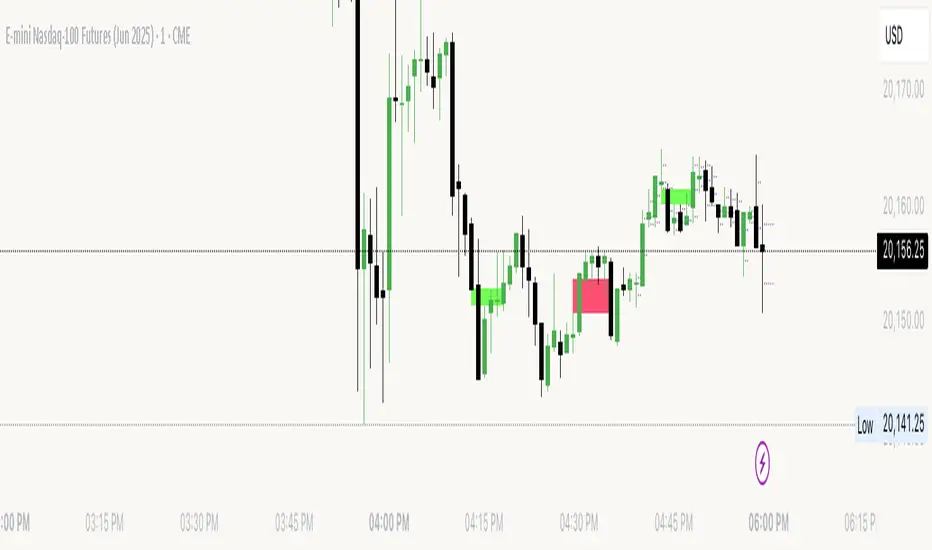
Description
This script detects ICT - fair value gaps (FVG) formed by price gaps between Candle 1 and Candle 3, then monitors the next 5 candles for an inverse fair value gap (iFVG).
What It Detects
Bullish FVG: When Candle 1 high is below Candle 3 low (BISI)
Bearish FVG: When Candle 1 low is above Candle 3 high (SIBI)
Once an FVG is detected, the script checks the next 5 candles:
A Bullish FVG becomes a Bearish IFVG if price closes below Candle 1 high
A Bearish FVG becomes a Bullish IFVG if price closes above Candle 1 low
Only the first bar that validates the FVG triggers the transition to an IFVG.
Visual Output
A shaded rectangle is plotted to mark the original FVG zone (from Candle 1 to Candle 3)
Color-coded:
Red for Bearish IFVG (validated Bullish IG)
Green for Bullish IFVG (validated Bearish IG)
The rectangle extends from Candle 1 to the validating bar
Alerts
You can receive alerts when an FVG becomes an IFVG:
Configurable to fire only on selected timeframes (1m, 5m, 15m, 60m)
Alerts include the direction and the chart timeframe
Settings
Enable Alerts For Timeframe: Choose which timeframe(s) trigger alerts
This tool helps traders identify inverse FVGs (iFVG), a useful ICT concept.
This script detects ICT - fair value gaps (FVG) formed by price gaps between Candle 1 and Candle 3, then monitors the next 5 candles for an inverse fair value gap (iFVG).
What It Detects
Bullish FVG: When Candle 1 high is below Candle 3 low (BISI)
Bearish FVG: When Candle 1 low is above Candle 3 high (SIBI)
Once an FVG is detected, the script checks the next 5 candles:
A Bullish FVG becomes a Bearish IFVG if price closes below Candle 1 high
A Bearish FVG becomes a Bullish IFVG if price closes above Candle 1 low
Only the first bar that validates the FVG triggers the transition to an IFVG.
Visual Output
A shaded rectangle is plotted to mark the original FVG zone (from Candle 1 to Candle 3)
Color-coded:
Red for Bearish IFVG (validated Bullish IG)
Green for Bullish IFVG (validated Bearish IG)
The rectangle extends from Candle 1 to the validating bar
Alerts
You can receive alerts when an FVG becomes an IFVG:
Configurable to fire only on selected timeframes (1m, 5m, 15m, 60m)
Alerts include the direction and the chart timeframe
Settings
Enable Alerts For Timeframe: Choose which timeframe(s) trigger alerts
This tool helps traders identify inverse FVGs (iFVG), a useful ICT concept.
Release Notes
Summary of Changes1. Multi-Timeframe Alerts (User-Selectable)
The indicator now supports alerts from multiple timeframes at the same time, independent of the chart timeframe.
Available alert timeframes:
- 1 minute
- 2 minutes
- 3 minutes
- 4 minutes
- 5 minutes
- 15 minutes
- 60 minutes (1 hour)
- 240 minutes (4 hours)
- Daily
- Weekly
- Monthly
Each timeframe can be enabled or disabled individually using checkboxes in the indicator settings.
2. Alerts Trigger on Confirmed Bar Close
Alerts fire:
- Only after the selected timeframe bar has closed
- Once per timeframe bar (no repeated alerts)
- Even when viewing a different chart timeframe
Example:
If you are viewing a 1-minute chart and a 15-minute iFVG confirms, the alert will trigger when the 15-minute bar closes.
3. Direction-Aware Alert Messages
Each alert message clearly states:
- Bullish or Bearish iFVG
- The timeframe that generated the alert
Optionally, the current chart timeframe
Example alert message:
Bullish iFVG confirmed on 15m (chart 1m)
4. Visual Customization (Previously Added)
The indicator now includes user-controlled styling options:
- Bullish iFVG fill color
- Bearish iFVG fill color
- Fill transparency
- Border color
- Border transparency
These settings affect visuals only and do not impact alert logic.
How to Use the New Features
Step 1: Add the Indicator
- Add ICT iFVG Detector and Alert [by ote618] to your chart.
Step 2: Select Alert Timeframes
- Open the indicator Settings
- Go to the Inputs tab
- Locate the Alert Timeframes section
- Check all timeframes you want to receive alerts from
Example configurations:
Scalping: 1m, 2m, 5m
Day trading: 5m, 15m, 60m
Swing trading: 60m, 240m, Daily
Higher-timeframe bias: Daily, Weekly, Monthly
You may select any combination.
Step 3: Enable Alerts
Ensure the following inputs are set as desired:
- Enable Alerts: ON
- Include Chart TF in Message: Optional
Step 4: Create the TradingView Alert
This step is required for alerts to work.
- Click Create Alert
- Set Condition to this indicator
- Set Trigger to Any alert() function call
- Leave frequency at default
- Create the alert
Do not select a specific plot or “once per bar” option. The script controls alert timing internally.
How the Logic Works (Conceptual)
- Boxes are always drawn on the current chart timeframe
- Alerts are evaluated on the selected alert timeframes
- Each timeframe runs independently
- Alerts do not repaint and do not repeat
- You can monitor multiple higher and lower timeframes from a single chart.
Notes and Limitations
Boxes do not project higher-timeframe zones onto lower-timeframe charts
Alerts are not session-filtered (RTH/ETH) in the current version
One alert can fire per enabled timeframe on the same bar
Release Notes
1. Validation WindowThe Validation Window controls how long a Fair Value Gap (FVG) has to invalidate before it becomes a confirmed iFVG.
When an FVG is detected, price must close beyond the FVG boundary within the number of bars you set. If it does, the iFVG is confirmed. If it does not happen within that window, the setup expires and no signal is generated.
Example:
If the Validation Window is set to 5, the setup must confirm within 5 total bars (the detection bar plus the next 4 bars). If price does not invalidate the FVG during that time, it is ignored.
This setting lets you control how quickly a setup must react to remain valid.
2. Multi-Timeframe Alerts
You can enable alerts for multiple timeframes at the same time (1m, 5m, 15m, 1H, Daily, etc.).
To use multi-timeframe alerts:
- Open the indicator settings.
- In Inputs, check the timeframes you want alerts for.
- Create an alert and select “Any alert() function call” as the trigger type.
For best results, set your chart to 1-minute. This ensures lower timeframe alerts (like 1m or 5m) trigger correctly while higher timeframes continue to work normally.
Each selected timeframe will trigger alerts independently based on its own confirmed iFVG signals.
Release Notes
ICT iFVG Detector and Alert [by ote618]Detects Inversion Fair Value Gaps (iFVGs) on the chart and sends multi-timeframe alerts the moment one is confirmed.
WHAT IS AN iFVG
An inversion happens when price closes back through a fresh Fair Value Gap, flipping it from support to resistance (or the reverse).
- Bullish iFVG (+): a bearish FVG is closed through to the upside by a bullish candle.
- Bearish iFVG (-): a bullish FVG is closed through to the downside by a bearish candle.
The inversion must happen within the Validation Window (default 5 bars, counting the bar that completes the FVG). The inverting candle must close beyond the gap and close in the inversion direction. FVGs that aren't inverted in time are dropped.
ON THE CHART
Confirmed iFVGs on the chart's own timeframe are drawn as boxes, green for bullish and red for bearish. The script keeps the most recent boxes up to a cap you set (default 50). Higher timeframes alert but are not drawn, so the chart never shows another timeframe's signals at the wrong position.
MULTI-TIMEFRAME ALERTS
Pick any of 11 timeframes: 1m, 2m, 3m, 4m, 5m, 15m, 1h, 4h, D, W, M (defaults: 5m, 15m, 1h, 4h, D, W).
Each timeframe fires on its own, at the close of the candle that confirms the inversion.
Message format:
+ 15m iFVG NQ1!
- 4h iFVG in 4h, D FVG NQ1!
- + / - = bullish / bearish
- The timeframe after the sign is the one that fired
- "in ... FVG" lists the timeframes whose open FVG zones the confirming candle is trading inside (confluence), when there are any
- Optional: append the price ( @ 21543.25 )
FVG CONFLUENCE
Choose which timeframes' FVG zones count toward confluence. Set whether the FVG type must match the iFVG direction, how many candles a zone stays live (in that timeframe's own candles), and how many zones are tracked per timeframe. Zones retire when closed through on their own timeframe or when they age out.
SESSION GATING (optional)
Limit alerts to Asia, London, NY AM, NY Lunch, NY PM, or the full NY Session (09:30-16:15 ET). All windows are editable, in New York time. You can also restrict box drawing to the checked sessions.
MACRO WINDOWS (optional)
Limit alerts to the minutes around each hour boundary (default :50 to :10). This works with Session Gating; with both on, a signal must pass both. Best used on a 5m chart or lower, because the window is checked against the minute each bar opens.
HOW TO SET UP ALERTS
1. Add the indicator and choose your timeframes and filters.
2. Open the chart at or BELOW your lowest checked timeframe (e.g. a 1m or 5m chart). Timeframes below the chart's own are ignored.
3. Create Alert, set Condition to this indicator, choose "Any alert() function call".
4. One alert covers every checked timeframe.
Alerts save your settings when you create them. If you change settings, delete the alert and create a new one.
NOTES
- Signals are confirmed on closed candles and do not repaint.
- Several timeframes can confirm on the same bar; each sends its own message.
This indicator is a tool for studying price action and is not financial advice. Always do your own analysis.

Disclaimer
The information and publications are not meant to be, and do not constitute, financial, investment, trading, or other types of advice or recommendations supplied or endorsed by TradingView. Read more in the Terms of Use.
Disclaimer
The information and publications are not meant to be, and do not constitute, financial, investment, trading, or other types of advice or recommendations supplied or endorsed by TradingView. Read more in the Terms of Use.