Telah dikemas kini
[ChartBloom] Session Time Highlighter
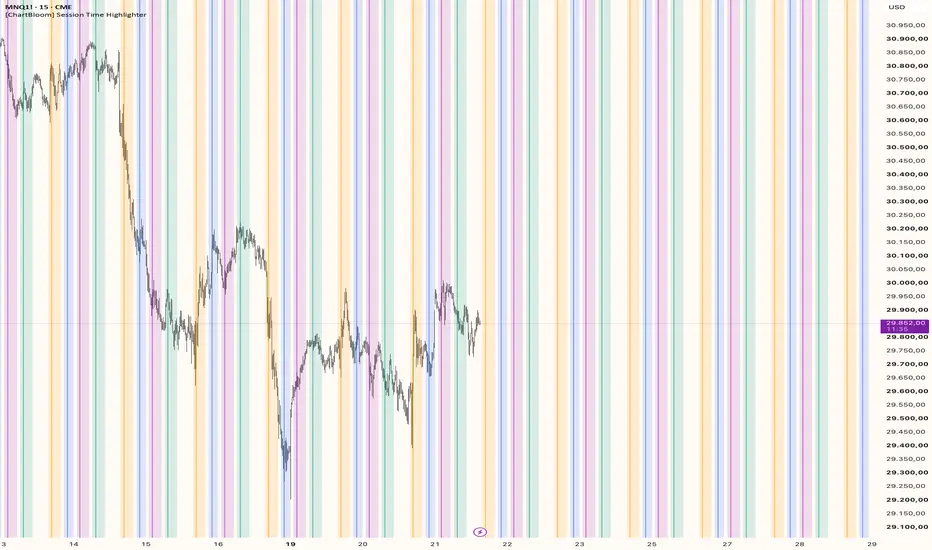
Session Time Highlighter
Local Session Time. History and Future Sessions.
✦ Overview
Session Time Highlighter marks up to four independent time windows across loaded history and a 1–60-day preview, including the current chart day.
It focuses on four practical needs:
✦ Local Time. Automatic DST
Each session has its own timezone, with 15 choices including New York, London, Tokyo, Hong Kong, Mumbai, Sydney and UTC.
For example, enter 09:30–16:00 and select New York. The window follows always New York's daylight saving rules. Your chart's display timezone can change while the session remains tied to its selected timezone.
✦ Connected History and Future sessions
Historical plot fills meet reusable preview line fills at matching candle centers, avoiding a gap or doubled shading at the transition from History to Live Data. History consumes no line objects, so longer loaded intraday datasets preserve their session highlights. The Future Sessions uses at most 496 lines. Cached daily boundaries and reused drawings reduce repeated work on live updates.
Each session independently supports inside- or outside-session highlighting, color and transparency. Overnight windows are supported; equal start and end times define a 24-hour session. Weekend filtering follows each session's local calendar.
✦ Setup and Presets
Enable a session, enter its hours and select the matching timezone you want. Choose the preview length for Future sessions and the timezone that defines its calendar days. Future session highlights update with the first chart bar of each new day in the selected timezone.
✦ Important Notes
Local Session Time. History and Future Sessions.
✦ Overview
Session Time Highlighter marks up to four independent time windows across loaded history and a 1–60-day preview, including the current chart day.
It focuses on four practical needs:
- See upcoming sessions highlighted before they begin.
- Use specific and robust timezones.
- A clean transition from history to live Data.
- The option to highlight time inside or outside each session.
✦ Local Time. Automatic DST
Each session has its own timezone, with 15 choices including New York, London, Tokyo, Hong Kong, Mumbai, Sydney and UTC.
For example, enter 09:30–16:00 and select New York. The window follows always New York's daylight saving rules. Your chart's display timezone can change while the session remains tied to its selected timezone.
✦ Connected History and Future sessions
Historical plot fills meet reusable preview line fills at matching candle centers, avoiding a gap or doubled shading at the transition from History to Live Data. History consumes no line objects, so longer loaded intraday datasets preserve their session highlights. The Future Sessions uses at most 496 lines. Cached daily boundaries and reused drawings reduce repeated work on live updates.
Each session independently supports inside- or outside-session highlighting, color and transparency. Overnight windows are supported; equal start and end times define a 24-hour session. Weekend filtering follows each session's local calendar.
✦ Setup and Presets
Enable a session, enter its hours and select the matching timezone you want. Choose the preview length for Future sessions and the timezone that defines its calendar days. Future session highlights update with the first chart bar of each new day in the selected timezone.
✦ Important Notes
- Use time-based intraday charts with standard candles or Heikin Ashi, not Renko or other Range based charts.
- Sessions shorter than the chart timeframe are hidden in both highlighting modes.
- Boundaries follow bar centers; projected future positions can differ around trading gaps. Extreme vertical scaling can limit historical fill height.
- The preview follows the latest chart bar. Hidden weekends count toward its calendar days.
- Public holidays and early closes are not detected automatically.
Nota Keluaran
Update:Each session now supports an optional vertical line.
- Enter its time in HH:MM format and choose its color and width.
- Each line uses its session’s timezone and automatically adjusts for daylight saving changes.
- Line times are independent of the session window. Lines appear in loaded history and the forecast. The session’s enable switch and weekend setting also apply to its line.
- Set Show lines up Input to sets the highest chart timeframe that displays vertical lines, including the selected timeframe. The default 1 day allows all intraday charts; lines remain hidden on daily and higher charts.
Background shading keeps its existing rule: it disappears when the chart timeframe is longer than the session window.
Lines without shading
Enable No Fill together with Add Vertical Line to show a session’s line without background shading. Unnecessary shading calculations are skipped.
Market Time gaps
Historical lines skip periods without chart bars. Forecast lines are checked against the symbol’s expected trading hours to avoid misplaced weekend lines. These estimates may not cover every holiday or intraday break.
Line limit
TradingView has a 500-line limit. Future shading takes priority, and older vertical lines are removed automatically when needed. Longer forecasts leave less room for vertical lines; No Fill can free up space for vertical Lines. Historical background shading still do not use line objects and is unaffected by this limit.

Penafian
Maklumat dan penerbitan adalah tidak bertujuan, dan tidak membentuk, nasihat atau cadangan kewangan, pelaburan, dagangan atau jenis lain yang diberikan atau disahkan oleh TradingView. Baca lebih dalam Terma Penggunaan.
Penafian
Maklumat dan penerbitan adalah tidak bertujuan, dan tidak membentuk, nasihat atau cadangan kewangan, pelaburan, dagangan atau jenis lain yang diberikan atau disahkan oleh TradingView. Baca lebih dalam Terma Penggunaan.