Galton Volume Profile: Support/Resistance and Buy/Sell Flow
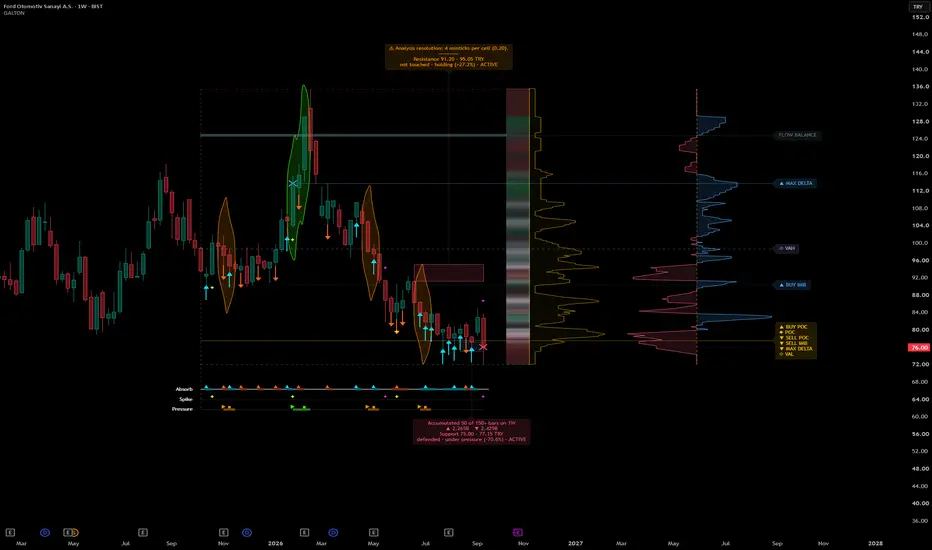
Introduction | What Is a Volume Footprint?
A standard candlestick shows you the Open, High, Low, and Close of a period, while volume gives you the total amount of activity that took place during that candle. A Volume Footprint opens that candle up and shows how the activity was distributed across different price levels.
Instead of seeing volume as a single number, you can see where trading became concentrated and how that volume was divided between Buy and Sell activity at different prices. This makes it possible to examine Delta, balance, imbalance, and changes in directional pressure within the candle.
But this leads to the question at the heart of every Footprint: how do you determine which part of a candle’s volume belongs to the Buy side and which part belongs to the Sell side?
Every completed trade includes both a buyer and a seller. Volume therefore does not arrive already labeled as Buy or Sell. To build a directional view of that activity, the volume first has to be classified according to a defined method.
That classification is where the real challenge begins.
From Total Volume to Buy/Sell Flow
TradingView approaches this classification through intrabar data. Instead of treating the entire candle as one block, it looks inside the candle at smaller intervals and classifies their volume according to the direction of intrabar price movement.
The finer this intrabar data becomes, the more detailed the classification can be. On supported intraday data, TradingView can work down to 1-tick intrabars, providing the highest available granularity for recent Footprint calculations. Historical calculations may use progressively larger intrabar intervals when the finest data is no longer available.
Estimating Buy and Sell Volume Without Intrabar Data
When intrabar data is not available, the problem changes. We no longer have a finer sequence of price movements inside the candle, so Buy and Sell volume cannot be derived directly from intrabar classification.
One established approach is Bulk Volume Classification, or BVC. It is a statistical method from market microstructure research that estimates how a candle’s total volume can be divided between Buy and Sell activity.
The method begins with the candle’s price change and compares it with the recent variability of price changes. This converts the move into a normalized statistical value, which is then evaluated through the cumulative normal distribution.
ΔP = Close − Previous Close
z = ΔP / σ(ΔP)
Buy Volume = Total Volume × Φ(z)
Sell Volume = Total Volume × [1 − Φ(z)]
Here, σ(ΔP) represents the standard deviation of recent price changes, while Φ represents the standard normal cumulative distribution function.
A stronger positive move relative to recent volatility shifts a larger share of volume toward the Buy side. A stronger negative move shifts more volume toward the Sell side. When the normalized price change is close to zero, the estimated split approaches balance.
BVC is therefore an estimate, not a record of individually signed trades. Its purpose is to derive a statistically consistent Buy/Sell split from standard price and volume data when finer intrabar information is not available.
† Academic credit: Bulk Volume Classification (BVC) was introduced by David Easley, Marcos López de Prado, and Maureen O’Hara in “Flow Toxicity and Liquidity in a High-frequency World” (The Review of Financial Studies, 2012), and was later examined in detail as a trade-classification method in “Discerning Information from Trade Data” (Journal of Financial Economics, 2016).
The Next Challenge | From Buy/Sell Totals to Price-Level Structure
Estimating the Buy and Sell totals of a candle solves only the first part of the problem. A Footprint requires something more: those volumes must also be represented across the price levels traded within the candle.
With native Footprint data, TradingView provides this price-level structure directly through its Footprint system, which is currently available to Premium and Ultimate users.
Without those native Footprint rows, knowing only the candle’s Buy and Sell totals is not enough. A second question therefore arises: how can those volumes be distributed across the candle’s price range without changing the total volume from which they came?
For this stage, I use a mathematical-probabilistic distribution model inspired by the Galton Board and the binomial distribution. Its role is not to create additional volume, but to provide a structured way to distribute the already-estimated Buy and Sell volume across price.
Introduction to the Galton Board
The Galton Board, also known as the Quincunx or Bean Machine, was devised by Sir Francis Galton, a British scientist and statistician whose work played an important role in the development of statistical methods.
Its principle is simple. Balls are released from the top of the board and pass through successive rows of pegs. At each peg, a ball can move either to the left or to the right. The path of any individual ball is uncertain, but when many balls pass through the system, a clear statistical pattern begins to emerge.
In an ideal symmetric Galton Board, each left-or-right step has the same probability. Because many more possible paths lead toward the center than toward the extreme edges, the final arrangement follows a binomial distribution. As the number of steps increases, this distribution increasingly resembles the familiar bell-shaped normal distribution.
The importance of the Galton Board is not the physical device itself, but the principle it demonstrates: repeated probabilistic events can transform uncertainty at the individual level into a structured and measurable distribution at the aggregate level.
That principle provides the mathematical foundation for the next stage of the model.

‡ Illustration: A Galton Board showing balls released from the top, moving left or right through successive rows of pegs, and accumulating in lower bins to form a characteristic bell-shaped distribution.
How Galton Takes the Role of a Footprint
By combining probability, statistics, and the geometry of a candle’s price range, the Galton principle can be translated from a physical board into a mathematical volume-distribution model.
The idea is straightforward: I treat volume conceptually like the balls released onto a Galton Board. But instead of falling through a physical board, the distribution takes place inside the candle itself.
In this model, the candle’s Close acts as the entry point. From there, the distance to the High defines the upper span, while the distance to the Low defines the lower span. The Galton weighting structure is then applied outward from the Close toward both boundaries.
The script does not simulate individual balls. It reproduces the same probabilistic weighting pattern mathematically. Price levels closer to the starting point receive stronger weights, while the weights progressively decrease as the distance from the Close increases.
Buy and Sell volume are processed through this same structure, allowing each side to be distributed across the candle’s price range while preserving the original amount assigned to it.

§ Illustration: Buy volume distributed from the candle’s Close toward High and Low using Galton-based weighting.

¶ Illustration: Sell volume distributed from the candle’s Close toward High and Low using the same Galton-based weighting.
From a Single Candle to a Full Period
One candle produces one small distribution. On its own, that is only a single layer.
The script repeats the same process for every closed candle inside the selected period, which is set by the Lookback candles input. Each candle keeps its own Close, its own upper and lower span, and its own Buy and Sell estimate, so each one contributes a slightly different pair of distributions.
All of these layers are placed on one shared price grid and added together level by level. Where many candles closed near the same prices, the layers stack on top of each other and the profile grows. Where price moved through quickly, only thin tails overlap and the profile stays narrow.
This is also where direction begins to appear. Within a single candle, Buy and Sell share the same shape. Across many candles they do not, because every candle closes at a different place and carries a different Buy/Sell split. Once the layers are added together, the Buy curve and the Sell curve separate, and it becomes possible to see at which prices one side carried more of the period's volume than the other.
The result is drawn beside the price as two curves, Buy in blue and Sell in red, covering the range from the period's Low to its High.

Chart: the accumulated Galton profile on a 1-hour chart. Each closed candle of the period adds its own distribution, and the Buy (blue) and Sell (red) curves show the sum at every price level.
The Core Idea
Everything above leads to one idea.
A directional, price-level view of volume needs two things: a way to divide a candle's volume between Buy and Sell, and a way to place that volume across the candle's price levels.
This indicator gives the trader both routes to that view. With the Footprint engine, it reads TradingView's native Footprint data. With the BVC engine, it builds the same structure from standard price and volume, using Bulk Volume Classification for the Buy/Sell division and the Galton weighting for the placement across price.
The choice belongs to the trader, through the Volume engine input. Where native Footprint data is available, it can be used directly. Where it is not, whether because of the plan, the symbol, or the depth of history, the statistical and mathematical model keeps the same view available on any chart that carries volume.
Whichever engine is selected, the result is the same kind of structure: Buy and Sell volume arranged across price over the selected period. Every tool in the indicator is built on that structure.
The sections that follow move inside the indicator: how it works, what it shows, and what it can do.
Inside the Indicator | The Engine
The Engine group decides where the indicator's Buy and Sell volume comes from, and everything else is built on that choice.
Volume engine
Two options are available.
Bulk Volume Classification (BVC) is the default. It works with the standard volume of the chart and needs no additional data, so the indicator is ready to use the moment it is added.
Footprint (Premium/Ultimate) reads TradingView's native Footprint data and requires a Premium or Ultimate plan.
To keep the panel easy to use, the two settings below belong only to the Footprint engine. While BVC is selected they are greyed out, so you can see at a glance which controls apply to your current engine.
Footprint source ticks
Sets the price granularity of the native Footprint rows, measured in minimum ticks. At 1, the default, each row covers a single tick, which is the finest detail available. Increase it only if Footprint data is not available at 1 tick on your symbol.

On symbols with a very small tick and a wide price range, such as BTCUSDT, TradingView may not return Footprint data at 1 tick per row. When that happens in Footprint mode, the Buy and Sell curves do not appear. The solution is to raise Footprint source ticks until they do.
The indicator itself tells you where to start. When a period's price range is too wide for a one-tick grid, the script automatically groups ticks into wider analysis cells and reports the cell size in an orange tag above the profile, for example: Analysis resolution: 1024 minticks per cell (10.24). If the tag reads 1024, the indicator's own analysis grid is already 1024 ticks wide, so entering 1024 as Footprint source ticks requests rows of a matching size.


Charts: BTCUSDT on a 1-hour chart in Footprint mode. Top: Footprint source ticks at 1, no Footprint data is returned and the curves are missing. Bottom: Footprint source ticks at 1024, matching the Analysis resolution tag, and the Buy and Sell curves are drawn.
Live update interval
Sets how often the open candle's Buy and Sell volume is refreshed while the candle is still forming. The default is 1 minute, and the options range from 1 tick to 1 hour.
Shorter intervals keep the live reading closer to real time but raise the processing load. The 1 tick option refreshes on every price update and is the heaviest. On short timeframes, the script automatically limits the interval to a quarter of the candle's duration, so the live candle keeps refreshing as it forms.
Closed candles are not affected by this setting. They always use complete data.
In short: this setting keeps the chart smooth and responsive when live Footprint data is heavy, by letting you choose how often the open candle is refreshed.
Period and Analysis
This group defines the period the indicator studies and marks its boundaries on the chart.
Lookback candles
Sets the number of recent candles included in the selected period. The default is 50, and the range is 1 to 150. A value of 1 uses only the current candle.
The profile and its levels are built from this period, and the profile covers the range from the period's Low to its High. A shorter lookback follows recent activity closely. A longer one builds a broader picture across a wider price range.
If the chart holds fewer valid candles than requested, the indicator works with the candles that are available and reports it in the orange tag as Historical coverage.
High/Low lines
Draws two guide lines at the High and the Low of the selected period. They start at the first candle of the period and run toward the profile, so you can see at a glance where the period begins and which price range the profile covers.
The controls beside the checkbox set the line width, from 1 to 10, and the style, Dashed or Dotted. The Colors row below sets the High line color on the left and the Low line color on the right. By default, the High line is red and the Low line is green.
In short: Lookback candles decides how much history is studied, and the High/Low lines show that period and its price range directly on the chart.

Chart: Turk Hava Yollari on a daily chart with the High/Low lines enabled. The red dashed line marks the period's High and the green dashed line marks its Low. Both start at the first candle of the period and run to the profile.
Profile Display
This group controls which profiles are drawn beside the price and how they look.
Total, Buy, Sell, Delta
Four checkboxes choose what is drawn. Total shows all volume at each price level. Buy and Sell show each side as its own curve. Delta shows the difference between Buy and Sell at each level, drawn around a zero axis: levels where Buy leads extend to the Buy side, and levels where Sell leads extend to the Sell side.
By default only Delta is enabled. Any combination can be shown together.
Colors
Three colors, from left to right: Total, Buy, Sell. The Delta section has no color of its own. It uses the Buy color for its positive side and the Sell color for its negative side.
Profile opacity %
Sets how solid the fill of the Buy, Sell, and Delta profiles appears, together with the background of their related tags. The default is 13. Higher values look more solid, lower values more transparent. The Total profile always remains faint.
Width / Delta width (bars)
Two values that set the maximum horizontal size of the profile, measured in bars. The left value applies to Total, Buy, and Sell. The right value applies to each side of the Delta section, measured from its zero axis. Both default to 13 and accept 5 to 300.
Delta safety gap (bars)
Adds horizontal space between the Total/Buy/Sell profiles and the Delta section. The default is 3. Increase it for a clearer separation between the two.
Offset from candle (bars)
Sets the distance between the last candle and the profile, in bars. The default is 3.
In short: this group decides which views of the period's volume you see, Total, Buy, Sell, or Delta, and gives you control over their size, spacing, and transparency.

Chart: Turk Hava Yollari on a daily chart with only Total enabled. The yellow profile shows all of the period's volume at each price level, between the period's High and Low lines.

Chart: the same daily chart with only Buy enabled. The blue profile shows the period's Buy volume at each price level.

Chart: the same daily chart with only Sell enabled. The red profile shows the period's Sell volume at each price level.

Chart: the same daily chart with Total and Delta enabled. The Delta section is drawn to the right of the Total profile, around a dashed zero axis. Blue extends to the Buy side where Buy volume leads, and red extends to the Sell side where Sell volume leads.
Buy/Sell Barometer
The barometer is a narrow vertical strip placed between the candles and the profile. It condenses the Buy/Sell balance of every price band into a single color, so the balance of the whole period can be read at a glance.
The Buy/Sell barometer checkbox turns the strip on or off. It is on by default, and it can be shown even when all four profiles are turned off.
Each band is colored by the side that carried more volume there. The closer the color is to the Buy color, the more Buy led at that price. The closer it is to the Sell color, the more Sell led. A balanced band appears in neutral gray. The intensity carries a second message: bands with more total volume appear more solid, while bands with little volume stay faint.
Barometer width (bars)
Sets the width of the strip, in bars. The default is 4, and the range is 1 to 20. A wider barometer also moves the profile farther from the candles.
Sell / Buy colors
Two colors, Sell on the left and Buy on the right. By default, Sell is red and Buy is green.

Chart: the same daily chart with the barometer enabled, at the default Profile resolution of 100 bands. The strip between the candles and the Total profile colors each band by its Buy/Sell balance, and the more solid bands are the ones that carried more volume.
Profile resolution (bands)
Sets how many price bands the period's range is divided into. The profile and the level analysis read the period through these bands, and the barometer follows the same bands, up to 490 rows. The default is 100, and the range is 20 to 5000.
Lower values use broader bands and give a smoother picture. Higher values use narrower bands and show finer detail. When the period's range contains fewer analysis cells than the requested number of bands, the indicator uses as many bands as the data allows.
In short: the barometer turns the Buy/Sell balance of each price band into one color, and Profile resolution decides how fine those bands are.

Chart: Akbank on a daily chart at the default Profile resolution of 100 bands. The profile, the Delta section, and the barometer give a smooth, easy-to-read picture of the period.

Chart: the same chart with Profile resolution raised to 5000. The period's range holds fewer analysis cells than that, so the indicator uses the finest bands the data allows. The same period now appears in its sharpest available detail.
POC and Value Area
This group marks the two classic reference points of a volume profile. Both are calculated from the period's Total volume, and both remain available even when the Total profile itself is hidden.
Point of Control
Marks the price band with the highest Total volume in the selected period, the level where the most activity took place. It is on by default. The controls beside the checkbox set the line width, from 1 to 10, and the style: Solid, Dashed, or Dotted. The default is a solid line of width 1.
Point of Control color
Sets the color of the POC line and its level tag.
Value Area (VAH/VAL)
Shows the Value Area, the price range that contains the selected percentage of the period's Total volume. VAH marks its upper level and VAL its lower level. It is on by default, drawn as dashed lines of width 1, with the same width and style controls as the POC.
The Value Area is built outward from the POC. At each step, the script compares the band just above the area with the band just below it and adds the heavier one, until the area holds the target share of the volume.
Value area band
Adds a shaded band between VAH and VAL across the selected period. It is off by default. The shading stops before the profile, so the profile stays clear.
Value area %
Sets the percentage of the period's Total volume included in the Value Area. The default is 70, the common convention, and the range is 30 to 95. Higher values include more volume and can widen the distance between VAH and VAL.
Value area color
Sets the color of the VAH and VAL lines, their level tags, and the optional band.
In short: the POC shows where the period's volume peaked, and the Value Area shows the price range where most of it was traded.

Chart: Acipayam Seluloz on a daily chart with the POC, the Value Area, and the Value area band enabled. The solid line marks the POC at the peak of the Total profile. The dashed VAH and VAL lines enclose the Value Area, and the shaded band extends it across the period, stopping before the profile.
Buy/Sell Levels
The POC and the Value Area read the period through its Total volume. This group reads it by side. It marks the levels where Buy or Sell activity stood out the most, each with its own line and tag. All of them are on by default, and each has the same width and style controls as the POC.
Buy POC and Sell POC
Buy POC marks the price band with the highest Buy volume in the selected period. Sell POC marks the band with the highest Sell volume. Both remain available even when the Buy and Sell profiles are hidden. If the two fall on the same price, their tags are combined. By default, both are drawn as dotted lines.

Chart: Akbank on a daily chart with Buy POC and Sell POC enabled. The blue dotted line marks the band with the period's highest Buy volume, and the red dotted line marks the band with the highest Sell volume. Each tag shows the level's price, followed by the Buy volume, the Sell volume, and the Delta at that band.
Max buy delta bar and Max sell delta bar
These two look at candles rather than price bands. Max buy delta bar finds the closed candle in the period whose Buy volume exceeded its Sell volume by the widest margin. Max sell delta bar finds the candle where Sell exceeded Buy by the widest margin.
The mark is placed on the price level inside that candle that took the most volume of that side, not on the candle's Close. Hover the marker or its tag to see the candle's date, its Delta, the volume of that side, and that strongest price level. The current candle is included only after it closes. By default, both are drawn as solid lines.

Chart: Aselsan on a daily chart with Max buy delta bar and Max sell delta bar enabled. Each cross marks the candle itself, placed on the price level inside it that took the most volume of that side, and the line runs from that candle to its tag. Each tag shows that price level, followed by the candle's Buy volume, Sell volume, and Delta.
Imbalance (BUY/SELL)
Marks the strongest Buy imbalance and the strongest Sell imbalance in the selected period. The comparison is diagonal, as in a classic Footprint: the Buy volume of a band is compared with the Sell volume of the band directly below it. A Buy imbalance means Buy outweighed that Sell by the required ratio. A Sell imbalance means the opposite.
Bands with very little volume are ignored, so a large ratio built on almost no activity does not produce a mark. By default, the lines are dotted.
Imbalance ratio
Sets the minimum ratio required for an imbalance mark. The default is 3, which means one side must be at least 3 times the opposing side, and the maximum is 50. Only the strongest qualifying Buy imbalance and the strongest qualifying Sell imbalance are marked.
In short: this group shows where each side was strongest, by price level, by single candle, and by direct comparison with the opposing side.

Chart: BMS Celik Hasir on a daily chart with Imbalance enabled. The blue line marks the period's strongest Buy imbalance and the red line its strongest Sell imbalance. Each tag shows the level's price and the imbalance ratio, followed by the Buy volume, Sell volume, and Delta of the marked band. The ratio is diagonal: it compares the marked band with the opposing side of the neighboring band, so it is not the ratio of the two volumes shown in the tag.
Flow Balance
Most levels in this indicator show where one side stood out. Flow Balance shows the opposite: the price region where Buy and Sell volume were most evenly matched during the selected period.
The Flow Balance checkbox turns the band and its tag on or off. It is on by default.
The script searches the period's price levels for the region where the two sides came closest to an even split, while ignoring areas with too little activity to matter.
Balance threshold
Sets how closely Buy and Sell must match for a band to qualify. The value is the allowed difference between the two sides, as a share of their combined volume. The default of 0.10 allows roughly a 55/45 split or closer. Lower values require a tighter balance, and the range is 0.00 to 1.00.
Flow Balance color
Sets the color of the band and its tag.
In short: Flow Balance marks the price region where neither side had the upper hand.

Chart: Cemas Dokum on a 1-hour chart with Flow Balance enabled. The gray band marks the price region where the period's Buy and Sell volume were most evenly matched. Its tag shows the region's price range, followed by the Buy and Sell shares of the volume inside it.
Support / Resistance
This group turns the Buy/Sell structure of the period into zones.
What the zones represent
The script studies how Buy and Sell volume are arranged across the period's price levels and locates the area near the current price where control passes from one side to the other. Support is drawn below that area, where buyers carried the volume. Resistance is drawn above it, where sellers carried the volume.
Support/Resistance zones
Shows the latest Support and Resistance zones. It is on by default. Each zone carries a tag with three readings.
Strength: the script compares the volume of the zone's own side with the opposing side inside the zone, Buy against Sell for Support and Sell against Buy for Resistance, and expresses the result from -100% to +100%. The tag reads holding when the zone's own side leads, balanced when neither side leads, and under pressure when the opposing side leads.
Contact: not touched means price has stayed outside the zone. touched means a candle has entered it. defended means price entered the zone and then closed back out of it, above Support or below Resistance.
Status: ACTIVE marks a current zone. When a zone is no longer valid, for example because price has closed through it, the most recent ended zone stays visible as INACTIVE, as a reference, until a new zone appears on that side.
Zone details and readings are also available in the Data Window.
Zone colors
Two colors, Support on the left and Resistance on the right. By default, Support is blue and Resistance is red. Zones with stronger readings appear more visible, and weaker ones appear fainter.
Balanced band (%)
Sets how many percent either side of zero the strength reads as balanced. The default is 5, and the range is 0 to 50. Readings above the band read as holding, and readings below it read as under pressure. Widen the band to ignore small differences, or set it to 0 to read balanced only at an exact zero.
In short: the zones show where each side actually carried the volume near the current price, and the tag shows whether that side still leads inside its zone.

Chart: Deva Holding on a 1-hour chart with Support/Resistance zones enabled. The red box is the Resistance zone above the price, and the blue box is the Support zone below it. Each tag shows the zone's price range, followed by its three readings. Here, Resistance reads defended, holding (+42.3%), ACTIVE: price entered the zone and closed back below it, and Sell volume still leads inside it. Support reads not touched, holding (+72.2%), ACTIVE: price has not entered the zone, and Buy volume leads inside it.
Buy/Sell Pressure
Zones show where each side stands. Pressure clouds show when one side is actively pushing.
Pressure clouds
Highlights runs of candles in which one side's volume stays unusually high. It is on by default.
The script reads Sell volume while price trades below the area where control changes sides, and Buy volume while price trades above it. A candle counts as a pressure candle when that volume reaches the chosen multiple of its recent average. Two or more pressure candles in a row form a cloud drawn over those candles, together with a matching segment on the Pressure lane below the period.
A Sell cloud covers the lows being pressed, and a Buy cloud covers the highs being pressed. On the lane, the first glyph marks where the push began and the last marks where that side ran out. Hover either one for details.
Cloud colors
Two colors, Sell pressure on the left and Buy pressure on the right, shared by the clouds and the Pressure lane. By default, Sell pressure is orange and Buy pressure is green.
Pressure threshold (× average)
Sets how many times its recent average a candle's Buy or Sell volume must reach to count as pressure. The default is 1.5, and the range is 1.0 to 5.0. Raise it to keep only strong pushes. At 1.0, every candle above its average counts.
In short: pressure clouds show where one side kept pushing candle after candle, and where that push ended.

Chart: Deva Holding on a 4-hour chart with Pressure clouds enabled. The orange cloud marks a run of candles in which Sell volume stayed above the pressure threshold. On the Pressure lane below the period, the matching orange segment shows the same run: the first glyph marks where the selling push began, and the last marks where it ran out.

Chart: Enerya Enerji on a 4-hour chart with Pressure clouds enabled. Each green cloud marks a run of candles in which Buy volume stayed above the pressure threshold. Four separate buying pushes appear during this advance, and each one has its own segment on the Pressure lane below the period, with a glyph where the push began and another where it ran out.
Buy/Sell Spikes
Pressure clouds follow a push that lasts for several candles. Spike marks catch the opposite case: a single candle whose volume stands far above everything around it.
Spike marks
Marks single-candle volume spikes. It is on by default.
The script reads Sell volume while price trades below the area where control changes sides, and Buy volume while price trades above it. A candle is marked as a spike when that volume is higher than that of every candle in the recent comparison period.
A Sell spike is marked above its candle, and a Buy spike is marked below its candle. Every spike also appears on the Spike lane below the period, so they are easy to find at a glance. When spikes follow one another, each one is marked. Hover a mark to see its reading.
Spike colors
Two colors, Sell spike on the left and Buy spike on the right, shared by the candle marks and the Spike lane. By default, Sell spikes are magenta and Buy spikes are yellow.
In short: a spike mark points to a single candle where one side's volume exceeded everything in its recent history.

Chart: Inveo Yatirim Holding on a 1-hour chart with Spike marks enabled. The three magenta marks above candles are Sell spikes, and the yellow mark below a candle is a Buy spike. The same four marks are repeated on the Spike lane below the period, in the order they occurred.
Market States
This group reads each closed candle of the period on its own and marks the moments when one side's push was stopped.
Market states are on by default. Two outcomes are marked.
Selling absorbed: heavy selling met enough demand that price did not give way, and the green move succeeded. The marker takes the Buy-side absorption color, the color of the side that prevailed. It can be read as demand under price.
Buying absorbed: heavy buying met enough supply that price did not advance, and the red move succeeded. The marker takes the Sell-side absorption color. It can be read as supply over price.
Each case is shown as an arrow on the candle and as a segment on the Absorb lane below the period. Consecutive absorbed candles form one run on the lane. Balanced candles appear on the same lane as thin strip segments. Hover any marker for its reading. Exact values are available in the Data Window.
Both engines provide this reading. With Footprint, it comes from the traded Buy and Sell volume. With BVC, it comes from comparing a candle's volume effort with its price result.
Balance color
Sets the color of the thin strip segments of balanced candles.
Absorption colors
Two colors, Sell-side on the left and Buy-side on the right, shared by the candle arrows, the Absorb lane segments, and the lane glyphs. By default, they are orange and cyan.
In short: Market states mark the candles where a strong push from one side was met and stopped by the other.

Chart: Turkiye Is Bankasi on a 1-hour chart with Market states enabled. The orange arrows mark candles where buying was absorbed and the Sell side prevailed. The cyan arrows mark candles where selling was absorbed and the Buy side prevailed. Every marked candle is repeated on the Absorb lane below the period, in the color of the side that prevailed.
Tags and Text
This group controls the text the indicator writes on the chart.
Live volume tag
Shows the active volume engine and the Buy and Sell volume of the candle that is still forming. It is on by default. Hover the tag for additional period, volume, and Delta information.
Period volume tag
Shows the accumulated Buy and Sell volume and the bar count of the selected period, placed below the period. It is on by default. Hover the tag to see the period's price range, Total volume, Delta, and the dominant side.
When a Support zone exists, its reading is added to this tag. If the tag is turned off, the Support zone shows its own tag instead.
Range level tags
Adds the period's High and Low as level tags, with the same Buy, Sell, and Delta figures that the other level tags carry. It is off by default. The High/Low lines themselves have their own switch next to Lookback candles.
Label merge distance (ticks)
Controls when nearby level tags are combined into one, so that tags do not cover each other. The default of -1 uses automatic spacing. A value of 0 combines only tags at exactly the same price. Positive values, up to 500, combine tags within that tick distance. Combined tags share one level line. Max Delta markers always stay at their original prices.
Merged level line width
Sets the width, from 1 to 10, of the single line drawn for a merged tag. The line sits at the merged tag's price and uses its color. The period's High and Low guides are not replaced.
Text size
Sets the text size of labels, tags, and status notices on desktop screens. The default is 15, and the range is 1 to 100.
Mobile Mode
Optimizes the indicator for smaller screens. When it is on, the level tags are shortened and the chart labels use the Mobile text size. Profiles, the barometer, and level lines remain fully visible.
It is on by default. On a desktop screen, turn it off to see the full tags with their price and volume figures.
Mobile text size
Sets the text size of chart labels while Mobile Mode is on, including the Live and Period tags. The default is 12, and the range is 1 to 100. It is independent from the desktop Text size, and it is greyed out while Mobile Mode is off.
Language
The Language group sits at the very top of the panel. It sets the language of the on-chart labels, tags, and tooltips. Two options are available, English and Türkçe, and the default is English. The settings panel itself always stays in English.
In short: these last groups decide how much text the chart carries, how large it is, and which language it uses.
Alerts
The indicator provides 15 alert conditions, available from TradingView's Create Alert dialog. They follow the same events that are marked on the chart, so you do not have to watch the screen to catch them.
Zones: New Support, New Resistance, Support Broken, Resistance Broken, Support Defended, Resistance Defended.
Pressure: Buy Pressure Started, Sell Pressure Started, Buyer Exhausted, Seller Exhausted.
Spikes: Buy Spike, Sell Spike.
Market states: Selling Stopped, Buying Stopped, Market State Changed.
Each alert message includes the symbol and the timeframe.
Data Window
Exact values behind the drawings are published to TradingView's Data Window. They include each candle's Buy and Sell volume, the period's accumulated Buy and Sell volume with its High and Low, the POC, VAH, and VAL, the Buy POC and Sell POC with their volumes, the imbalance levels, ratios, and volumes, the Flow Balance range, and the edges, status, and strength of the Support and Resistance zones.
In short: everything the indicator draws can also be read as a number, and its key events can reach you as alerts.
Author's Note
In building this indicator, I wanted two things to stand side by side. One is the precise and powerful data that TradingView provides. The other is the role that mathematics, geometry, and statistics can play in reading a market. I hope both became visible to you along the way.
I chose to go through volume piece by piece, because I believe that knowing the state of volume matters. Behind every move in price there are only two sides, buyers and sellers, and volume is where their meeting leaves its trace. The closer you look at that trace, the more clearly you can see who carried a move, where it was met, and where it ran out.
As always, this indicator was designed with an educational approach. Its purpose is to help you understand these concepts and read them on your own chart. Nothing in it is investment advice or a recommendation to buy or sell.
To close, here are all the elements described above, together on one chart.

Chart: BTCUSDT on a 1-hour chart with the BVC engine and a 50-candle period. Beside the price stand the barometer and the Delta profile, with the level tags for the POC, VAH and VAL, Buy POC and Sell POC, both Max Delta bars, both imbalances, and the Flow Balance band. On the candles, three green Buy pressure clouds follow the advance, yellow marks show the Buy spikes, and the arrows show where a push was absorbed. The Absorb, Spike, and Pressure lanes repeat those events below the period. The blue box is the active Support zone, read in the tag below the period together with the accumulated Buy and Sell volume. The tag above the period carries the Analysis resolution notice, the most recent Resistance zone, now INACTIVE, and the live candle's reading.
A standard candlestick shows you the Open, High, Low, and Close of a period, while volume gives you the total amount of activity that took place during that candle. A Volume Footprint opens that candle up and shows how the activity was distributed across different price levels.
Instead of seeing volume as a single number, you can see where trading became concentrated and how that volume was divided between Buy and Sell activity at different prices. This makes it possible to examine Delta, balance, imbalance, and changes in directional pressure within the candle.
But this leads to the question at the heart of every Footprint: how do you determine which part of a candle’s volume belongs to the Buy side and which part belongs to the Sell side?
Every completed trade includes both a buyer and a seller. Volume therefore does not arrive already labeled as Buy or Sell. To build a directional view of that activity, the volume first has to be classified according to a defined method.
That classification is where the real challenge begins.
From Total Volume to Buy/Sell Flow
TradingView approaches this classification through intrabar data. Instead of treating the entire candle as one block, it looks inside the candle at smaller intervals and classifies their volume according to the direction of intrabar price movement.
The finer this intrabar data becomes, the more detailed the classification can be. On supported intraday data, TradingView can work down to 1-tick intrabars, providing the highest available granularity for recent Footprint calculations. Historical calculations may use progressively larger intrabar intervals when the finest data is no longer available.
Estimating Buy and Sell Volume Without Intrabar Data
When intrabar data is not available, the problem changes. We no longer have a finer sequence of price movements inside the candle, so Buy and Sell volume cannot be derived directly from intrabar classification.
One established approach is Bulk Volume Classification, or BVC. It is a statistical method from market microstructure research that estimates how a candle’s total volume can be divided between Buy and Sell activity.
The method begins with the candle’s price change and compares it with the recent variability of price changes. This converts the move into a normalized statistical value, which is then evaluated through the cumulative normal distribution.
ΔP = Close − Previous Close
z = ΔP / σ(ΔP)
Buy Volume = Total Volume × Φ(z)
Sell Volume = Total Volume × [1 − Φ(z)]
Here, σ(ΔP) represents the standard deviation of recent price changes, while Φ represents the standard normal cumulative distribution function.
A stronger positive move relative to recent volatility shifts a larger share of volume toward the Buy side. A stronger negative move shifts more volume toward the Sell side. When the normalized price change is close to zero, the estimated split approaches balance.
BVC is therefore an estimate, not a record of individually signed trades. Its purpose is to derive a statistically consistent Buy/Sell split from standard price and volume data when finer intrabar information is not available.
† Academic credit: Bulk Volume Classification (BVC) was introduced by David Easley, Marcos López de Prado, and Maureen O’Hara in “Flow Toxicity and Liquidity in a High-frequency World” (The Review of Financial Studies, 2012), and was later examined in detail as a trade-classification method in “Discerning Information from Trade Data” (Journal of Financial Economics, 2016).
The Next Challenge | From Buy/Sell Totals to Price-Level Structure
Estimating the Buy and Sell totals of a candle solves only the first part of the problem. A Footprint requires something more: those volumes must also be represented across the price levels traded within the candle.
With native Footprint data, TradingView provides this price-level structure directly through its Footprint system, which is currently available to Premium and Ultimate users.
Without those native Footprint rows, knowing only the candle’s Buy and Sell totals is not enough. A second question therefore arises: how can those volumes be distributed across the candle’s price range without changing the total volume from which they came?
For this stage, I use a mathematical-probabilistic distribution model inspired by the Galton Board and the binomial distribution. Its role is not to create additional volume, but to provide a structured way to distribute the already-estimated Buy and Sell volume across price.
Introduction to the Galton Board
The Galton Board, also known as the Quincunx or Bean Machine, was devised by Sir Francis Galton, a British scientist and statistician whose work played an important role in the development of statistical methods.
Its principle is simple. Balls are released from the top of the board and pass through successive rows of pegs. At each peg, a ball can move either to the left or to the right. The path of any individual ball is uncertain, but when many balls pass through the system, a clear statistical pattern begins to emerge.
In an ideal symmetric Galton Board, each left-or-right step has the same probability. Because many more possible paths lead toward the center than toward the extreme edges, the final arrangement follows a binomial distribution. As the number of steps increases, this distribution increasingly resembles the familiar bell-shaped normal distribution.
The importance of the Galton Board is not the physical device itself, but the principle it demonstrates: repeated probabilistic events can transform uncertainty at the individual level into a structured and measurable distribution at the aggregate level.
That principle provides the mathematical foundation for the next stage of the model.
‡ Illustration: A Galton Board showing balls released from the top, moving left or right through successive rows of pegs, and accumulating in lower bins to form a characteristic bell-shaped distribution.
How Galton Takes the Role of a Footprint
By combining probability, statistics, and the geometry of a candle’s price range, the Galton principle can be translated from a physical board into a mathematical volume-distribution model.
The idea is straightforward: I treat volume conceptually like the balls released onto a Galton Board. But instead of falling through a physical board, the distribution takes place inside the candle itself.
In this model, the candle’s Close acts as the entry point. From there, the distance to the High defines the upper span, while the distance to the Low defines the lower span. The Galton weighting structure is then applied outward from the Close toward both boundaries.
The script does not simulate individual balls. It reproduces the same probabilistic weighting pattern mathematically. Price levels closer to the starting point receive stronger weights, while the weights progressively decrease as the distance from the Close increases.
Buy and Sell volume are processed through this same structure, allowing each side to be distributed across the candle’s price range while preserving the original amount assigned to it.
§ Illustration: Buy volume distributed from the candle’s Close toward High and Low using Galton-based weighting.
¶ Illustration: Sell volume distributed from the candle’s Close toward High and Low using the same Galton-based weighting.
From a Single Candle to a Full Period
One candle produces one small distribution. On its own, that is only a single layer.
The script repeats the same process for every closed candle inside the selected period, which is set by the Lookback candles input. Each candle keeps its own Close, its own upper and lower span, and its own Buy and Sell estimate, so each one contributes a slightly different pair of distributions.
All of these layers are placed on one shared price grid and added together level by level. Where many candles closed near the same prices, the layers stack on top of each other and the profile grows. Where price moved through quickly, only thin tails overlap and the profile stays narrow.
This is also where direction begins to appear. Within a single candle, Buy and Sell share the same shape. Across many candles they do not, because every candle closes at a different place and carries a different Buy/Sell split. Once the layers are added together, the Buy curve and the Sell curve separate, and it becomes possible to see at which prices one side carried more of the period's volume than the other.
The result is drawn beside the price as two curves, Buy in blue and Sell in red, covering the range from the period's Low to its High.
Chart: the accumulated Galton profile on a 1-hour chart. Each closed candle of the period adds its own distribution, and the Buy (blue) and Sell (red) curves show the sum at every price level.
The Core Idea
Everything above leads to one idea.
A directional, price-level view of volume needs two things: a way to divide a candle's volume between Buy and Sell, and a way to place that volume across the candle's price levels.
This indicator gives the trader both routes to that view. With the Footprint engine, it reads TradingView's native Footprint data. With the BVC engine, it builds the same structure from standard price and volume, using Bulk Volume Classification for the Buy/Sell division and the Galton weighting for the placement across price.
The choice belongs to the trader, through the Volume engine input. Where native Footprint data is available, it can be used directly. Where it is not, whether because of the plan, the symbol, or the depth of history, the statistical and mathematical model keeps the same view available on any chart that carries volume.
Whichever engine is selected, the result is the same kind of structure: Buy and Sell volume arranged across price over the selected period. Every tool in the indicator is built on that structure.
The sections that follow move inside the indicator: how it works, what it shows, and what it can do.
Inside the Indicator | The Engine
The Engine group decides where the indicator's Buy and Sell volume comes from, and everything else is built on that choice.
Volume engine
Two options are available.
Bulk Volume Classification (BVC) is the default. It works with the standard volume of the chart and needs no additional data, so the indicator is ready to use the moment it is added.
Footprint (Premium/Ultimate) reads TradingView's native Footprint data and requires a Premium or Ultimate plan.
To keep the panel easy to use, the two settings below belong only to the Footprint engine. While BVC is selected they are greyed out, so you can see at a glance which controls apply to your current engine.
Footprint source ticks
Sets the price granularity of the native Footprint rows, measured in minimum ticks. At 1, the default, each row covers a single tick, which is the finest detail available. Increase it only if Footprint data is not available at 1 tick on your symbol.
On symbols with a very small tick and a wide price range, such as BTCUSDT, TradingView may not return Footprint data at 1 tick per row. When that happens in Footprint mode, the Buy and Sell curves do not appear. The solution is to raise Footprint source ticks until they do.
The indicator itself tells you where to start. When a period's price range is too wide for a one-tick grid, the script automatically groups ticks into wider analysis cells and reports the cell size in an orange tag above the profile, for example: Analysis resolution: 1024 minticks per cell (10.24). If the tag reads 1024, the indicator's own analysis grid is already 1024 ticks wide, so entering 1024 as Footprint source ticks requests rows of a matching size.
Charts: BTCUSDT on a 1-hour chart in Footprint mode. Top: Footprint source ticks at 1, no Footprint data is returned and the curves are missing. Bottom: Footprint source ticks at 1024, matching the Analysis resolution tag, and the Buy and Sell curves are drawn.
Live update interval
Sets how often the open candle's Buy and Sell volume is refreshed while the candle is still forming. The default is 1 minute, and the options range from 1 tick to 1 hour.
Shorter intervals keep the live reading closer to real time but raise the processing load. The 1 tick option refreshes on every price update and is the heaviest. On short timeframes, the script automatically limits the interval to a quarter of the candle's duration, so the live candle keeps refreshing as it forms.
Closed candles are not affected by this setting. They always use complete data.
In short: this setting keeps the chart smooth and responsive when live Footprint data is heavy, by letting you choose how often the open candle is refreshed.
Period and Analysis
This group defines the period the indicator studies and marks its boundaries on the chart.
Lookback candles
Sets the number of recent candles included in the selected period. The default is 50, and the range is 1 to 150. A value of 1 uses only the current candle.
The profile and its levels are built from this period, and the profile covers the range from the period's Low to its High. A shorter lookback follows recent activity closely. A longer one builds a broader picture across a wider price range.
If the chart holds fewer valid candles than requested, the indicator works with the candles that are available and reports it in the orange tag as Historical coverage.
High/Low lines
Draws two guide lines at the High and the Low of the selected period. They start at the first candle of the period and run toward the profile, so you can see at a glance where the period begins and which price range the profile covers.
The controls beside the checkbox set the line width, from 1 to 10, and the style, Dashed or Dotted. The Colors row below sets the High line color on the left and the Low line color on the right. By default, the High line is red and the Low line is green.
In short: Lookback candles decides how much history is studied, and the High/Low lines show that period and its price range directly on the chart.
Chart: Turk Hava Yollari on a daily chart with the High/Low lines enabled. The red dashed line marks the period's High and the green dashed line marks its Low. Both start at the first candle of the period and run to the profile.
Profile Display
This group controls which profiles are drawn beside the price and how they look.
Total, Buy, Sell, Delta
Four checkboxes choose what is drawn. Total shows all volume at each price level. Buy and Sell show each side as its own curve. Delta shows the difference between Buy and Sell at each level, drawn around a zero axis: levels where Buy leads extend to the Buy side, and levels where Sell leads extend to the Sell side.
By default only Delta is enabled. Any combination can be shown together.
Colors
Three colors, from left to right: Total, Buy, Sell. The Delta section has no color of its own. It uses the Buy color for its positive side and the Sell color for its negative side.
Profile opacity %
Sets how solid the fill of the Buy, Sell, and Delta profiles appears, together with the background of their related tags. The default is 13. Higher values look more solid, lower values more transparent. The Total profile always remains faint.
Width / Delta width (bars)
Two values that set the maximum horizontal size of the profile, measured in bars. The left value applies to Total, Buy, and Sell. The right value applies to each side of the Delta section, measured from its zero axis. Both default to 13 and accept 5 to 300.
Delta safety gap (bars)
Adds horizontal space between the Total/Buy/Sell profiles and the Delta section. The default is 3. Increase it for a clearer separation between the two.
Offset from candle (bars)
Sets the distance between the last candle and the profile, in bars. The default is 3.
In short: this group decides which views of the period's volume you see, Total, Buy, Sell, or Delta, and gives you control over their size, spacing, and transparency.
Chart: Turk Hava Yollari on a daily chart with only Total enabled. The yellow profile shows all of the period's volume at each price level, between the period's High and Low lines.
Chart: the same daily chart with only Buy enabled. The blue profile shows the period's Buy volume at each price level.
Chart: the same daily chart with only Sell enabled. The red profile shows the period's Sell volume at each price level.
Chart: the same daily chart with Total and Delta enabled. The Delta section is drawn to the right of the Total profile, around a dashed zero axis. Blue extends to the Buy side where Buy volume leads, and red extends to the Sell side where Sell volume leads.
Buy/Sell Barometer
The barometer is a narrow vertical strip placed between the candles and the profile. It condenses the Buy/Sell balance of every price band into a single color, so the balance of the whole period can be read at a glance.
The Buy/Sell barometer checkbox turns the strip on or off. It is on by default, and it can be shown even when all four profiles are turned off.
Each band is colored by the side that carried more volume there. The closer the color is to the Buy color, the more Buy led at that price. The closer it is to the Sell color, the more Sell led. A balanced band appears in neutral gray. The intensity carries a second message: bands with more total volume appear more solid, while bands with little volume stay faint.
Barometer width (bars)
Sets the width of the strip, in bars. The default is 4, and the range is 1 to 20. A wider barometer also moves the profile farther from the candles.
Sell / Buy colors
Two colors, Sell on the left and Buy on the right. By default, Sell is red and Buy is green.
Chart: the same daily chart with the barometer enabled, at the default Profile resolution of 100 bands. The strip between the candles and the Total profile colors each band by its Buy/Sell balance, and the more solid bands are the ones that carried more volume.
Profile resolution (bands)
Sets how many price bands the period's range is divided into. The profile and the level analysis read the period through these bands, and the barometer follows the same bands, up to 490 rows. The default is 100, and the range is 20 to 5000.
Lower values use broader bands and give a smoother picture. Higher values use narrower bands and show finer detail. When the period's range contains fewer analysis cells than the requested number of bands, the indicator uses as many bands as the data allows.
In short: the barometer turns the Buy/Sell balance of each price band into one color, and Profile resolution decides how fine those bands are.
Chart: Akbank on a daily chart at the default Profile resolution of 100 bands. The profile, the Delta section, and the barometer give a smooth, easy-to-read picture of the period.
Chart: the same chart with Profile resolution raised to 5000. The period's range holds fewer analysis cells than that, so the indicator uses the finest bands the data allows. The same period now appears in its sharpest available detail.
POC and Value Area
This group marks the two classic reference points of a volume profile. Both are calculated from the period's Total volume, and both remain available even when the Total profile itself is hidden.
Point of Control
Marks the price band with the highest Total volume in the selected period, the level where the most activity took place. It is on by default. The controls beside the checkbox set the line width, from 1 to 10, and the style: Solid, Dashed, or Dotted. The default is a solid line of width 1.
Point of Control color
Sets the color of the POC line and its level tag.
Value Area (VAH/VAL)
Shows the Value Area, the price range that contains the selected percentage of the period's Total volume. VAH marks its upper level and VAL its lower level. It is on by default, drawn as dashed lines of width 1, with the same width and style controls as the POC.
The Value Area is built outward from the POC. At each step, the script compares the band just above the area with the band just below it and adds the heavier one, until the area holds the target share of the volume.
Value area band
Adds a shaded band between VAH and VAL across the selected period. It is off by default. The shading stops before the profile, so the profile stays clear.
Value area %
Sets the percentage of the period's Total volume included in the Value Area. The default is 70, the common convention, and the range is 30 to 95. Higher values include more volume and can widen the distance between VAH and VAL.
Value area color
Sets the color of the VAH and VAL lines, their level tags, and the optional band.
In short: the POC shows where the period's volume peaked, and the Value Area shows the price range where most of it was traded.
Chart: Acipayam Seluloz on a daily chart with the POC, the Value Area, and the Value area band enabled. The solid line marks the POC at the peak of the Total profile. The dashed VAH and VAL lines enclose the Value Area, and the shaded band extends it across the period, stopping before the profile.
Buy/Sell Levels
The POC and the Value Area read the period through its Total volume. This group reads it by side. It marks the levels where Buy or Sell activity stood out the most, each with its own line and tag. All of them are on by default, and each has the same width and style controls as the POC.
Buy POC and Sell POC
Buy POC marks the price band with the highest Buy volume in the selected period. Sell POC marks the band with the highest Sell volume. Both remain available even when the Buy and Sell profiles are hidden. If the two fall on the same price, their tags are combined. By default, both are drawn as dotted lines.
Chart: Akbank on a daily chart with Buy POC and Sell POC enabled. The blue dotted line marks the band with the period's highest Buy volume, and the red dotted line marks the band with the highest Sell volume. Each tag shows the level's price, followed by the Buy volume, the Sell volume, and the Delta at that band.
Max buy delta bar and Max sell delta bar
These two look at candles rather than price bands. Max buy delta bar finds the closed candle in the period whose Buy volume exceeded its Sell volume by the widest margin. Max sell delta bar finds the candle where Sell exceeded Buy by the widest margin.
The mark is placed on the price level inside that candle that took the most volume of that side, not on the candle's Close. Hover the marker or its tag to see the candle's date, its Delta, the volume of that side, and that strongest price level. The current candle is included only after it closes. By default, both are drawn as solid lines.
Chart: Aselsan on a daily chart with Max buy delta bar and Max sell delta bar enabled. Each cross marks the candle itself, placed on the price level inside it that took the most volume of that side, and the line runs from that candle to its tag. Each tag shows that price level, followed by the candle's Buy volume, Sell volume, and Delta.
Imbalance (BUY/SELL)
Marks the strongest Buy imbalance and the strongest Sell imbalance in the selected period. The comparison is diagonal, as in a classic Footprint: the Buy volume of a band is compared with the Sell volume of the band directly below it. A Buy imbalance means Buy outweighed that Sell by the required ratio. A Sell imbalance means the opposite.
Bands with very little volume are ignored, so a large ratio built on almost no activity does not produce a mark. By default, the lines are dotted.
Imbalance ratio
Sets the minimum ratio required for an imbalance mark. The default is 3, which means one side must be at least 3 times the opposing side, and the maximum is 50. Only the strongest qualifying Buy imbalance and the strongest qualifying Sell imbalance are marked.
In short: this group shows where each side was strongest, by price level, by single candle, and by direct comparison with the opposing side.
Chart: BMS Celik Hasir on a daily chart with Imbalance enabled. The blue line marks the period's strongest Buy imbalance and the red line its strongest Sell imbalance. Each tag shows the level's price and the imbalance ratio, followed by the Buy volume, Sell volume, and Delta of the marked band. The ratio is diagonal: it compares the marked band with the opposing side of the neighboring band, so it is not the ratio of the two volumes shown in the tag.
Flow Balance
Most levels in this indicator show where one side stood out. Flow Balance shows the opposite: the price region where Buy and Sell volume were most evenly matched during the selected period.
The Flow Balance checkbox turns the band and its tag on or off. It is on by default.
The script searches the period's price levels for the region where the two sides came closest to an even split, while ignoring areas with too little activity to matter.
Balance threshold
Sets how closely Buy and Sell must match for a band to qualify. The value is the allowed difference between the two sides, as a share of their combined volume. The default of 0.10 allows roughly a 55/45 split or closer. Lower values require a tighter balance, and the range is 0.00 to 1.00.
Flow Balance color
Sets the color of the band and its tag.
In short: Flow Balance marks the price region where neither side had the upper hand.
Chart: Cemas Dokum on a 1-hour chart with Flow Balance enabled. The gray band marks the price region where the period's Buy and Sell volume were most evenly matched. Its tag shows the region's price range, followed by the Buy and Sell shares of the volume inside it.
Support / Resistance
This group turns the Buy/Sell structure of the period into zones.
What the zones represent
The script studies how Buy and Sell volume are arranged across the period's price levels and locates the area near the current price where control passes from one side to the other. Support is drawn below that area, where buyers carried the volume. Resistance is drawn above it, where sellers carried the volume.
Support/Resistance zones
Shows the latest Support and Resistance zones. It is on by default. Each zone carries a tag with three readings.
Strength: the script compares the volume of the zone's own side with the opposing side inside the zone, Buy against Sell for Support and Sell against Buy for Resistance, and expresses the result from -100% to +100%. The tag reads holding when the zone's own side leads, balanced when neither side leads, and under pressure when the opposing side leads.
Contact: not touched means price has stayed outside the zone. touched means a candle has entered it. defended means price entered the zone and then closed back out of it, above Support or below Resistance.
Status: ACTIVE marks a current zone. When a zone is no longer valid, for example because price has closed through it, the most recent ended zone stays visible as INACTIVE, as a reference, until a new zone appears on that side.
Zone details and readings are also available in the Data Window.
Zone colors
Two colors, Support on the left and Resistance on the right. By default, Support is blue and Resistance is red. Zones with stronger readings appear more visible, and weaker ones appear fainter.
Balanced band (%)
Sets how many percent either side of zero the strength reads as balanced. The default is 5, and the range is 0 to 50. Readings above the band read as holding, and readings below it read as under pressure. Widen the band to ignore small differences, or set it to 0 to read balanced only at an exact zero.
In short: the zones show where each side actually carried the volume near the current price, and the tag shows whether that side still leads inside its zone.
Chart: Deva Holding on a 1-hour chart with Support/Resistance zones enabled. The red box is the Resistance zone above the price, and the blue box is the Support zone below it. Each tag shows the zone's price range, followed by its three readings. Here, Resistance reads defended, holding (+42.3%), ACTIVE: price entered the zone and closed back below it, and Sell volume still leads inside it. Support reads not touched, holding (+72.2%), ACTIVE: price has not entered the zone, and Buy volume leads inside it.
Buy/Sell Pressure
Zones show where each side stands. Pressure clouds show when one side is actively pushing.
Pressure clouds
Highlights runs of candles in which one side's volume stays unusually high. It is on by default.
The script reads Sell volume while price trades below the area where control changes sides, and Buy volume while price trades above it. A candle counts as a pressure candle when that volume reaches the chosen multiple of its recent average. Two or more pressure candles in a row form a cloud drawn over those candles, together with a matching segment on the Pressure lane below the period.
A Sell cloud covers the lows being pressed, and a Buy cloud covers the highs being pressed. On the lane, the first glyph marks where the push began and the last marks where that side ran out. Hover either one for details.
Cloud colors
Two colors, Sell pressure on the left and Buy pressure on the right, shared by the clouds and the Pressure lane. By default, Sell pressure is orange and Buy pressure is green.
Pressure threshold (× average)
Sets how many times its recent average a candle's Buy or Sell volume must reach to count as pressure. The default is 1.5, and the range is 1.0 to 5.0. Raise it to keep only strong pushes. At 1.0, every candle above its average counts.
In short: pressure clouds show where one side kept pushing candle after candle, and where that push ended.
Chart: Deva Holding on a 4-hour chart with Pressure clouds enabled. The orange cloud marks a run of candles in which Sell volume stayed above the pressure threshold. On the Pressure lane below the period, the matching orange segment shows the same run: the first glyph marks where the selling push began, and the last marks where it ran out.
Chart: Enerya Enerji on a 4-hour chart with Pressure clouds enabled. Each green cloud marks a run of candles in which Buy volume stayed above the pressure threshold. Four separate buying pushes appear during this advance, and each one has its own segment on the Pressure lane below the period, with a glyph where the push began and another where it ran out.
Buy/Sell Spikes
Pressure clouds follow a push that lasts for several candles. Spike marks catch the opposite case: a single candle whose volume stands far above everything around it.
Spike marks
Marks single-candle volume spikes. It is on by default.
The script reads Sell volume while price trades below the area where control changes sides, and Buy volume while price trades above it. A candle is marked as a spike when that volume is higher than that of every candle in the recent comparison period.
A Sell spike is marked above its candle, and a Buy spike is marked below its candle. Every spike also appears on the Spike lane below the period, so they are easy to find at a glance. When spikes follow one another, each one is marked. Hover a mark to see its reading.
Spike colors
Two colors, Sell spike on the left and Buy spike on the right, shared by the candle marks and the Spike lane. By default, Sell spikes are magenta and Buy spikes are yellow.
In short: a spike mark points to a single candle where one side's volume exceeded everything in its recent history.
Chart: Inveo Yatirim Holding on a 1-hour chart with Spike marks enabled. The three magenta marks above candles are Sell spikes, and the yellow mark below a candle is a Buy spike. The same four marks are repeated on the Spike lane below the period, in the order they occurred.
Market States
This group reads each closed candle of the period on its own and marks the moments when one side's push was stopped.
Market states are on by default. Two outcomes are marked.
Selling absorbed: heavy selling met enough demand that price did not give way, and the green move succeeded. The marker takes the Buy-side absorption color, the color of the side that prevailed. It can be read as demand under price.
Buying absorbed: heavy buying met enough supply that price did not advance, and the red move succeeded. The marker takes the Sell-side absorption color. It can be read as supply over price.
Each case is shown as an arrow on the candle and as a segment on the Absorb lane below the period. Consecutive absorbed candles form one run on the lane. Balanced candles appear on the same lane as thin strip segments. Hover any marker for its reading. Exact values are available in the Data Window.
Both engines provide this reading. With Footprint, it comes from the traded Buy and Sell volume. With BVC, it comes from comparing a candle's volume effort with its price result.
Balance color
Sets the color of the thin strip segments of balanced candles.
Absorption colors
Two colors, Sell-side on the left and Buy-side on the right, shared by the candle arrows, the Absorb lane segments, and the lane glyphs. By default, they are orange and cyan.
In short: Market states mark the candles where a strong push from one side was met and stopped by the other.
Chart: Turkiye Is Bankasi on a 1-hour chart with Market states enabled. The orange arrows mark candles where buying was absorbed and the Sell side prevailed. The cyan arrows mark candles where selling was absorbed and the Buy side prevailed. Every marked candle is repeated on the Absorb lane below the period, in the color of the side that prevailed.
Tags and Text
This group controls the text the indicator writes on the chart.
Live volume tag
Shows the active volume engine and the Buy and Sell volume of the candle that is still forming. It is on by default. Hover the tag for additional period, volume, and Delta information.
Period volume tag
Shows the accumulated Buy and Sell volume and the bar count of the selected period, placed below the period. It is on by default. Hover the tag to see the period's price range, Total volume, Delta, and the dominant side.
When a Support zone exists, its reading is added to this tag. If the tag is turned off, the Support zone shows its own tag instead.
Range level tags
Adds the period's High and Low as level tags, with the same Buy, Sell, and Delta figures that the other level tags carry. It is off by default. The High/Low lines themselves have their own switch next to Lookback candles.
Label merge distance (ticks)
Controls when nearby level tags are combined into one, so that tags do not cover each other. The default of -1 uses automatic spacing. A value of 0 combines only tags at exactly the same price. Positive values, up to 500, combine tags within that tick distance. Combined tags share one level line. Max Delta markers always stay at their original prices.
Merged level line width
Sets the width, from 1 to 10, of the single line drawn for a merged tag. The line sits at the merged tag's price and uses its color. The period's High and Low guides are not replaced.
Text size
Sets the text size of labels, tags, and status notices on desktop screens. The default is 15, and the range is 1 to 100.
Mobile Mode
Optimizes the indicator for smaller screens. When it is on, the level tags are shortened and the chart labels use the Mobile text size. Profiles, the barometer, and level lines remain fully visible.
It is on by default. On a desktop screen, turn it off to see the full tags with their price and volume figures.
Mobile text size
Sets the text size of chart labels while Mobile Mode is on, including the Live and Period tags. The default is 12, and the range is 1 to 100. It is independent from the desktop Text size, and it is greyed out while Mobile Mode is off.
Language
The Language group sits at the very top of the panel. It sets the language of the on-chart labels, tags, and tooltips. Two options are available, English and Türkçe, and the default is English. The settings panel itself always stays in English.
In short: these last groups decide how much text the chart carries, how large it is, and which language it uses.
Alerts
The indicator provides 15 alert conditions, available from TradingView's Create Alert dialog. They follow the same events that are marked on the chart, so you do not have to watch the screen to catch them.
Zones: New Support, New Resistance, Support Broken, Resistance Broken, Support Defended, Resistance Defended.
Pressure: Buy Pressure Started, Sell Pressure Started, Buyer Exhausted, Seller Exhausted.
Spikes: Buy Spike, Sell Spike.
Market states: Selling Stopped, Buying Stopped, Market State Changed.
Each alert message includes the symbol and the timeframe.
Data Window
Exact values behind the drawings are published to TradingView's Data Window. They include each candle's Buy and Sell volume, the period's accumulated Buy and Sell volume with its High and Low, the POC, VAH, and VAL, the Buy POC and Sell POC with their volumes, the imbalance levels, ratios, and volumes, the Flow Balance range, and the edges, status, and strength of the Support and Resistance zones.
In short: everything the indicator draws can also be read as a number, and its key events can reach you as alerts.
Author's Note
In building this indicator, I wanted two things to stand side by side. One is the precise and powerful data that TradingView provides. The other is the role that mathematics, geometry, and statistics can play in reading a market. I hope both became visible to you along the way.
I chose to go through volume piece by piece, because I believe that knowing the state of volume matters. Behind every move in price there are only two sides, buyers and sellers, and volume is where their meeting leaves its trace. The closer you look at that trace, the more clearly you can see who carried a move, where it was met, and where it ran out.
As always, this indicator was designed with an educational approach. Its purpose is to help you understand these concepts and read them on your own chart. Nothing in it is investment advice or a recommendation to buy or sell.
To close, here are all the elements described above, together on one chart.
Chart: BTCUSDT on a 1-hour chart with the BVC engine and a 50-candle period. Beside the price stand the barometer and the Delta profile, with the level tags for the POC, VAH and VAL, Buy POC and Sell POC, both Max Delta bars, both imbalances, and the Flow Balance band. On the candles, three green Buy pressure clouds follow the advance, yellow marks show the Buy spikes, and the arrows show where a push was absorbed. The Absorb, Spike, and Pressure lanes repeat those events below the period. The blue box is the active Support zone, read in the tag below the period together with the accumulated Buy and Sell volume. The tag above the period carries the Analysis resolution notice, the most recent Resistance zone, now INACTIVE, and the live candle's reading.
Dostępne w Płatnej Przestrzeni
Ten wskaźnik jest dostępny wyłącznie dla subskrybentów SABANCI . Dołącz, aby uzyskać dostęp do tego oraz innych skryptów autorstwa ata_sabanci.

Measuring markets through Volume Dynamics & Geometric Frameworks.
For invite-only script access, DM on TradingView or via x.com/sabanci_ata
For invite-only script access, DM on TradingView or via x.com/sabanci_ata
Wyłączenie odpowiedzialności
Informacje i publikacje nie stanowią i nie powinny być traktowane jako porady finansowe, inwestycyjne, tradingowe ani jakiekolwiek inne rekomendacje dostarczane lub zatwierdzone przez TradingView. Więcej informacji znajduje się w Warunkach użytkowania.
Dostępne w Płatnej Przestrzeni
Ten wskaźnik jest dostępny wyłącznie dla subskrybentów SABANCI . Dołącz, aby uzyskać dostęp do tego oraz innych skryptów autorstwa ata_sabanci.
Measuring markets through Volume Dynamics & Geometric Frameworks.
For invite-only script access, DM on TradingView or via x.com/sabanci_ata
For invite-only script access, DM on TradingView or via x.com/sabanci_ata
Wyłączenie odpowiedzialności
Informacje i publikacje nie stanowią i nie powinny być traktowane jako porady finansowe, inwestycyjne, tradingowe ani jakiekolwiek inne rekomendacje dostarczane lub zatwierdzone przez TradingView. Więcej informacji znajduje się w Warunkach użytkowania.