OPEN-SOURCE SCRIPT
Trade Levels - Entry, Trims & Stop
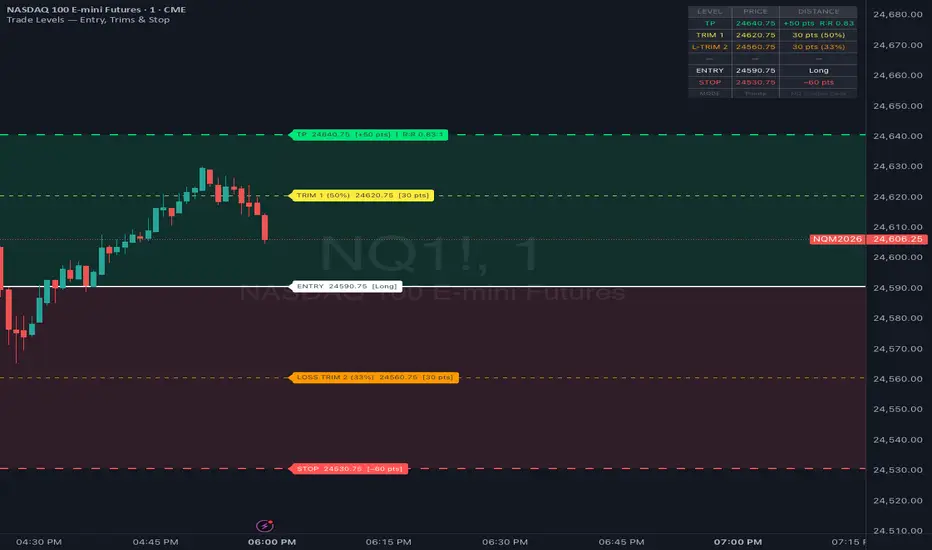
A clean, fully configurable trade planning overlay for scalpers, day traders, and swing traders on any instrument — Futures, Forex, Crypto, Equities, and Indices. Set your entry price, define your risk parameters, and instantly visualize every critical level on the chart before and during a trade.
🔑 Key Features
Entry Line — White reference line at your exact entry price, labeled with direction (Long/Short)
Stop Loss — Plots your maximum loss level at a defined distance from entry
Take Profit — Plots your full target with a live R:R ratio calculated automatically
3 Independent Trim Levels — Each trim can be placed on the Profit Side OR Loss Side of your entry, allowing you to plan early exits in either direction (e.g., trimming before max loss)
Zone Fills — Translucent color fills between Entry → Stop and Entry → Target for instant visual clarity
Info Table — A real-time summary table (top-right corner) showing all prices and distances at a glance
Full Alert Integration — alertcondition() support for all 5 levels: Stop, Take Profit, Trim 1, Trim 2, and Trim 3
⚙️ Settings Overview
Group What You Set
📍 Entry Settings Entry price, Long/Short direction, Points or Ticks mode
🔴 Stop Loss Points/Tick Distance from entry, line color
🟢 Take Profit Points/Tick Distance from entry, line color
✂️ Trim 1 / 2 / 3 Enable toggle, Profit or Loss side, Points/Tick distance, trim size %, color
🔔 Alerts Toggle alerts on/off per level
⚙️ Display Labels, R:R visibility, zone fills, table, line style, label size
📐 Points vs. Ticks
Switch the Unit Mode under Entry Settings between:
Points — Native price units (e.g., 10 = 10 full points on NQ)
Ticks — Minimum tick increments (e.g., on NQ: 1 point = 4 ticks, so 40 ticks = 10 points)
The indicator uses syminfo.mintick to auto-convert, so it works accurately on any symbol.
✂️ Loss-Side Trims Explained
Most indicators only allow trims in the profit direction. This tool lets you place a trim on the Loss Side of your entry — meaning you scale out of part of your position before reaching your full stop. This is a common risk management technique used by professional futures and forex traders to reduce average loss on losing trades.
To use it: enable a Trim, set Side → Loss Side, and dial in the distance. The label will display as "LOSS TRIM" to visually distinguish it from profit-side trims.
🔔 Setting Up Alerts
Click the Alerts bell icon on the TradingView toolbar
Click "+" → Create Alert
Under Condition, select "Trade Levels — Entry, Trims & Stop"
Choose a level: Stop Loss Hit, Take Profit Hit, Trim 1, Trim 2, or Trim 3
Set your notification method (popup, sound, mobile push, or webhook)
Click Create
📌 Tips for Scalpers
Set your entry price before you take the trade so the levels are pre-drawn when your order fills
Use Loss-Side Trim 1 to take off 25–33% of your position if price moves against you early — this lowers your average loss significantly over time
The live R:R ratio on the TP label updates instantly as you adjust your distances — use it to ensure you never take a sub-1:1 trade
Works on all timeframes and all instruments — ES, NQ, MNQ, EUR/USD, BTC, SPY, anything
🔑 Key Features
Entry Line — White reference line at your exact entry price, labeled with direction (Long/Short)
Stop Loss — Plots your maximum loss level at a defined distance from entry
Take Profit — Plots your full target with a live R:R ratio calculated automatically
3 Independent Trim Levels — Each trim can be placed on the Profit Side OR Loss Side of your entry, allowing you to plan early exits in either direction (e.g., trimming before max loss)
Zone Fills — Translucent color fills between Entry → Stop and Entry → Target for instant visual clarity
Info Table — A real-time summary table (top-right corner) showing all prices and distances at a glance
Full Alert Integration — alertcondition() support for all 5 levels: Stop, Take Profit, Trim 1, Trim 2, and Trim 3
⚙️ Settings Overview
Group What You Set
📍 Entry Settings Entry price, Long/Short direction, Points or Ticks mode
🔴 Stop Loss Points/Tick Distance from entry, line color
🟢 Take Profit Points/Tick Distance from entry, line color
✂️ Trim 1 / 2 / 3 Enable toggle, Profit or Loss side, Points/Tick distance, trim size %, color
🔔 Alerts Toggle alerts on/off per level
⚙️ Display Labels, R:R visibility, zone fills, table, line style, label size
📐 Points vs. Ticks
Switch the Unit Mode under Entry Settings between:
Points — Native price units (e.g., 10 = 10 full points on NQ)
Ticks — Minimum tick increments (e.g., on NQ: 1 point = 4 ticks, so 40 ticks = 10 points)
The indicator uses syminfo.mintick to auto-convert, so it works accurately on any symbol.
✂️ Loss-Side Trims Explained
Most indicators only allow trims in the profit direction. This tool lets you place a trim on the Loss Side of your entry — meaning you scale out of part of your position before reaching your full stop. This is a common risk management technique used by professional futures and forex traders to reduce average loss on losing trades.
To use it: enable a Trim, set Side → Loss Side, and dial in the distance. The label will display as "LOSS TRIM" to visually distinguish it from profit-side trims.
🔔 Setting Up Alerts
Click the Alerts bell icon on the TradingView toolbar
Click "+" → Create Alert
Under Condition, select "Trade Levels — Entry, Trims & Stop"
Choose a level: Stop Loss Hit, Take Profit Hit, Trim 1, Trim 2, or Trim 3
Set your notification method (popup, sound, mobile push, or webhook)
Click Create
📌 Tips for Scalpers
Set your entry price before you take the trade so the levels are pre-drawn when your order fills
Use Loss-Side Trim 1 to take off 25–33% of your position if price moves against you early — this lowers your average loss significantly over time
The live R:R ratio on the TP label updates instantly as you adjust your distances — use it to ensure you never take a sub-1:1 trade
Works on all timeframes and all instruments — ES, NQ, MNQ, EUR/USD, BTC, SPY, anything
開源腳本
秉持TradingView一貫精神,這個腳本的創作者將其設為開源,以便交易者檢視並驗證其功能。向作者致敬!您可以免費使用此腳本,但請注意,重新發佈代碼需遵守我們的社群規範。

免責聲明
這些資訊和出版物並非旨在提供,也不構成TradingView提供或認可的任何形式的財務、投資、交易或其他類型的建議或推薦。請閱讀使用條款以了解更多資訊。
免責聲明
這些資訊和出版物並非旨在提供,也不構成TradingView提供或認可的任何形式的財務、投資、交易或其他類型的建議或推薦。請閱讀使用條款以了解更多資訊。