How to create a new script
To create a new script, open the Pine Editor, click the downward-facing arrow next to the current script's name, then click "Create new".
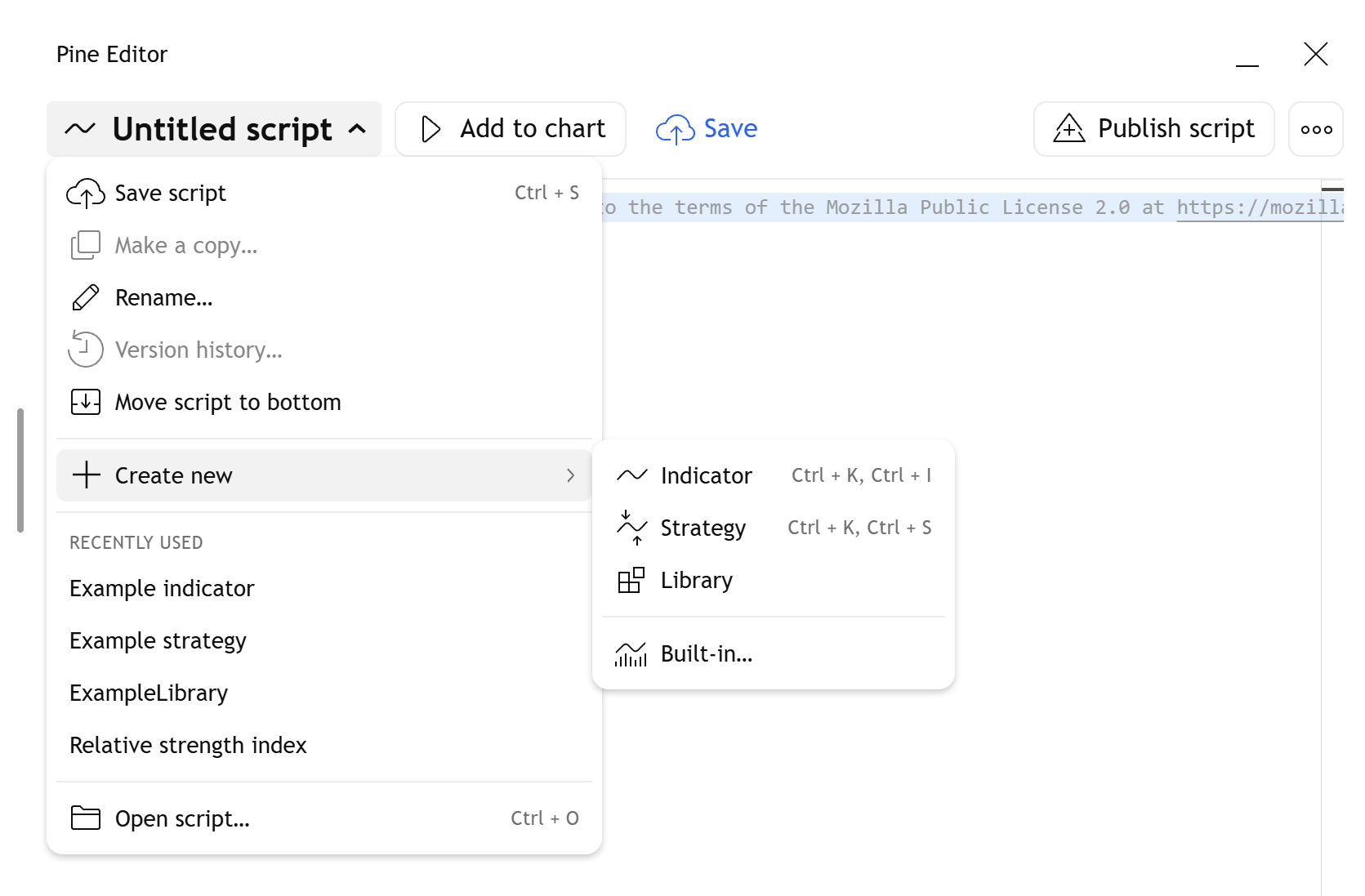
Choose an option:
- “Indicator”: Opens a new minimal indicator example
- “Strategy”: Opens a new strategy script with example entry conditions
- “Library”: Opens a new library, with a single exported function and example annotations
- "Built-in...": Opens a new dialog box where you can select a built-in indicator or strategy to open and edit
Each example script compiles and can be added to the chart.
Instead of creating a new script, you can copy and edit any existing open-source indicator or strategy by completing the following steps:
1. Open the "Indicators, metrics, and strategies" dialog box.
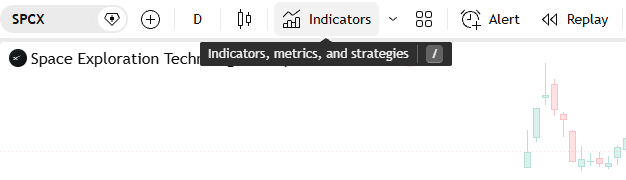
2. Select a category of script, such as "My scripts", "Technicals", or "Editor's picks".
3. Within the category, click on the name of a script to add it to the chart.
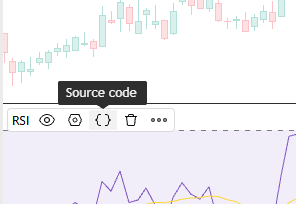
4. When the script loads, hover over the script's title and click the "Source code" button to open it in the Pine Editor.
5. If you open a built-in or community script, a message at the top of the Pine Editor tells you that you need to make a copy before editing the script. Click the link to make a copy.
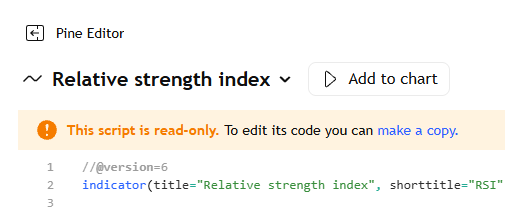
Click "Add to chart" to save the script as a temporary draft. You can update the draft by clicking the "Update on chart" button.
Click "Save" to save the new script in your personal script library.
When you open the Pine Editor, it loads the last script you opened.
For more information, see the First steps section in the Pine User Manual.