How to create, save and update a custom screen
Screener allows you to save your specific settings as a screen template.
The following settings are saved:
- list of active and inactive filters located in the top panel;
- active set of columns;
- column sorting in the table;
- type of the view mode (table view or chart view) in stock screener;
- name of the screener template.
Actions available for screener templates:
- Create new screen
To create a new screener template, select the “Create new screen” action. You can also use the shortcut Shift + N on both MacOS and Windows.
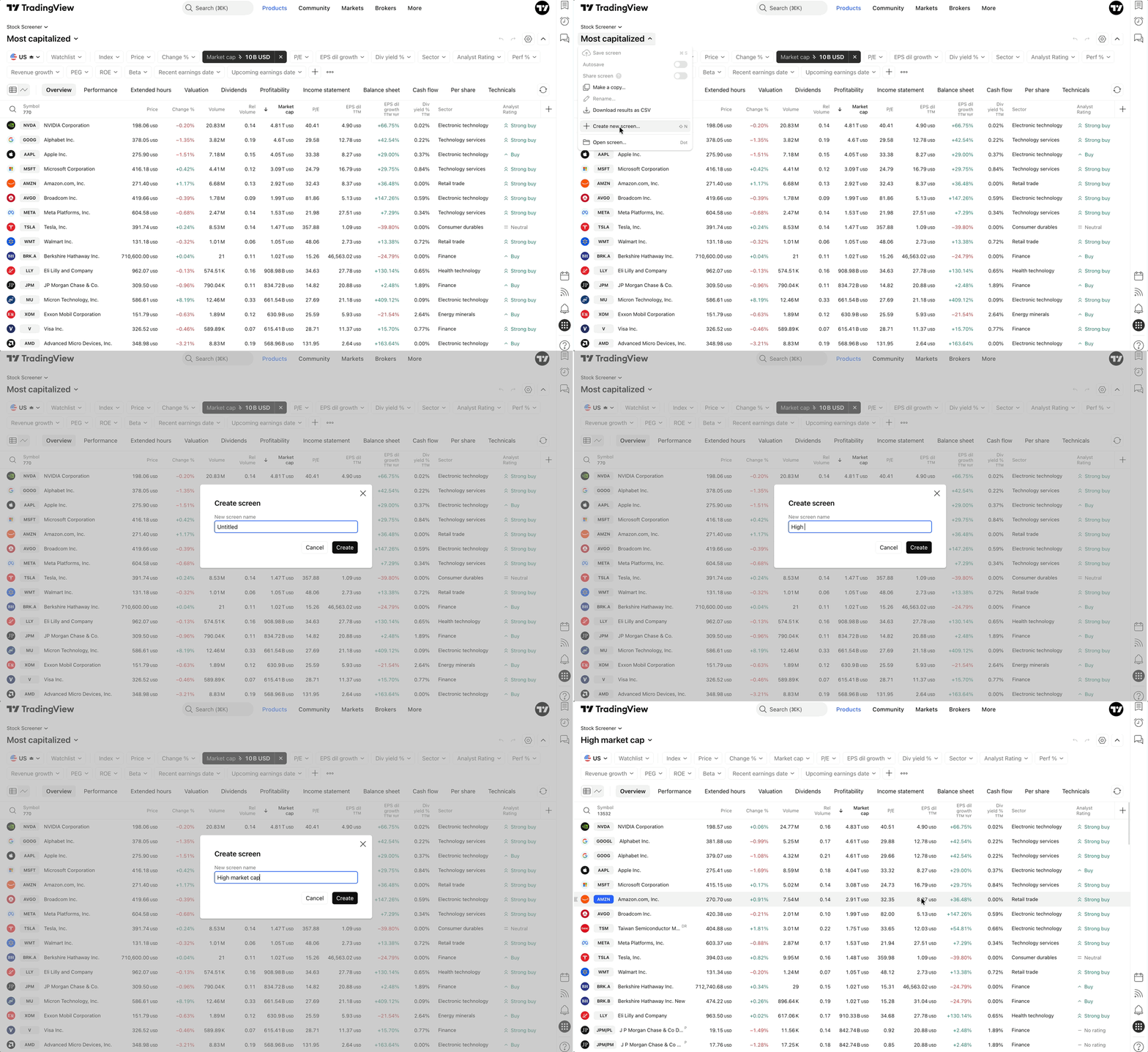
After selecting this action, a new screen is created with a set of inactive popular filters in the top panel.
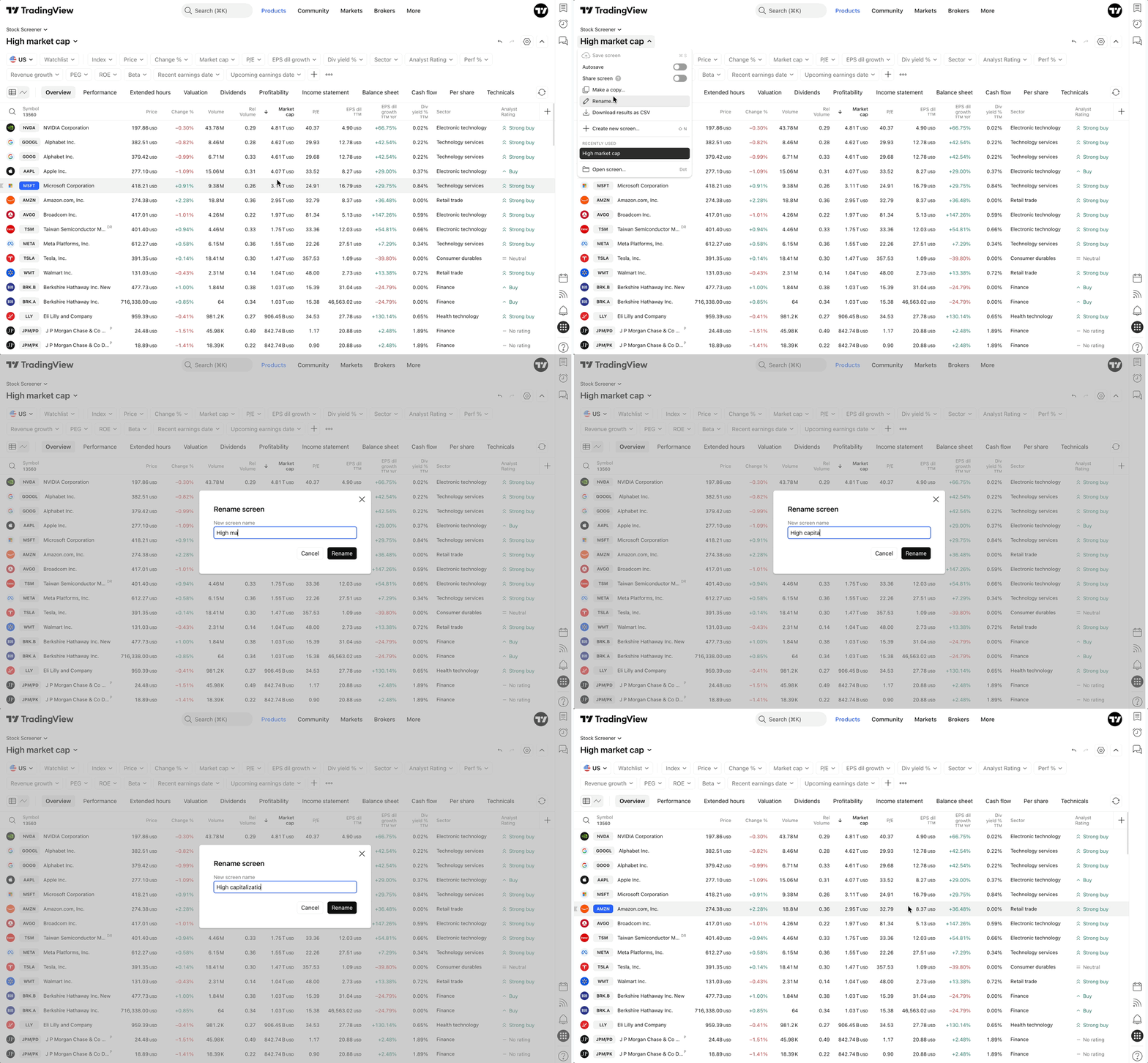
- Rename template
This action allows you to change and save the name of the screen:
- Save screen
You can save your template by selecting "Save screen" in the template menu:
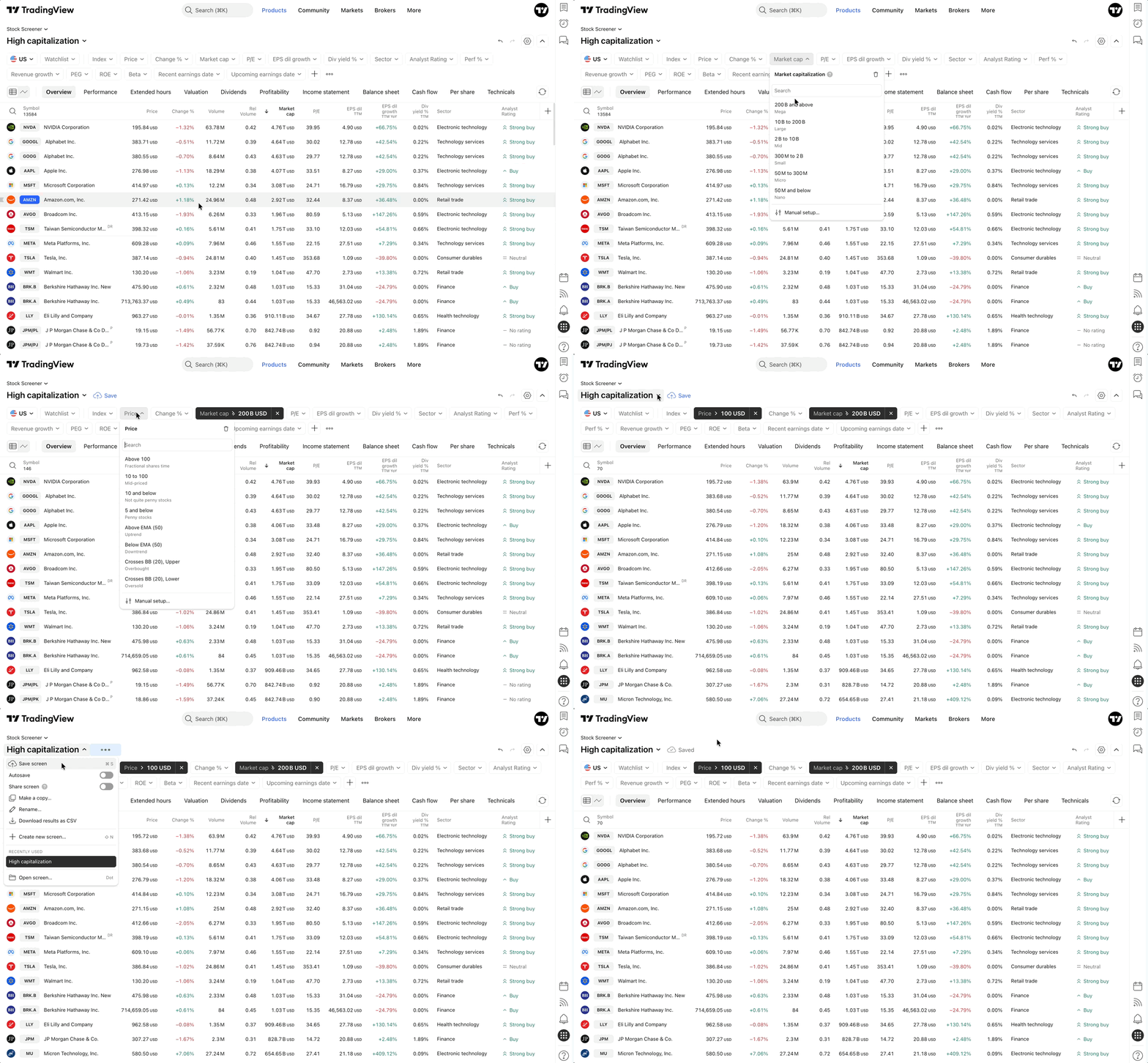
by clicking the "Save" button on the top panel next to the template name:
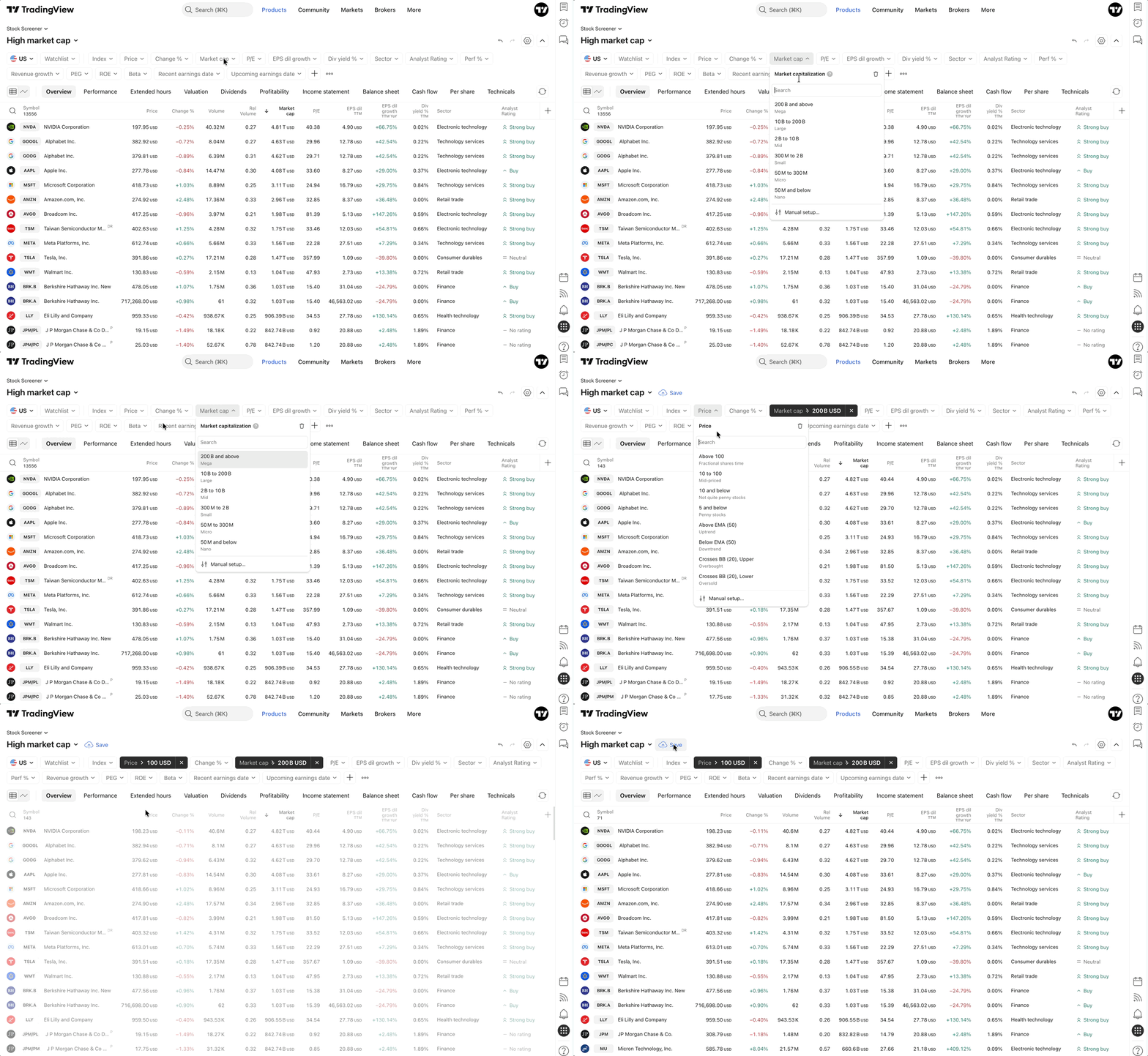
You can also use the shortcuts:
- Cmd + S for MacOS;
- Ctrl + S for Windows;
Please note: When you save a screen, the following elements are stored within the template:
- Current filter set;
- Current sorting;
- A set of columns combined into a custom column set;
- Current view mode (table view or chart view).
- Autosave
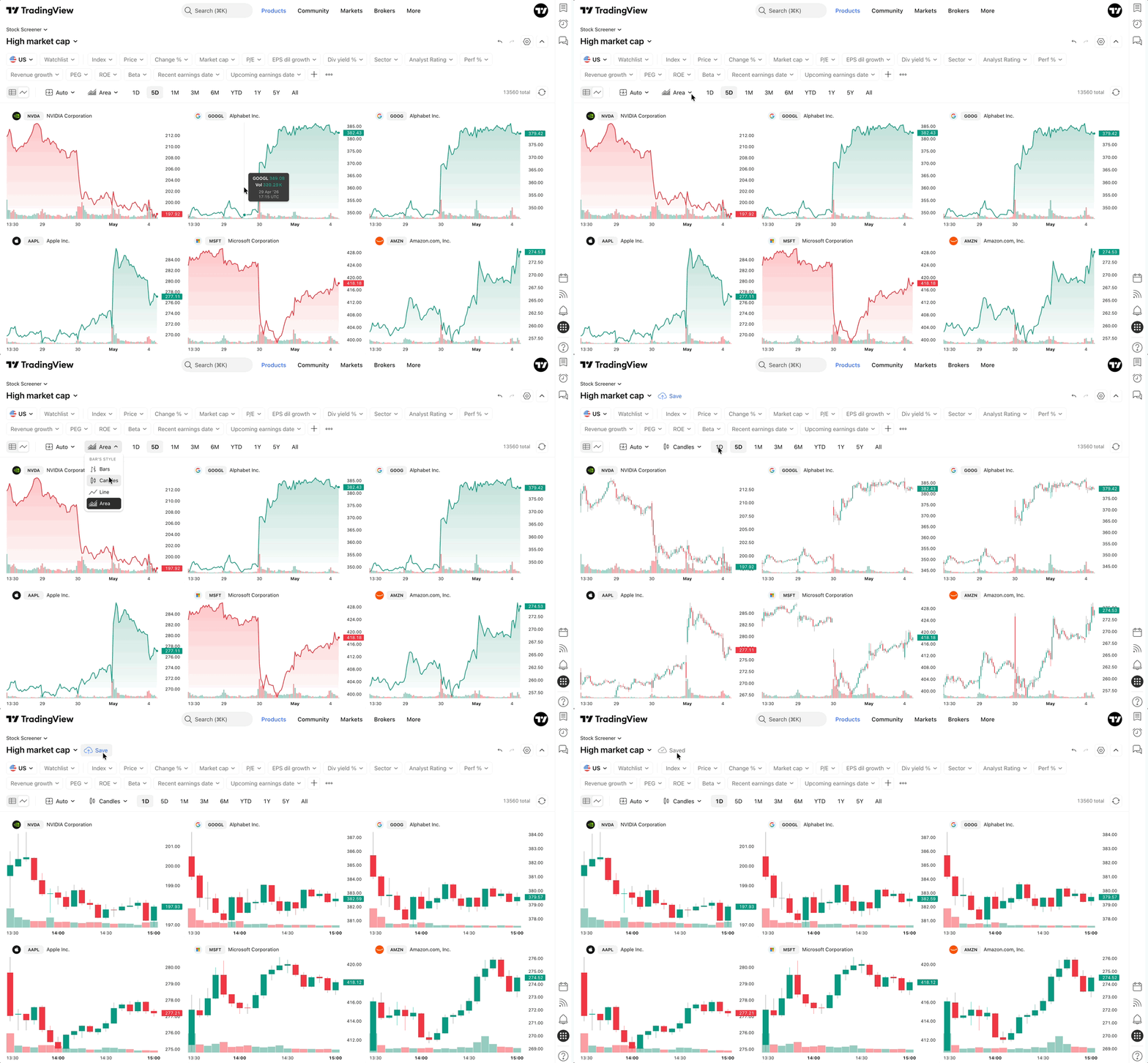
To avoid manual saving, you can enable the Autosave function. Open the screen menu (template name drop-down) and toggle "Autosave" on. Once enabled:
- All subsequent actions will be saved automatically;
- The "Save" button will be hidden, and the manual "Save screen" option will be disabled;
- Autosave triggers 2 seconds after each edit.
Please note: This toggle must be enabled for each screener type (Stock, Bond, CEX, etc., besides Pine screener) individually and you can use only in custom screens, not popular. Autosave is off by default.
- Undo/Redo
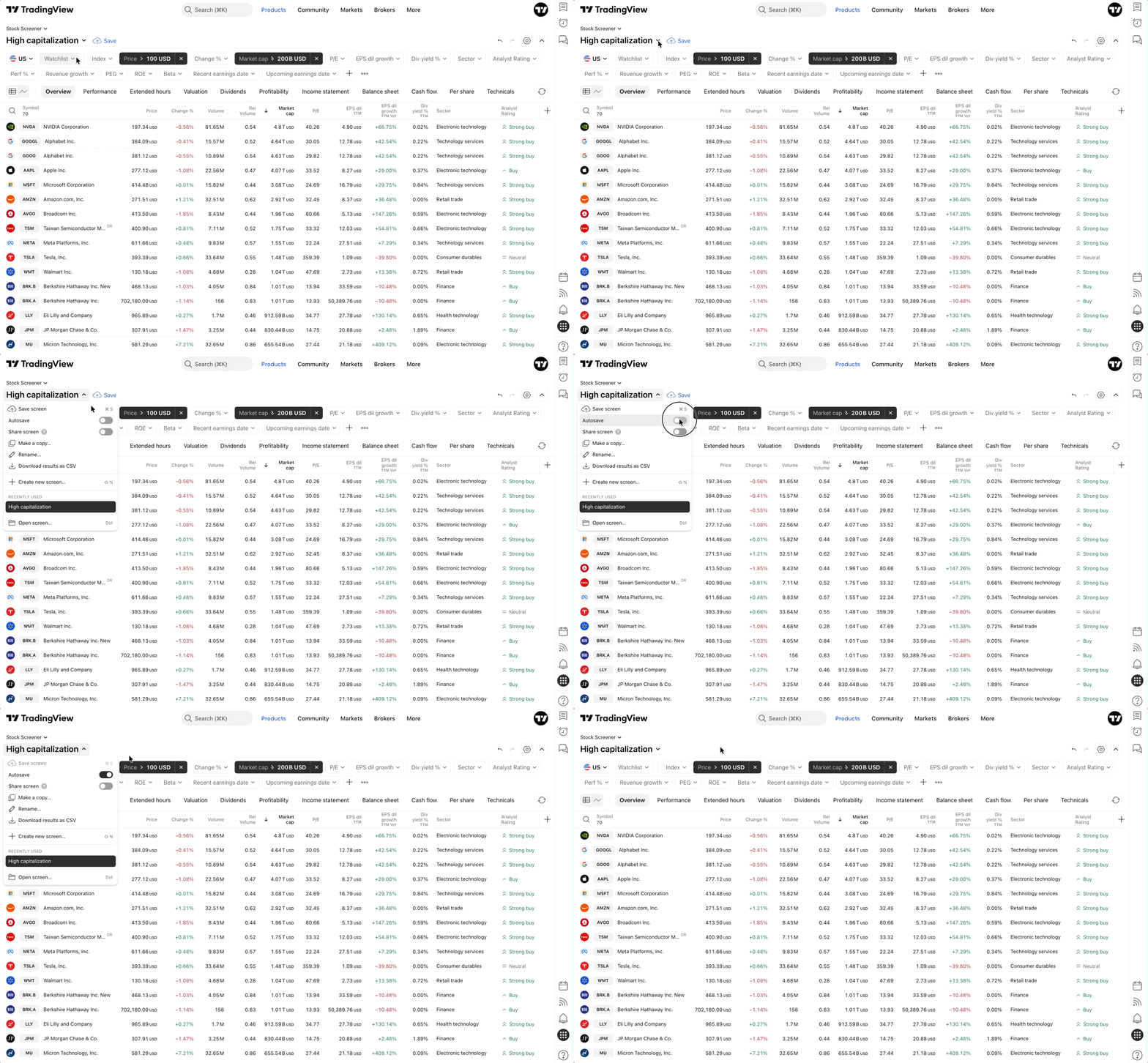
You can undo and redo your recent actions (filters, columns, sorting, etc.) in your screen using the forward and back arrows in the right corner. This function is also available via keyboard shortcuts:
- Ctrl+Z / Ctrl+Y for Windows
- Cmd+Z/Cmd+Y for MacOS
The history buffer tracks up to 100 steps.
- View all screens
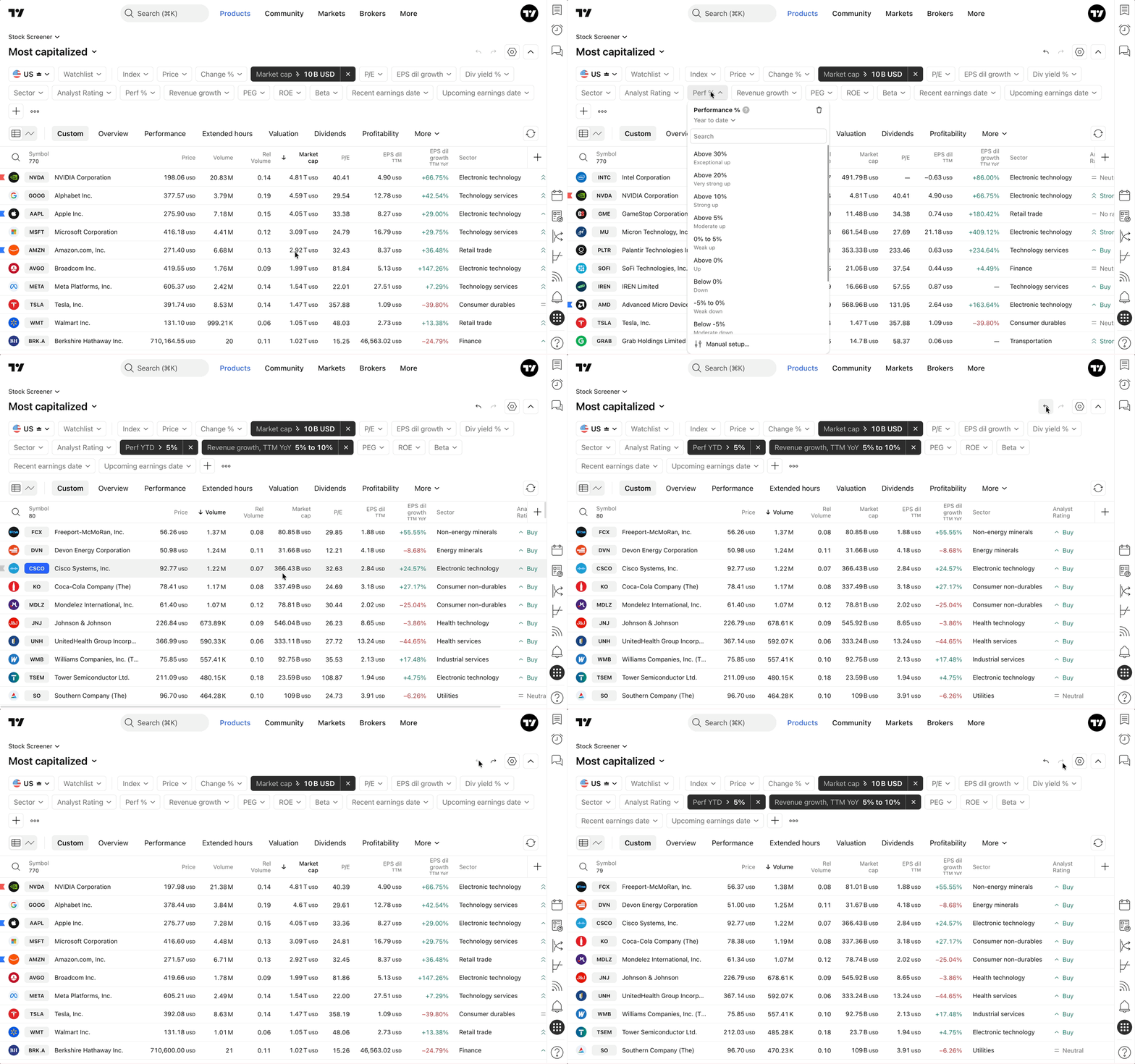
To view all your custom screens or browse popular screens with filters, press Dot on your keyboard or select the “Open screen…” option from the screen menu.
- Make a copy
You can duplicate a screen in two ways:
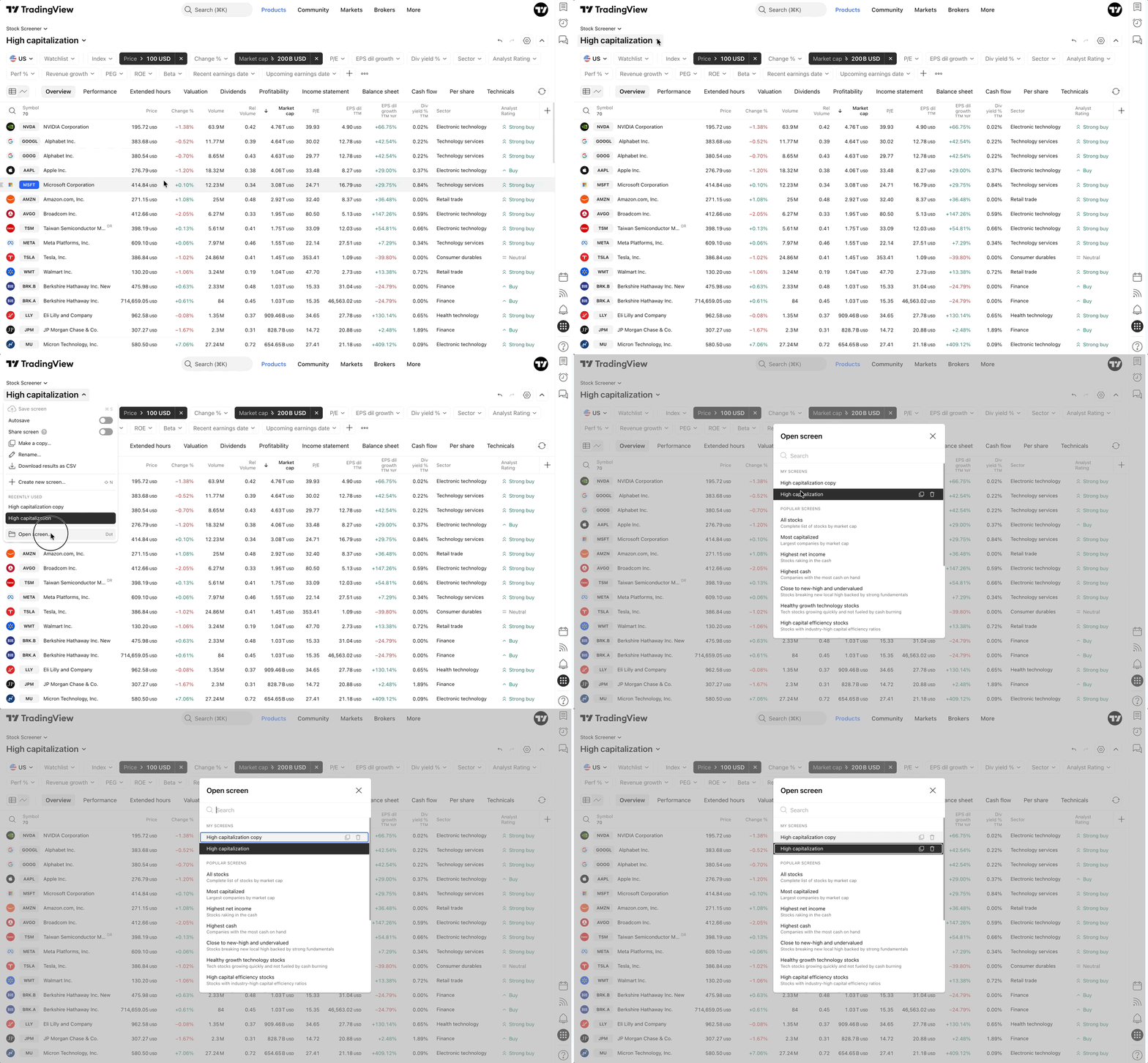
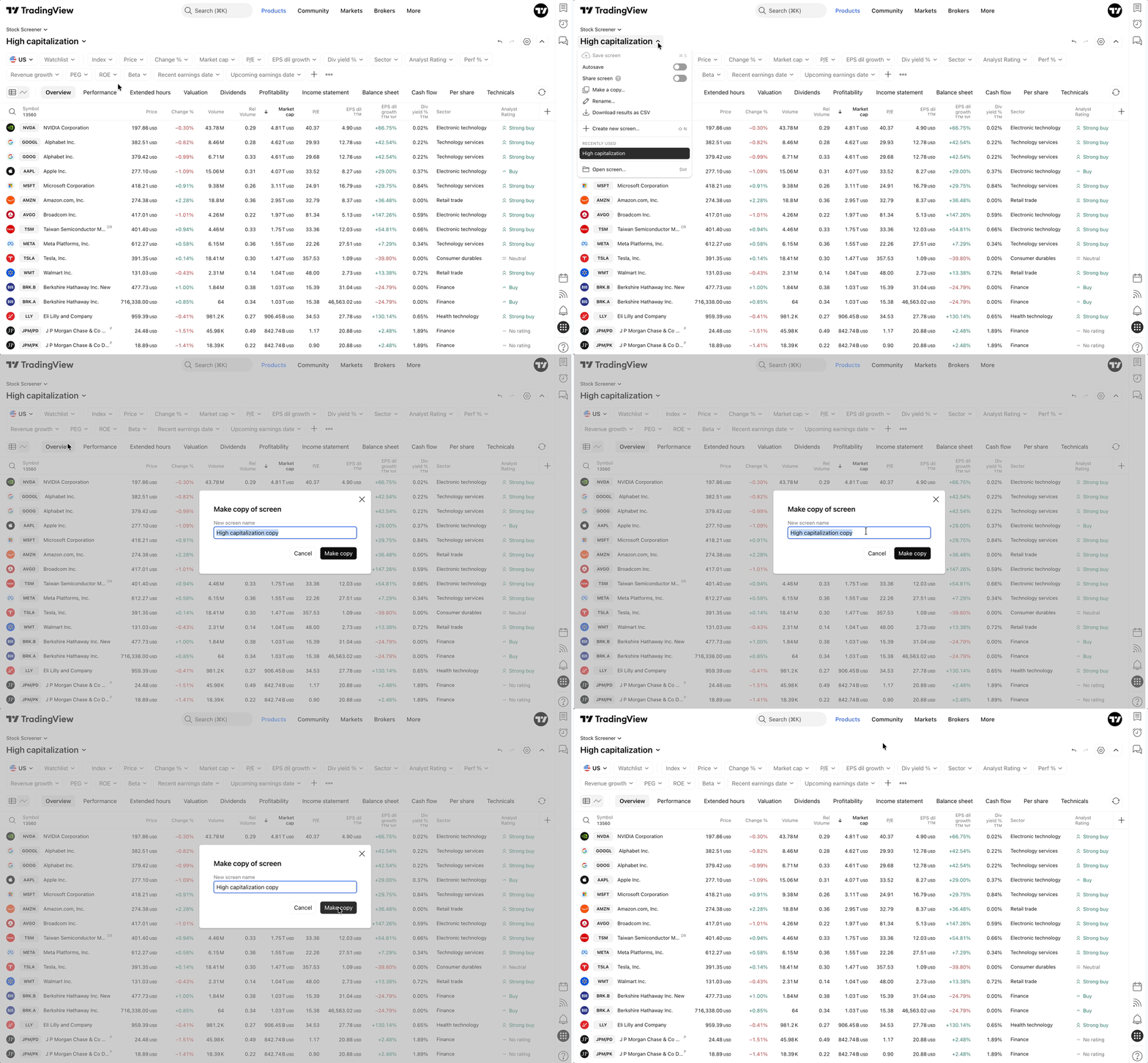
- via the screen menu: open the screen you wish to duplicate and select "Make a copy". The copy will open in a new browser tab with the same set of settings (columns, filters, sorting, and view mode):
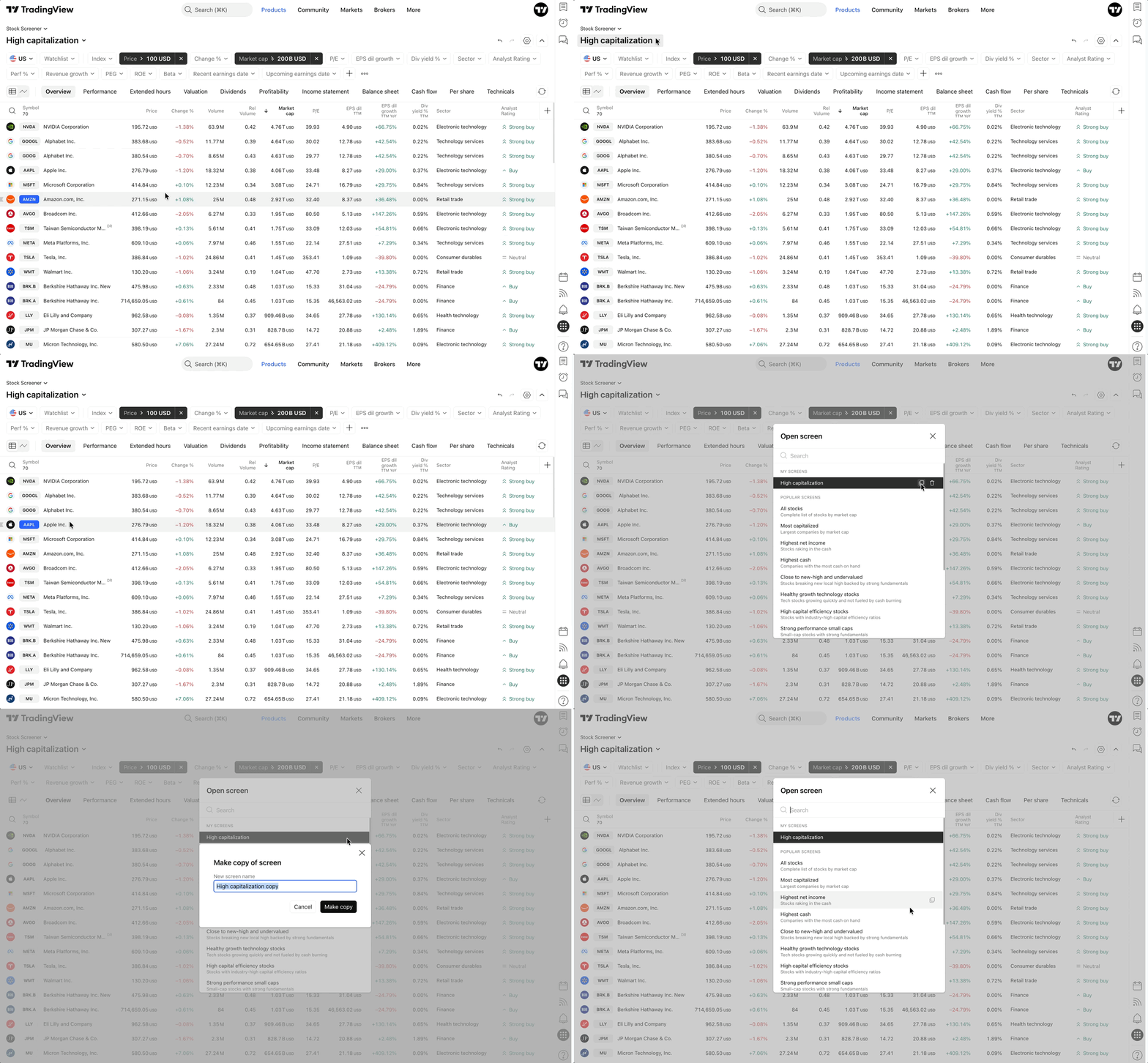
- via the dialog: select "Open screen..." and click the Copy icon next to the desired screen:
- Share screen
You can share your complete screener configuration — including filters, sorting, column sets, and watchlists—with friends and other traders. Read more about screener sharing setup.
- Delete screen
To delete a custom template, select "Open screen..." and click the "X" (cross) button next to the template.
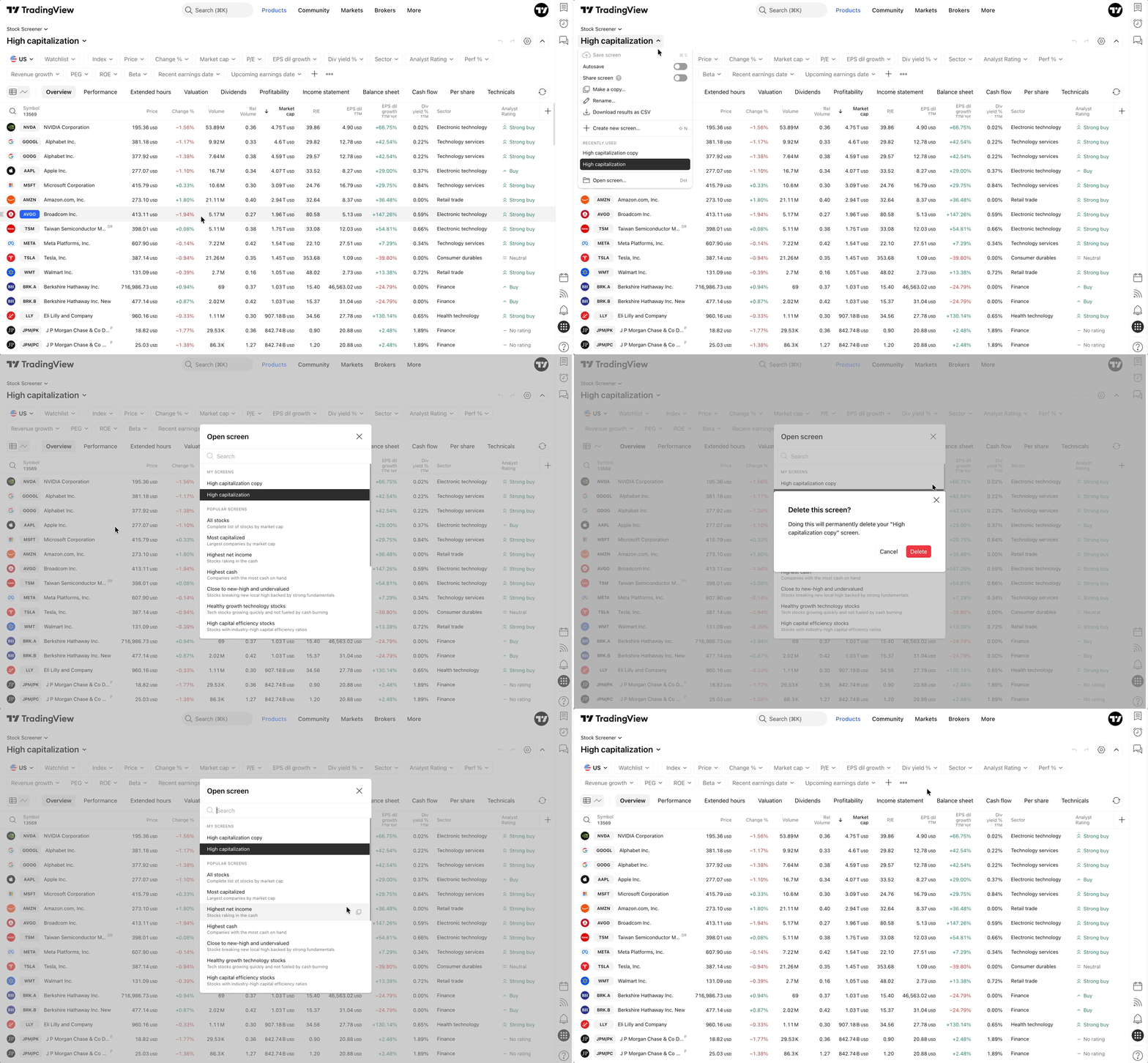
Please note: Once a screen is deleted, it cannot be restored. You can delete only custom screens, popular screens can not be deleted.