How to scan watchlist or flagged list?
To scan a specific watchlist or a flagged list, click the Watchlist filter in the header.
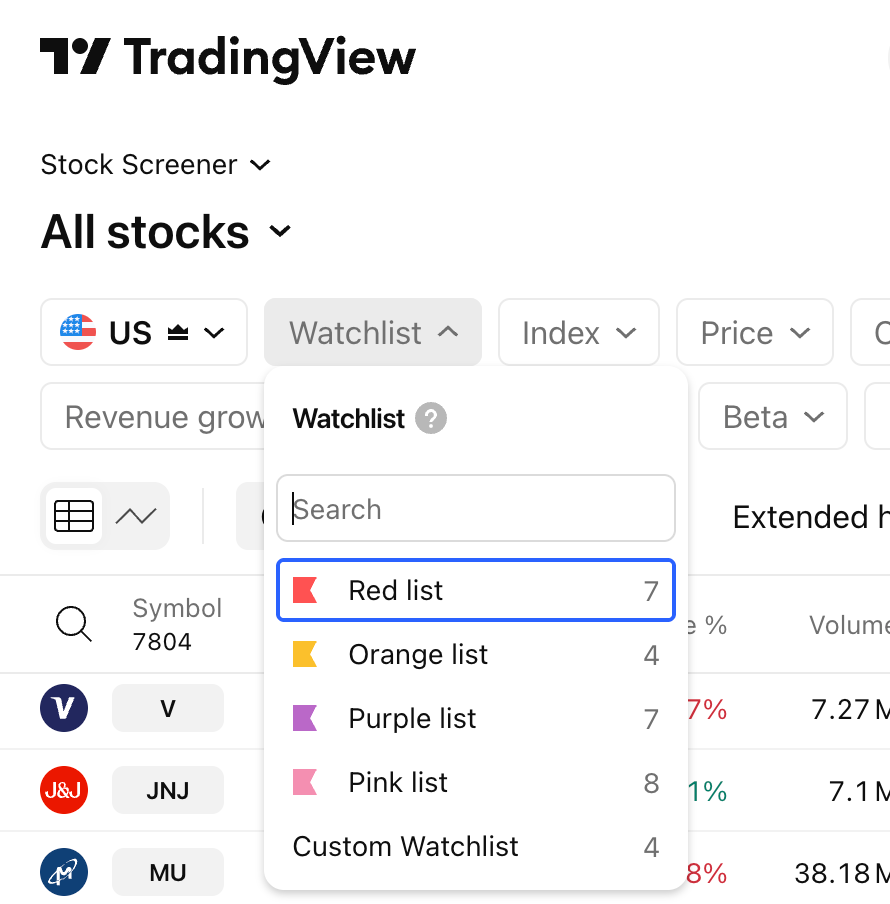
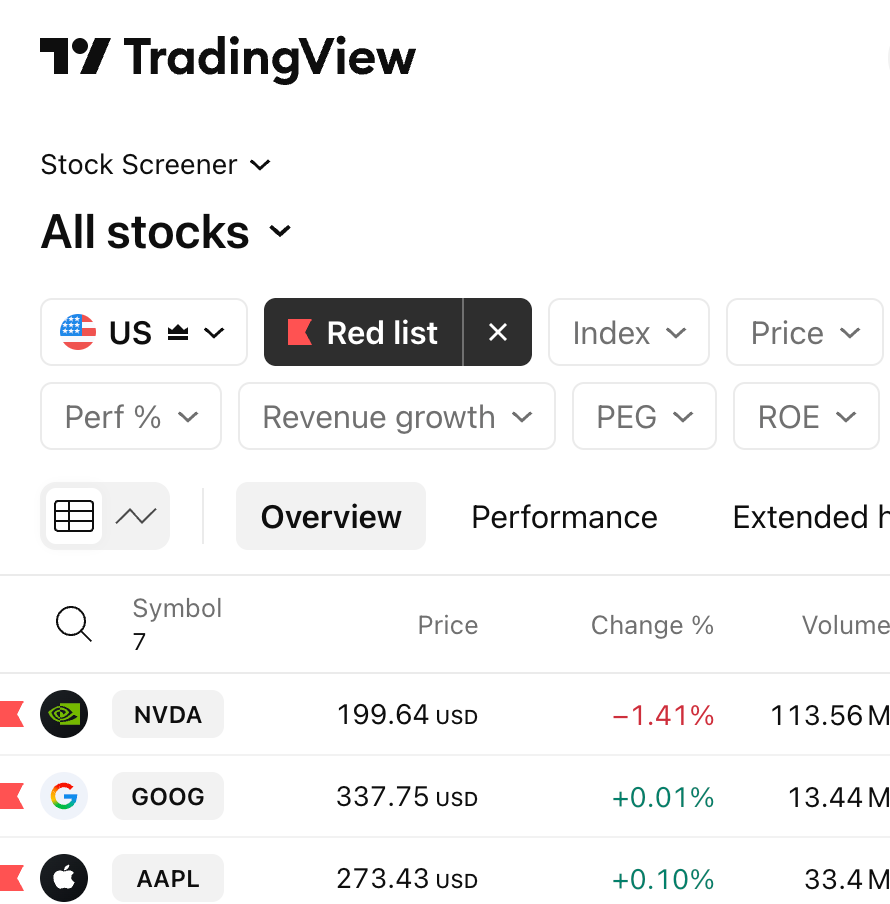
All of your colored and custom watchlists are available here. Select the necessary list, and its instruments will appear in the table, if those assets correspond to the screener's type.
For instance, if your watchlist contains stocks and ETFs and you want to open it in the Stock Screener, only the stocks from that list will appear in the table. If you select the same watchlist while using the ETF Screener, you'll see only its ETFs.
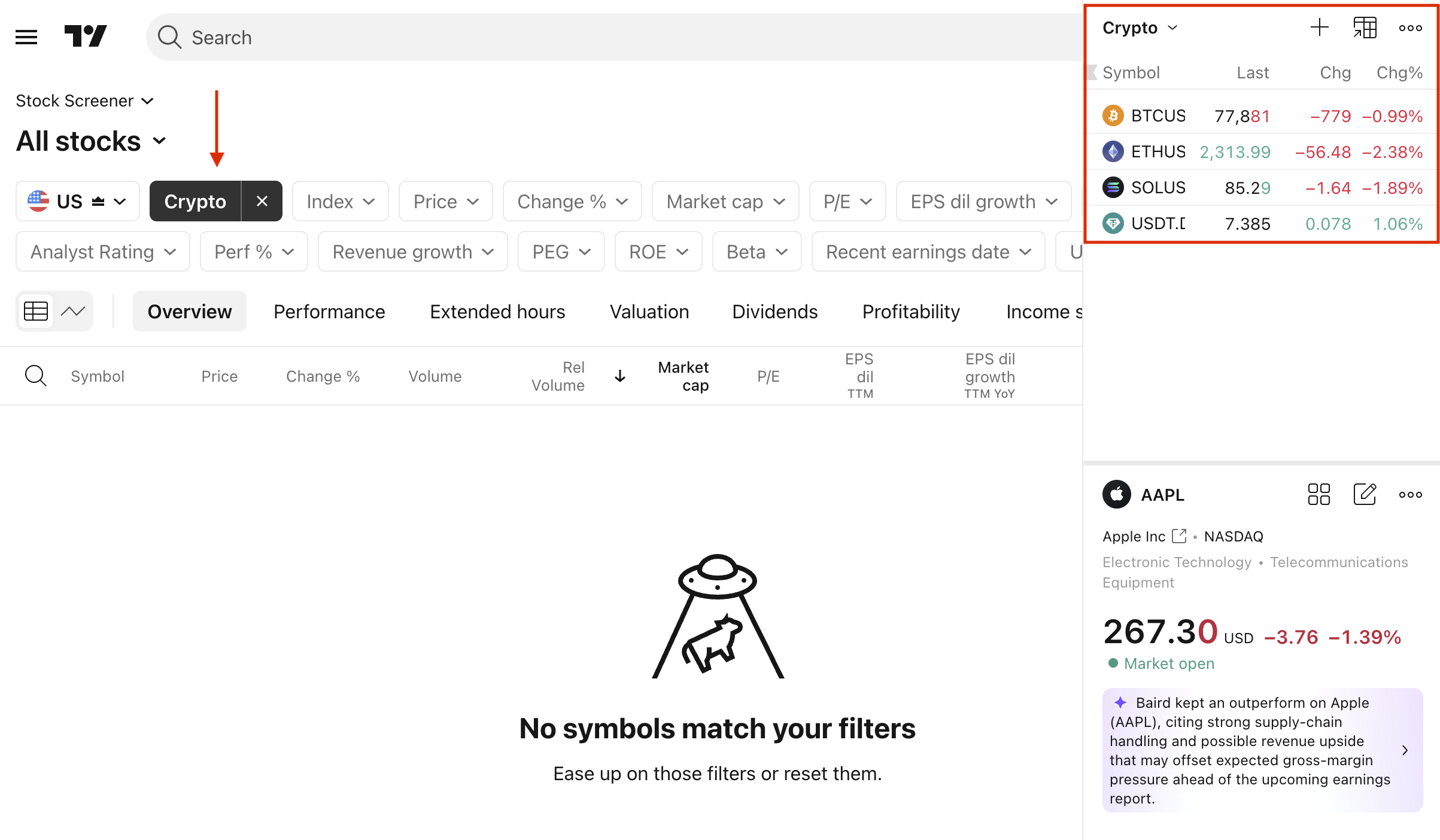
If you try to open a list that doesn't contain symbols corresponding to the screener, you'll see an empty table.
For quick access in the future, you can save a screen with the Watchlist filter already applied.
Note: The filter menu updates automatically. Deleting or creating a watchlist will remove or add it from the menu accordingly.