News Flow's filters overview
The filter panel is located above the list of the news. The following filters are available:
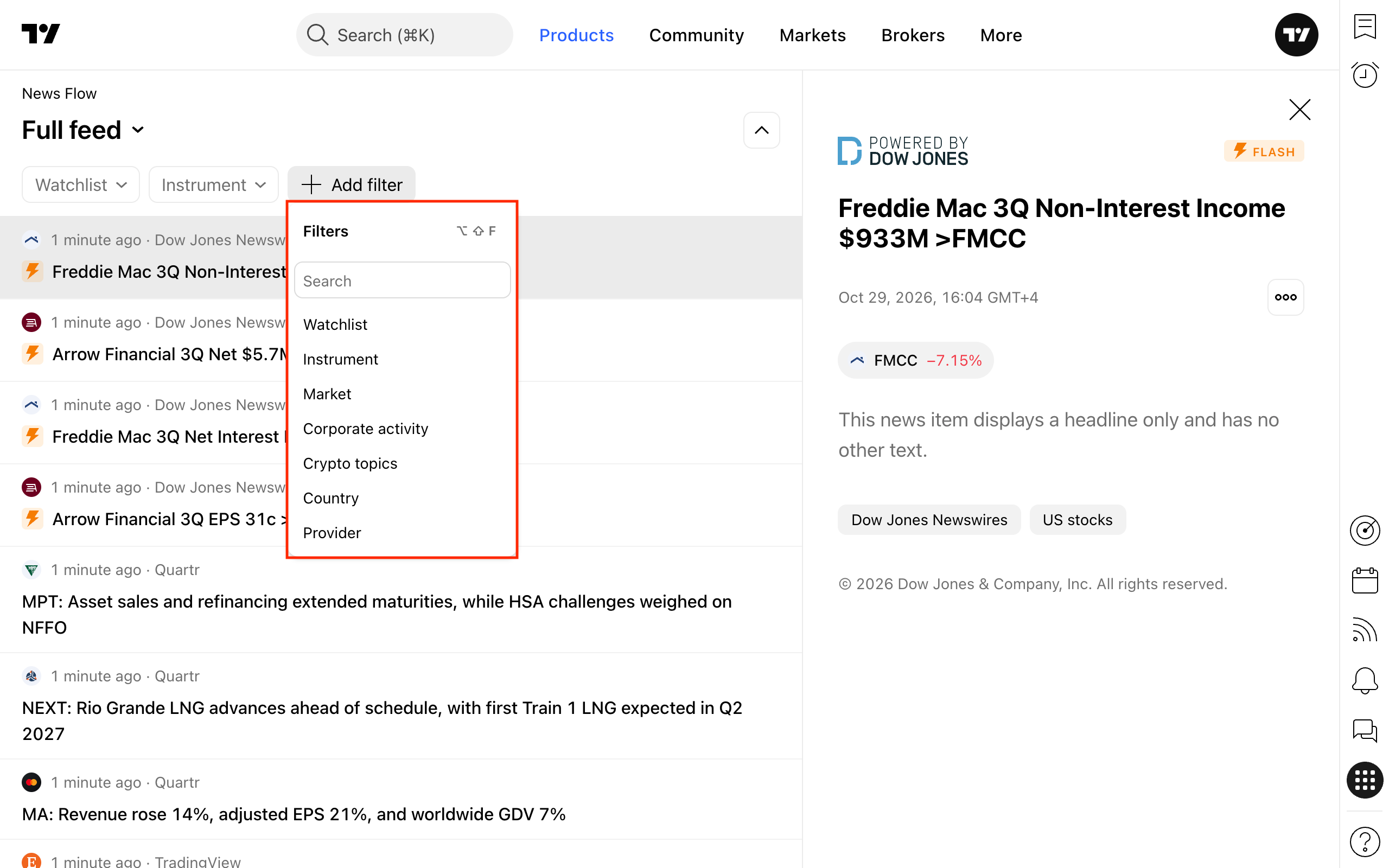
Watchlist — news related to the instruments in your watchlist;
Instrument — filters news by one or more specific trading instruments (tickers);
Market — filters news by instrument type/asset class (stocks, ETFs, crypto, forex, etc.);
Corporate activity — news by various types of corporate activity;
Economics — filters the news feed by macroeconomic topic (categories of economic data or areas of the economy: GDP, employment, prices, taxes, etc.);
Country — filters news by geographic (country) classification;
Provider — news provider.
- How filters work
You can use one or more filters at the same time. Each filter allows you to select one or more values — except for the Watchlist filter, where only a single value can be selected.
If no filter is applied, the feed displays all available news in the user's language.
- How to reset filter values
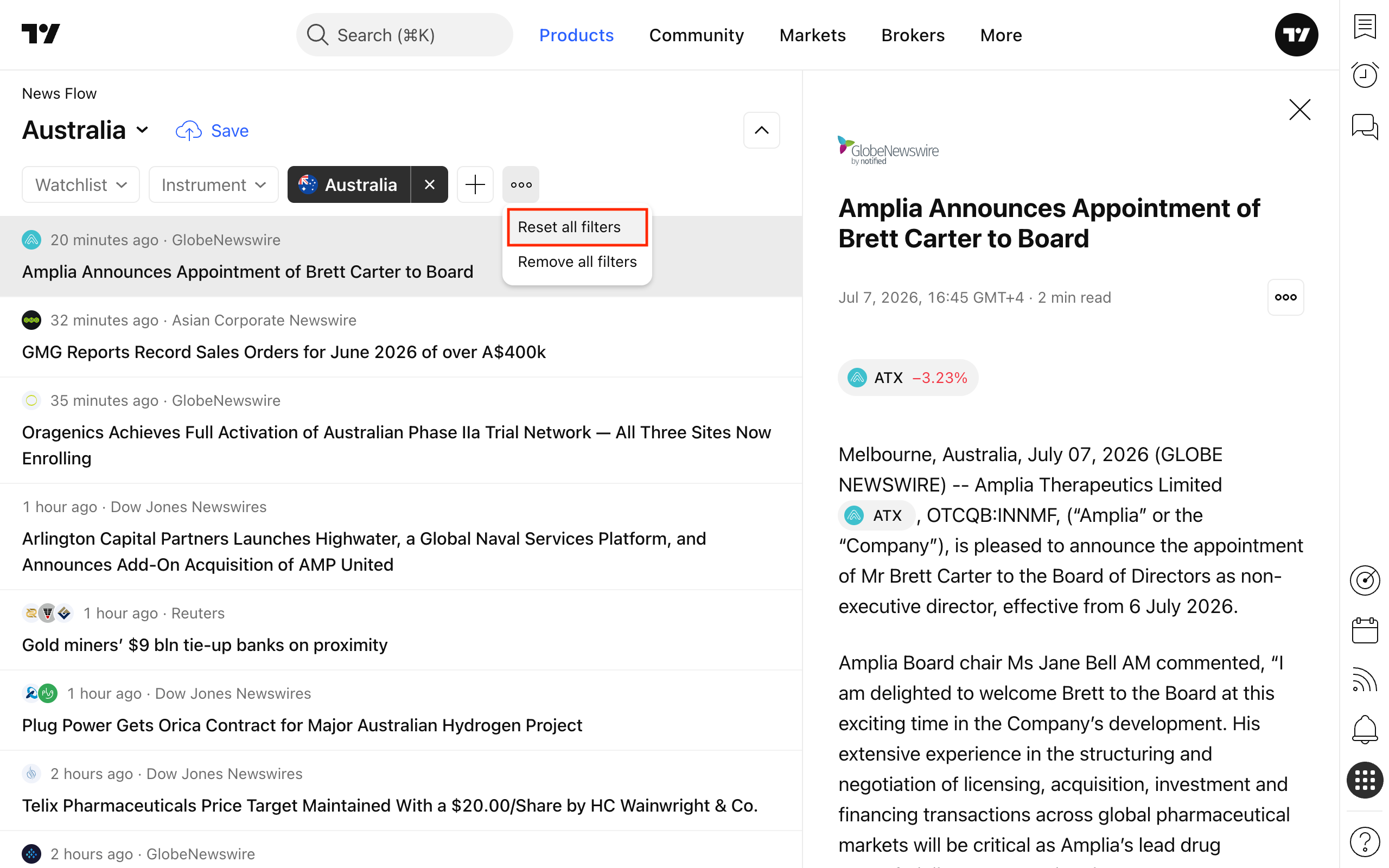
Resetting clears the selected values, but the filters themselves remain on the panel — you can fill them in again right away. There are three ways to do this:
Reset all filters at once — click the "⋯" button to the right of the filters and select "Reset all filters."
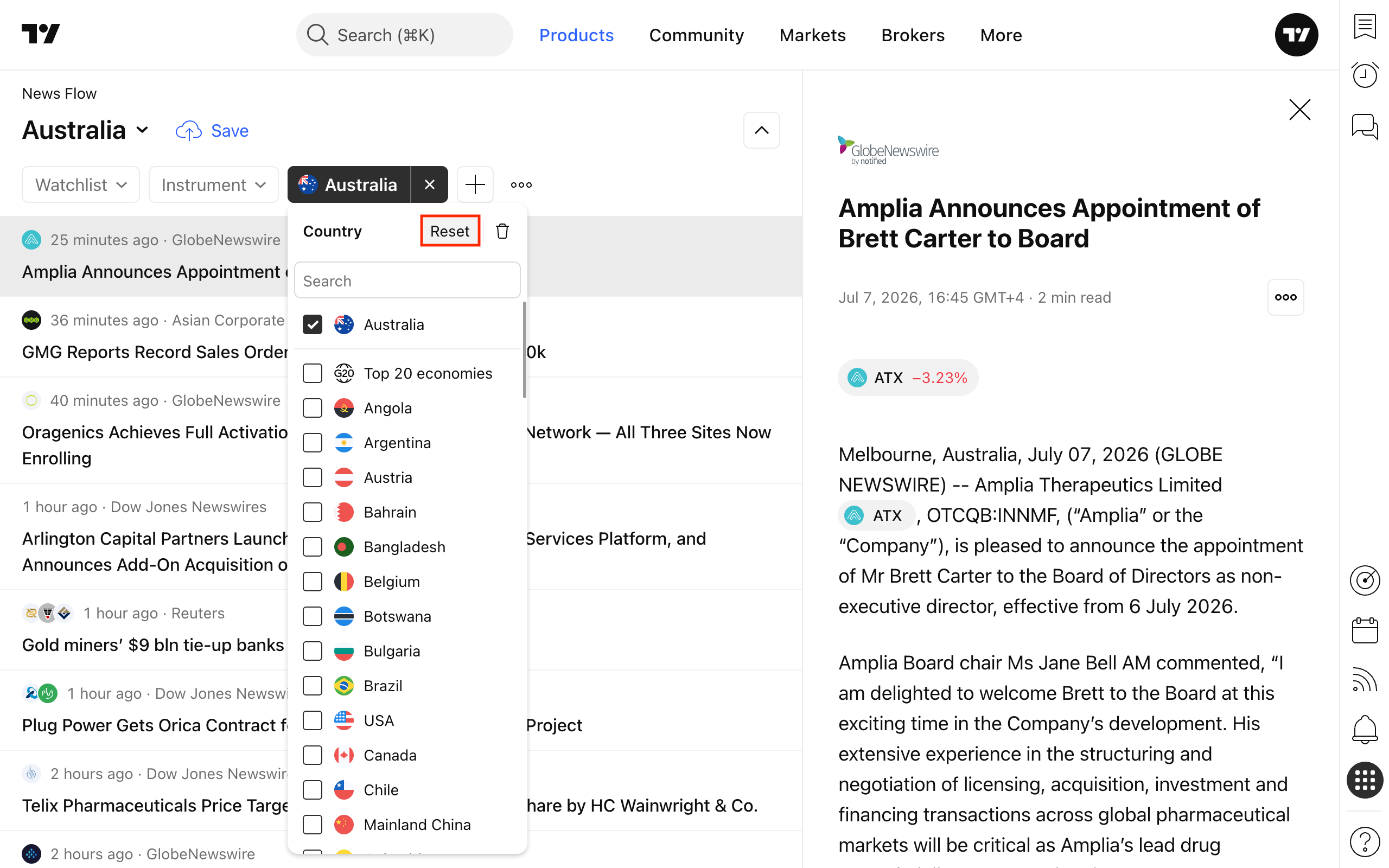
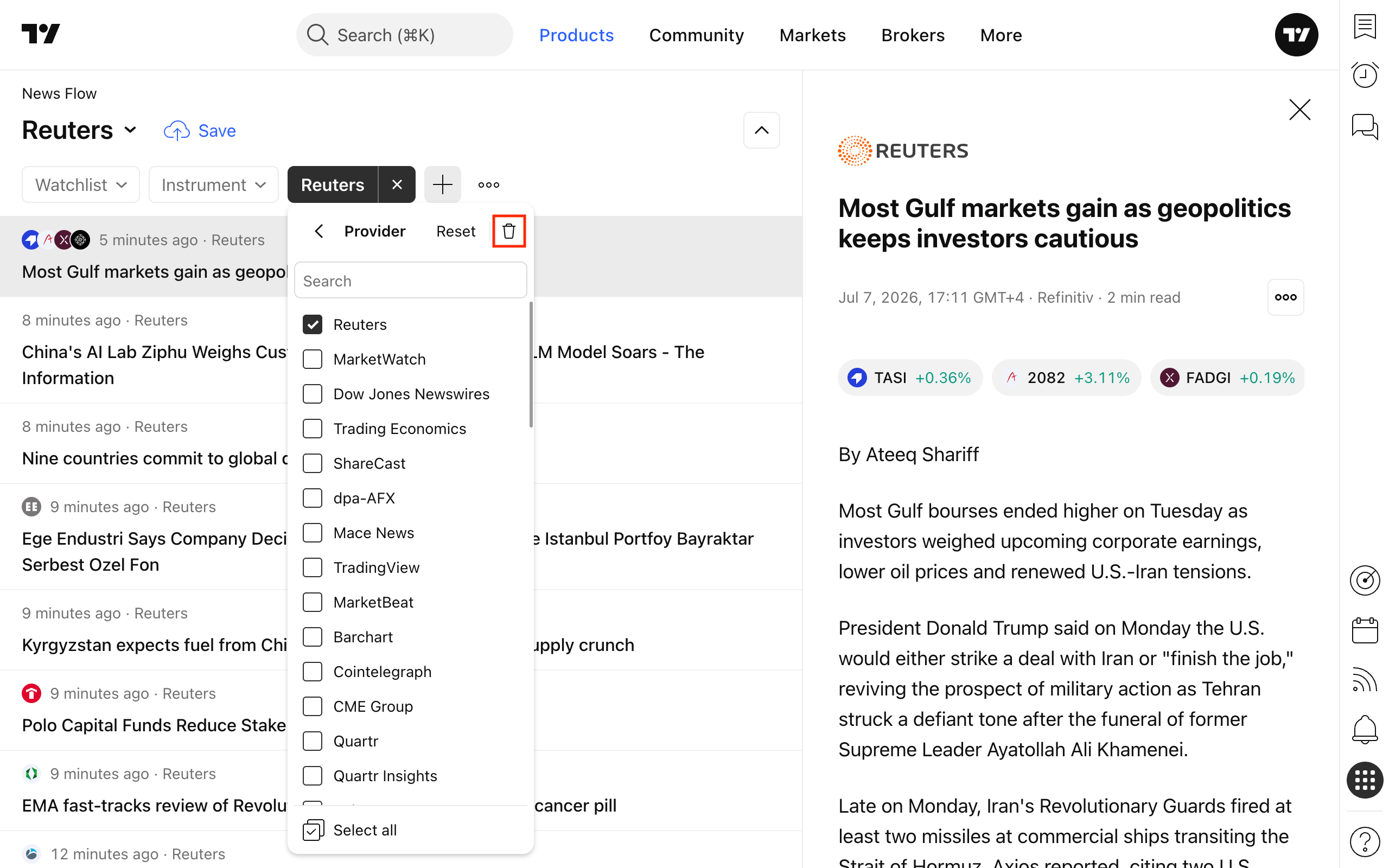
Reset a single filter — click the cross (✕) on the filter's button, or open the filter and click the "Reset" button at the top.
- How to remove filters
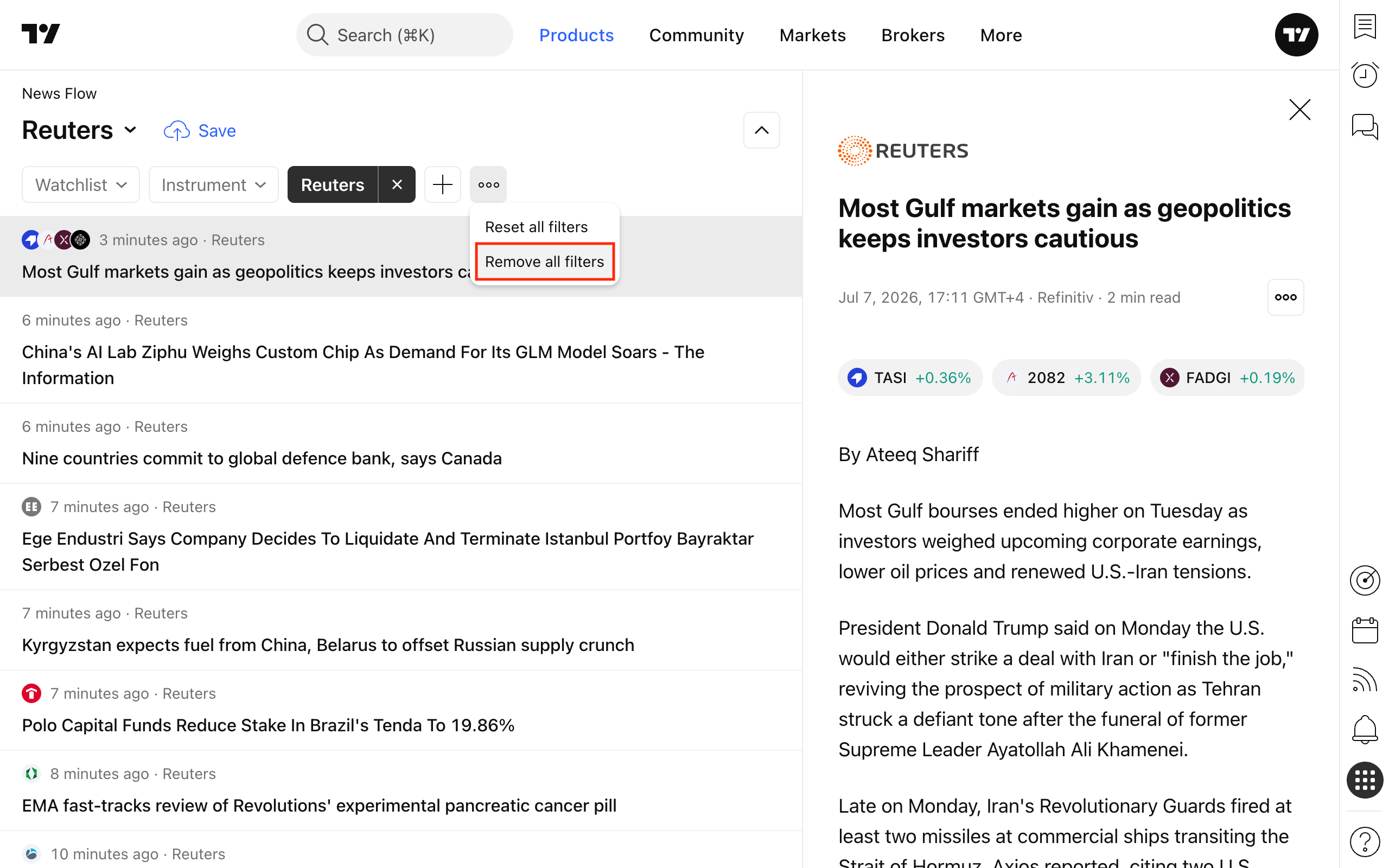
Unlike resetting, removing completely takes the filters off the panel. There are two ways to do this:
Remove all filters at once — click the "⋯" button to the right of the filters and select "Remove all filters."
Remove a single filter — open the filter and click the trash icon at the top.
In short: resetting clears your selection but keeps the filter in place; removing takes the filter off the panel entirely.