Options chain overview
An options chain lists all available option contracts for an underlying asset, showing contract prices and key details such as strike and expiration. It's the main entry point for researching or executing options trades on a given underlying
CONTENTS:
- What is the options chain?
- How to access the options chain
- Options chain views
- Multi-expiration view
- Options chain filters
- Options chain settings
What is the options chain?
The options chain is a listing of all available option contracts for a particular underlying asset, such as a stock, index, ETF, or futures contract. It shows key data for each option contract:
- Strike price
- Expiration date
- Premiums (theoretical price, as well as the best market bid and ask quotes)
- Greeks (delta, gamma, vega, theta, and rho — theoretical sensitivity coefficients)
- Implied volatility
Traders use the options chain to find contracts, analyze and compare them, and choose strategies based on their market expectations.
How to access the options chain
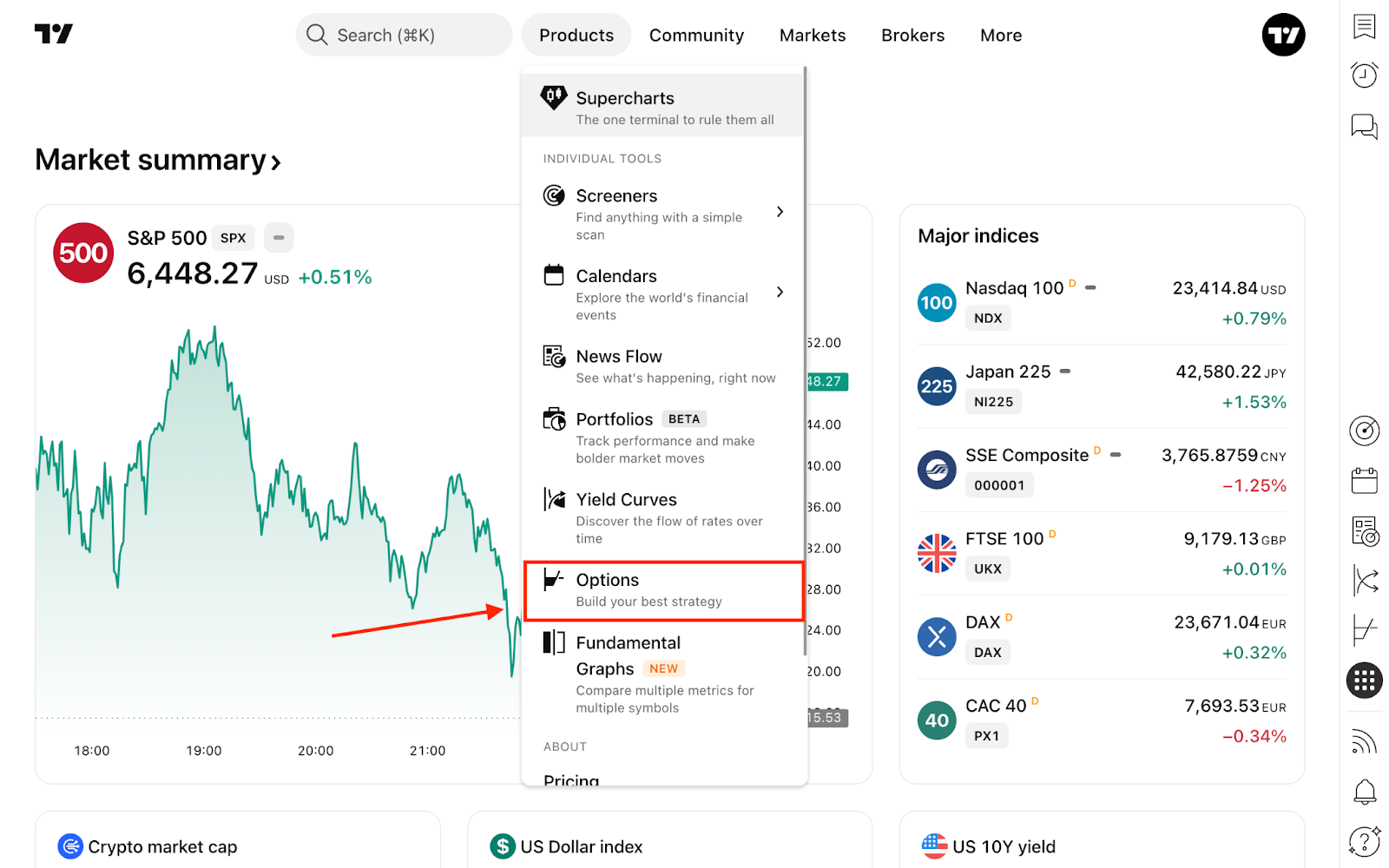
From any page of TradingView, hover over the "Products" dropdown and choose "Options."
Another way to access it is from the right toolbar. For instance, you can simultaneously analyze stocks and their options.
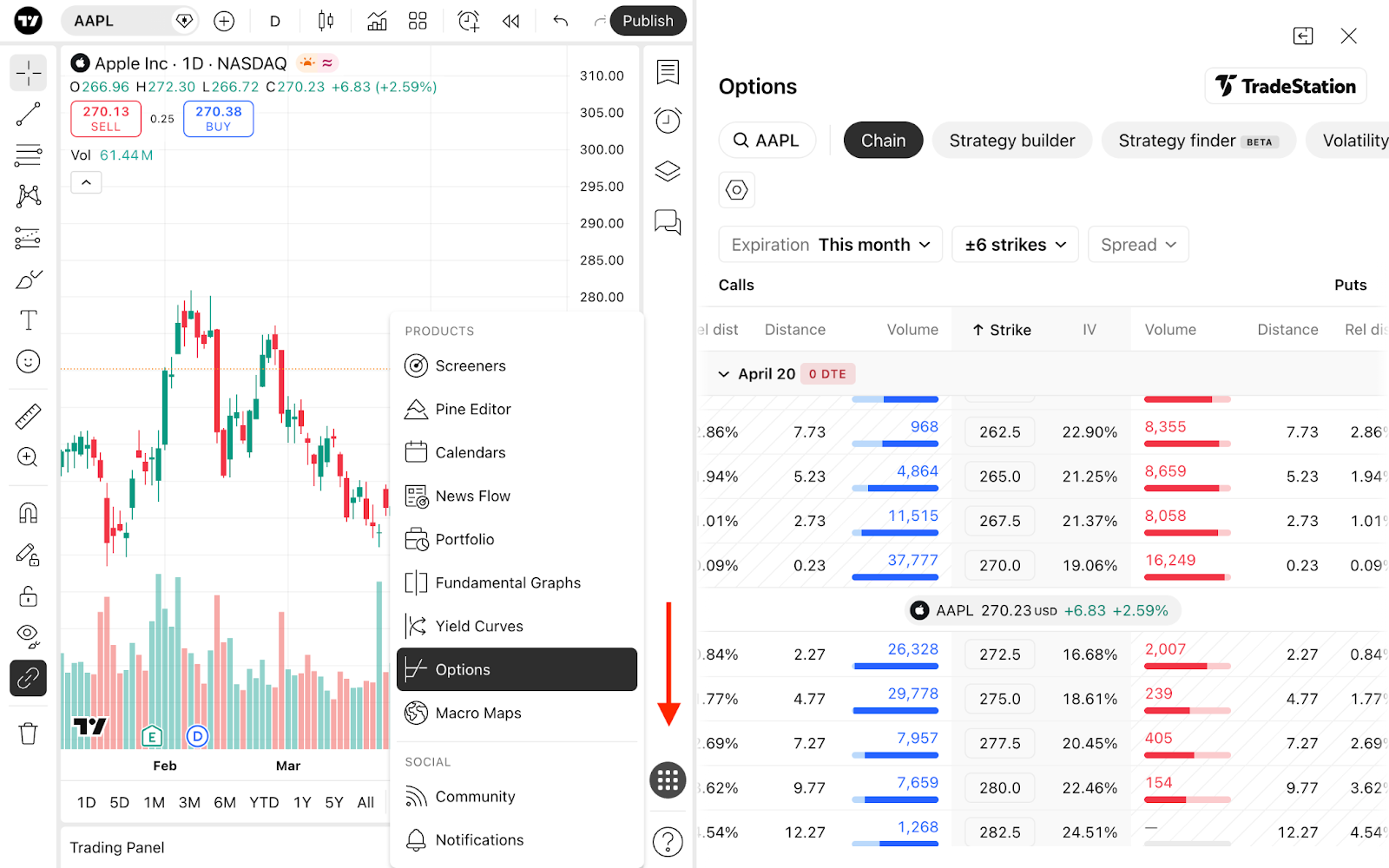
You can also split your screen for enhanced visibility and adjust the proportions for each window.
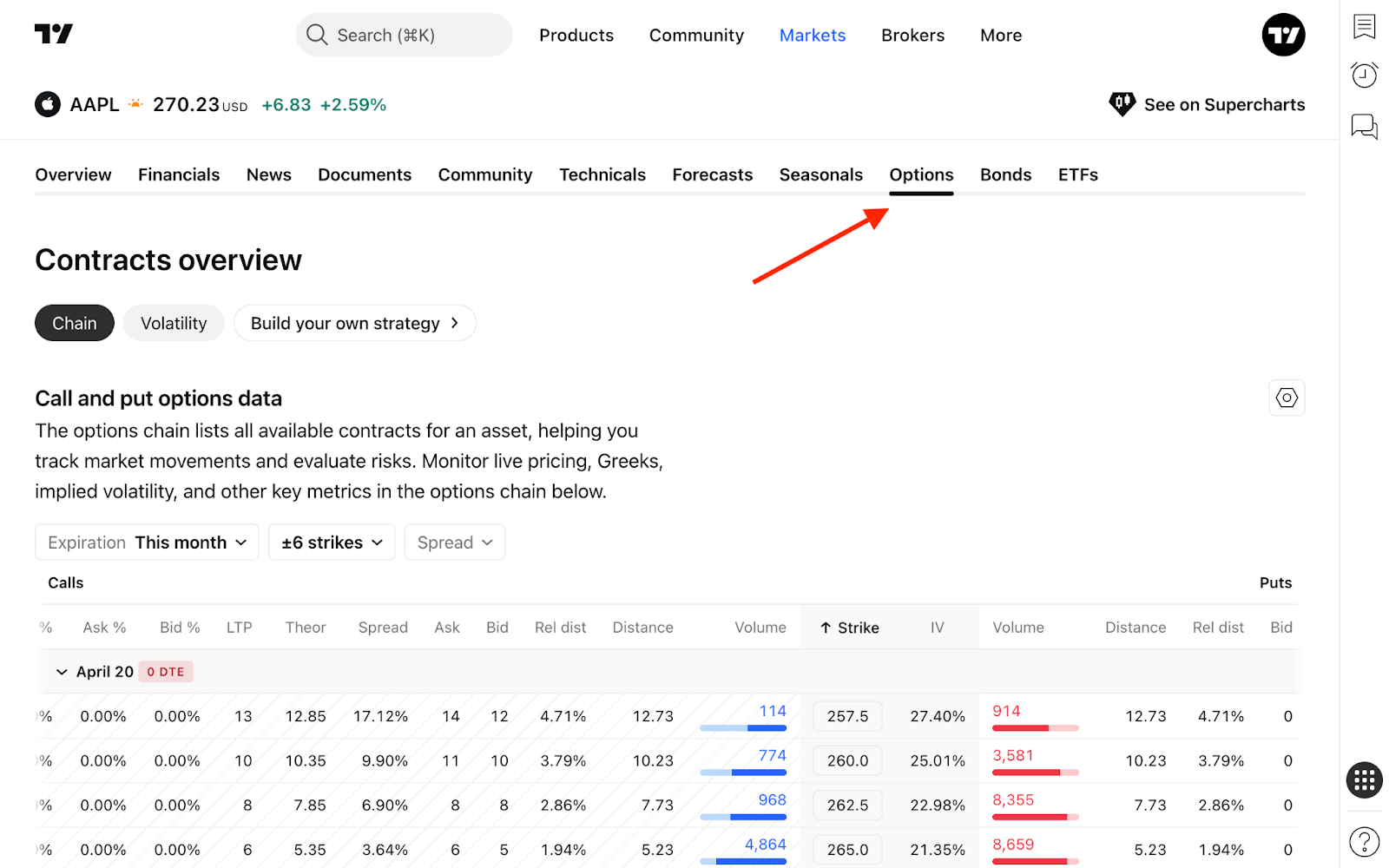
Another place to access the chain is from symbol pages. For example, if you're browsing a TSLA symbol and want to explore Tesla options, navigate to the Options tab and scroll down to the chain.
Options chain views
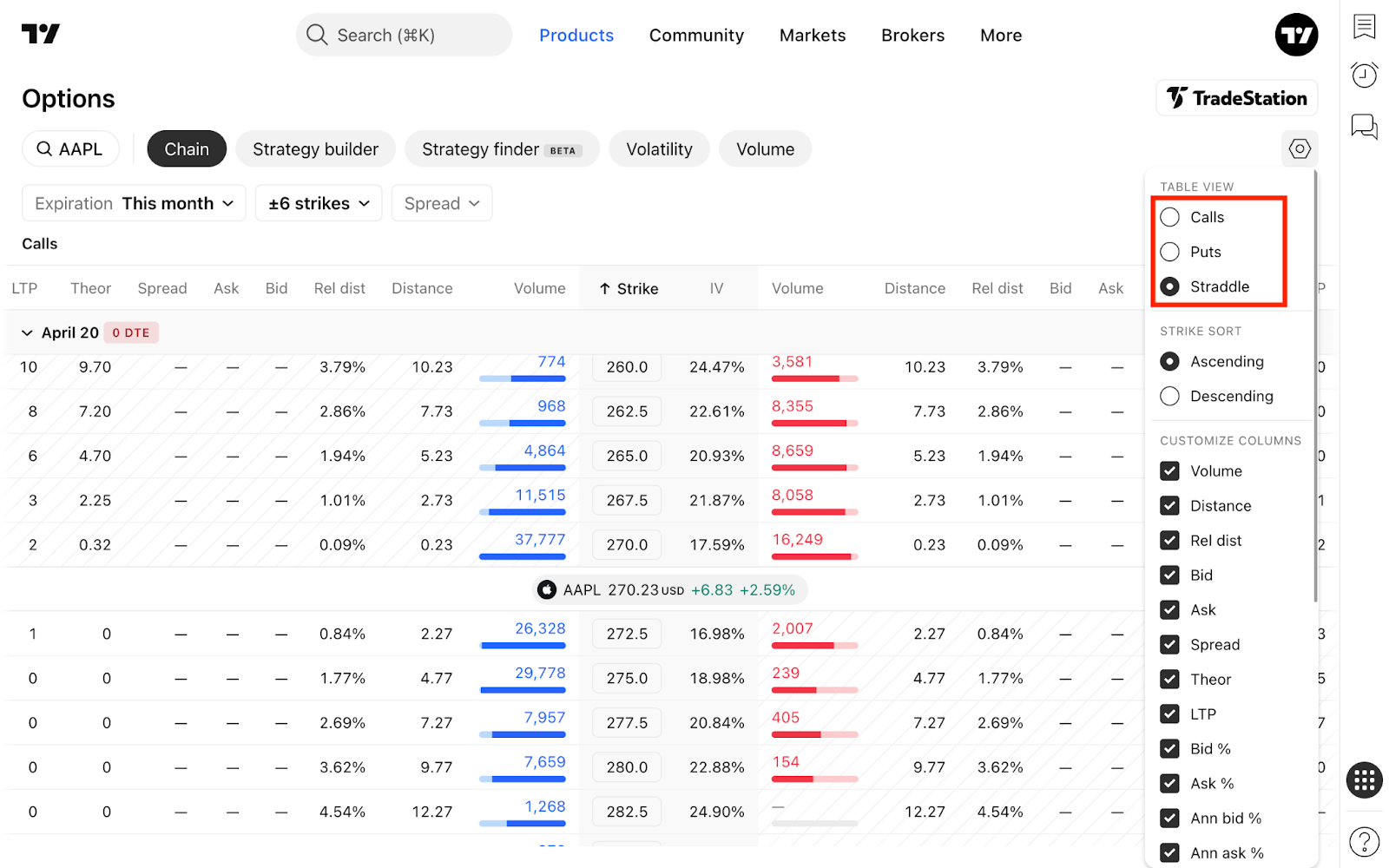
The options chain is fully customizable to match how you prefer to analyze contracts. You can switch between three distinct view modes depending on your strategy and workflow:
- If you're focused on bullish setups or covered call strategies, the Calls-only view isolates all call contracts for a cleaner read.
- For bearish positioning or protective hedges, the Puts-only view strips everything down to put contracts across all strikes
- For traders who want the full picture at a glance, the classic Straddle view displays calls and puts side-by-side
All three view modes can be accessed from the Table view settings in the top-right corner of the options chain.
Multi-expiration view
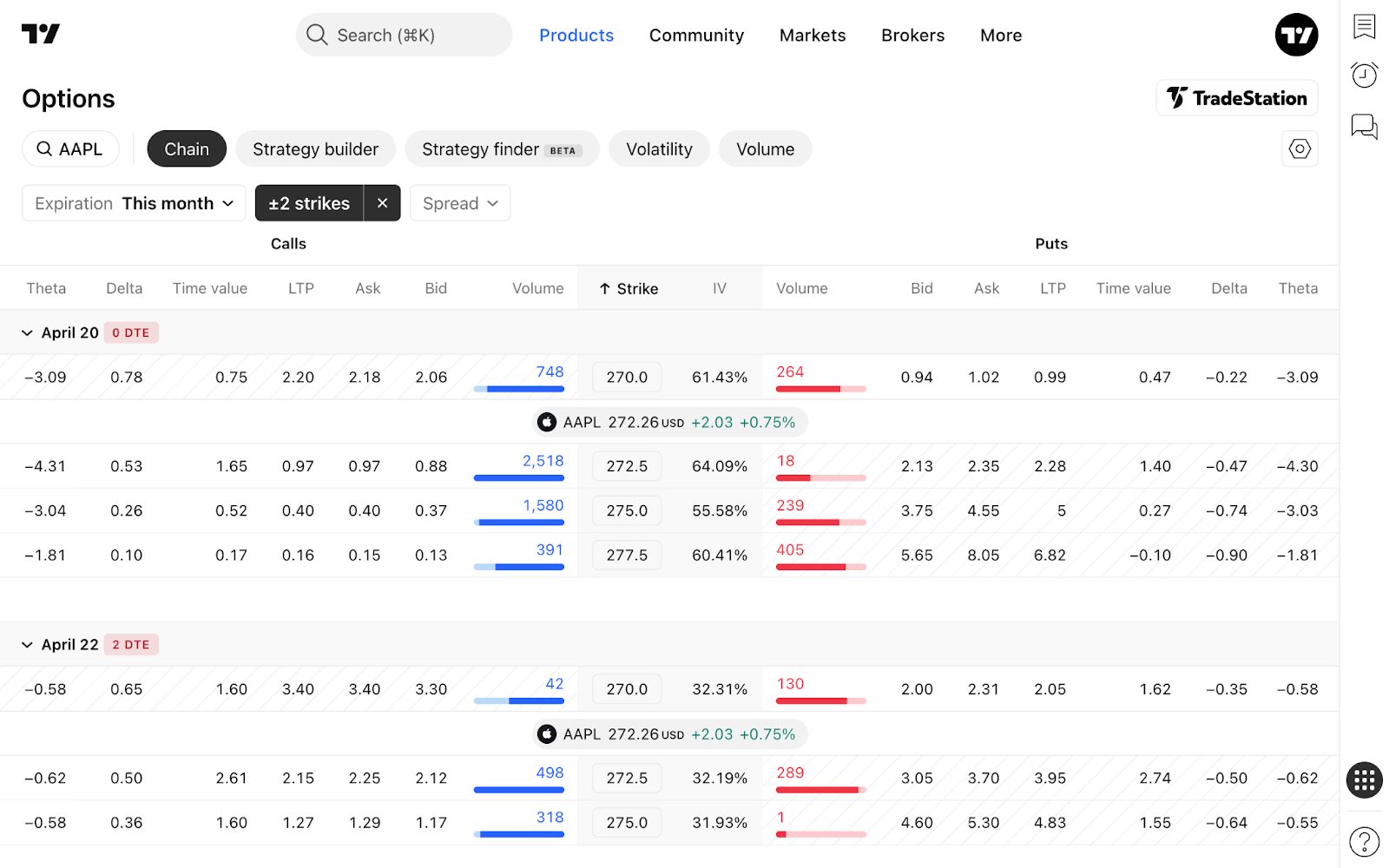
The options chain opens in the Multi-expiration view, displaying contract data for several expiration dates simultaneously so you can compare option contracts across the term structure.
Options chain filters
The options chain offers three filters to help you narrow down contracts:
- By expiration
- By strike
- By spread
You can either apply one of the preset filter options or fully customize each filter to match your specific trading criteria.
Expiration filter
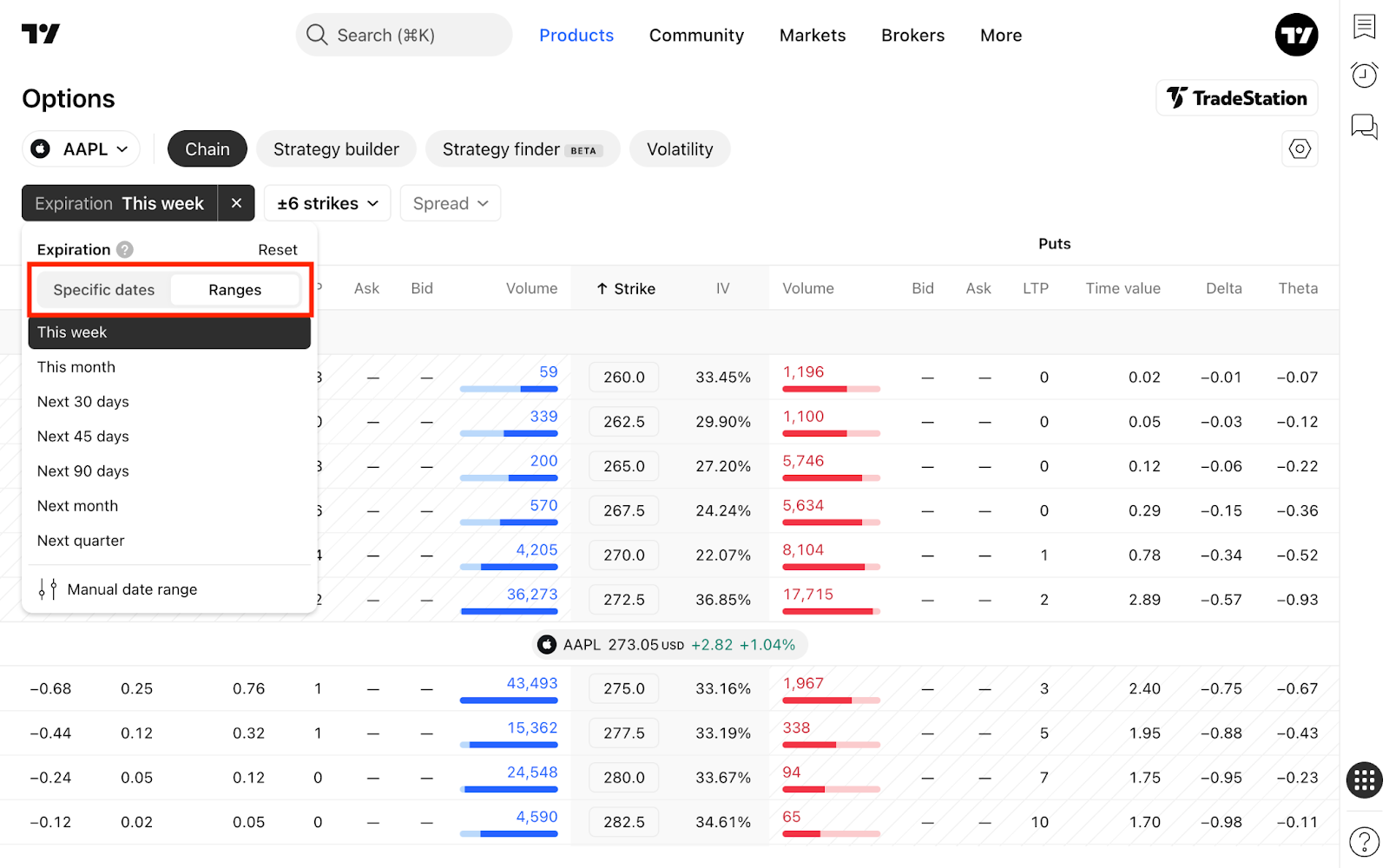
This filter lets you find options contracts using preset ranges like this week, this month, and other common intervals, or define your own custom window through the Manual date range setting. You can also filter by any specific expiration date available for the underlying asset using the Specific dates selection, giving you full flexibility over the time horizon you want to analyze.
Strikes filter
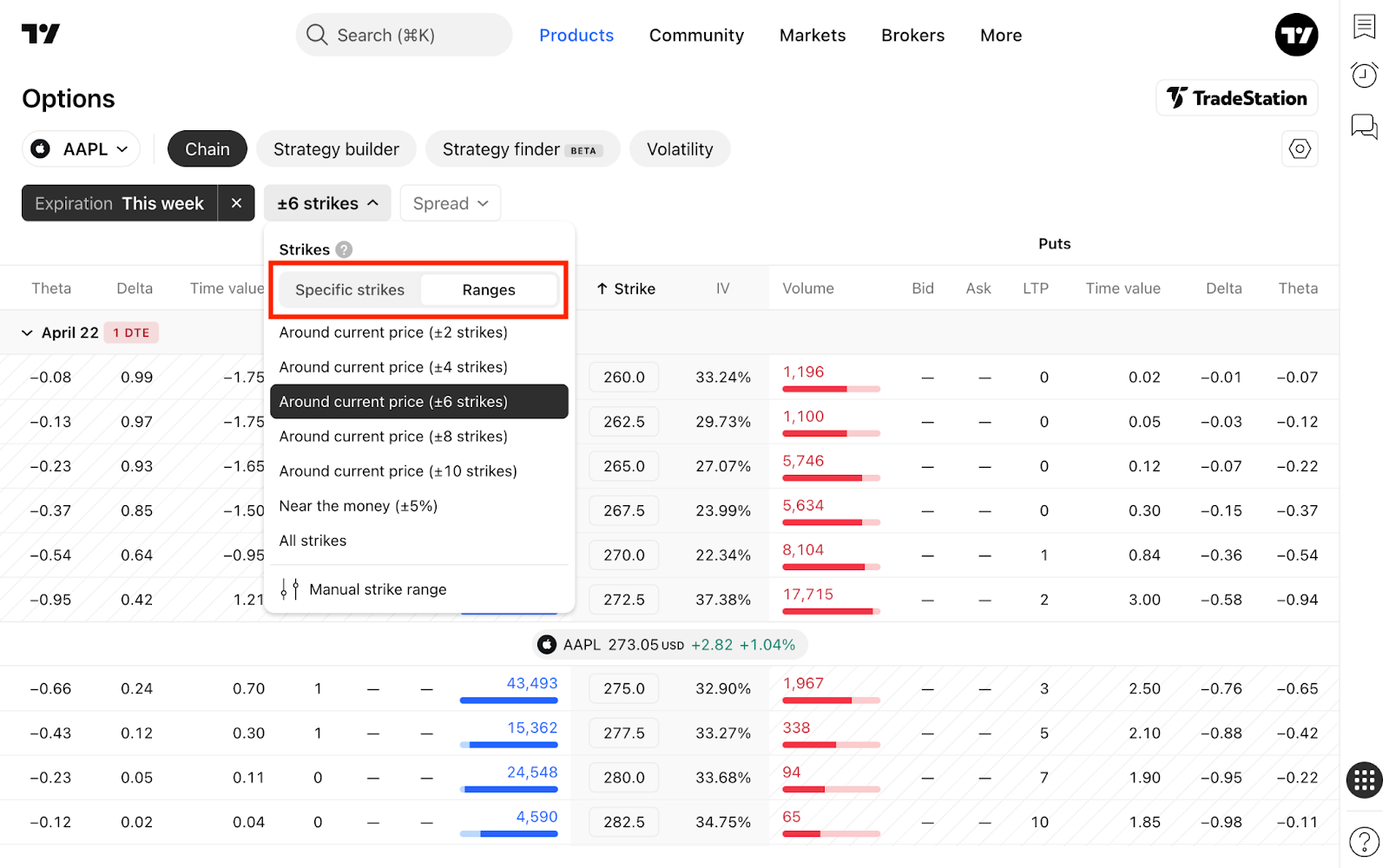
This filter lets you find contracts using preset options such as N strikes above and below the current price of the underlying asset or all strikes within ±5% of the current price. You can define your own range through the Manual strike range setting, or select individual strike prices from the full list of available strikes via the Specific strikes menu.
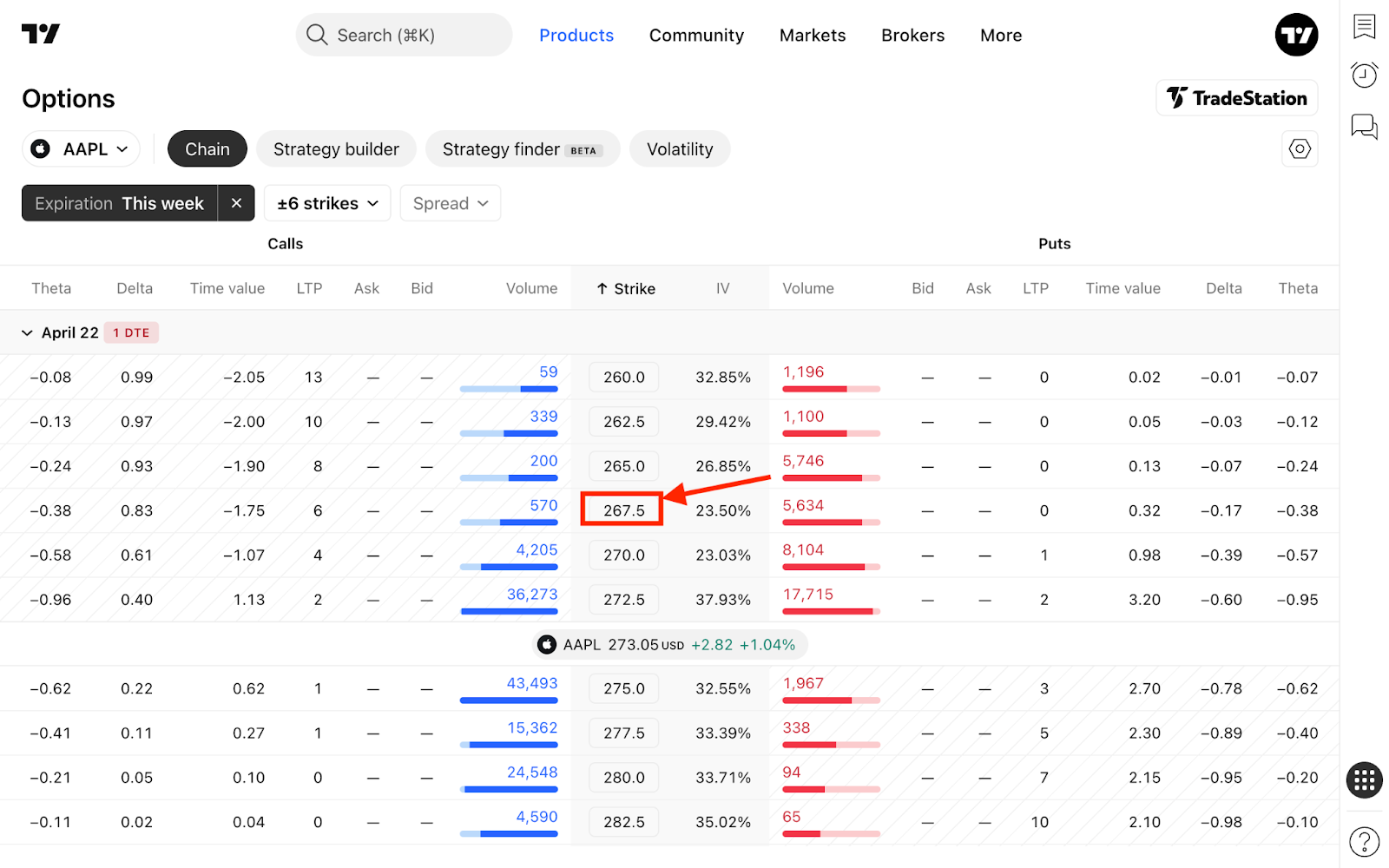
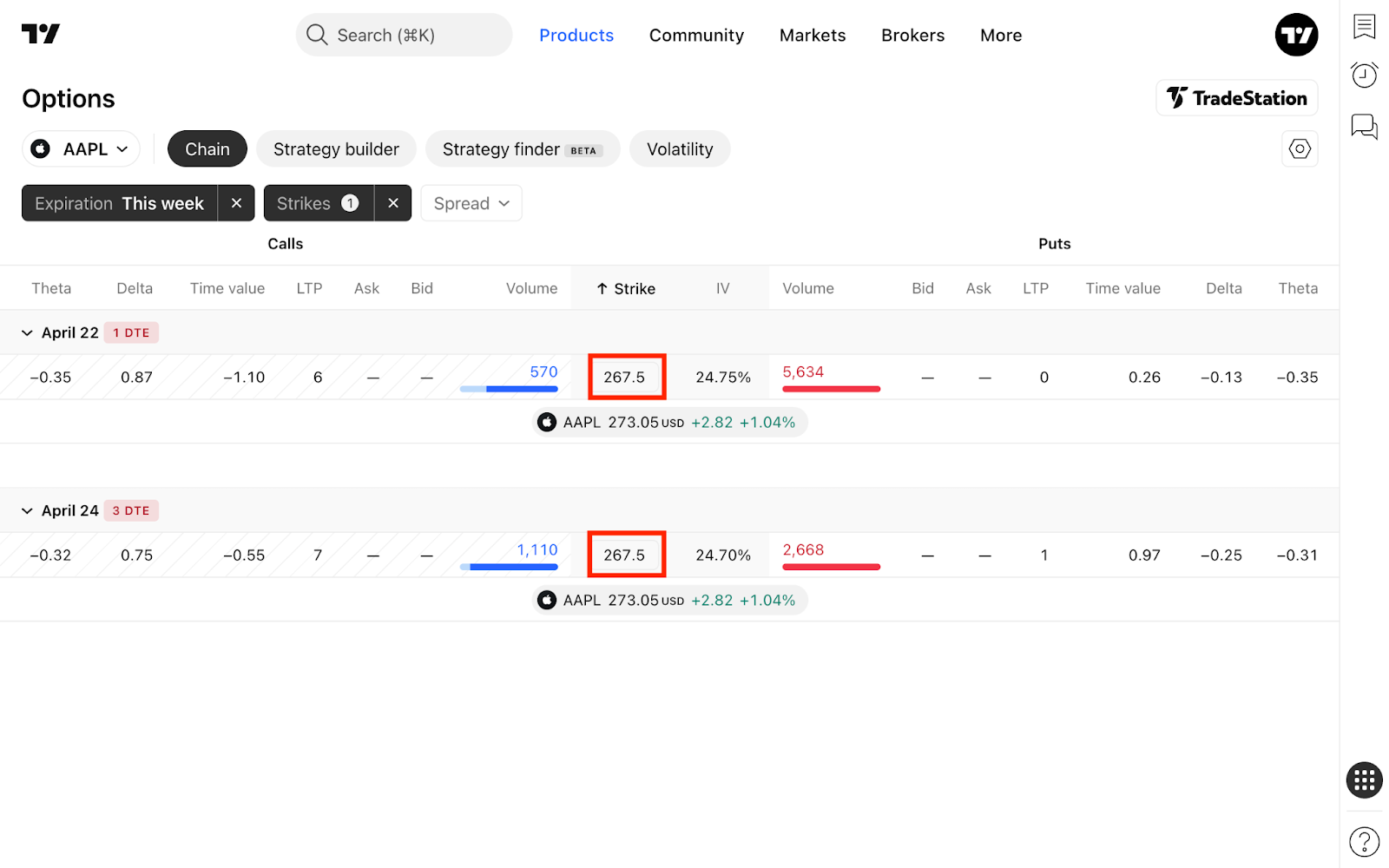
You can also filter the chain instantly by clicking on any strike price directly within the options chain. This will display only the contracts tied to that specific strike across all expirations.
Spread filter
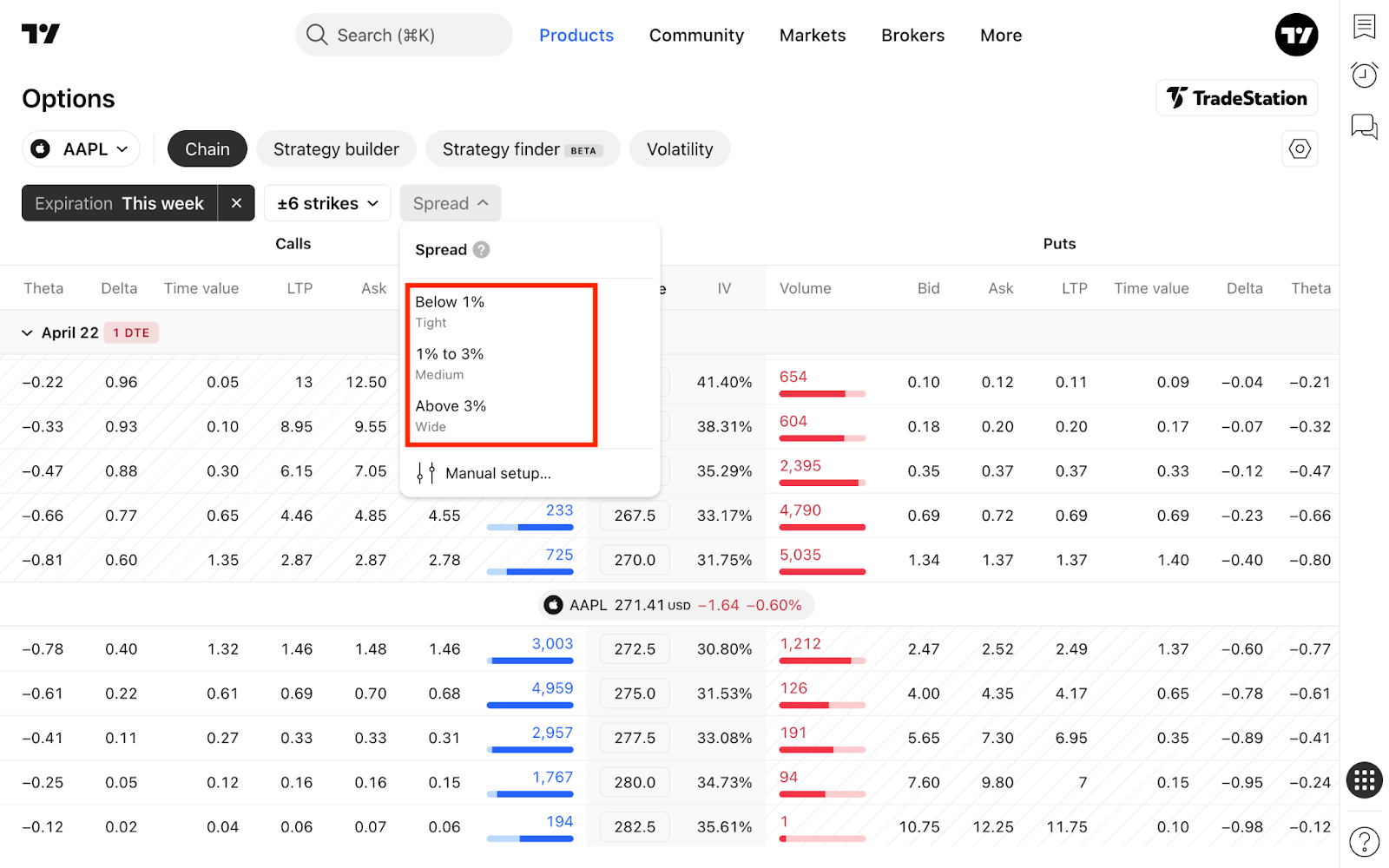
Contracts can be filtered by the bid-ask spread using preset options: Tight, Medium, or Wide. They can be configured manually through the Manual setup menu to define your own spread thresholds.
Table
The table is the heart of the chain. It consists of three base elements:
- Strike: Located in the center. Each row corresponds to a single strike price
- Calls: Located on the left. Contains key data on call options
- Puts: Located on the right. Contains key data on put options
Put and call options rows
On both sides of strike prices, you can see 24 columns for each option:
- Volume: Daily traded volume for the contract
- Distance: Distance from the underlying's current price to the strike
- Rel distance: Relative distance as a percentage
- Bid: Best bid price
- Ask: Best ask price
- Spread: Ratio of the bid-ask spread to the mid price
- Theor: Theoretical price derived from a pricing model (e.g., Black-Scholes)
- LTP: Last traded price of the option
- Bid %: Bid price as a percentage of the underlying price
- Ask %: Ask price as a percentage of the underlying price
- Ann bid %: Bid price as a percentage of the underlying price, annualized
- Ann ask %: Ask price as a percentage of the underlying price, annualized
- Intr value: the option’s immediate exercise value
- Time value: the option price minus intrinsic value
- Bid IV, %: Best bid price converted into volatility space
- Ask IV, %: Best ask price converted into volatility space
- IV spread %: Difference in implied volatility between ask and bid
- BE: Break-even price (the underlying asset's price at which the options strategy results in zero profit)
- To BE%: Percentage move in the underlying needed to reach break-even
- Delta: Expected change in the option's price for a $1 move in the underlying
- Gamma: Rate of change of delta for a $1 move in the underlying
- Vega: Expected change in the option's price for a 1% change in implied volatility
- Theta: Daily price decay of the option as expiration approaches
- Rho: Expected change in the option's price for a 1% change in interest rates
Row details pane
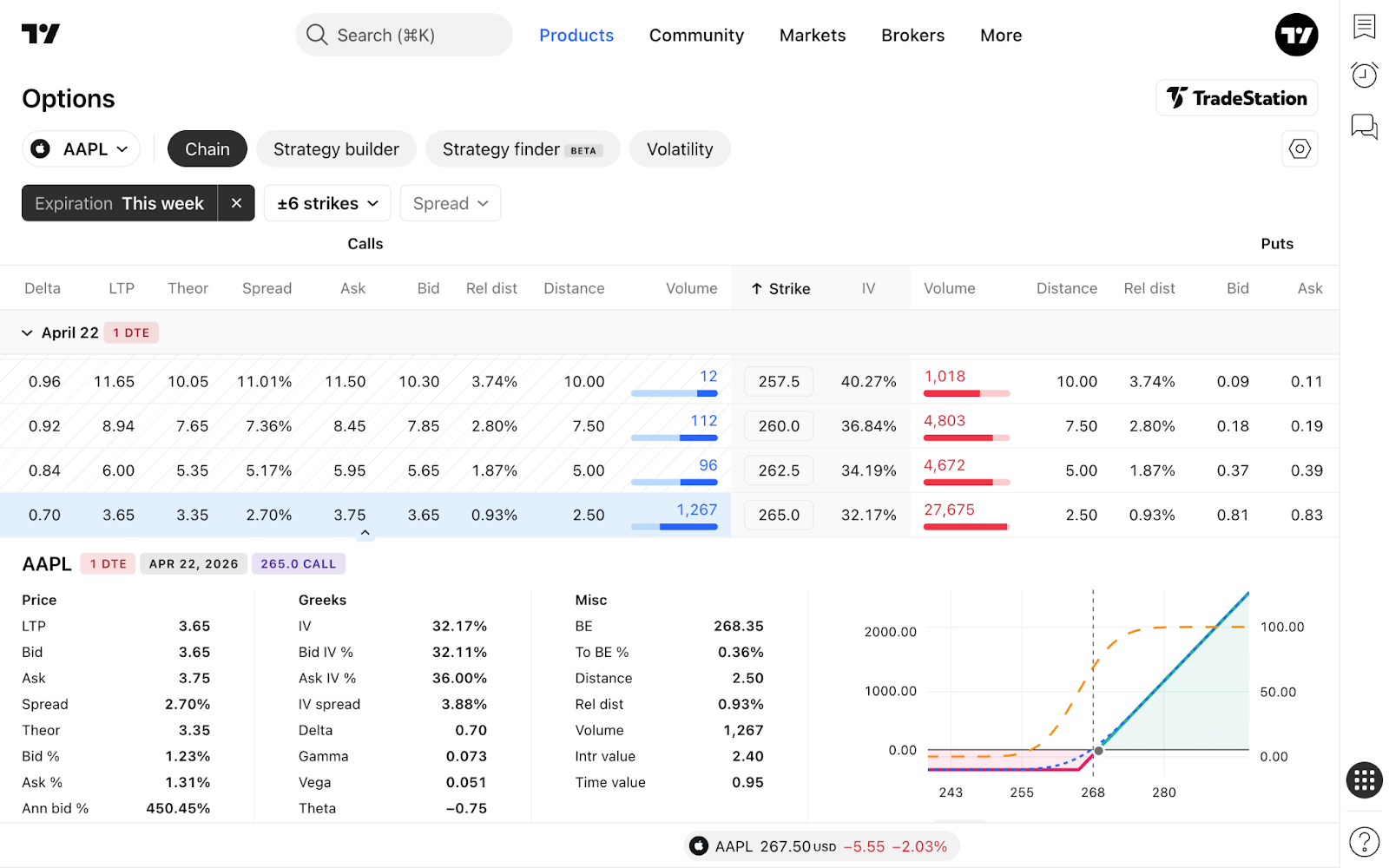
You can view the option details that don't fit in the table columns in the additional pane.
You can also see duplicated column data there, along with more detailed information and several action buttons.
If you click to the left or right of the "Strike" column, the row will expand to show a payoff diagram and options data related to the specific contract.
Options chain settings
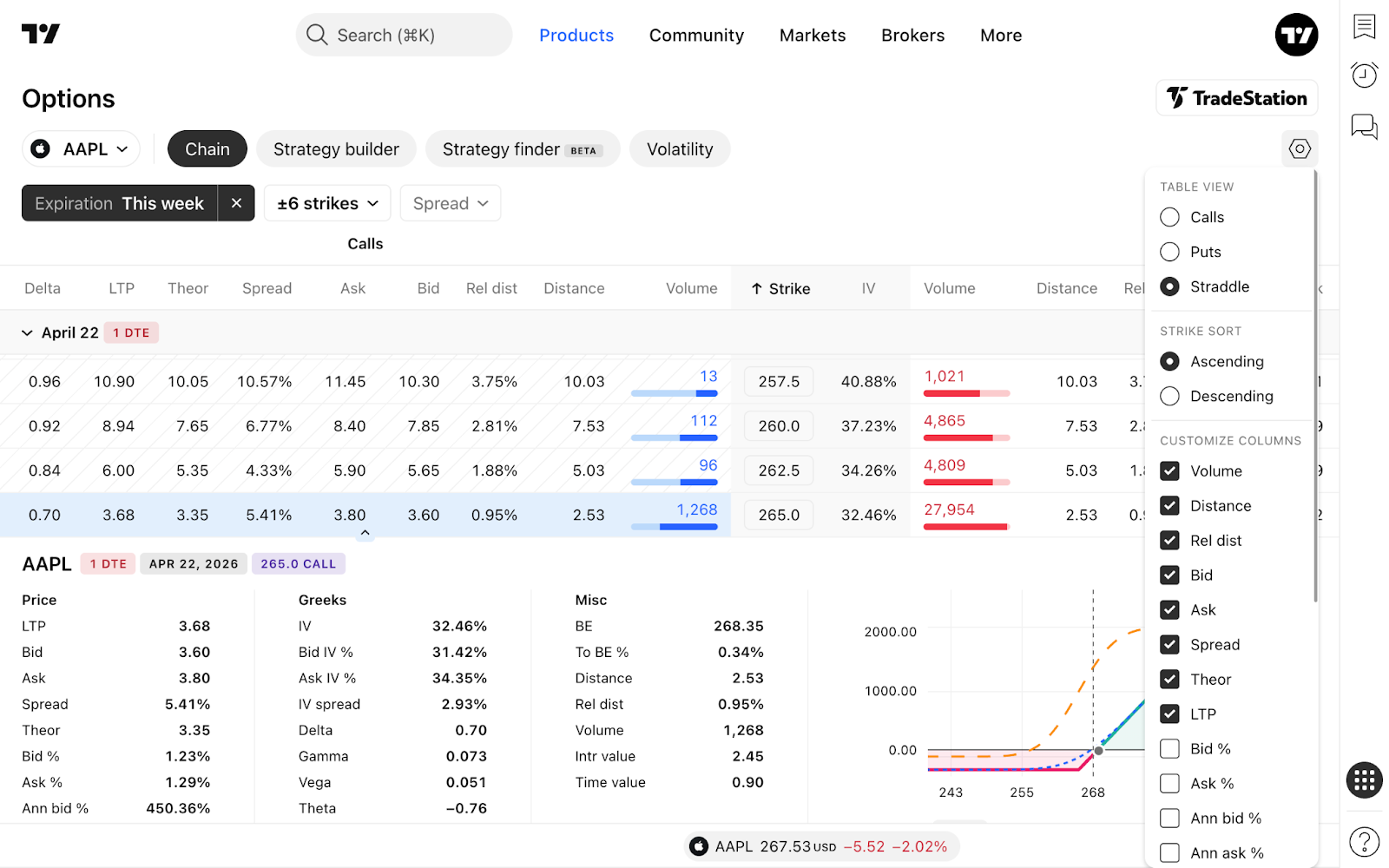
On the top-right of the table, you can find the gear button. From there, you can change:
- Table view: Only calls, only puts or calls and puts view
- Strike sorting method: Ascending or descending
- Column data: Choose from the 24 mentioned parameters
Also read: