How to create a portfolio via import from your broker
To create a portfolio from your brokerage account via Plaid:
- Go to the portfolio page.
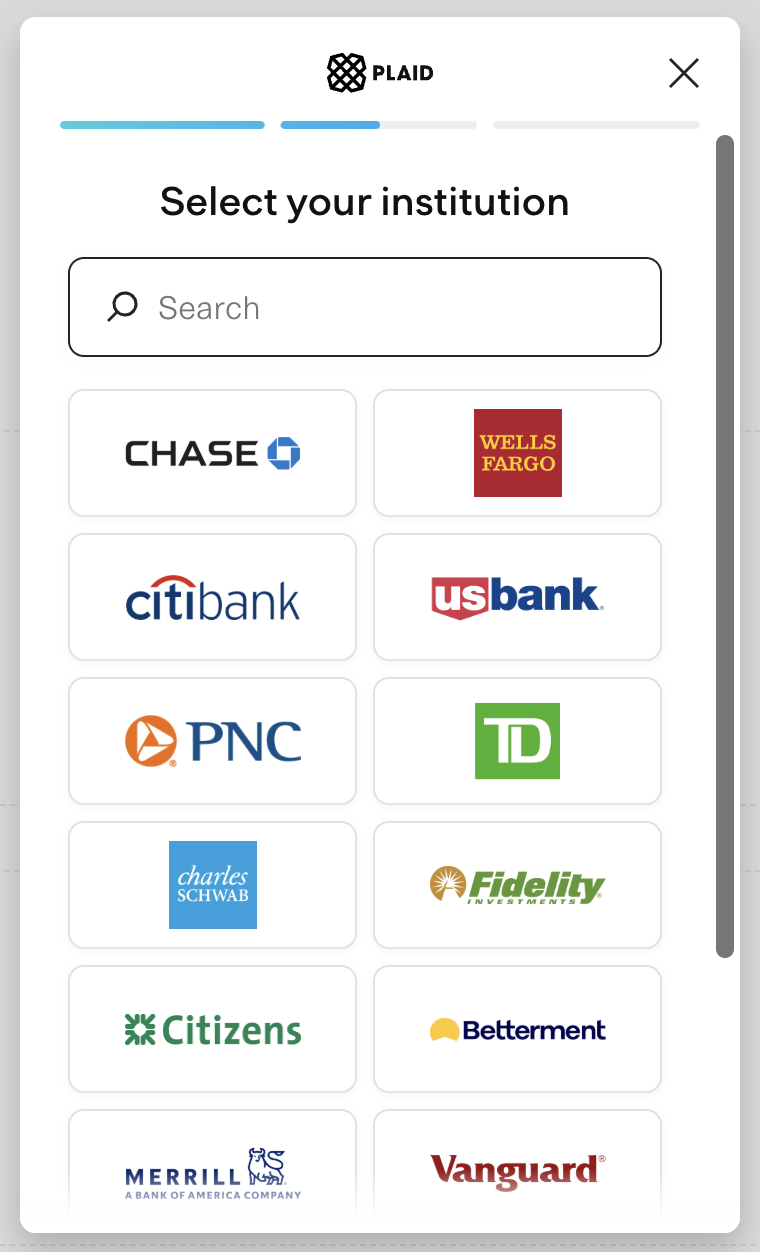
- Select Connect via Plaid and choose your broker in the Plaid window.
- Log in to your brokerage account.
Note: some brokers may require additional steps to enable access to your accounts. To set up the connection to a specific broker, click Steps to enable Plaid access in the Plaid window — it opens a step-by-step guide.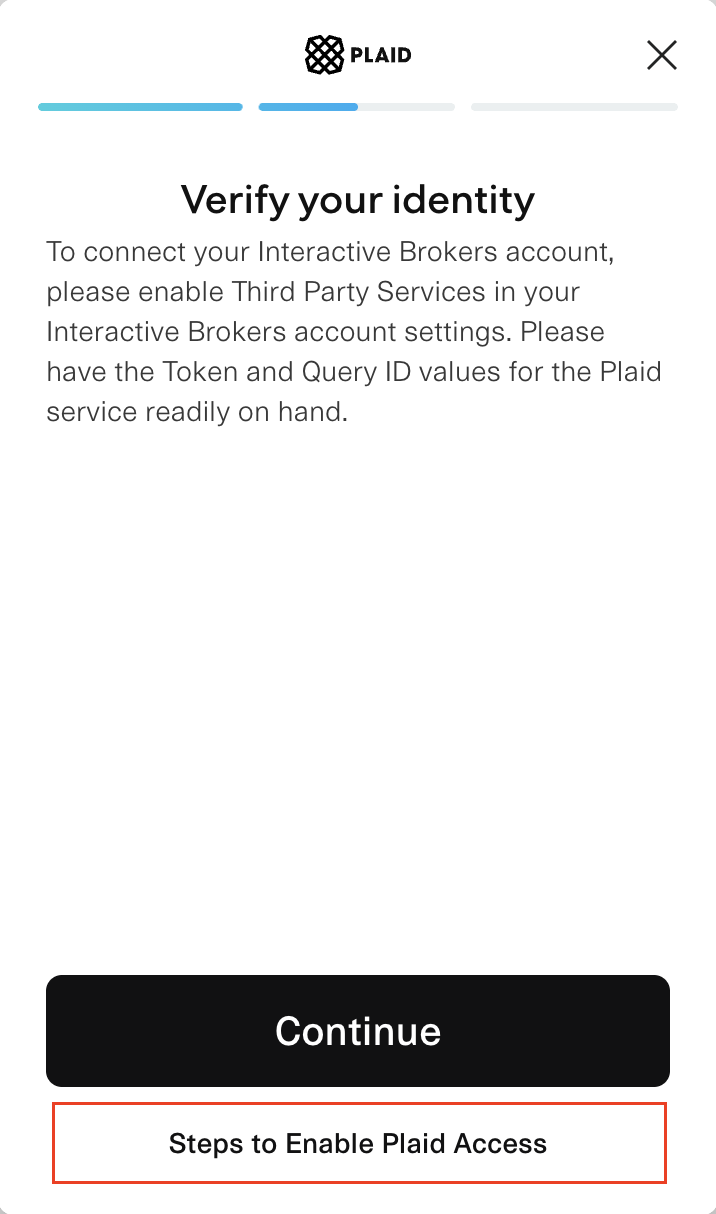
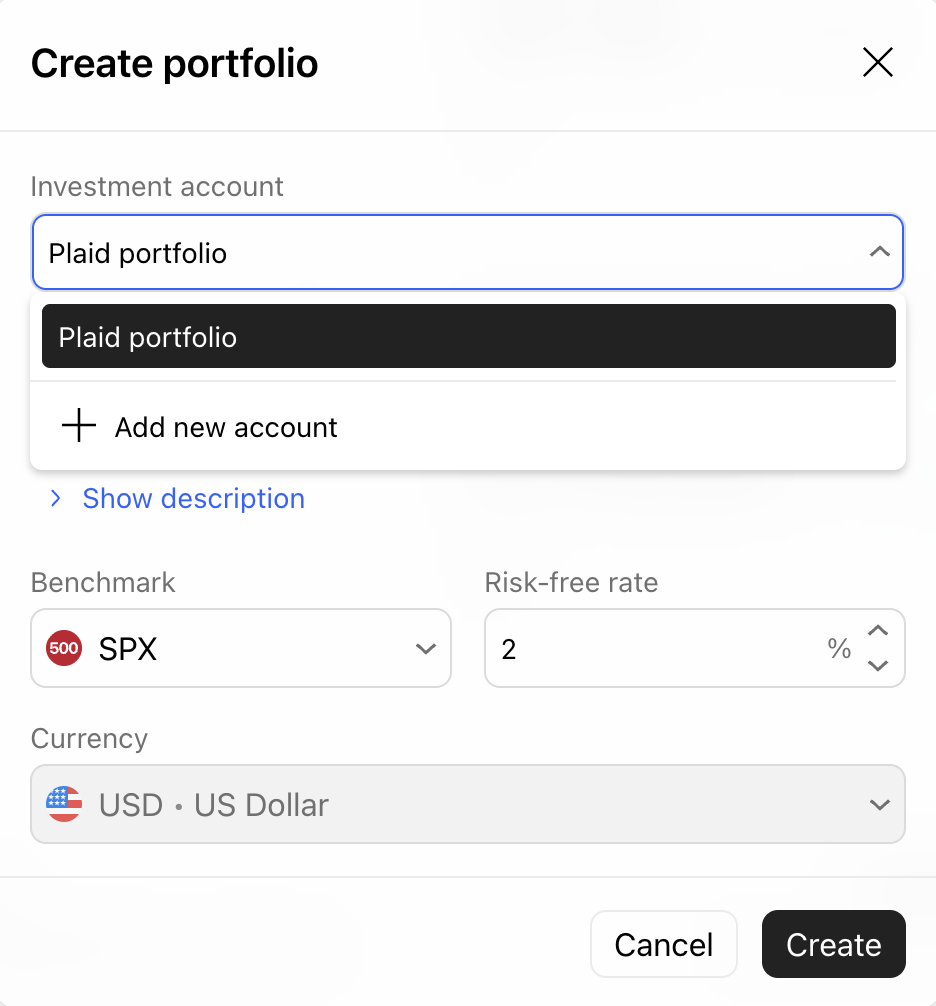
- After the connection is established, the portfolio creation dialog shows all investment accounts you hold at this broker. Select the account you need and create the portfolio.
What happens next?
- Transactions will be automatically added to the portfolio - one buy transaction for each position. The quantity equals the position quantity, the price equals the average cost, and the commission is 0. If the broker doesn’t provide the average cost, the market price is used.
- One deposit transaction is added, so the portfolio cash matches your broker balance.
- Transactions are dated the last trading day for which the broker provides data.
- Unsupported instruments are skipped.
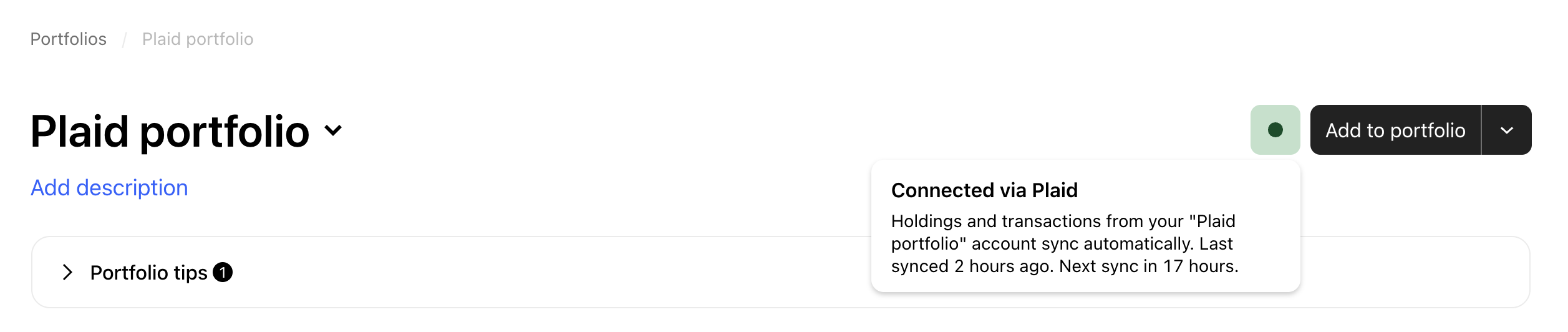
- Your broker accounts are synced once a day, after the US market closes. New transactions are added to the portfolio automatically. Sync doesn’t overwrite your edits.
- Portfolios with an active broker connection are marked with a green status button.
Important
- The feature is available only on paid plans, for brokers in the US and Canada.
- You can have up to three active broker connections at the same time.