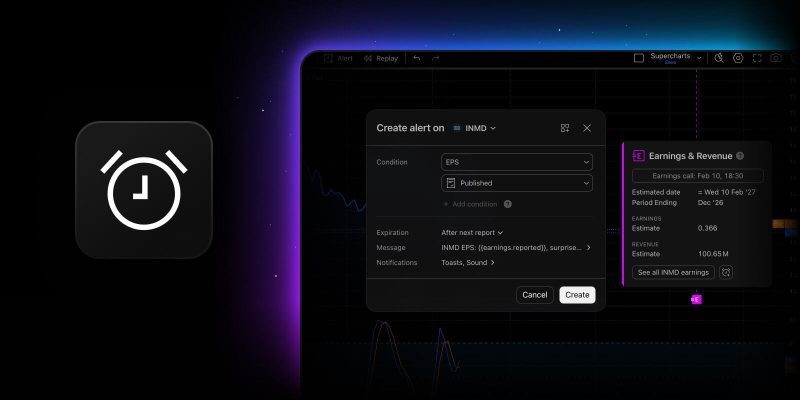
Until now, if you wanted to know when a company reported earnings or whether its EPS beat estimates, you had to watch the earnings calendar or wait for the news. Following the introduction of alerts for valuation metrics, you can now create alerts for EPS and revenue right from the Earnings & Revenue badge on your Supercharts, and get notified when new figures come in.
Note: Earnings alerts work for companies listed on NYSE, NASDAQ, and AMEX. Each alert counts toward your technical alert limit according to your subscription plan and is tied to a single symbol.
Here is how to set them up.
Setting up earnings alerts
Earnings reports are among the biggest catalysts for any stock. A beat or a miss can change the trend in a single session. With these alerts, you get notified of the result without tracking every report date yourself.
To create an alert, follow these steps.
- Click the Earnings & Revenue badge on the chart (to enable it, go to the Settings —> Events —> Earnings)
- Choose EPS or Revenue
- Select a condition
- Set an expiration
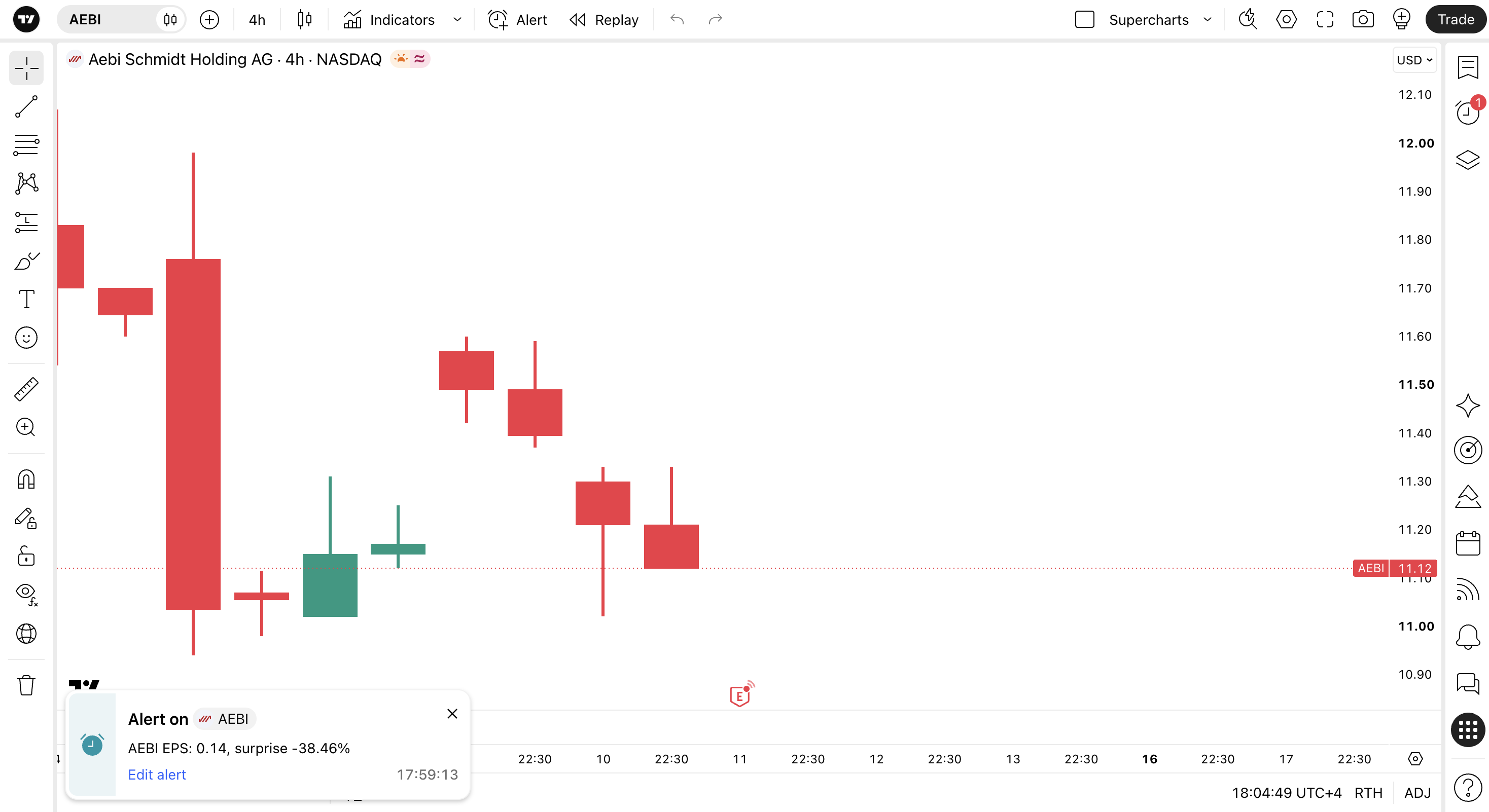
Now your alert is ready. The default alert message describes the result in plain English (e.g., AAPL EPS beat estimate by 2%). When the alert fires, the notification shows the reported figure next to the estimate and the actual time it fired.
You can choose from these conditions:
| Condition | Fires when |
| Published | A new EPS or Revenue figure comes out |
| Beats estimates | The actual figure tops the estimate by your %, 1% by default |
| Misses estimates | The actual figure falls short of the estimate by your %, 1% by default |
| Greater than | The reported figure is above your value |
| Less than | The reported figure is below your value |
Pick how long your alert runs
You can also choose the alert duration:
- Next report: Runs until the next report comes out, then stops — even if it didn’t fire. Available on Essential, Plus, Premium, and Ultimate
- Open-ended: Keeps watching report after report until you stop it. Available on Premium and Ultimate
Keep in mind that unlike valuation alerts, earnings alerts can’t be used in multi-condition alerts, watchlist alerts, or presets.
We hope this feature helps you stay on top of earnings season. Let us know what you think — your feedback keeps TradingView growing and improving every day.
Team TradingView