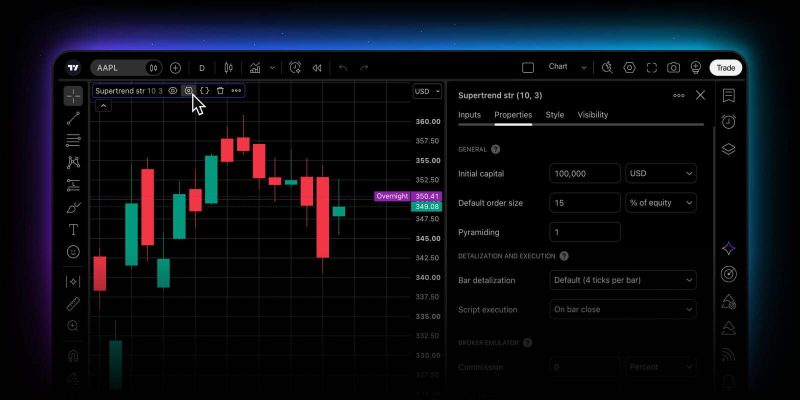
Previously, working with a script’s inputs meant a dialog sat on top of your chart, blocking your view of the indicator you were setting up. Now you can use the Dock option to pin the settings to the side and change inputs while keeping the full chart in view.
How it works
- Open a script’s settings by double-clicking its name on the chart or using the gear icon
- Click the Dock to right button next to the X in the top-right corner
The settings move into the right panel, and the chart stays fully visible next to them. You can switch between all the tabs present in the regular Settings.
Click the Settings button of a different script to replace the current script’s settings with the new ones. You can also click the panel header and pick a script from the full list of scripts on the chart.
Try this out and let us know what you think.
Team TradingView