How to manage flows
In the News Flow, you can save the settings to a flow and manage the flows.
The following settings can be saved: a list of active filters located in the top panel and the flow name.
Actions available for the flows:
- Create a new flow
To create a new flow, select the Create new flow action.

You can also create a flow by pressing the key combination Shift + Option + N on Mac or Shift + Alt + N on Windows.
- Rename flow
This action allows you to change and save the name of the flow.
There are 2 ways to rename a flow: with the Rename action and in the Open flow dialog.
For the first method, just open the flow menu and select the Rename action:

To rename any custom flow, select Open flow in the flow menu and click on the Rename button next to the flow in the opened dialog.

- Save flow
To save the flow, you can select the Save flow action in the flow menu
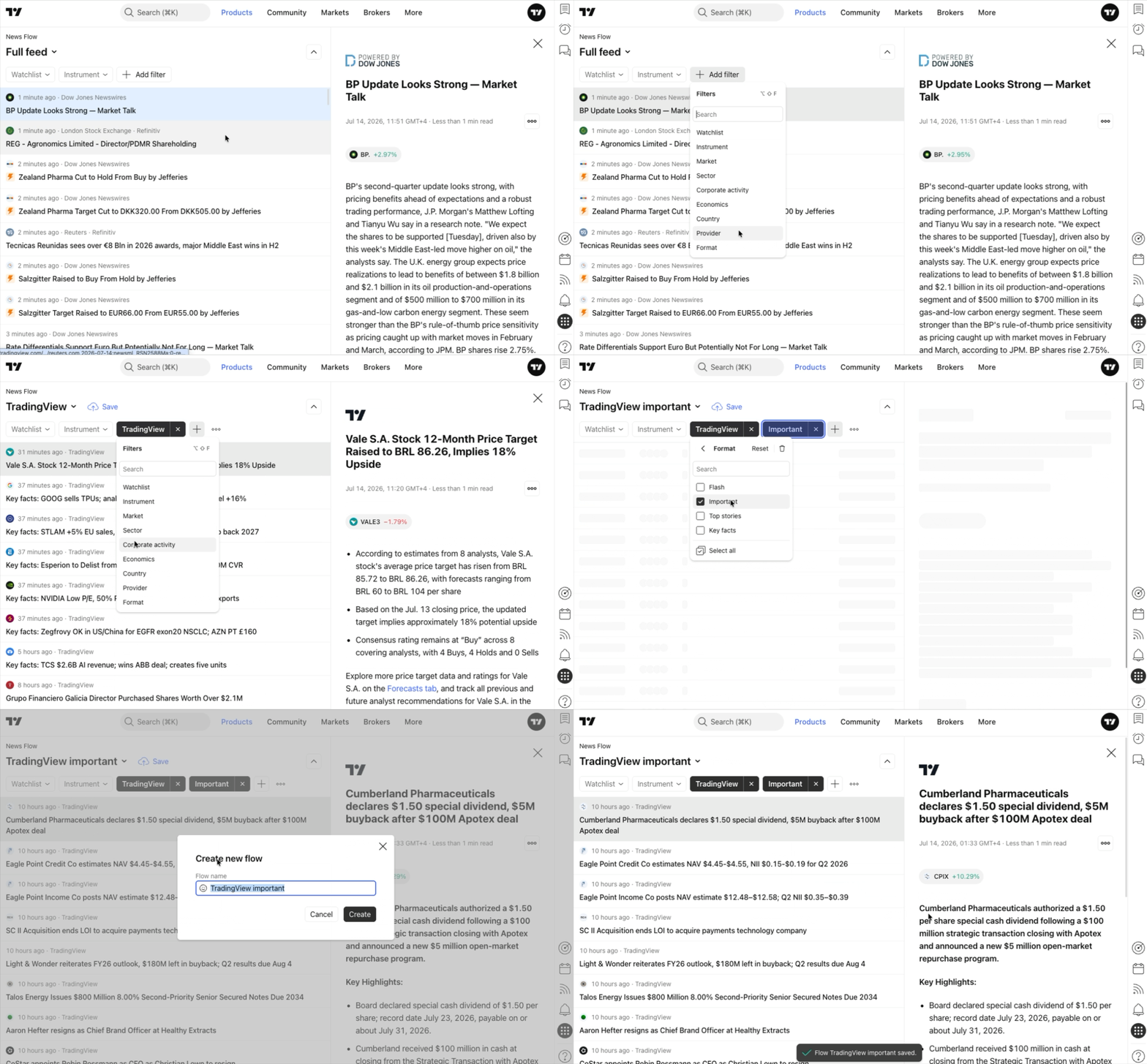
or click on the Save button in the top panel next to the flow name:
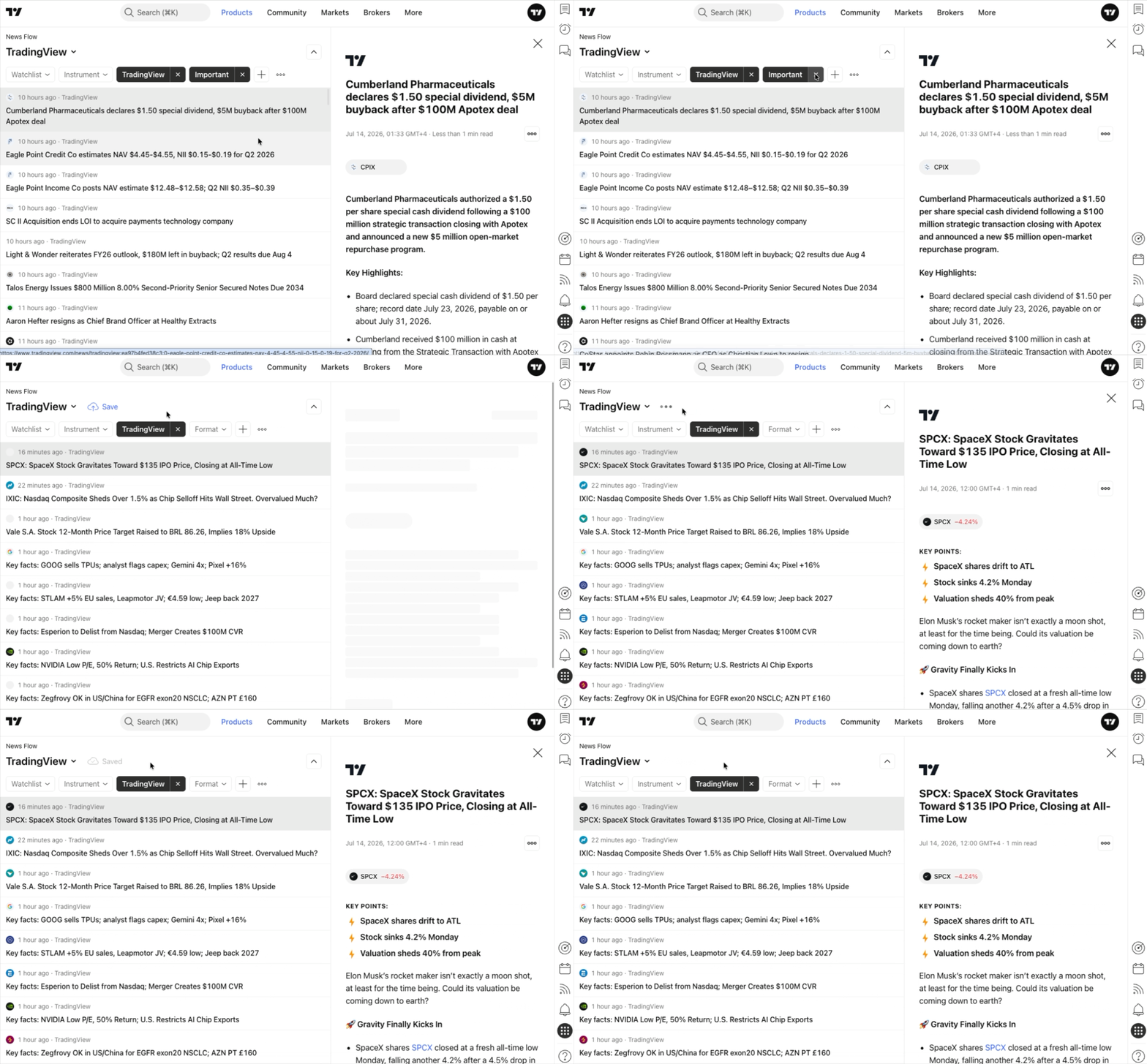
You can also use the key combination Shift + Option + S on Mac or Shift + Alt + S on Windows to save the flow.
- Switch selected flow
If you already have saved flows, you can switch between them. The last five flows you have used are displayed in the Recently Used section in the flow menu.
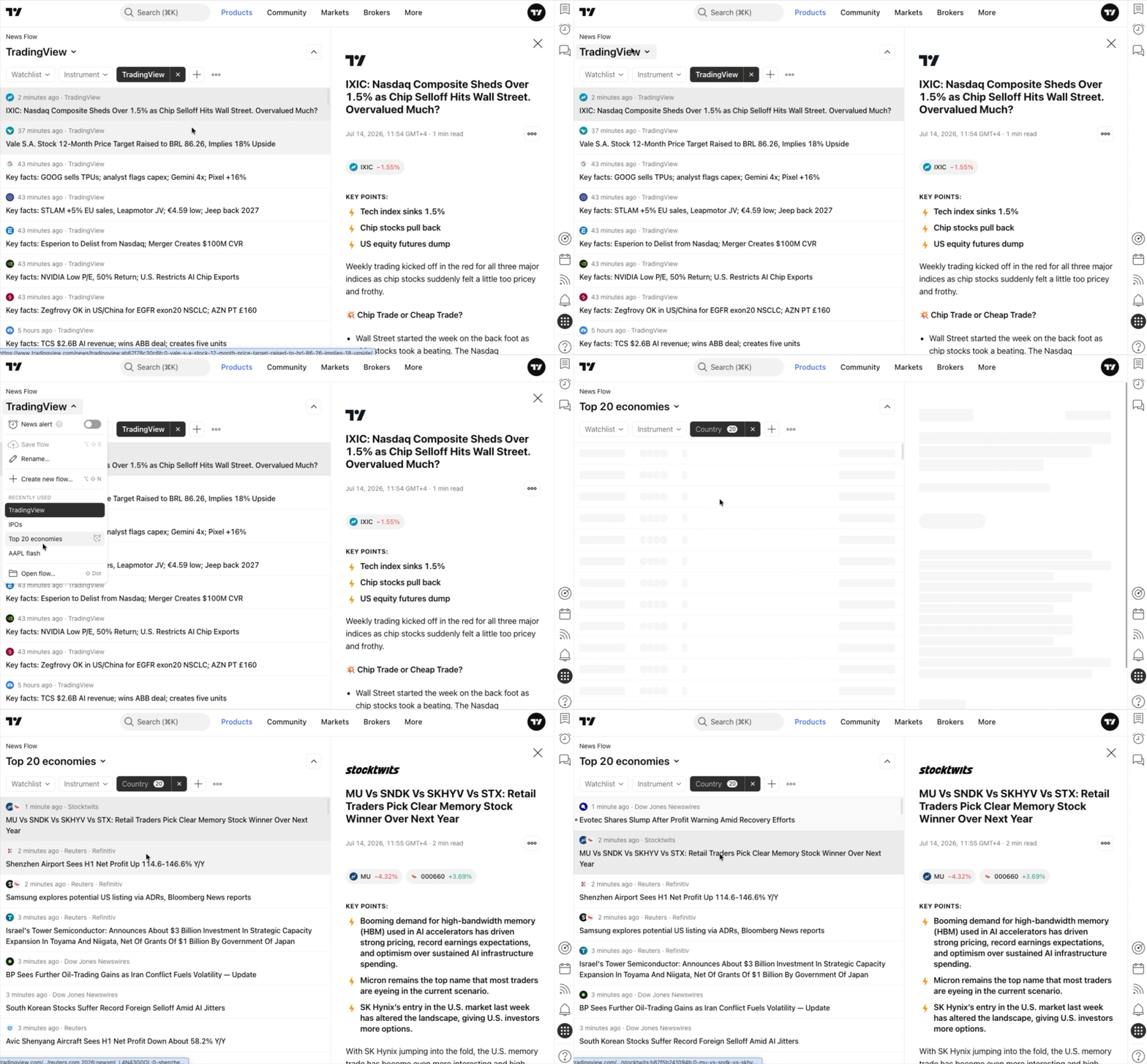
To use a custom flow, select Open flow in the flow menu and click on the flow name in the dialog that opens.

- Delete flow
To delete a flow, select Open flow in the flow menu and click on the Delete button next to the selected flow in the dialog that opens.
You can also select Open flow by pressing the Shift + Dot key combination on Mac and Windows devices.
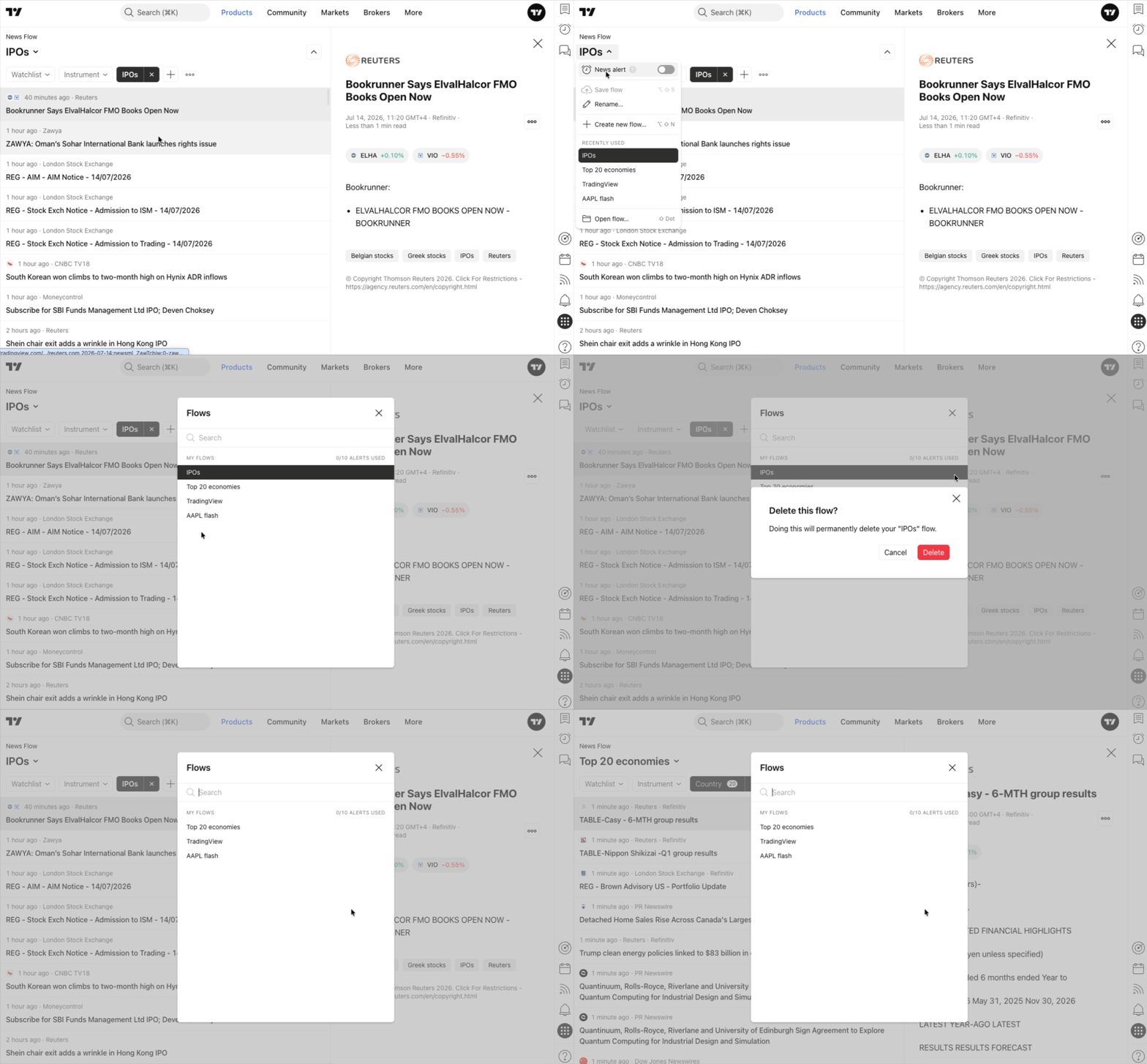
Please note that once a flow is deleted, it cannot be restored.
- Search flow
If you have more than five saved flows, you can see all of them in the Open flow dialog. Here, you can search for flows by name.