How to use the AI Screener
AI Screener helps you turn a vague screening idea into a ready-to-use Screener setup in seconds. Describe what you’re looking for, and AI will apply the matching filters and columns for you.
It’s an easy way to set up screener filters and columns with natural language input. Use the AI Screener to quickly test screening ideas, compare different criteria, and discover relevant companies without starting from a blank filter panel every time. Please note that the AI Screener is at a public beta stage.
To start using the AI Screener, do one of the following:
- Click the AI Screener icon in the upper-left corner of the filter panel;
- Use the keyboard shortcut Shift + A.
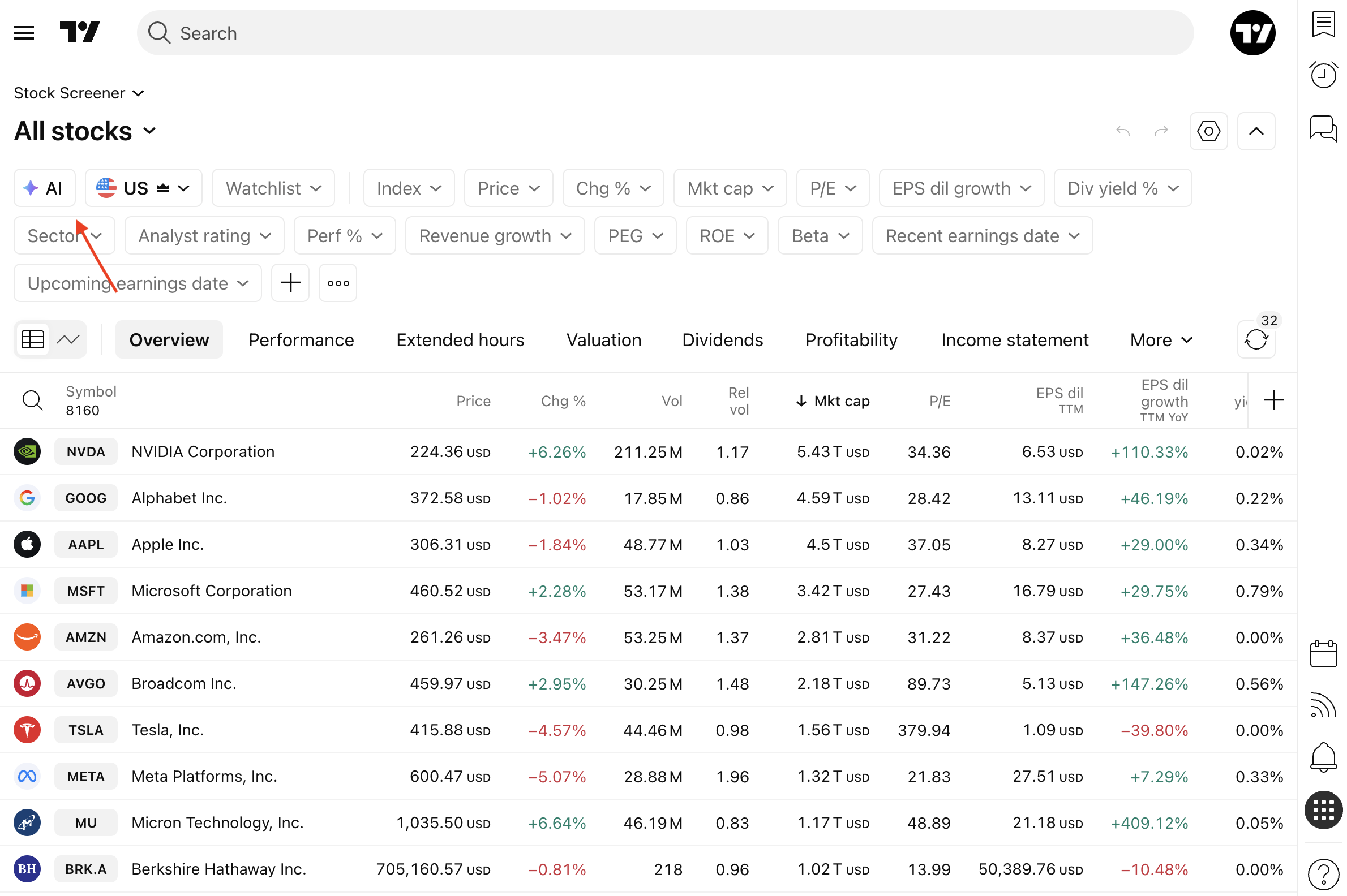
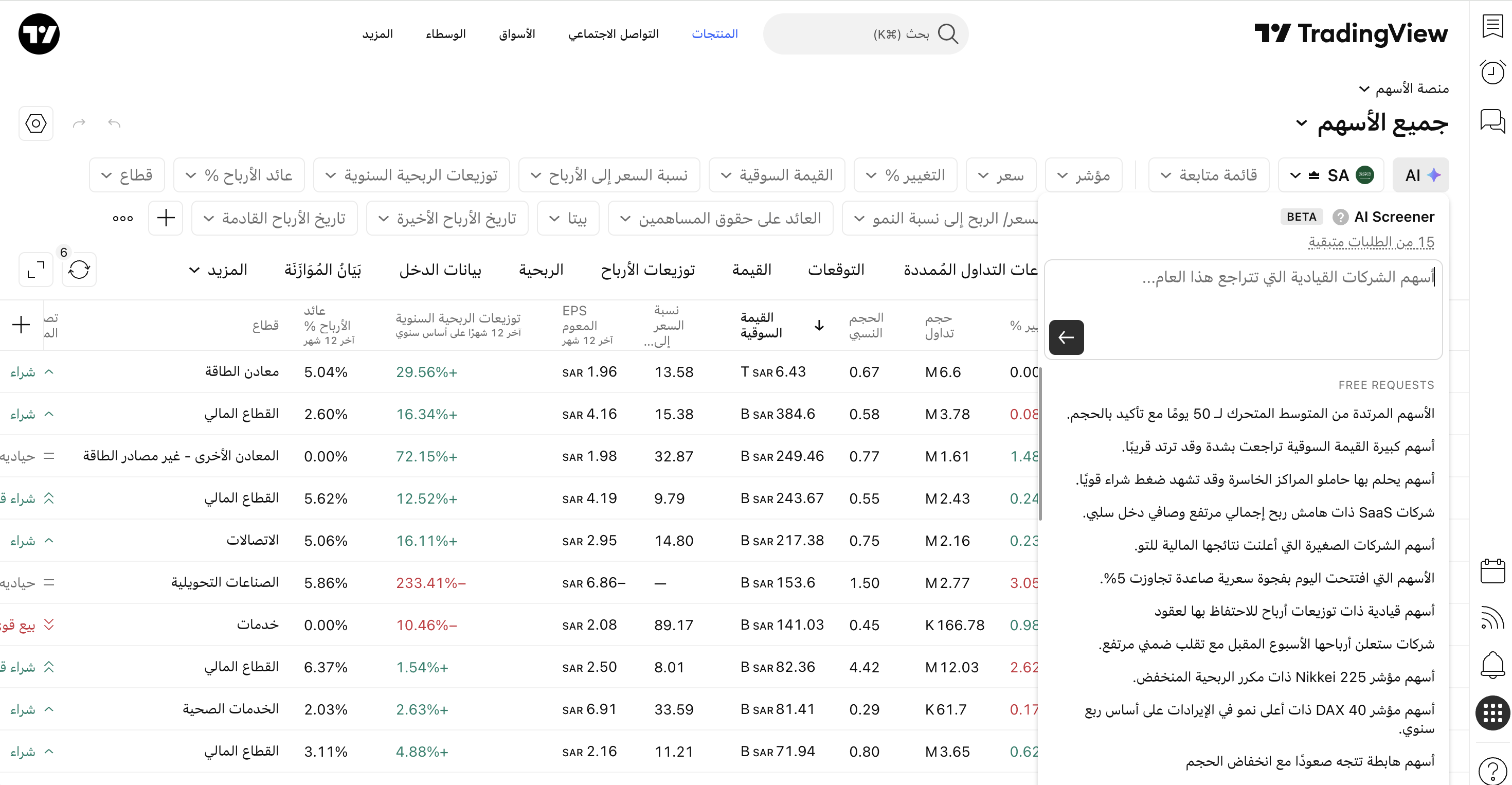
Note: The AI Screener is currently supported in all locales and accepts prompts in all languages that are available in TradingView, but for the highest quality results, English is recommended.
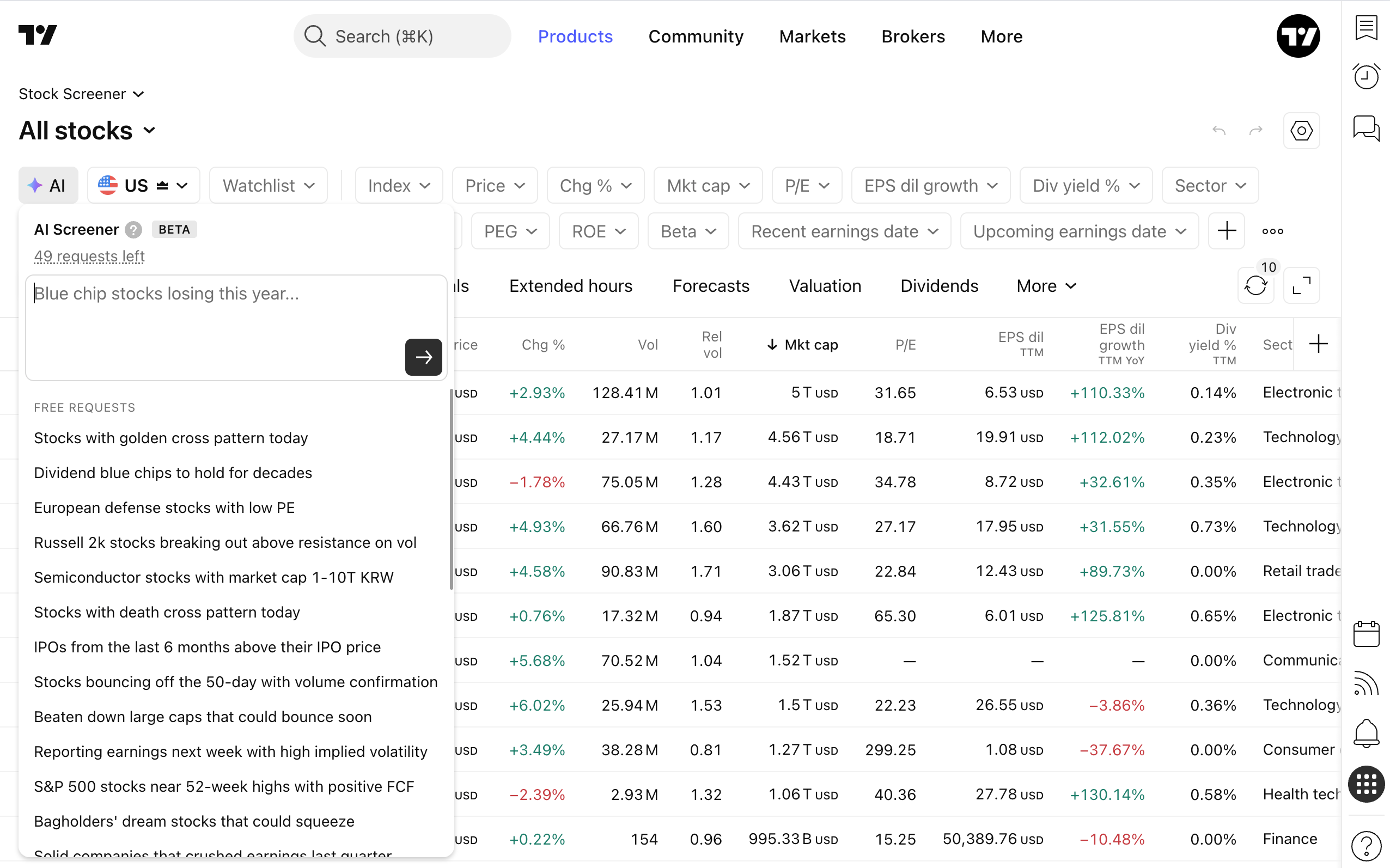
Click the AI Screener icon to open the menu, then enter your prompt in the input field. Prompts must be between 6 and 164 characters long.
To submit your prompt, press Enter or click the arrow on the right side of the input field. AI Screener will process your request, apply matching filters, select relevant columns, and configure sorting.
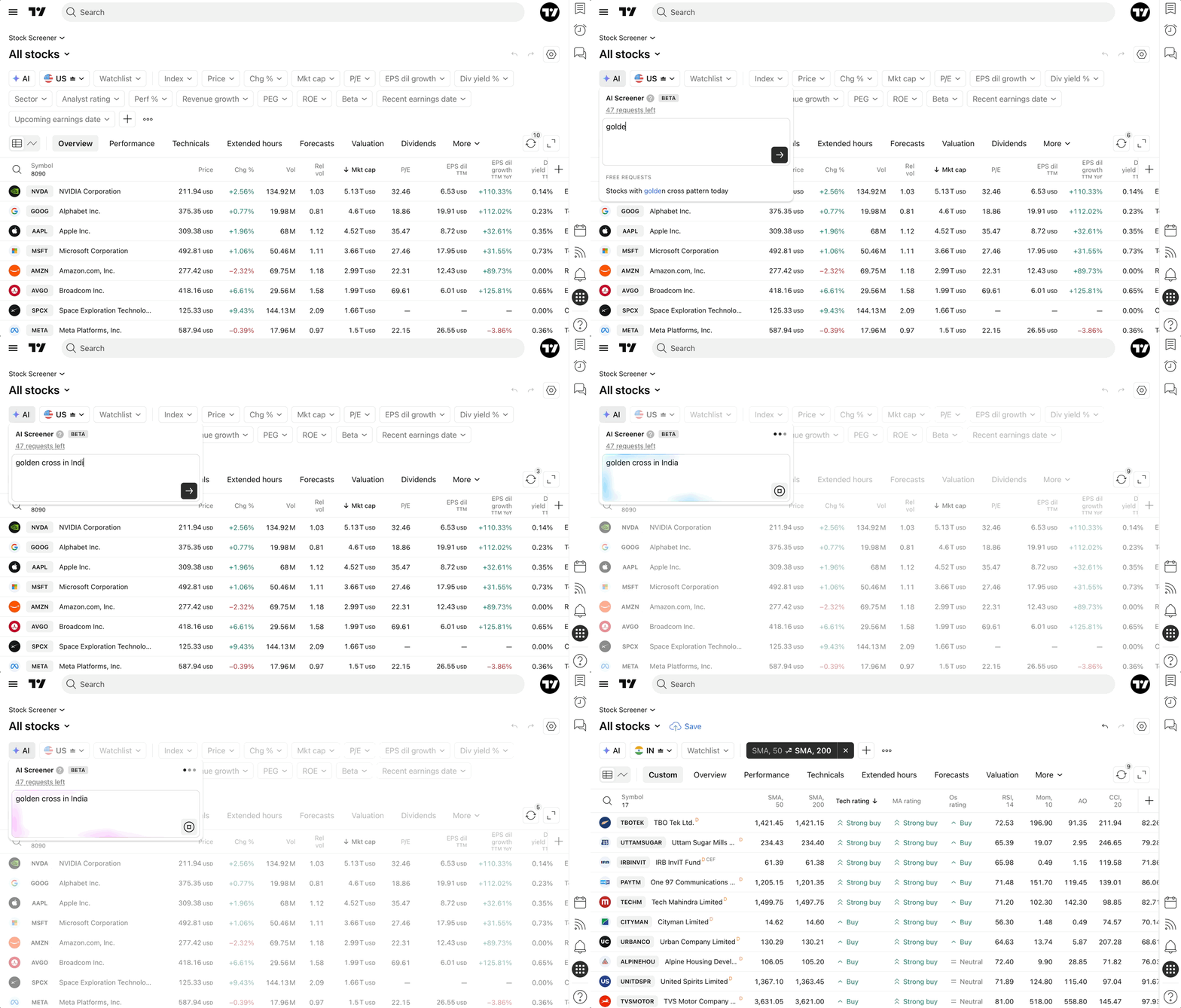
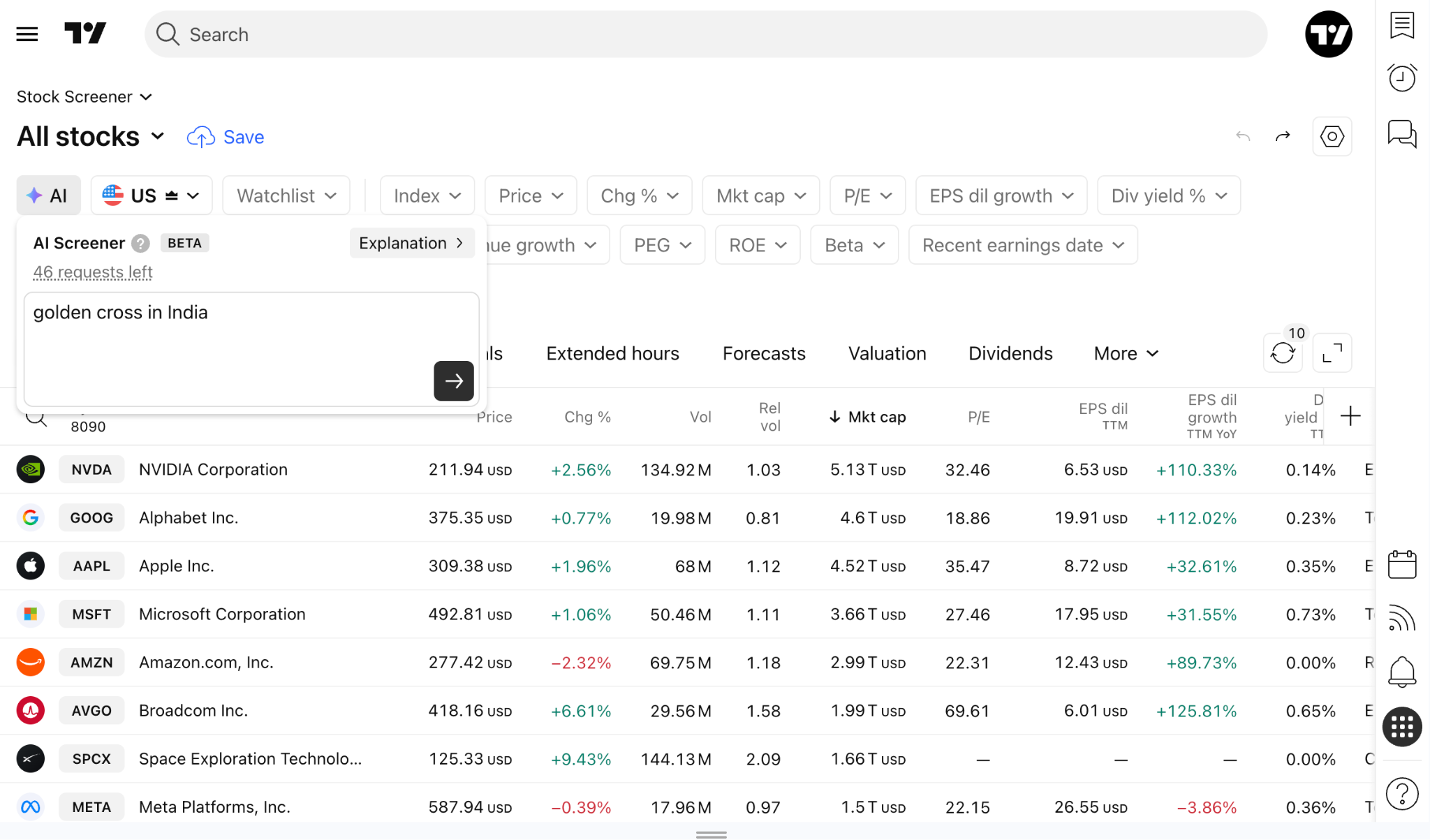
Example: entering "golden cross in India":
- automatically applies the filter SMA, 50/200 crossover up condition;
- set the market to India;
- add relevant SMA columns to the Technicals column set, creating a custom layout;
- sorts results by Technical Rating in descending order
Note: If you want to change the market, specify it directly in your prompt, as the market does not change by default.
Important: Running a new AI Screener request replaces the currently applied filters, columns, column set, and sorting settings. The current market remains unchanged unless you specify another market in your prompt.
The AI Screener is supported on mobile devices:
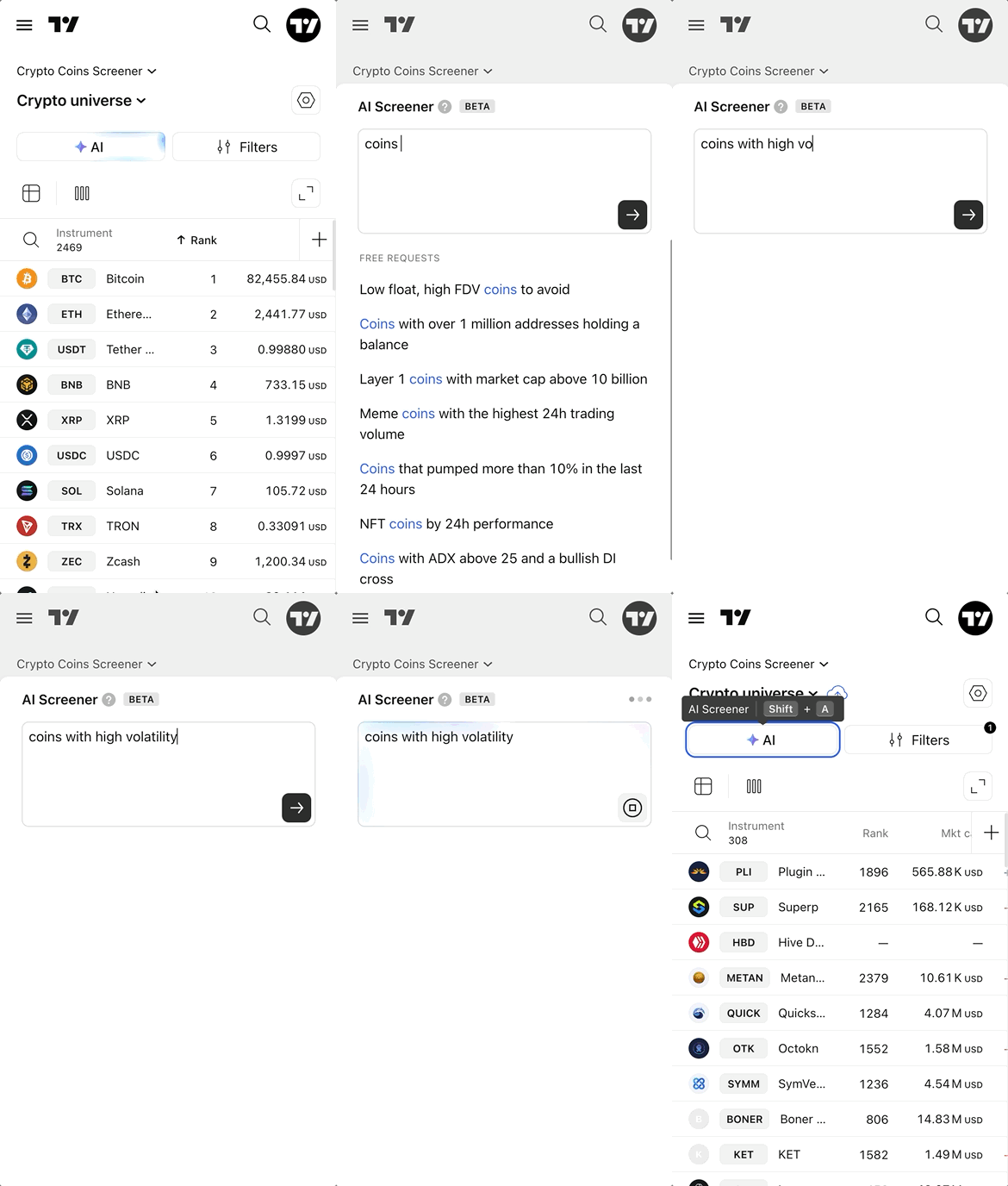
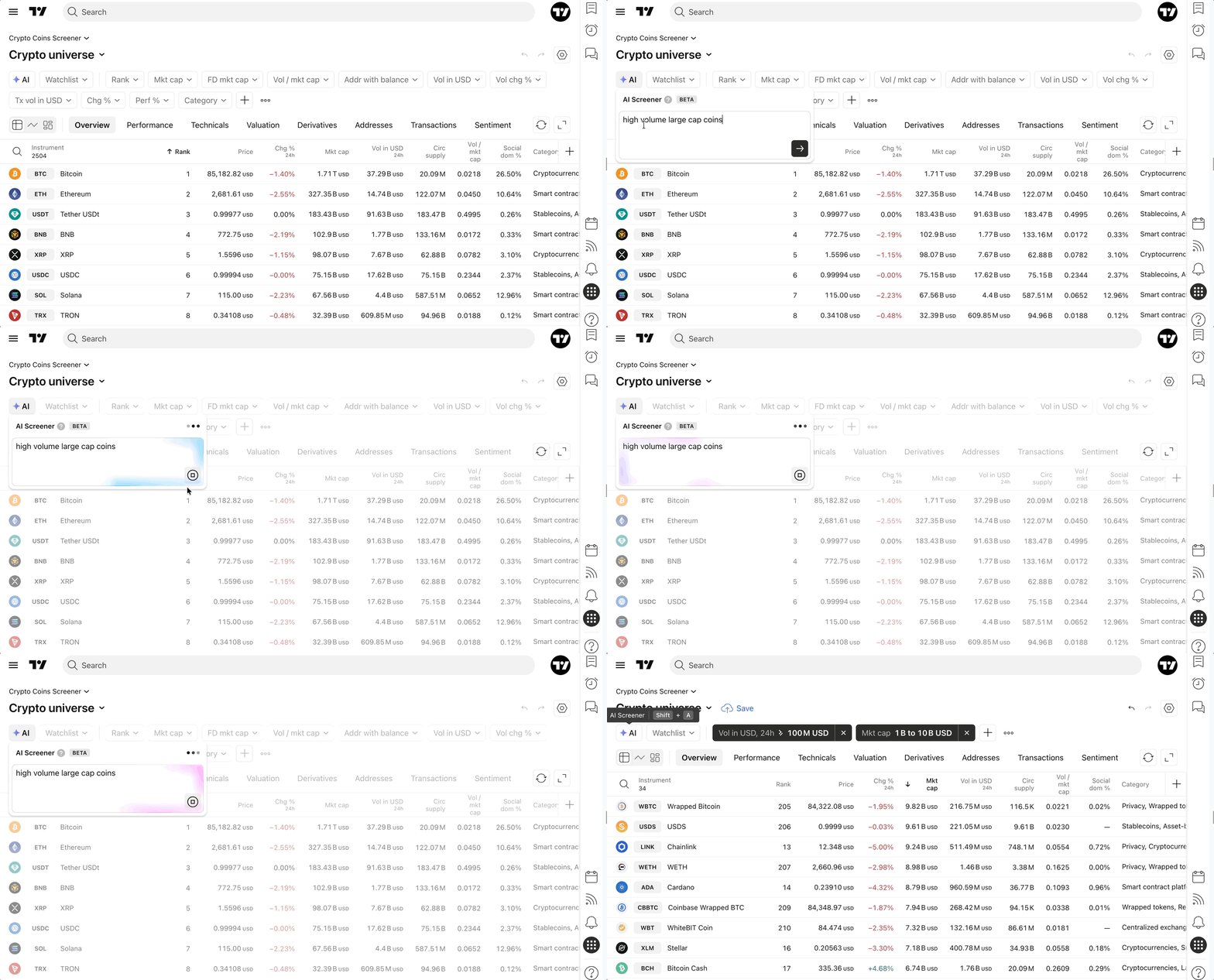
Please beware of the limitations during the beta stage:
- Currently, the AI feature is available only in the Stock Screener and Crypto Screener.
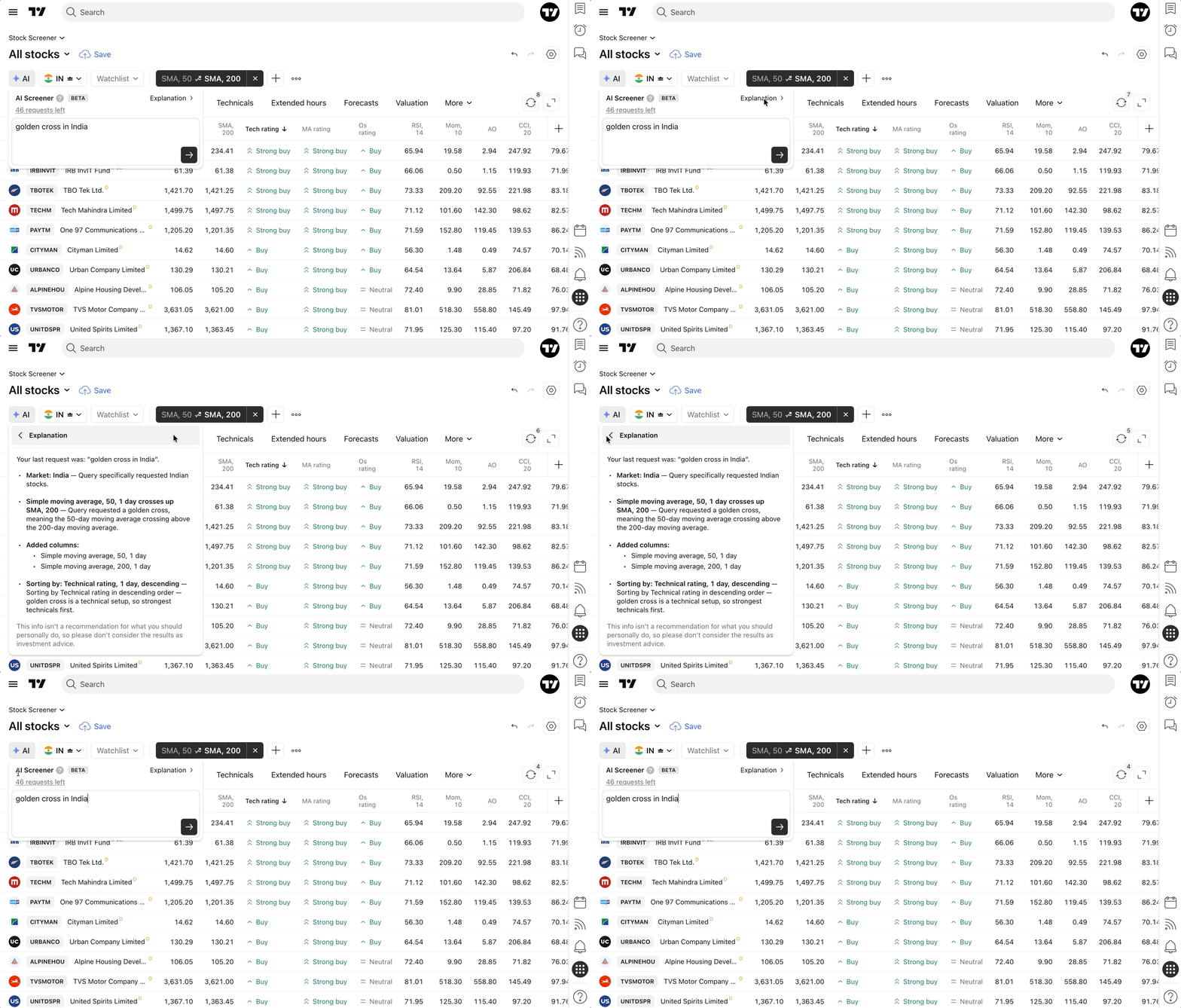
View the explanation
To see a detailed breakdown of why each filter was applied, click the AI Screener icon again and select Explanation. This section clarifies why each AI-selected filter and columns were selected.
To return to the prompt input field, click the arrow on the left.
Usage, Limits & Free Requests
The AI Screener is currently available to all paid users. Request limits depend on the subscription tier, however during the beta stage request limit is not guaranteed and may change.
You can track your remaining balance directly above the input field:
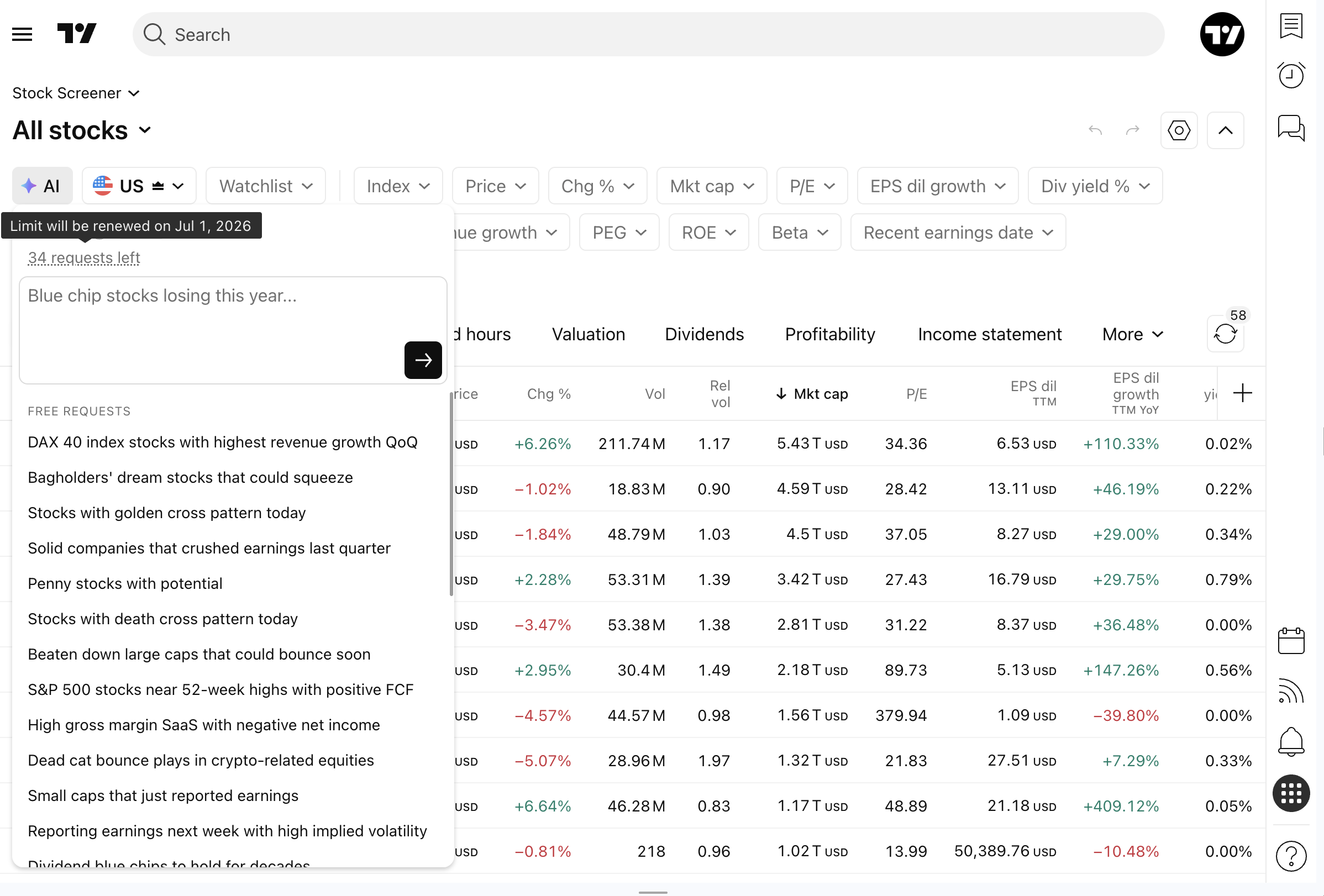
This limit resets automatically on the first day of every month at 00:00 UTC:
If you click the stop button during generation, the request will still count toward your monthly limit.
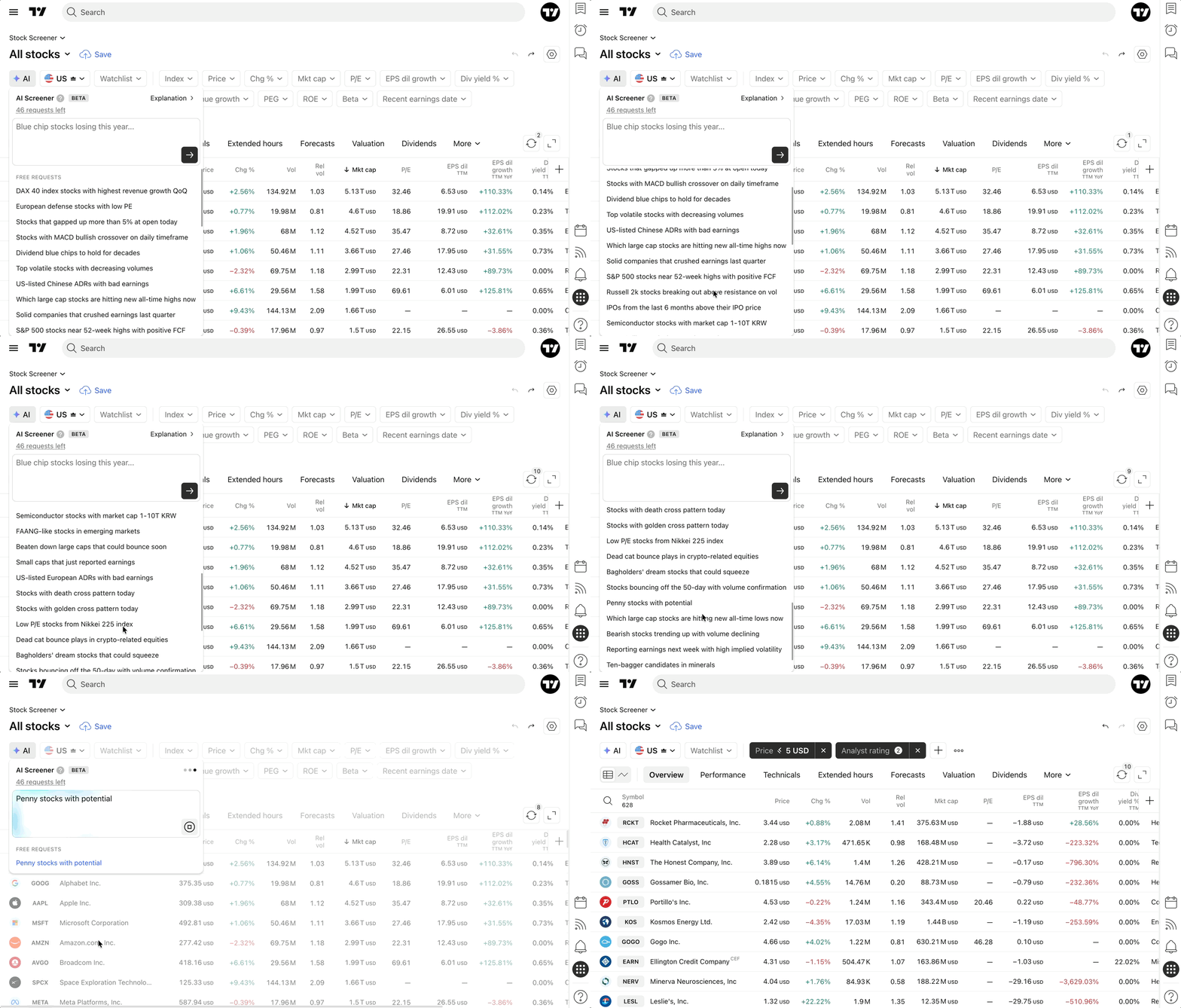
To save your monthly requests, you can use free, pre-made templates by clicking the AI icon and selecting a popular request from the list. These template requests do not count toward your monthly limit:
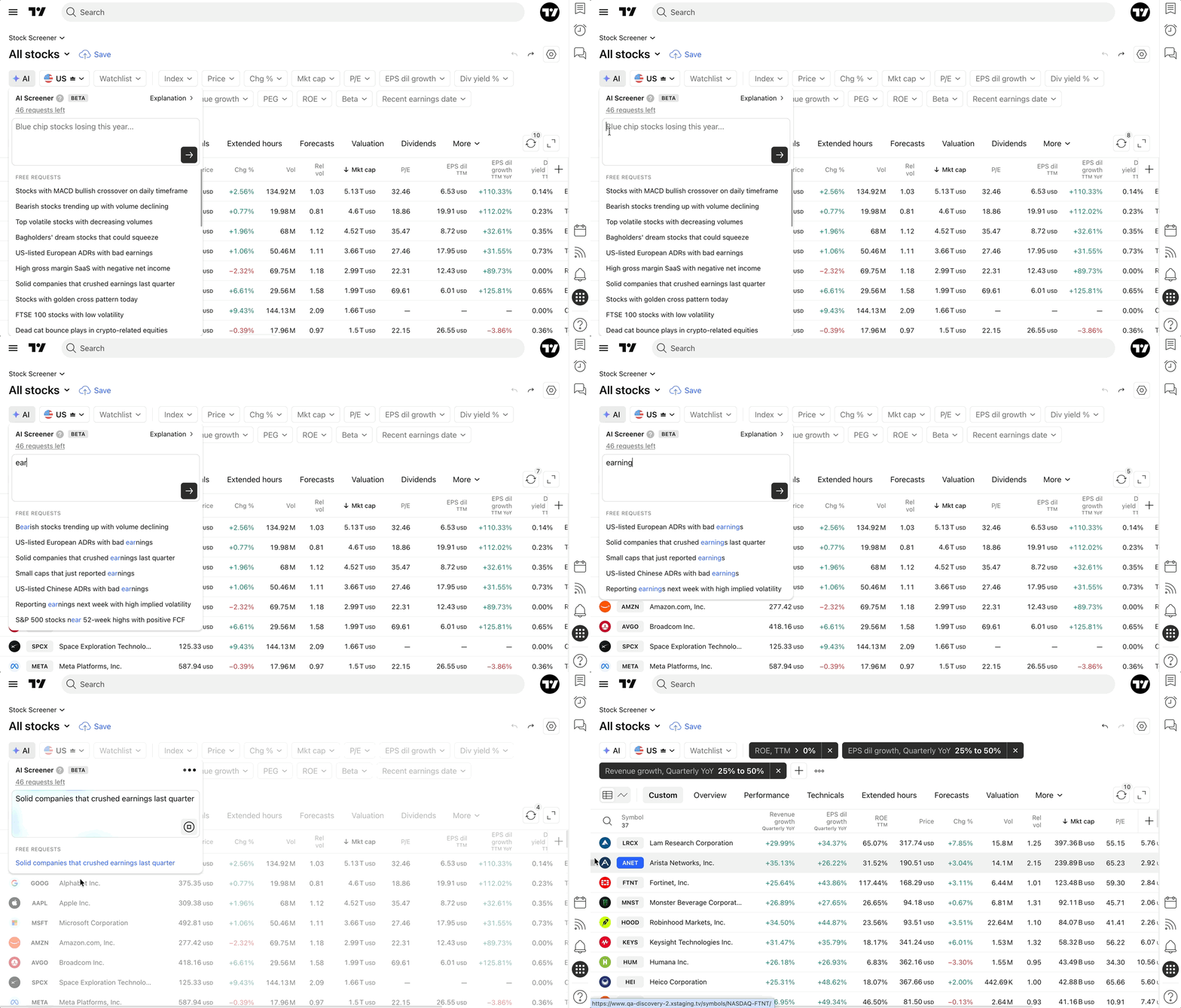
If you are looking for something specific, simply start typing a keyword into the input field. The list below will match the text with pre-made requests:
Troubleshooting
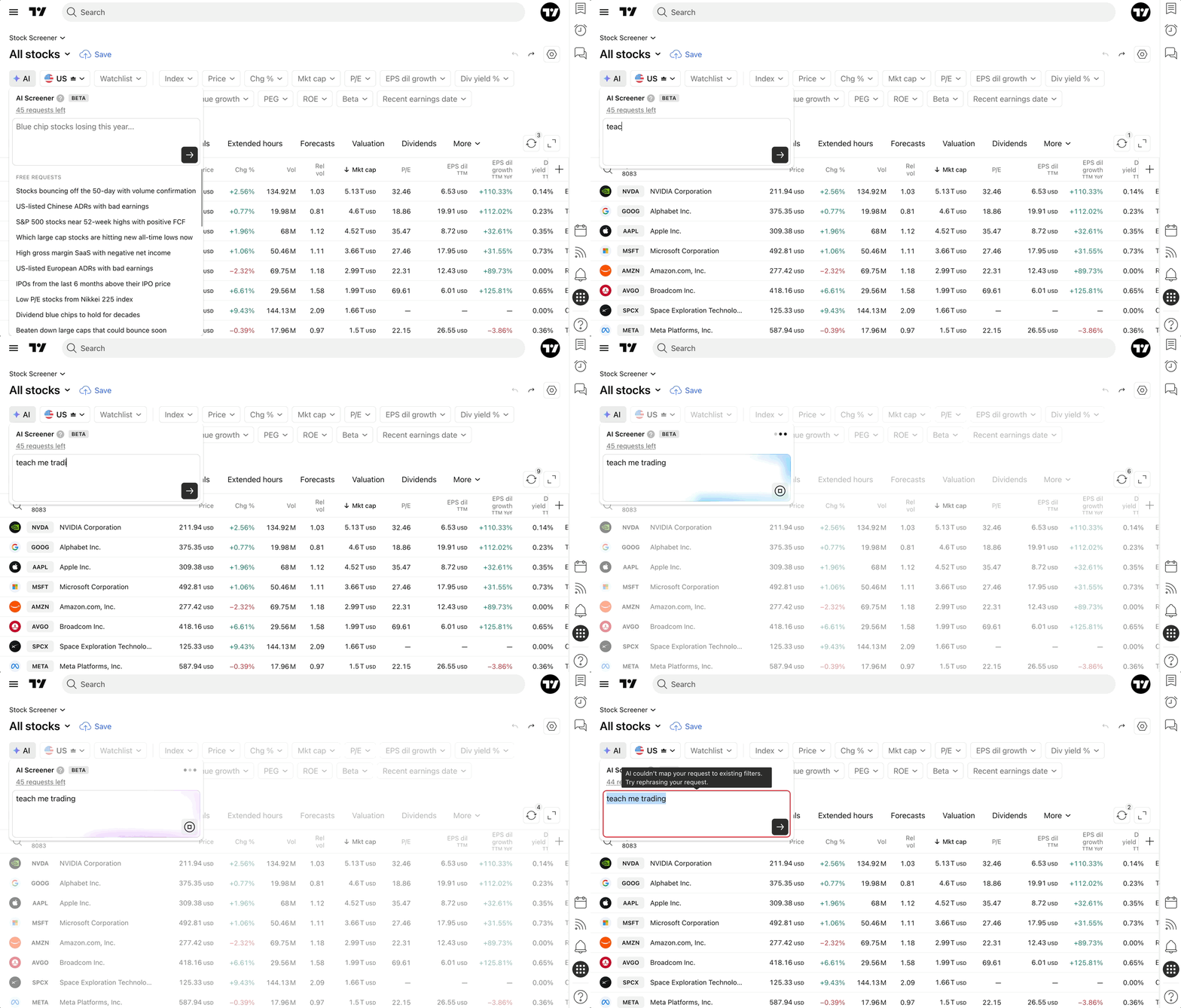
The AI Screener works best with precise, specific prompts. If the AI cannot process your request, you will see an error message above the input field: "AI couldn’t map to existing filters. Try rephrasing your request."
Try making your prompt more specific by mentioning the market, metric, industry, or condition you want to screen for.