Notification schedule for alerts
Flexibly manage when your alerts send push notifications, webhooks, or emails. This helps you stay focused during peak market liquidity and protects your peace of mind during nights or weekends.
All channels and methods, including: push, email, sound, webhook, toast, desktop app push will be completely blocked outside your active schedule.
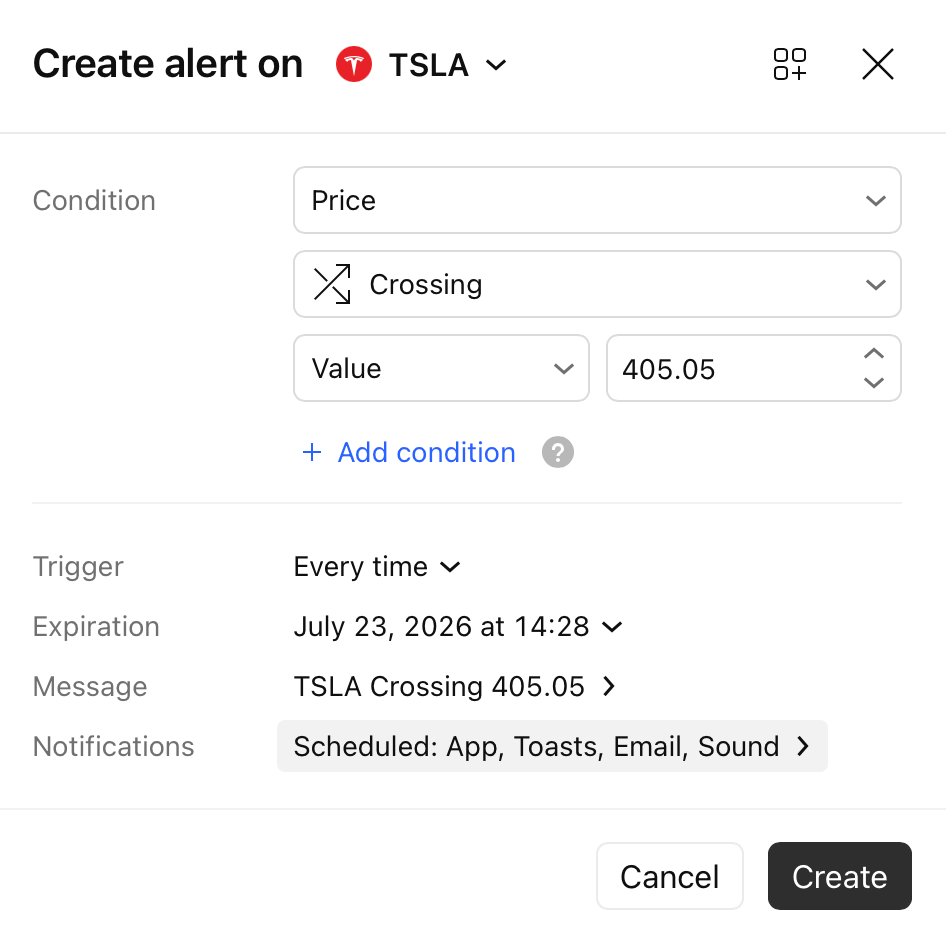
Note: The schedule only controls notification delivery, not alert triggering. If an alert triggers outside your scheduled hours, the event is still recorded and will appear in your alert log.
Available schedule presets
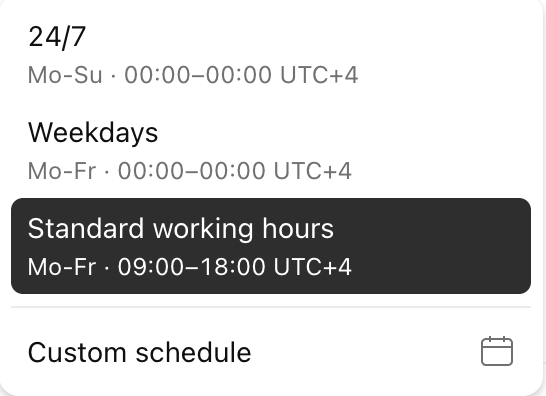
When configuring an alert, you can choose from three ready-made presets or set a manual schedule:
- 24/7 (Always Active) – The default mode. Notifications arrive around the clock, 365 days a year, with no weekends or technical breaks.
- Weekdays – Notifications are active Monday through Friday (00:00 – 00:00). The system automatically goes silent on Saturdays and Sundays.
- Standard working hours – A quick shortcut for those who prefer to trade within normal business hours. Notifications arrive Monday through Friday from 09:00 AM to 18:00 PM.
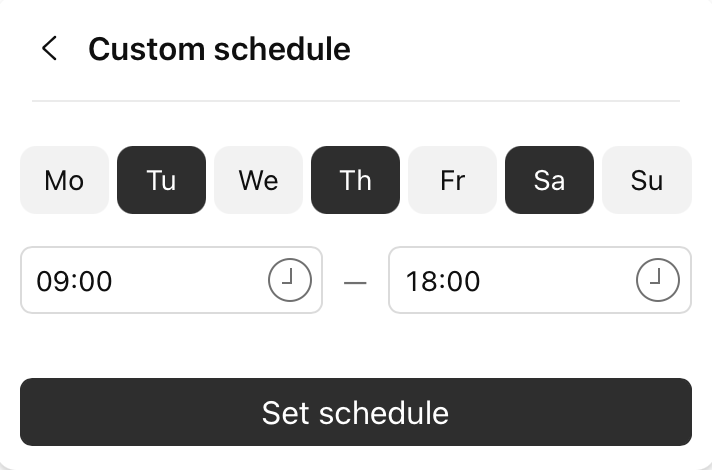
- Custom schedule – Manually select specific days of the week and exact time intervals.
All schedule times (including presets and custom ranges) adapt to your local account time zone. If you travel or change your profile's time zone, the schedule will shift automatically to match your new local time after restarting the alert.
Note: The system remembers your preferences! Your last selected schedule configuration will automatically default as the choice for the next alert you create if it’s applicable, saving you from setting it up from scratch every time.
How custom schedule works
You can customize your activity window down to the minute using the From and To fields.
1. 24-Hour coverage (full day)
If you want notifications to run for a full 24 hours on your selected days, set the exact same value in both fields (for example, 00:00 – 00:00 or 12:00 – 12:00). The system automatically recognizes this input.
2. Overnight trading (midnight crossing)
If your trading window extends into the next day (e.g., you trade overnight shifts or the Asian session), simply set your start and end times. The system automatically detects that the interval crosses midnight.
- Example: Setting 22:00 – 04:00 means notifications are active from 10:00 PM on the active day until 04:00 AM the following morning.
Displaying notification schedule in alert manager
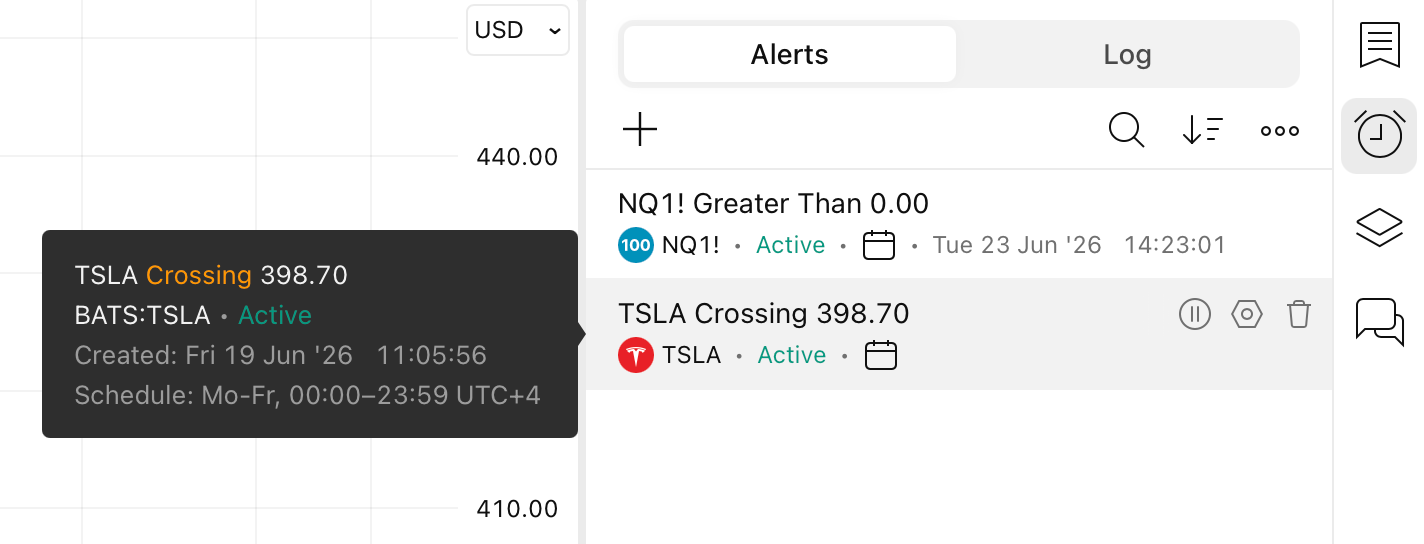
- Calendar indicator: Any alert with a configured schedule will display a small calendar icon right next to its current status.
- On-hover tooltip: Hovering over the alert reveals a popover menu with alert information including notification schedule time.
Notification schedule in alert presets
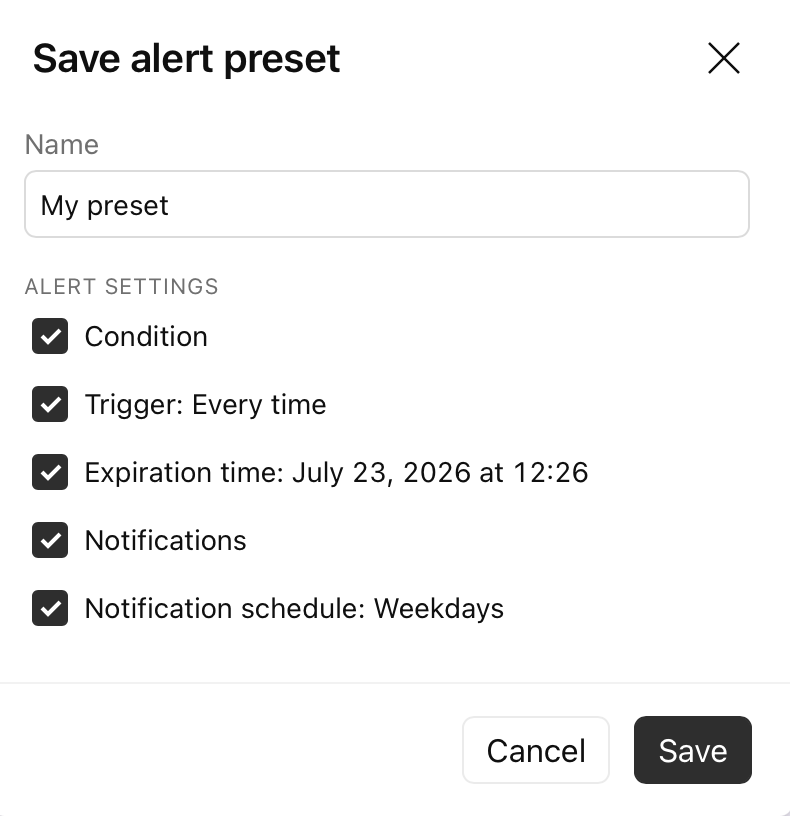
If you use specific schedule configurations for different trading strategies, you can save your schedule in an Alert preset for quick reuse.
When you click Save alert preset, you will see a list of alert settings that can be included in your template. Simply check the box next to the Notification schedule before saving.
The next time you apply that preset to any alert, it will instantly configure your pre-defined active hours along with your conditions and triggers.
Behavior with "Once only” alerts
If your alert is configured to trigger “Once only” and its conditions are met outside your active schedule, it gets a "second chance" so you don't lose the signal:
- While muted: The alert will trigger silently and record the event in your Alert log so you have the data, but it will not deactivate.
- When the schedule resumes: The alert remains active and waiting. Once your notification schedule becomes active again, it will trigger one more time to send you a real push notification, webhook, or email the next time its conditions are met.