What is Pine Script
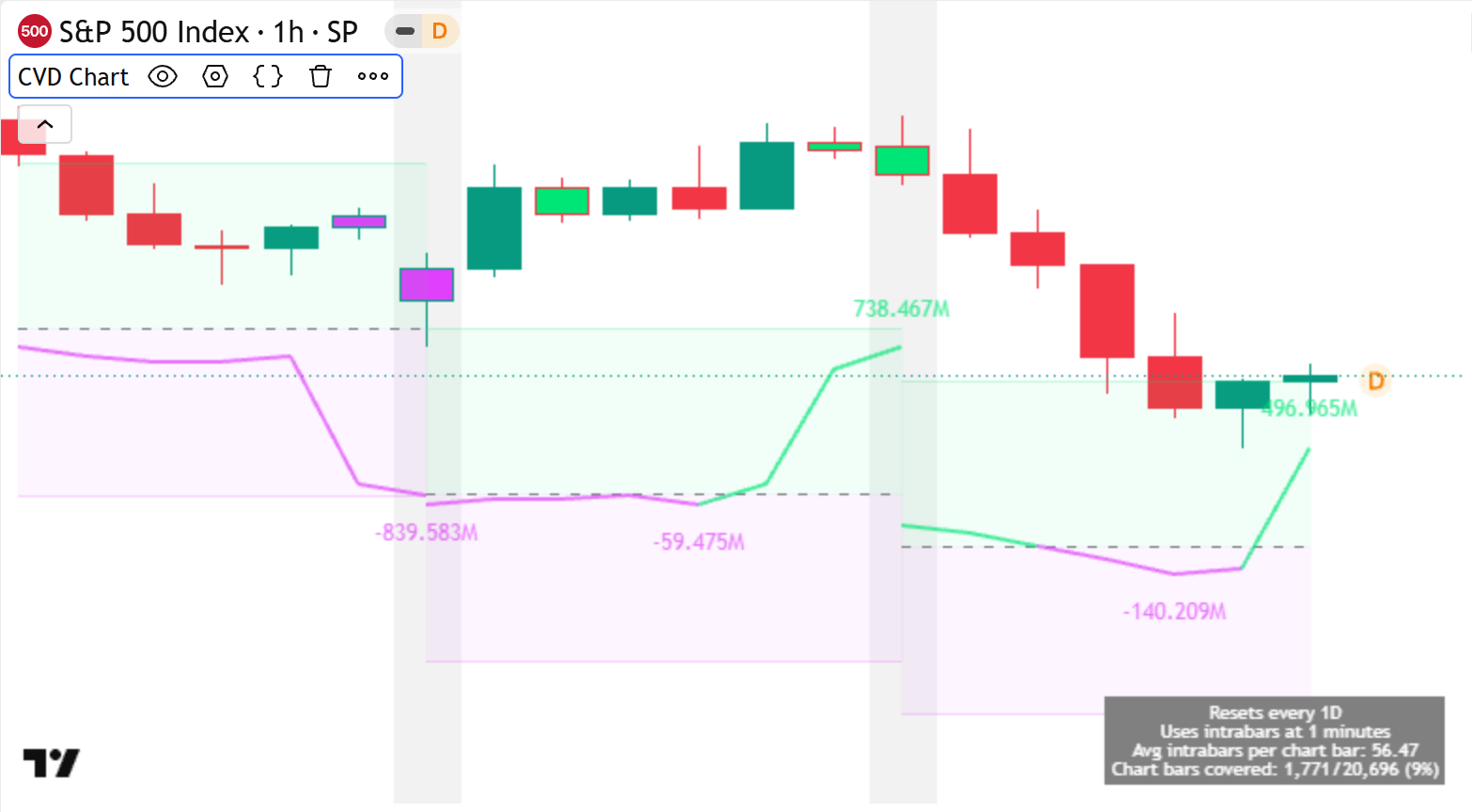
Pine Script® is TradingView's lightweight programming language for creating custom indicators and strategies to power your technical analysis. You can run scripts written in Pine on your chart, use them to create alerts, or use them to scan a watchlist of instruments with the Pine Screener. You can also publish scripts to share them with our worldwide community.
Scripts written in Pine are of the following three types:
- Indicator: Performs calculations across bars to display visuals, create alerts, or generate Pine Logs
- Strategy: Functions similarly to an indicator, but can also simulate trades and display a strategy report with detailed backtest information
- Library: Exports reusable code components, such as custom user-defined functions, for use in other scripts
CONTENTS:
- How to write and edit scripts
- Learning from existing scripts
- Programming in Pine
- Publishing scripts
- Learn more
How to write and edit scripts
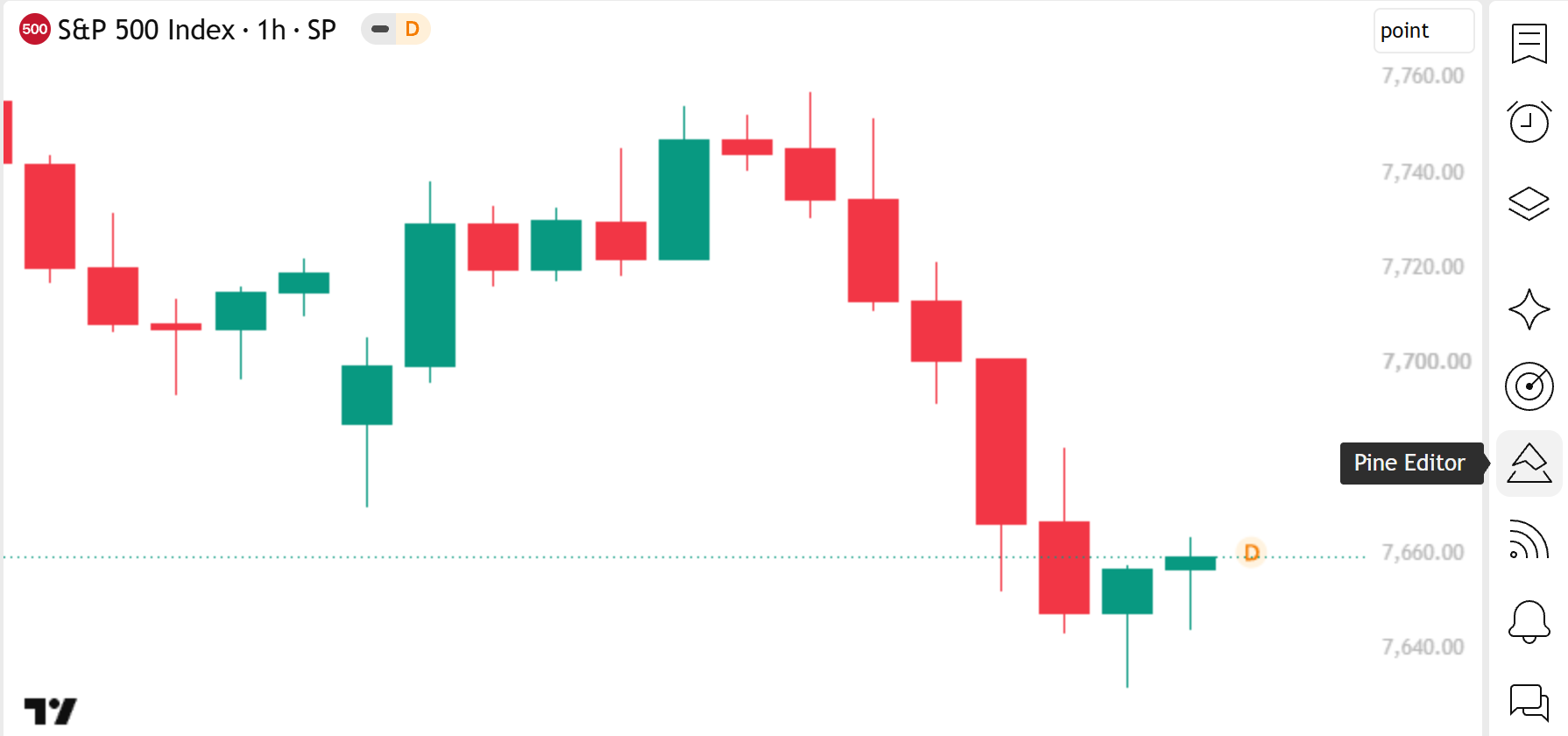
To create a new script and start writing, open the Pine Editor on Supercharts. Click the "Pine Editor" button to the right of the chart pane. When the editor opens, it shows either a default indicator template or the last script you worked on.
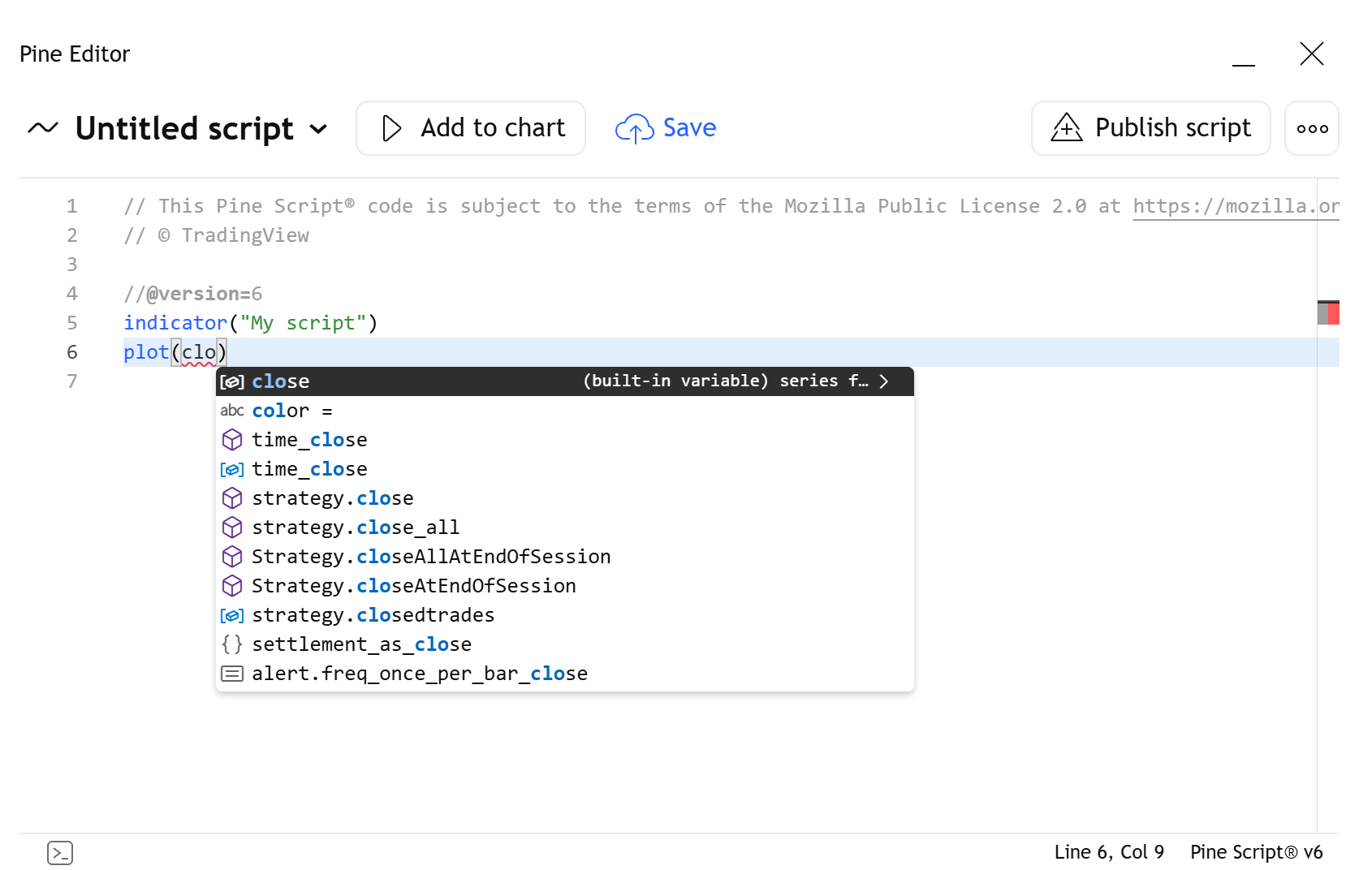
The editor automatically highlights code according to Pine syntax, making it easier to read. It also automatically displays code suggestions, highlights syntax errors, and shows relevant code documentation as you type.
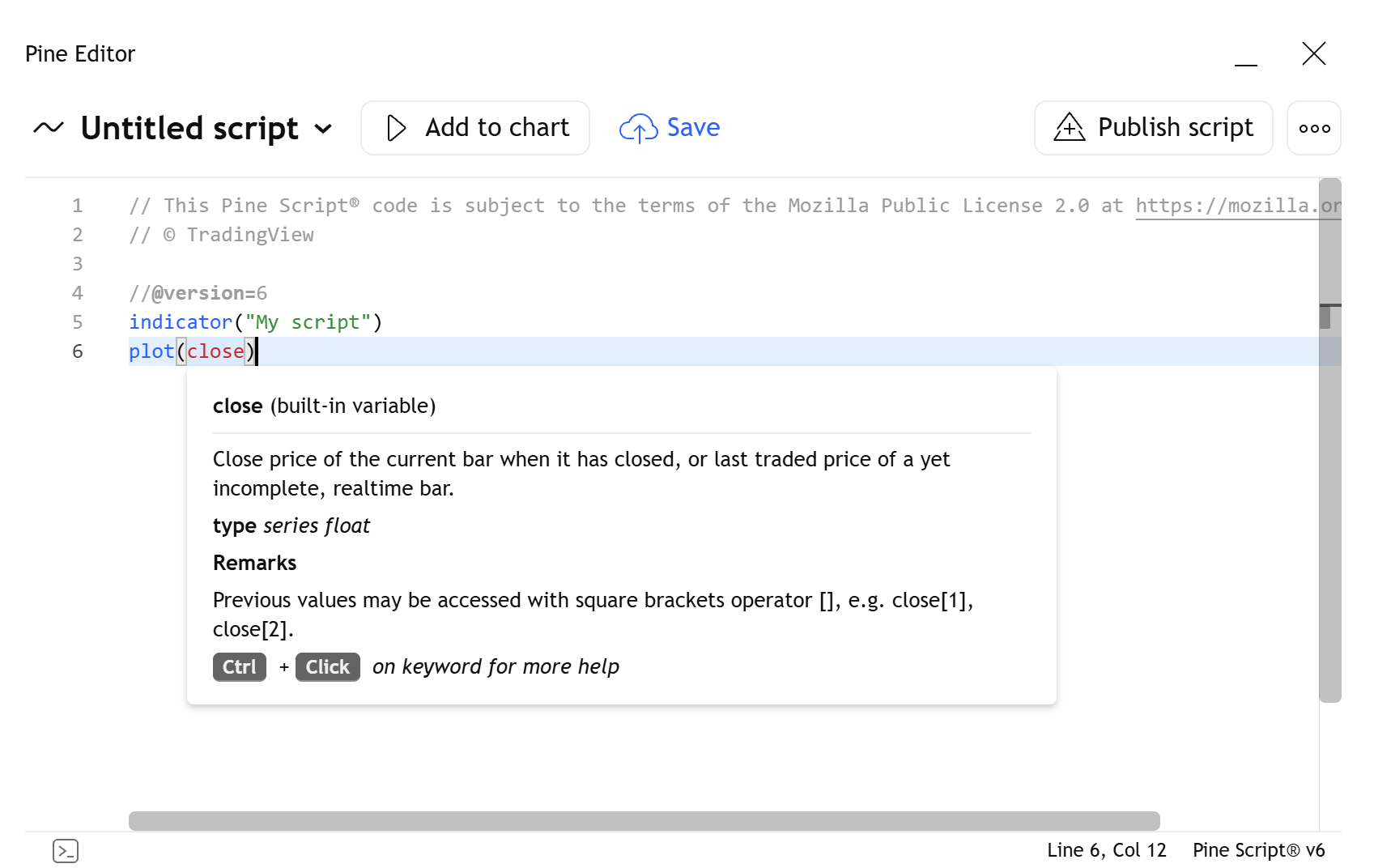
All built-in variables, functions, types, and operators are documented in our Reference Manual. By default, the editor automatically displays relevant documentation in a pop-up window as you hover over built-in keywords. You can also open the Reference Manual directly from the Pine Editor by pressing Ctrl/Cmd and clicking on a code keyword, or by selecting "Reference Manual" from the "Help" options in the editor's "More" menu.
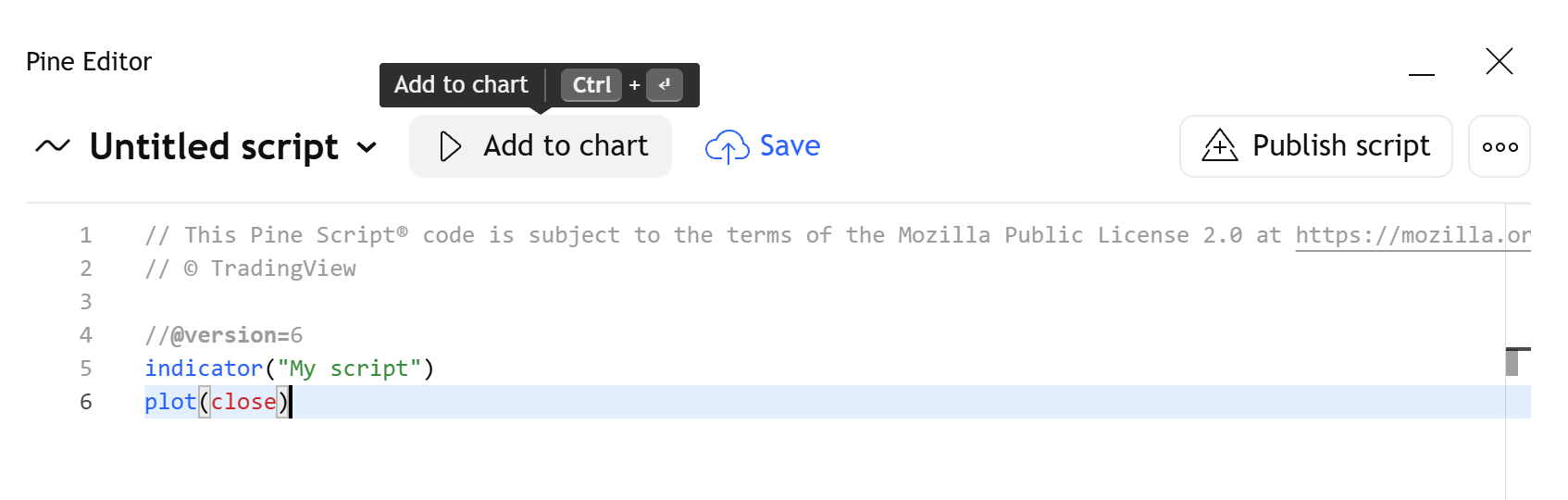
Once you've written your script how you want it, you can save it to your personal library by clicking the "Save" button or pressing Ctrl+S/Cmd+S. To see your script's outputs on the chart, select "Add to chart" at the top of the editor.
To open a saved script from your personal library, open the dropdown menu at the top of the editor, then select "Open script" at the bottom of the menu.
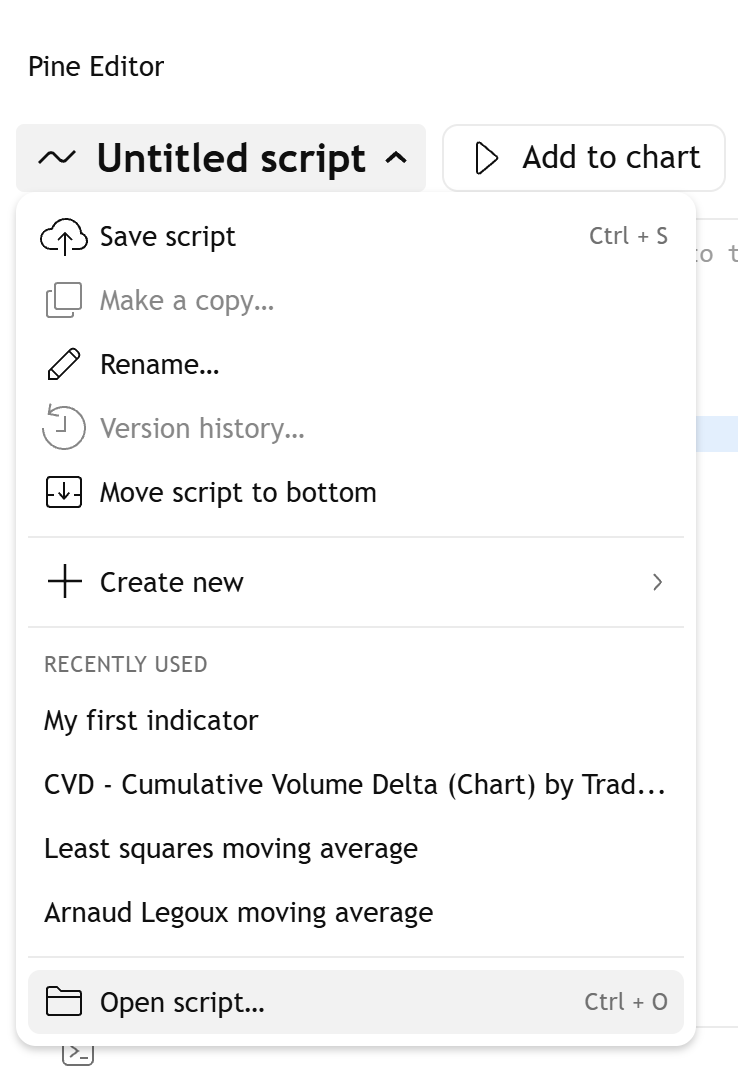
You can write changes to your code over time, even while your script is currently active on your chart. Each time you save changes to a script on the chart, the script automatically restarts and runs the new code.
For a step-by-step guide to creating your first script, see the First indicator page in our User Manual. To learn more about the features of the Pine Editor and how to use them, refer to the articles in the Pine Editor essentials section of our Help Center.
Learning from existing scripts
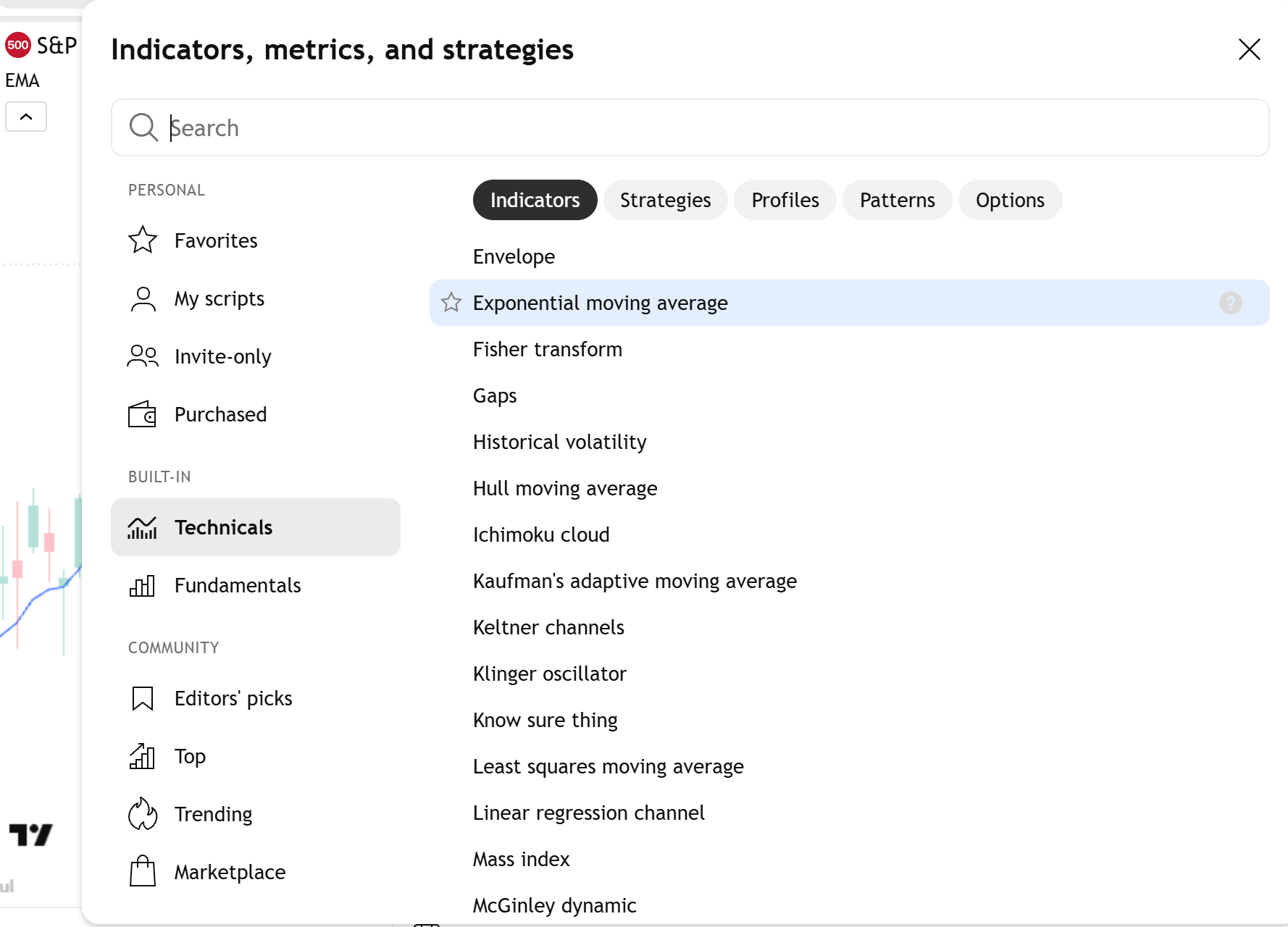
One of the simplest ways to begin learning Pine is to study and modify an existing built-in or published script. Start by adding a script to your chart from the "Indicators, metrics, and strategies" menu. You can find all built-in scripts in the "Built-in" tabs, and you can find thousands of scripts published by other TradingView users in the "Community" tabs. When you find the script you want to edit, select its name to add it to the chart.
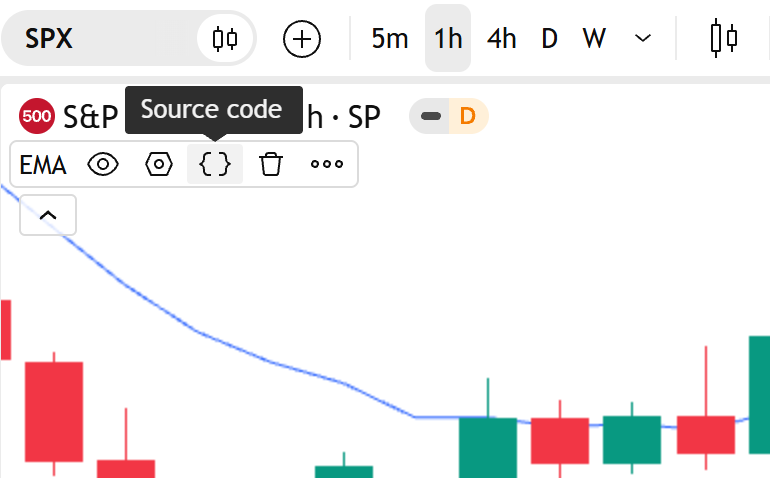
While the script is on the chart, hover over its name, then click the "Source code" button in the status line to open its code in the Pine Editor.
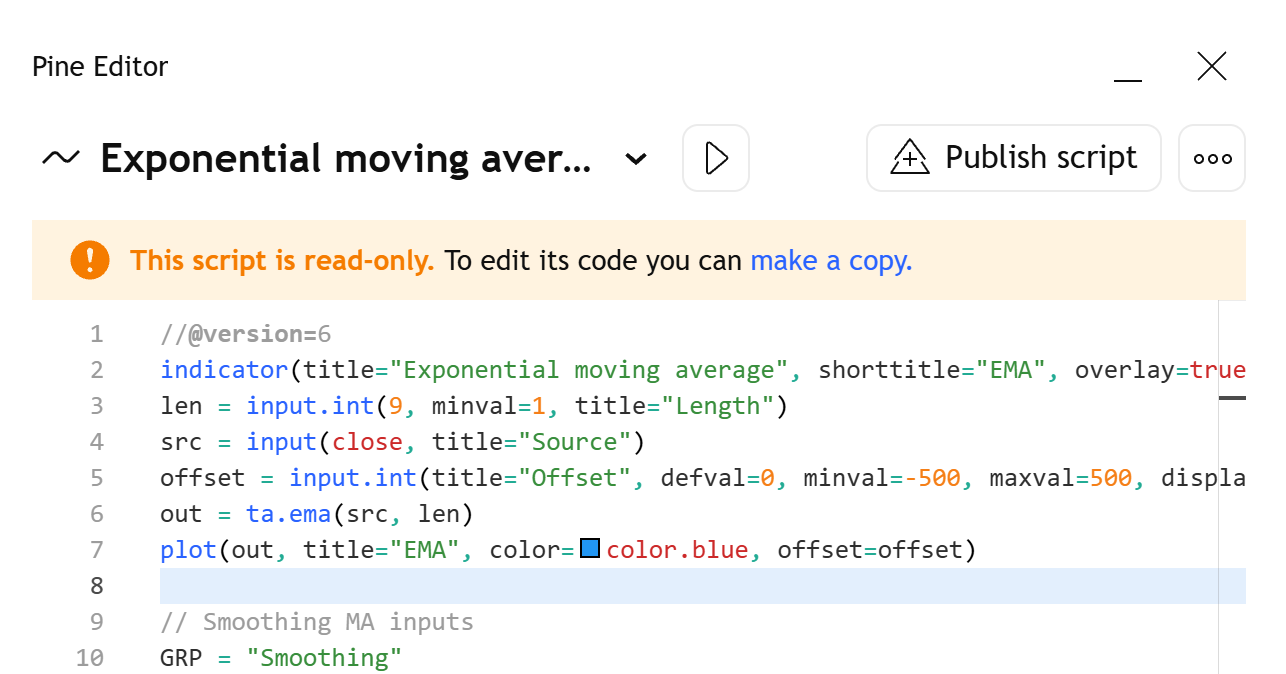
! Note: The "Source code" button is available only if the selected script is open-source. Some built-ins and published scripts are closed-source. Although you can use closed-source scripts on your chart, you can't view or edit their code. The editor opens a read-only copy of the script's code and displays a banner at the top. To start editing a personal copy of the script, select "Make a copy" in this banner.
! Note: If you modify an open-source script from another author and want to publish your version, ensure you credit the original author in your publication, make meaningful improvements to the code, and share the script open-source unless you have permission to publish a closed-source version. See the "Requirements for public scripts" section of our Script Publishing Rules to learn more. Programming in Pine
Pine Script includes many built-in variables, functions, types, and keywords — all with human-readable syntax — that make it simple for newcomers to quickly build working scripts. The language also includes several advanced features for experienced programmers, such as user-defined types, collections, and methods. Additionally, Pine's compiler and runtime system include many easy-to-read error messages to help you find and fix issues in your code.
Our language relies on a special execution model designed for analyzing financial time series. When you apply a script to a chart, its code executes from start to end repeatedly: once for each available bar and tick in the dataset. Each execution performs calculations and creates outputs for a specific bar. Your code also continues to execute in real time as new price and volume data becomes available.
A basic working script requires the following parts:
- A //@version compiler annotation, which specifies the version of Pine Script to use. To use the latest version in your script, include //@version=6 at the top of your code.
- A declaration statement, which is a special function call that defines the type of script and its default properties.
- At least one output. Indicators must create one or more visual outputs, Pine Logs, or alerts. Strategies must create one or more of those outputs or simulate an order. Libraries must export at least one code component.
The rest of what to include in your script is entirely up to you and your creativity.
Publishing scripts
When you save a script in the Pine Editor, it is available only in your personal library. You can add it to your chart, or run it in the Pine Screener if the script is a compatible indicator. However, other users cannot access it. If you want to share your script with other TradingView users, you can publish it by selecting the "Publish script" button in the Pine Editor.
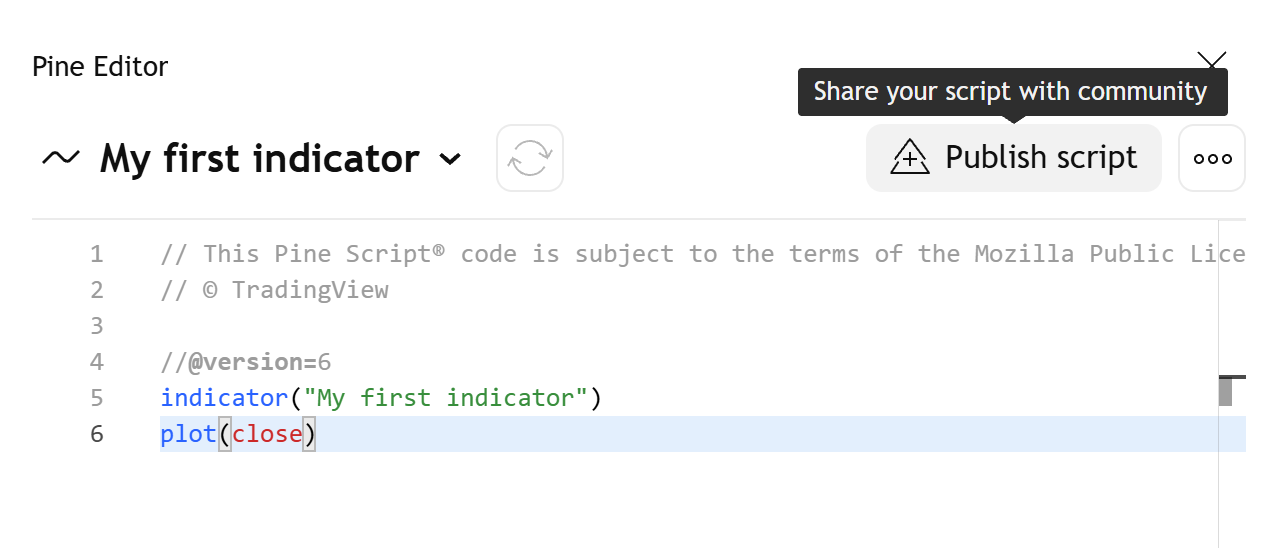
You can publish your script publicly or privately. If you publish privately, it is accessible only to you and any users with whom you share its URL. If you publish publicly, the publication is visible to other users in the Scripts tab of your profile. It is also visible in our community script feeds, such as our Indicators and strategies pages, if it is approved by our script moderators.
You can also choose whether your published source code is visible to other users, and whether anyone or only specific people can run in on their charts. The following visibility settings are available:
- Open: The code is visible to everyone. Anyone can use the script.
- Protected: Anyone can use the script, but they can't see the code.
- Invite-only: The source code is hidden, and only users you allow can access its functionality.
When publishing a script, make sure to follow all House Rules. If you fail to follow the rules, your script may be hidden from our community. To learn about our rules and standards for script publications, see our Script Publishing Rules, General House Rules, and Vendor Requirements.
Learn more
Use the following resources to learn more about Pine Script and make the most of the language:
- User Manual: Explains all aspects of Pine Script, with detailed information and useful examples
- User Manual FAQ: Lists common Pine questions, with straightforward answers and examples
- Reference Manual: Describes the language's built-in code components and their syntax
- Release notes: Lists notable updates to the language and other Pine-related features
- Stack Overflow: Includes questions and answers on various Pine topics
- Help Center: Multiple articles cover specific Pine-related topics
- PineCoders Pine Script® Q&A on Telegram: A forum where Pine programmers ask questions and exchange answers