Getting started with technical alerts
On TradingView, you can set alerts for drawing tools, indicators, strategies, and chart patterns. These notify you about changes in an indicator's readings, when the price breaks a chart pattern, and many other conditions that trigger a technical alert.
CONTENTS:
- What are technical alerts
- Alerts on indicators
- Alerts on custom Pine scripts
- Alerts for Pine strategies
- Alerts on drawing tools
- Alerts on chart patterns
- Alerts on Fibonacci drawing tools
- Trend-based fib extension alerts
What are technical alerts
An alert is considered technical when it is set for an indicator, drawing, or strategy. When configuring these alerts, you can select from many different operators that trigger them.
Technical alerts use all available operators:
- Crossing / Crossing up / Crossing down: Trigger when the value reaches a certain level from either or a specific direction.
- Greater than / Less than: Trigger when the value surpasses or falls below a certain level.
- Entering / Exiting channel: Trigger when the value reaches a channel's boundaries from a certain direction.
- Inside / Outside channel: Trigger when the value moves into or out of a channel's boundaries.
- Moving up / down / up % / down %: Trigger when the asset's price rises or falls by a certain amount within a specified number of bars.
Note: Alerts using Channel and Moving operators are always technical. Other operators can work as price alerts unless they are applied specifically to indicators, drawing tools, or strategies.
Alerts on indicators
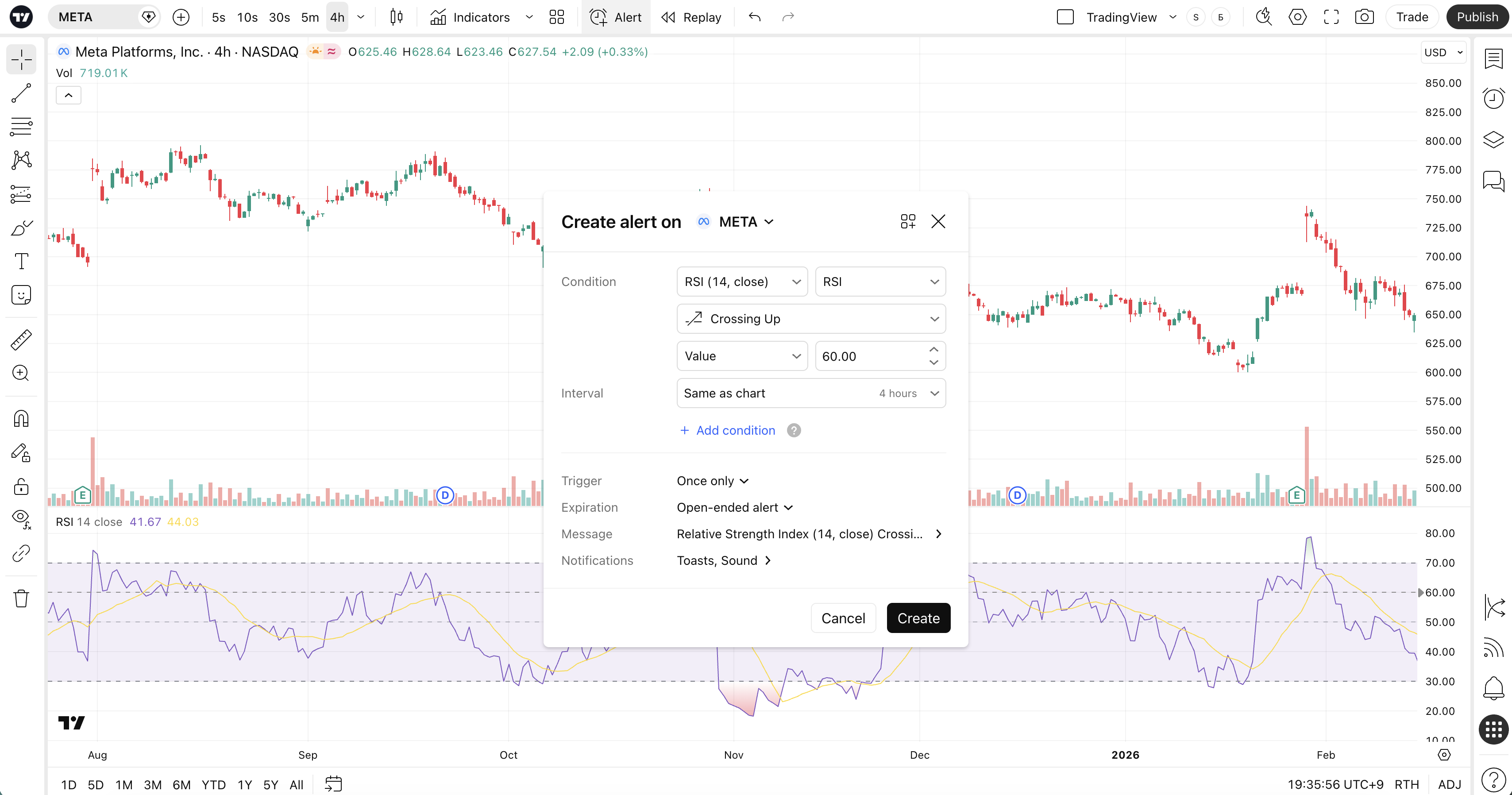
You can set alerts for over a thousand TradingView indicators, including community-created ones. These notify you when an indicator reaches or surpasses the specific thresholds you set for your trades.
To get the most out of these, we suggest examining your Supercharts historically to spot where the indicator reached the levels you want to be notified about. You can also try backtesting to confirm the viability of your trading strategy.
There are a couple of ways to create an indicator alert, depending on what is most comfortable for you:
- Right-click on the indicator and select Add alert…
- Open the Alert manager, click the Create alert button, and select the desired indicator from the Condition dropdown.
Next, select a built-in preset or customize your own condition to set it up.
Note: If an indicator's parameters are changed after an alert is created, the alert will still trigger using the old settings.
Alerts on custom Pine scripts
For advanced customization, you can configure script alerts using Pine Script® — TradingView’s programming language for traders. You can also define your own trigger settings using the alertcondition and alert functions.
For the alert() function, unlike other types of alerts, the triggering frequency and the message sent are controlled by the alert() function calls in the script, not through the Create alert dialog.
If you want to dive deeper into using the alert() function in scripts, refer to the Pine Reference Manual and the Pine User Manual.
Alerts for Pine strategies
To create an alert for a strategy, you must first select one in the Indicators, metrics, and strategies window. There, open the Technicals tab and select Strategies.
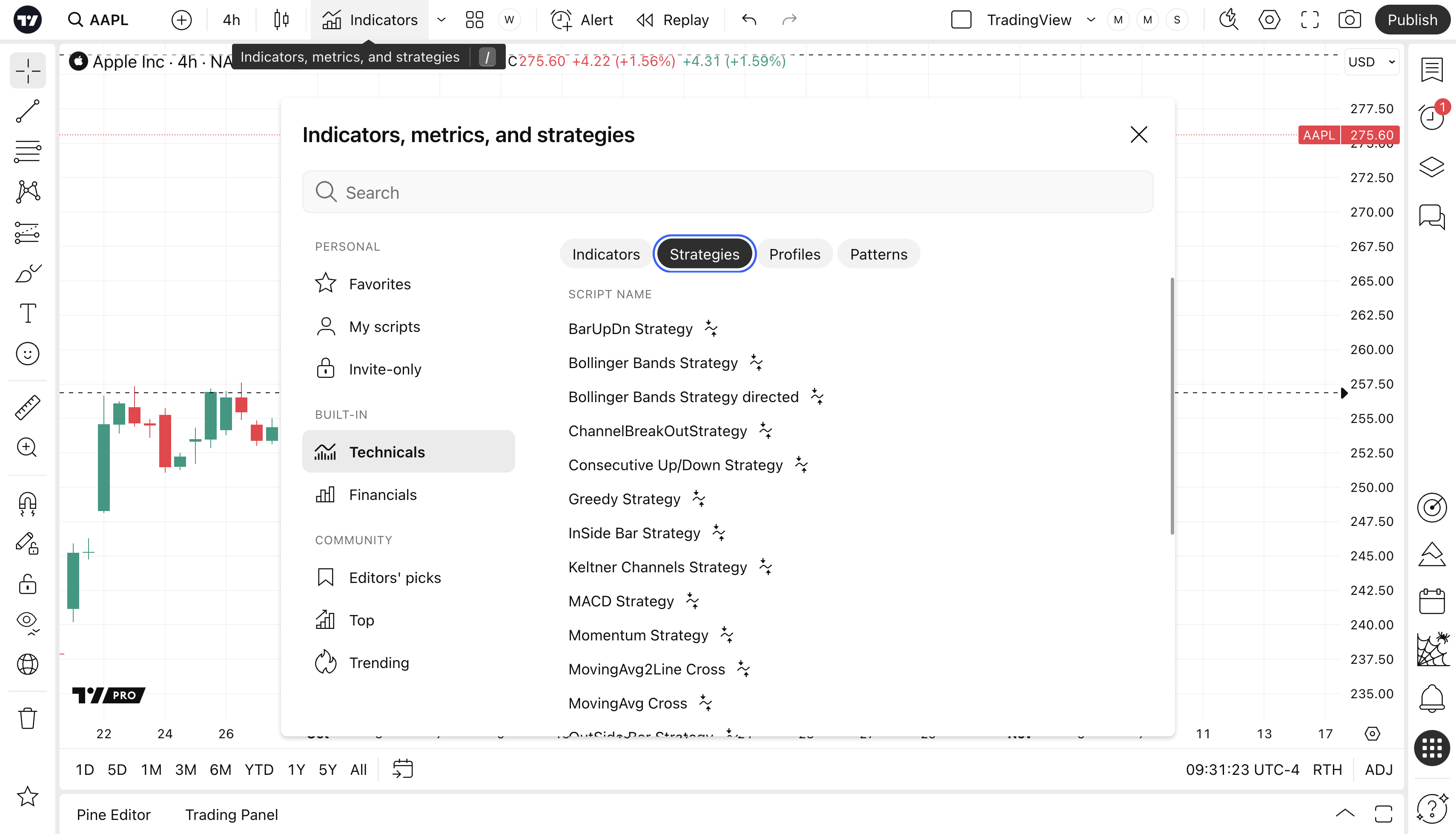
When a strategy is added to your chart, choose one of the following options in the Condition field:
- Order fills and alert() function calls: The alert triggers on both order fills and alert() events.
- Order fills only: The alert triggers only on order fills, like an ordinary strategy alert.
- alert() function calls only: The alert triggers only on alert() events, similar to a script alert on an indicator.
Alerts on drawing tools
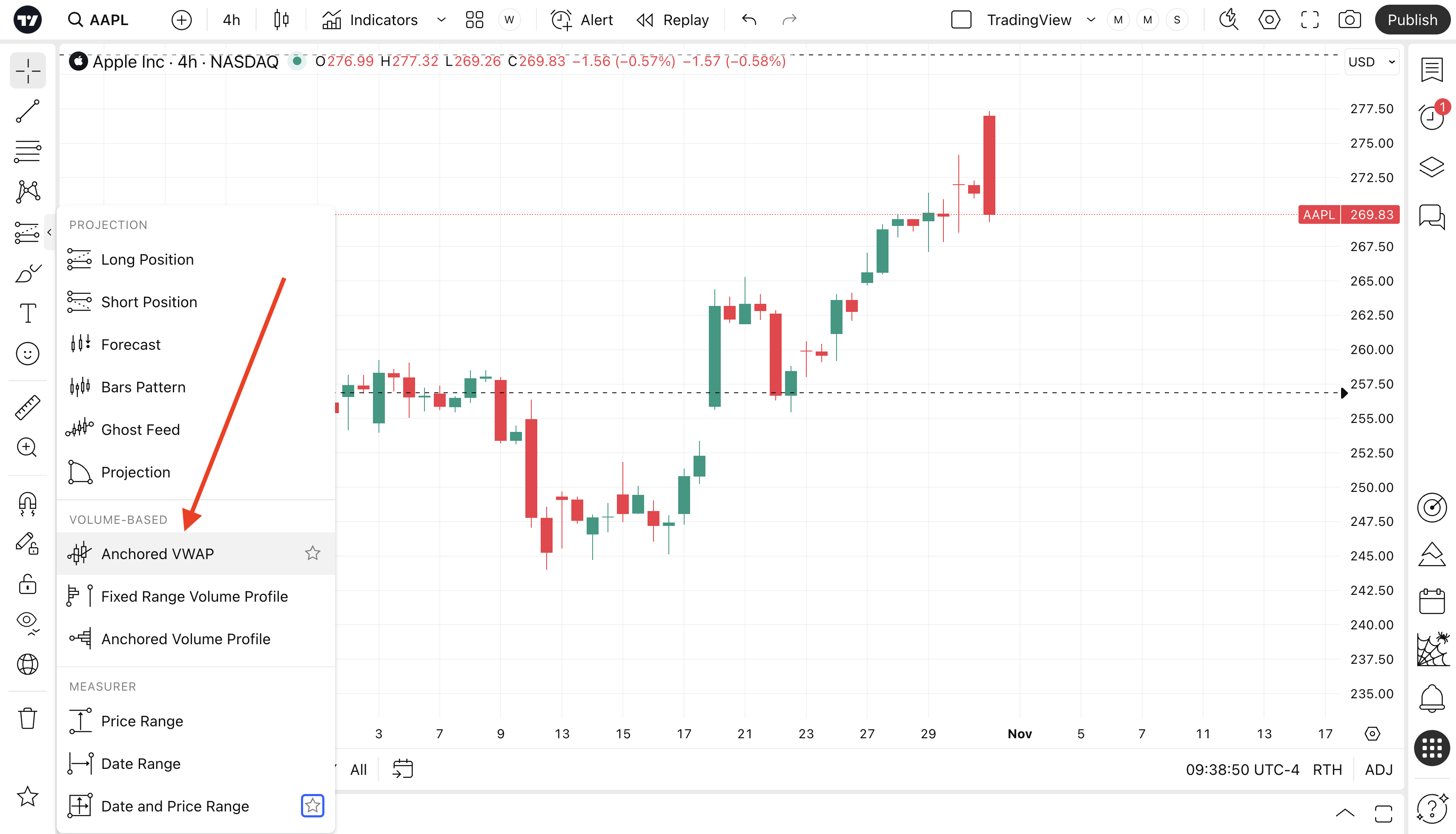
Currently, we support alerts for lines, channels, rectangles, and the Anchored VWAP. You can find the first three under the trend line tools and geometric shapes on the left toolbar.
- For lines: Crossing, Crossing up / Crossing down, Greater than / Less than.
- For channels: Entering channel / Exiting channel, Inside channel / Outside channel.
- For rectangles: Entering rectangle / Exiting rectangle, Inside rectangle / Outside rectangle.
You can find the Anchored VWAP in the "Forecasting and measurement tools" section on the left toolbar.
Alerts on chart patterns
You can set alerts for automatically detected chart patterns. These alerts identify pattern breakouts, recognize new formations, and notify you when a pattern reaches its target.
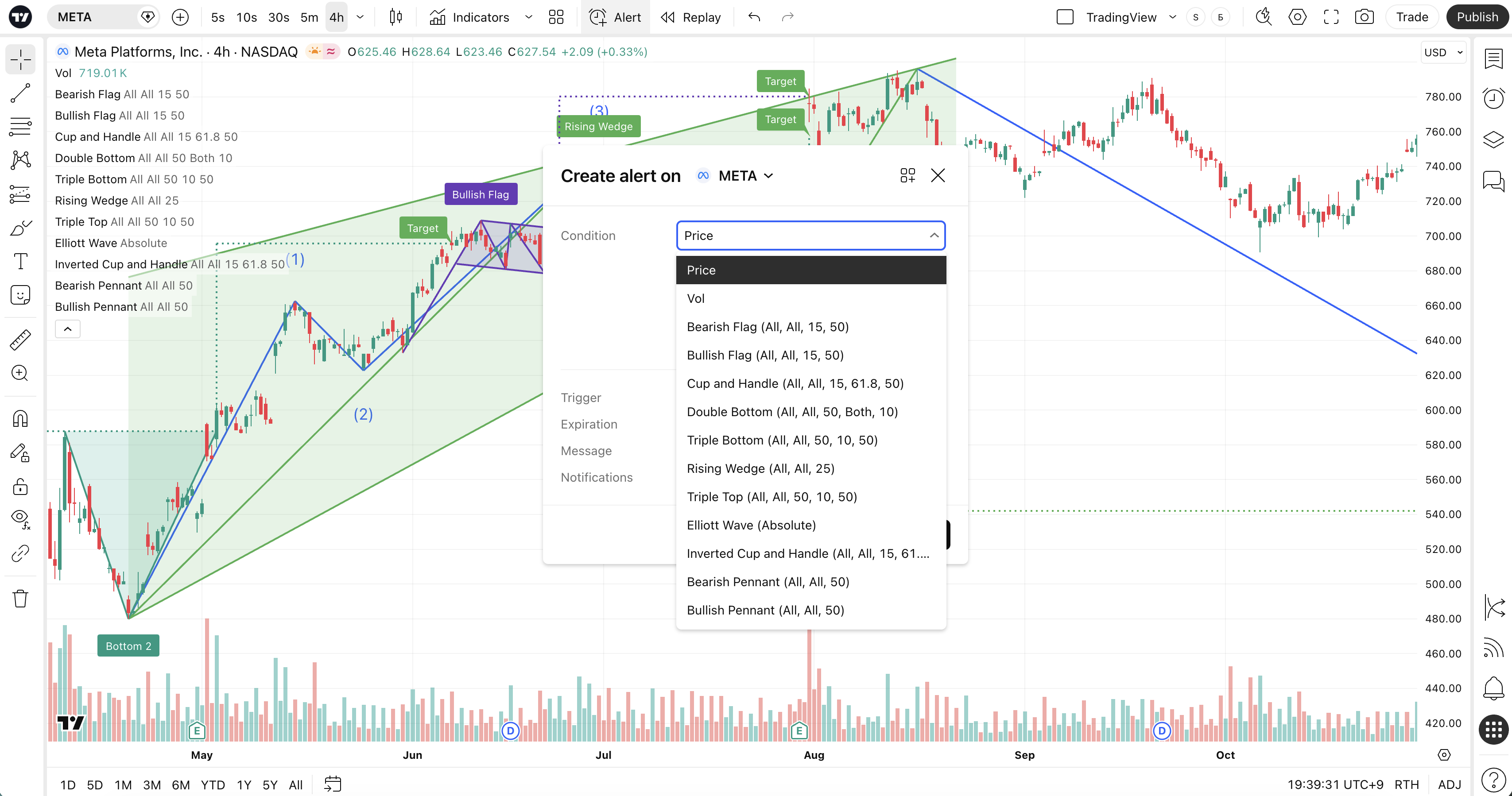
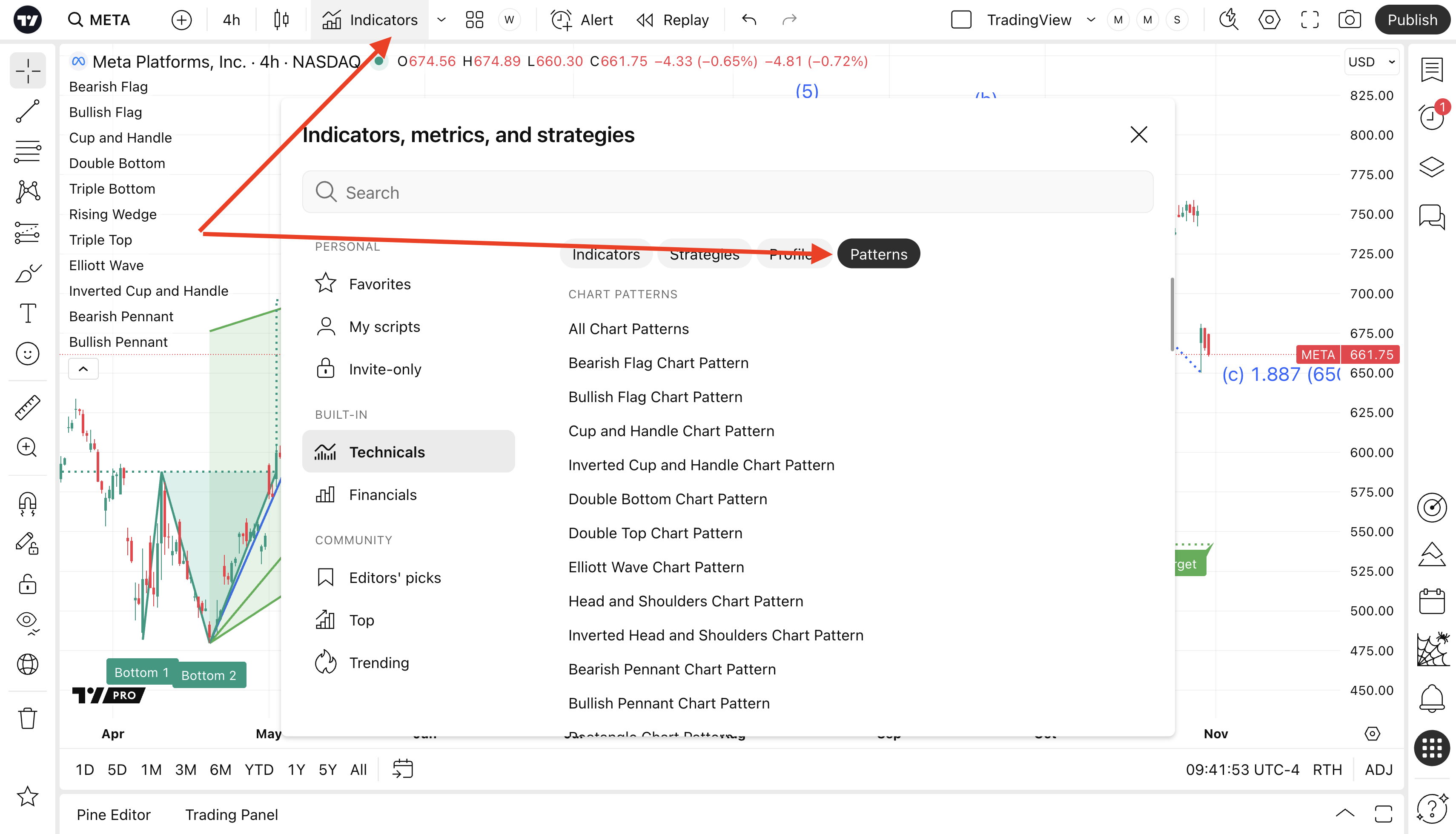
To set up a chart pattern alert, ensure that it is actively added to the chart:
- Click on Indicators, metrics, and strategies on the upper toolbar.
- Go to the Technicals tab.
- Select Patterns.
Note: You need to select a specific chart pattern manually to set an alert for it. Alerts do not work for the generic All chart patterns option.
Alerts on Fibonacci drawing tools
How to set up an alert:
- Select two extreme points (the low and high of the trend).
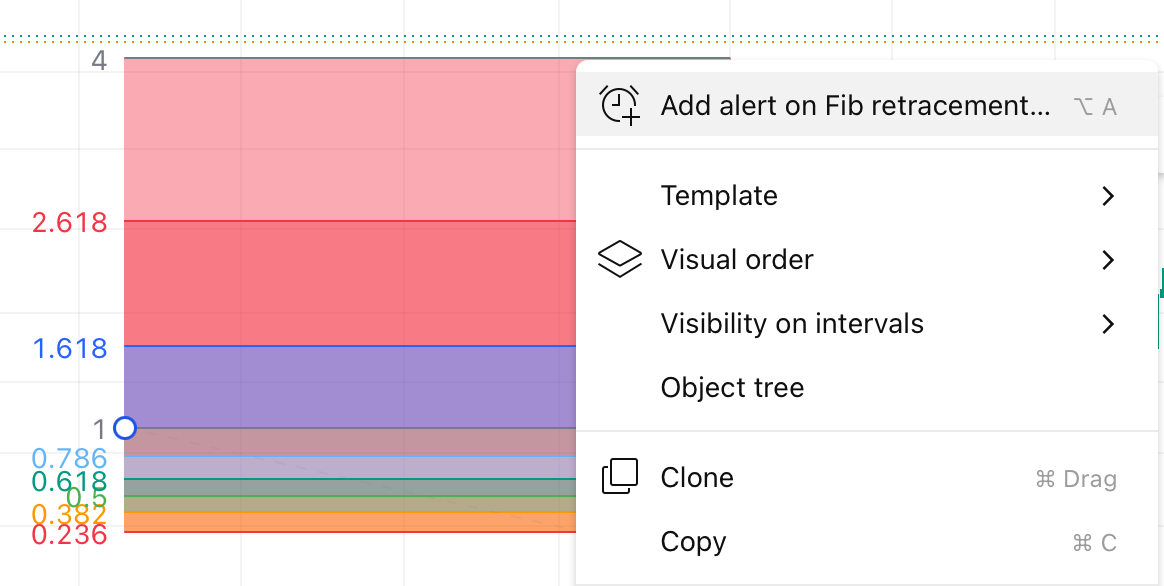
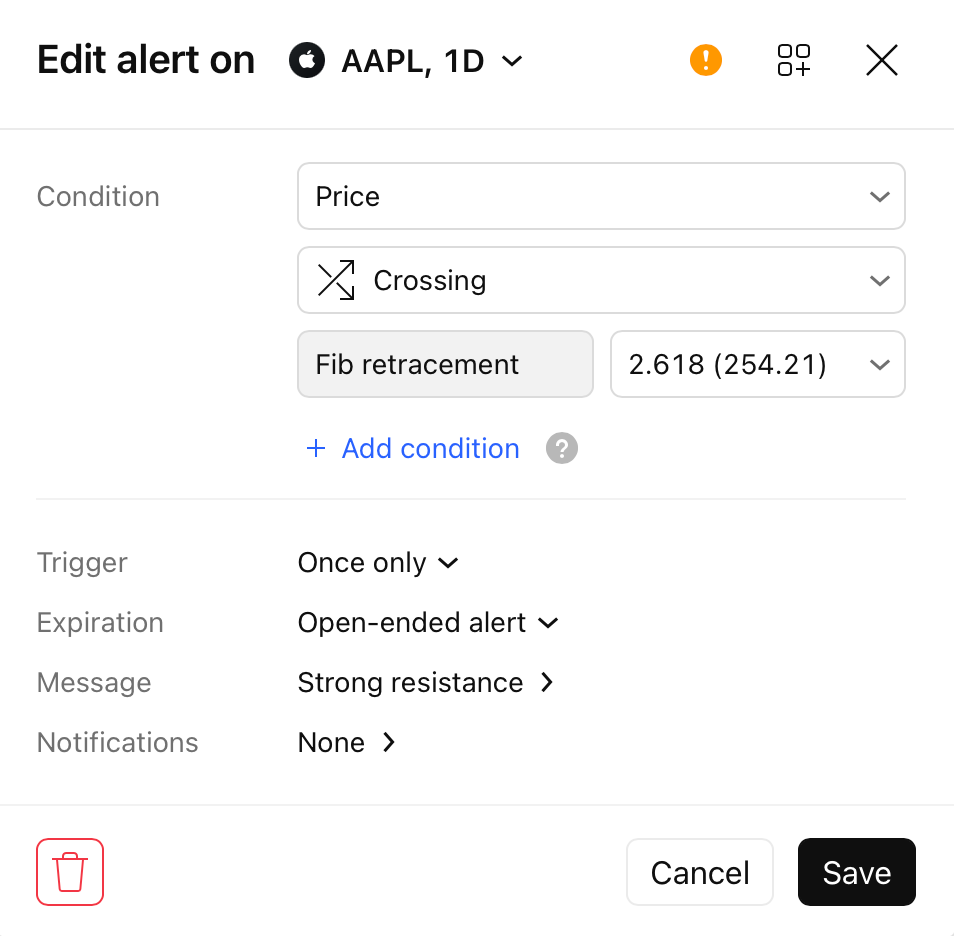
- Right-click on the drawn instrument line and select Add alert on Fib retracement.
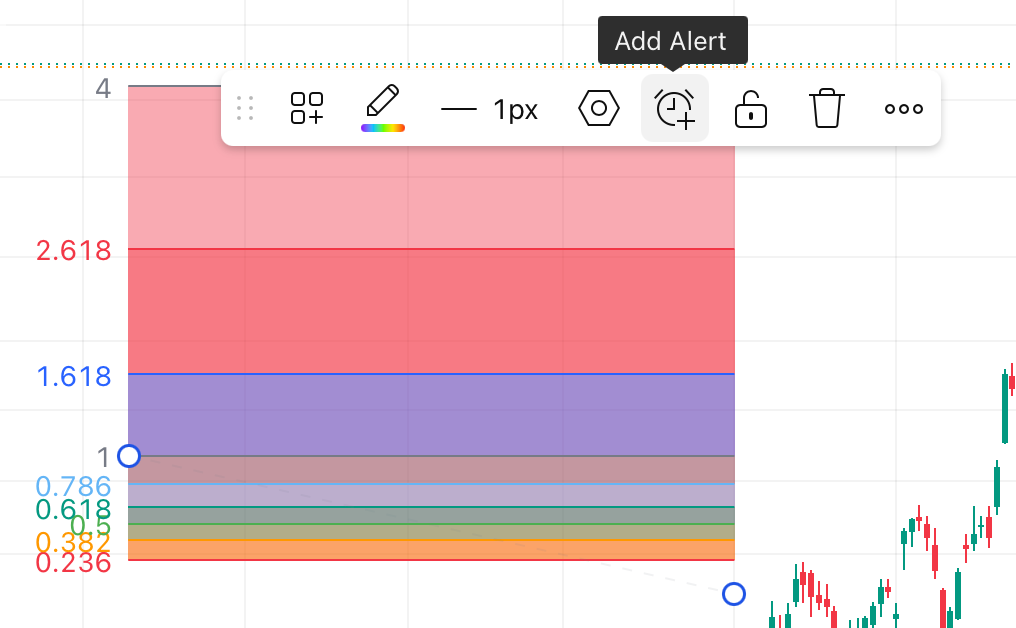
You may also left-click and choose Add alert.
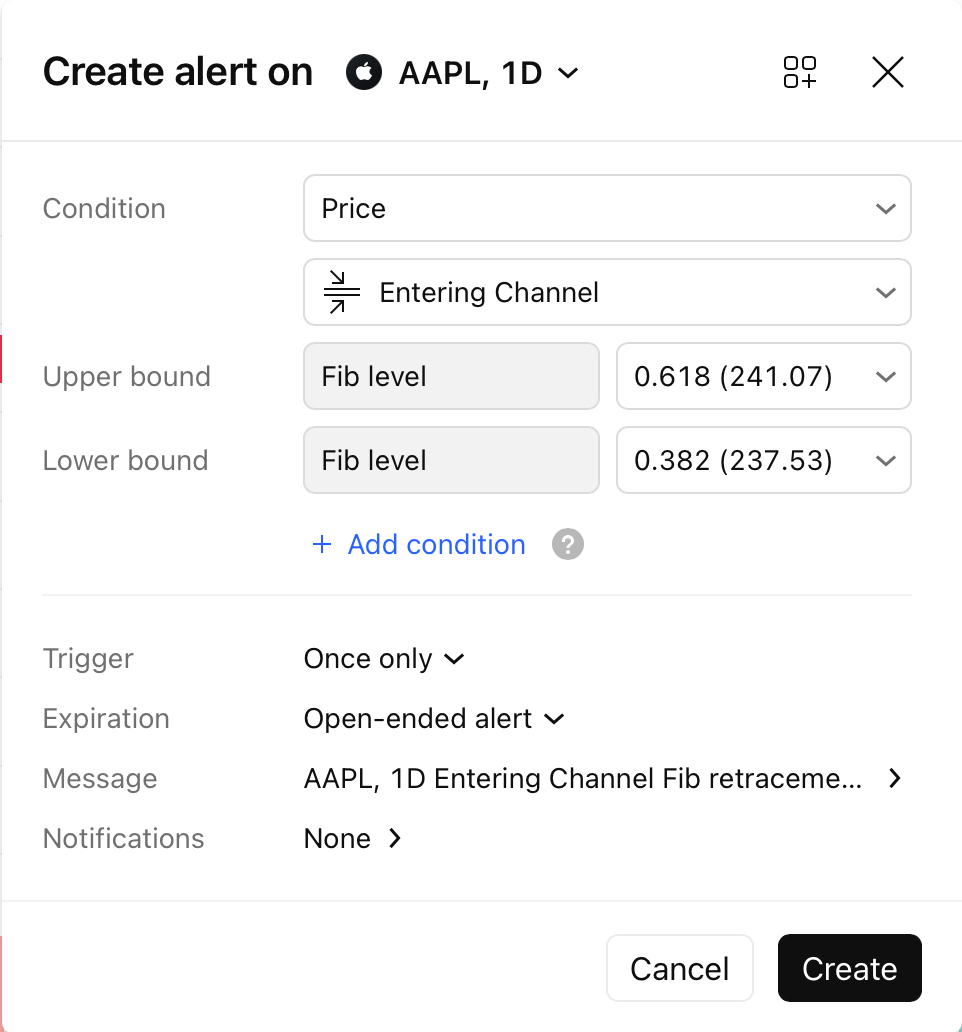
Condition examples:
- Crossing: The alert will trigger when the price crosses any of the active levels.
- Entering channel: Useful if you want to know when the price has entered a specific range between ratios (for example, between 0.618 and 0.382).
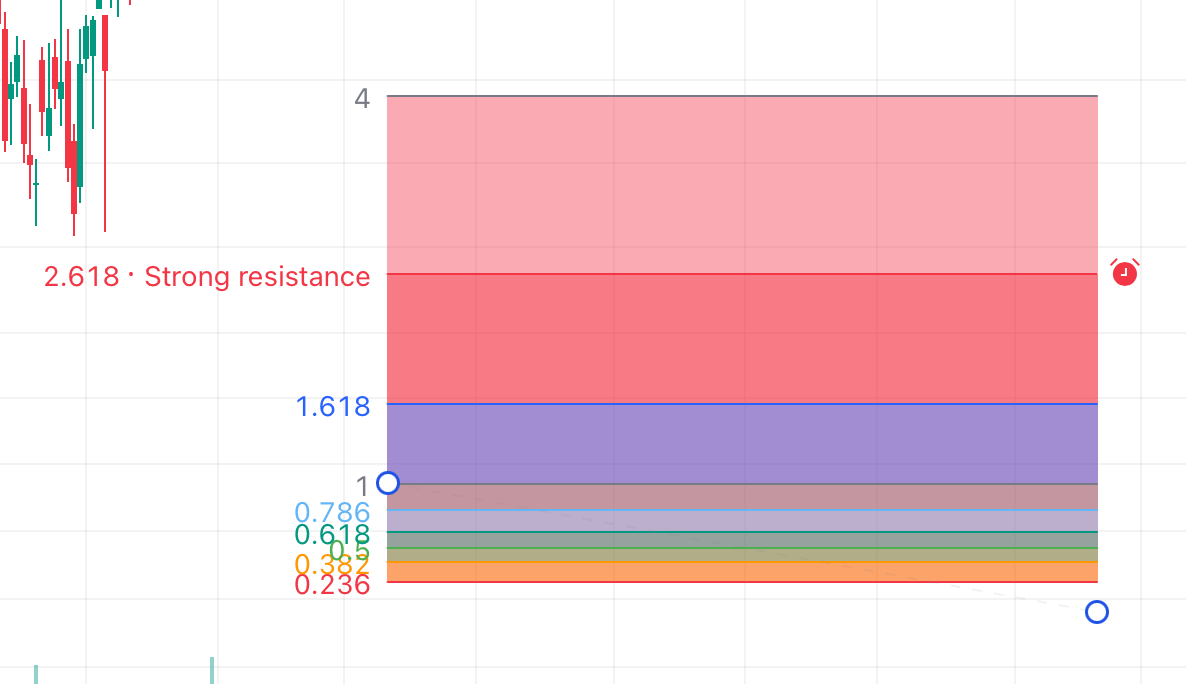
In the Style settings, enable the display of levels. You can add custom text directly on the drawn instrument to each level (for example, "Strong resistance"), which will then be displayed in the alert message.
Log scale considerations:
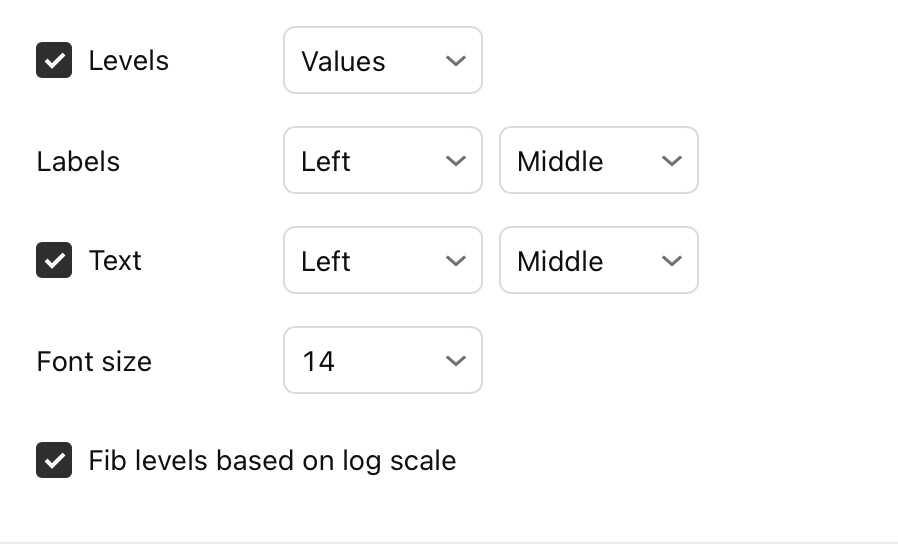
If you are analyzing highly volatile assets (such as crypto), be sure to check the Fib levels based on log scale box in the Style tab. This will change the level calculation so the alert triggers at a more mathematically sound level for a logarithmic chart.
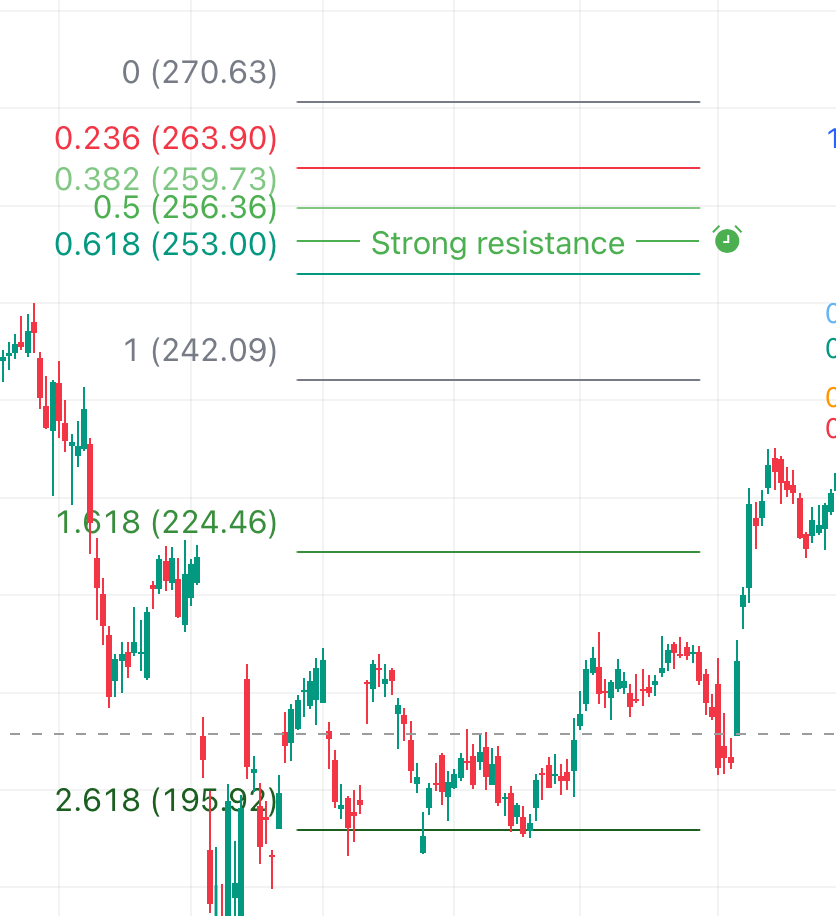
Trend-based fib extension alerts
How to set up an alert:
- Identify the three required points: the beginning of the movement (1), the end of the movement (2), and the end of the correction (3).
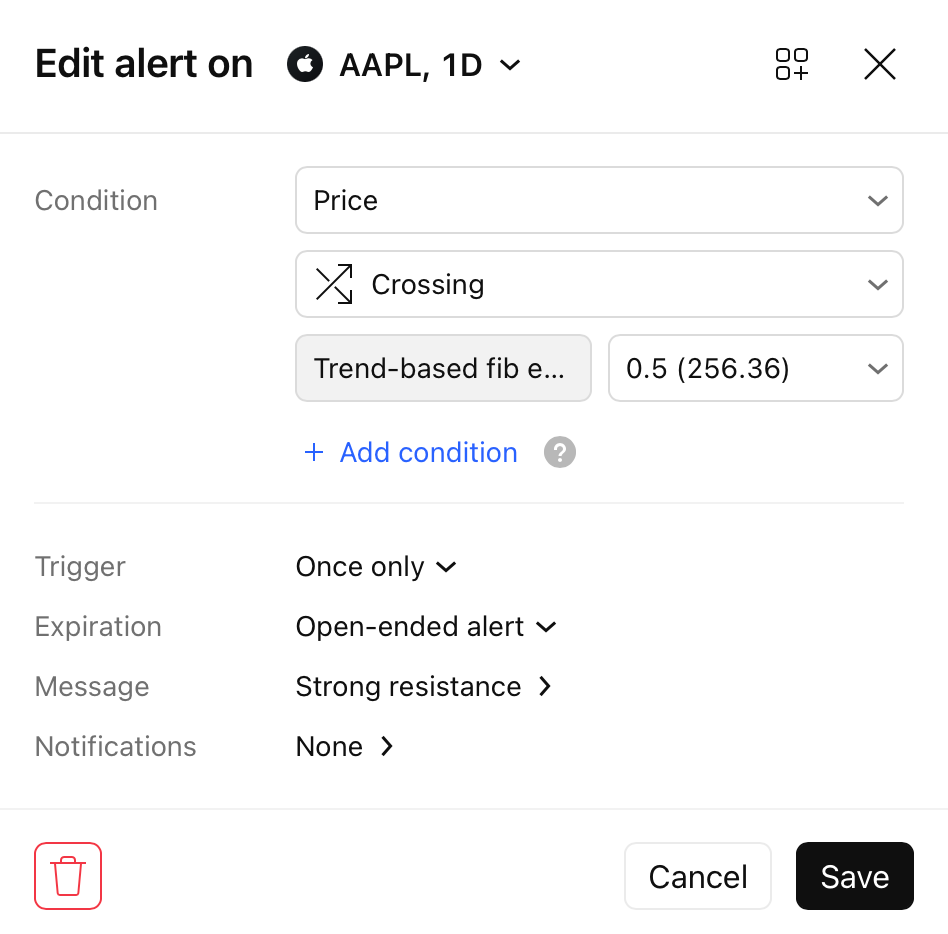
- Right-click on the drawn instrument and select Add alert on trend-based fib extension.
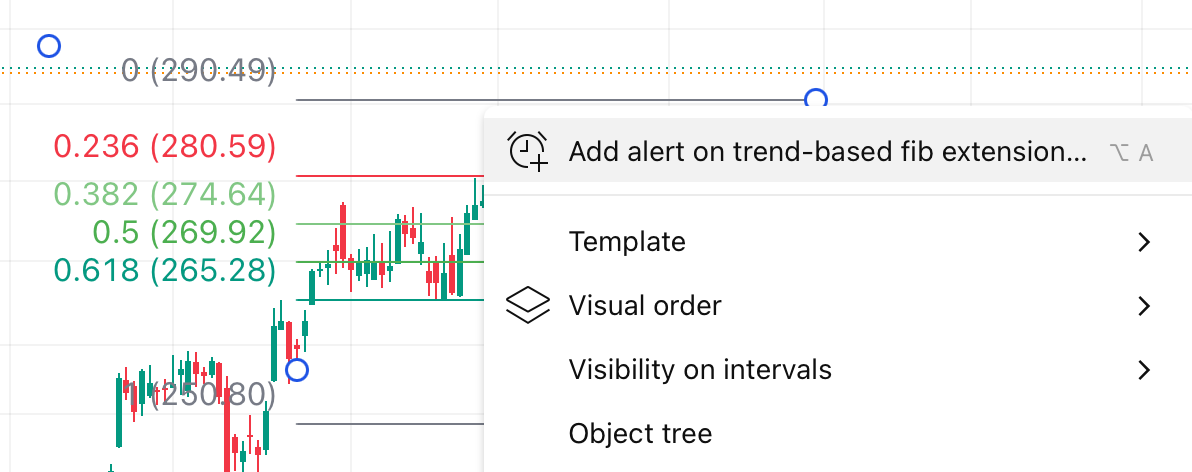
Setup recommendation: Since the extension is often used for profit-taking, it is recommended to set the condition to Greater than or Crossing for target levels of 0.618, 1.0, or 1.618.
Just like with retracements, you can enable the display of levels in the Style settings and add custom text to each level (e.g., "Strong resistance") to be displayed in your alert message.
The bottom line
TradingView's technical alerts give you the power to monitor changes across indicators, Pine scripts and strategies, drawing tools, and chart patterns. You can set them to trigger based on specific conditions, such as crossing a threshold, entering or exiting a channel, or meeting strict indicator-based criteria.
Also read: