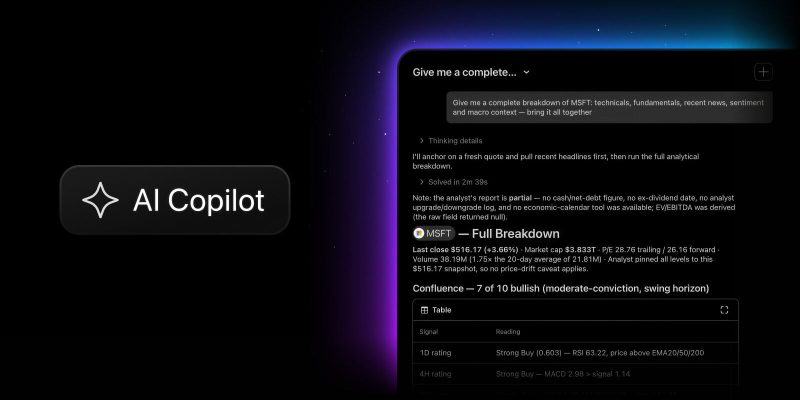
AI Copilot is now available as a separate add-on for every paid TradingView plan — Essential, Plus, Premium, and Ultimate — on the web and in the desktop app.
AI Copilot is an AI assistant that lives in the side panel of your Supercharts. It sees what’s on your chart and works directly with TradingView data — quotes, indicators, financials, news, earnings, economic calendars, and Screener data — so it can both answer questions and act on your chart:
- Switch symbols and layouts
- Add indicators
- Draw levels
- Create alerts and watchlists
- Write and apply Pine Script
Every number in its answers is grounded in TradingView data, so its responses stay aligned with what you see on your chart. Still, like any AI tool, AI Copilot may occasionally make mistakes, so make sure to treat its output as analysis rather than financial advice.
Many of you already know this helpful little tool from the browser extension we released earlier as a public beta. This is the same assistant, now built natively into the platform. Tell us what you think in this Reddit thread — your feedback helps us continue improving the AI Copilot experience.
How to get started
Getting set up takes about a minute:
- Open any chart on tradingview.com or in the desktop app and sign in. You need an active paid plan (trial works too)
- Click the AI Copilot icon in the right-hand panel
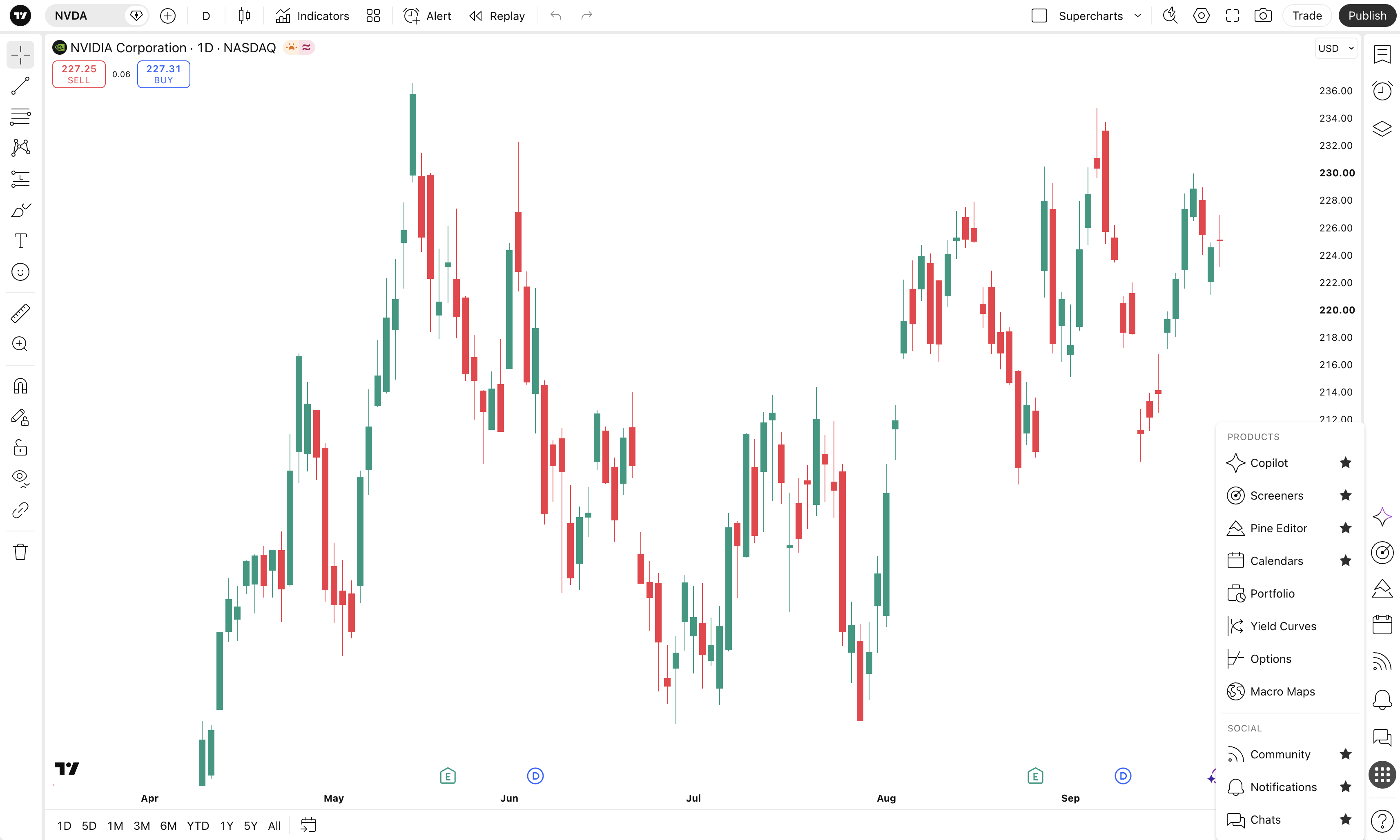
- Click Get access — you’ll go straight to checkout
- Access is granted immediately after payment. Type your first question or pick one of the suggested prompts.
There are a few things worth knowing. The add-on renews monthly and can be canceled anytime in your profile settings; it includes a monthly usage limit that most users won’t ever reach, and unused usage doesn’t carry over. AI Copilot isn’t available in the mobile apps yet.
Let’s dive into how AI Copilot can enhance your market analysis.
Ten prompts to try first
- What can you do?
- Add EMA 50 and EMA 200 on the chart, RSI 14 and MACD
- Draw horizontal support and resistance levels on the daily timeframe
- Set an alert if TSLA crosses above $380
- What’s the sentiment on $BTC?
- Run a full technical analysis on AAPL
- Give me a complete breakdown of MSFT: technicals, fundamentals, recent news, sentiment and macro context — bring it all together
- When were NVDA’s last earnings and what were the results?
- Create a watchlist ‘AI & Semiconductors’ with NVDA, AMD, TSM, ASML, AVGO and SMCI
- Find S&P 500 stocks with P/E below 15 and revenue growth above 10%
AI Copilot: top use cases
1. Set up your chart by describing it
Layouts, symbols, timeframes, indicators, visible range, theme — one message instead of a dozen clicks.
- Add EMA 50 and EMA 200 on the chart, RSI 14 and MACD with default settings
- Show me the period around the Q4 2023 earnings report
- Look at my current indicator setup — what would you remove?
2. Mark up the chart
Support and resistance, chart patterns, and market structure — drawn directly on your chart, with an explanation of what each one implies.
- Draw horizontal support and resistance levels on the daily timeframe
- Find and mark up any reversal or continuation patterns on this chart
- Mark the order blocks, fair value gaps, and the last BOS/CHoCH on the 4H
3. Use AI for technical analysis
Trend across timeframes, key levels, RSI divergences, moving average signals — plus the option to draw the levels or set alerts on them.
- Run a full technical analysis on TSLA
4. Check the fundamentals
Revenue and margin dynamics, P/E versus the sector, debt load, free cash flow, analyst estimates — giving you a fuller picture of the company.
- What’s the trend in the fundamentals for this symbol?
5. Make sense of news, sentiment, and macro context with AI
What’s in the headlines, where analysts stand, which macro factors matter, and what’s coming up.
- What’s the current sentiment on this symbol based on news and analyst ratings?
- What macro factors are affecting JPM?
- What important events, including macro, are coming up for AAPL in the next two weeks?
- When were NVDA’s last earnings and what were the results?
6. Bring it all together
A single picture across technicals, fundamentals, news, and macro, a scenario for the next month, or a structured trading plan.
- Give me a complete breakdown of MSFT: technicals, fundamentals, recent news, sentiment and macro context — bring it all together
- Given all the data, what do you expect from NVDA over the next month — long, short ,or stay out?
- Build a trading plan for AMD: entry, stop, targets, position size at 1% risk, and what would invalidate the idea
7. Find opportunities
Natural-language screening across stocks, crypto, ETFs and bonds, plus open-ended idea search.
- Find S&P 500 stocks with P/E below 15, revenue growth above 10% YoY, dividend yield above 2% and RSI below 40
- Find the top 15 beneficiaries of the AI revolution
- Give me a few interesting trade ideas for this week across different sectors
8. Write Pine Script and analyze backtests using AI
Indicators and strategies are generated and applied to your chart right away, no Pine knowledge required.
- Write a Pine indicator that plots the difference between EMA 20 and EMA 50 as a histogram and changes color when the sign flips
- Break down the backtest results: profit factor, max drawdown, win rate, average per trade — is this strategy viable?
9. Manage watchlists and alerts
Create and manage watchlists, and set alerts for the levels that matter most to your strategy.
- Create a watchlist ‘AI & Semiconductors’ with NVDA, AMD, TSM, ASML, AVGO and SMCI
- Alert me when RSI on any symbol in my ‘AI & Semiconductors’ watchlist drops below 30 on the hourly
- Show my active alerts on AMD and move the breakout level to 185
And if you get stuck, just ask AI Copilot for help. For example: “What can you do?”, “What trading strategies are you familiar with?”, or “What is a bar pattern?”. Remember, AI Copilot supports your analysis, while all market decisions remain in your hands.
Open a chart, click the AI Copilot icon, and try it on the symbol you’re looking at right now.
Let us know what you think — your feedback helps us make TradingView better.
Team TradingView