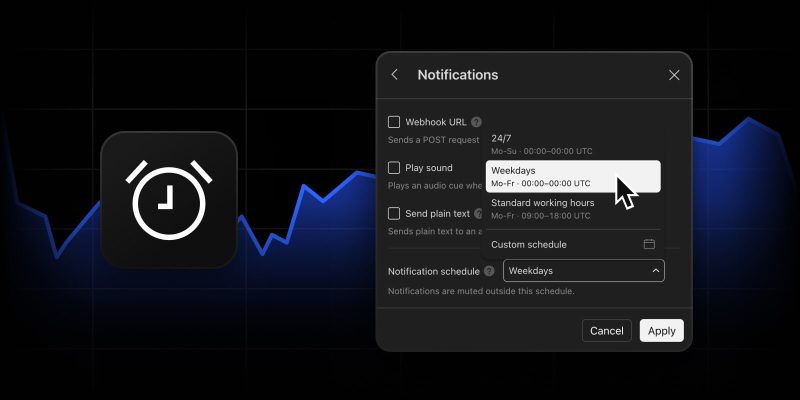
Trading multiple assets means dealing with a constant stream of alerts. Sometimes they arrive at the wrong time, creating distractions or even interrupting your workflow.
To give you more control over alert delivery, we’re introducing notification schedules. You can now choose the exact days and hours an individual alert is allowed to send push notifications, emails, or webhooks.
How it works
When an alert triggers outside your active schedule, we mute the notification while continuing to monitor the alert condition. The event is still recorded silently in your alert log, keeping your alert history intact while helping you filter out unnecessary notifications and focus on the setups that matter most. Here’s what you can do:
- Ready-made presets: Quickly choose between Weekdays, Standard working hours (9:00 AM – 6:00 PM), or create your own custom schedule
- Overnight trading: Set a custom window, such as 10:00 PM – 4:00 AM, if you trade night sessions or international markets — it works seamlessly across midnight
- Smart “Once Only” alerts: If a single-use alert triggers while muted, it won’t deactivate without notifying you. Instead, the event is logged, and the alert remains active so it can send a notification the next time the conditions are met during your scheduled hours
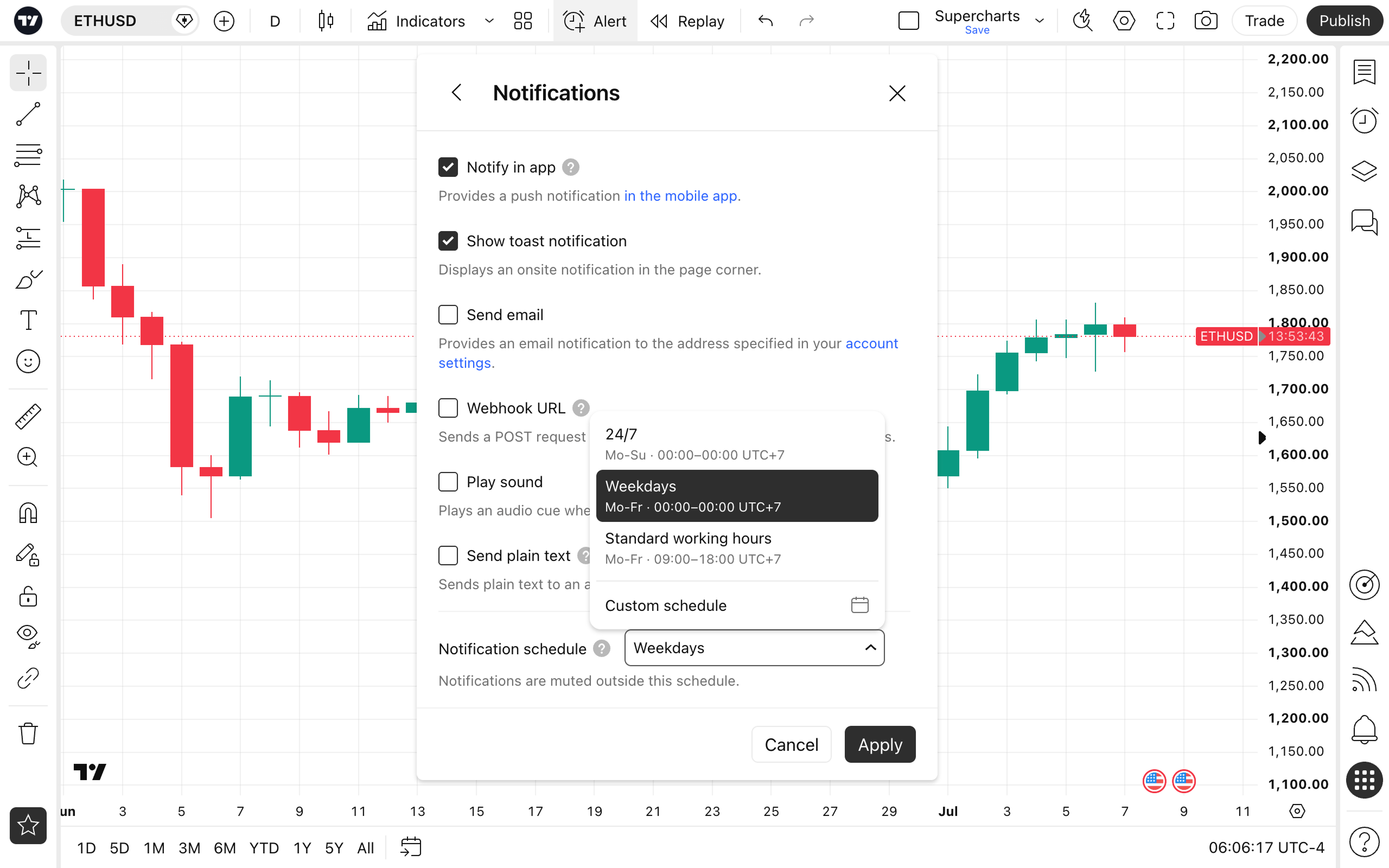
Important for automated traders: Notification schedules suppress all outbound channels, including webhooks. If your alerts are connected to automated trading systems, keep them on a 24/7 schedule to avoid interrupting execution.
Save time with sticky settings and alert presets
You don’t have to configure your schedule from scratch every time you create an alert. To speed up your workflow, we’ve introduced two handy features:
- Sticky settings: Automatically remembers your last-used schedule and applies it by default when you create your next alert, where applicable
- Alert presets: Lets you save a notification schedule alongside your indicators and trigger conditions inside an alert preset for faster setup in the future
Monitor everything at a glance
You can track your schedules directly from the alert manager. Alerts with an active schedule display a calendar icon next to their status. Hover over the icon to view the active days, hours, and time zone in a tooltip.

We hope this feature helps you stay focused on your strategy and streamline your workflow. As always, we welcome your feedback — it helps us make TradingView better.
Team TradingView