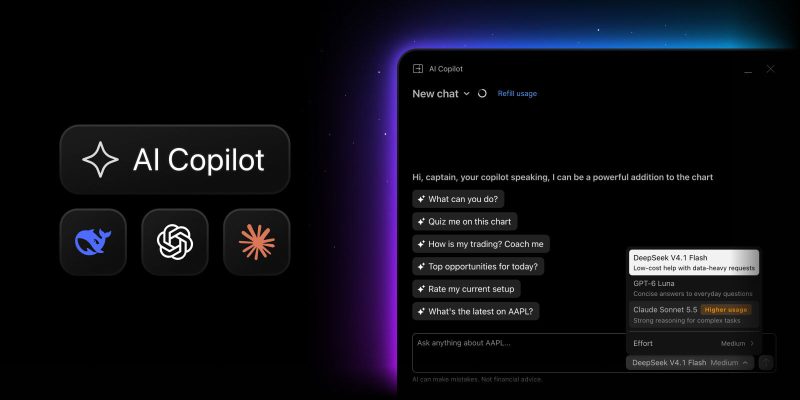
TradingView AI Copilot now lets you choose from three models, each with its own speed, usage cost, and answer quality. Switch per chat and set a reasoning level to control how deeply the model thinks.
Note that using frontier models like Claude Sonnet 5.5 can use up your allowance faster. If you’re running low, you can refill before your next billing date.
Model switcher: pick the model for the job
Until now, AI Copilot ran on one model for everything: DeepSeek V4.1 Flash, the most cost-efficient one. But different tasks need different things from a model. A quick question about a ticker needs a fast answer, and GPT-6 Luna is a good fit. A multi-step job with tools requires the strongest reasoning available, and that’s where Claude Sonnet 5.5 shines. Now you can match the model to the task. DeepSeek V4.1 Flash, meanwhile, stays the default, offering the best answer quality per unit of usage.
| Model | Speed | Usage per request | Quality |
| DeepSeek V4.1 Flash (default) | 1× | 1× | 0.9× |
| GPT-6 Luna | 2× | 0.4× | 0.6× |
| Claude Sonnet 5.5 | 2× | 7.5× | 1× |
Speed and usage are relative to the default model. Quality is relative to the best-scoring model. All figures are approximate and measured at medium reasoning.
You can find the model switcher in the Copilot chat, next to the “Send” button.
Reasoning level: trade speed for depth
Each model has a reasoning level. It sets how deeply the model thinks before it answers. Higher level reasoning gives better answers, but each request takes longer and draws more from your budget. Lower reasoning is faster and cheaper.
Raise it for analysis and code, where a wrong answer costs you time. Lower it for quick lookups and short questions.
Refill: be ready for higher usage
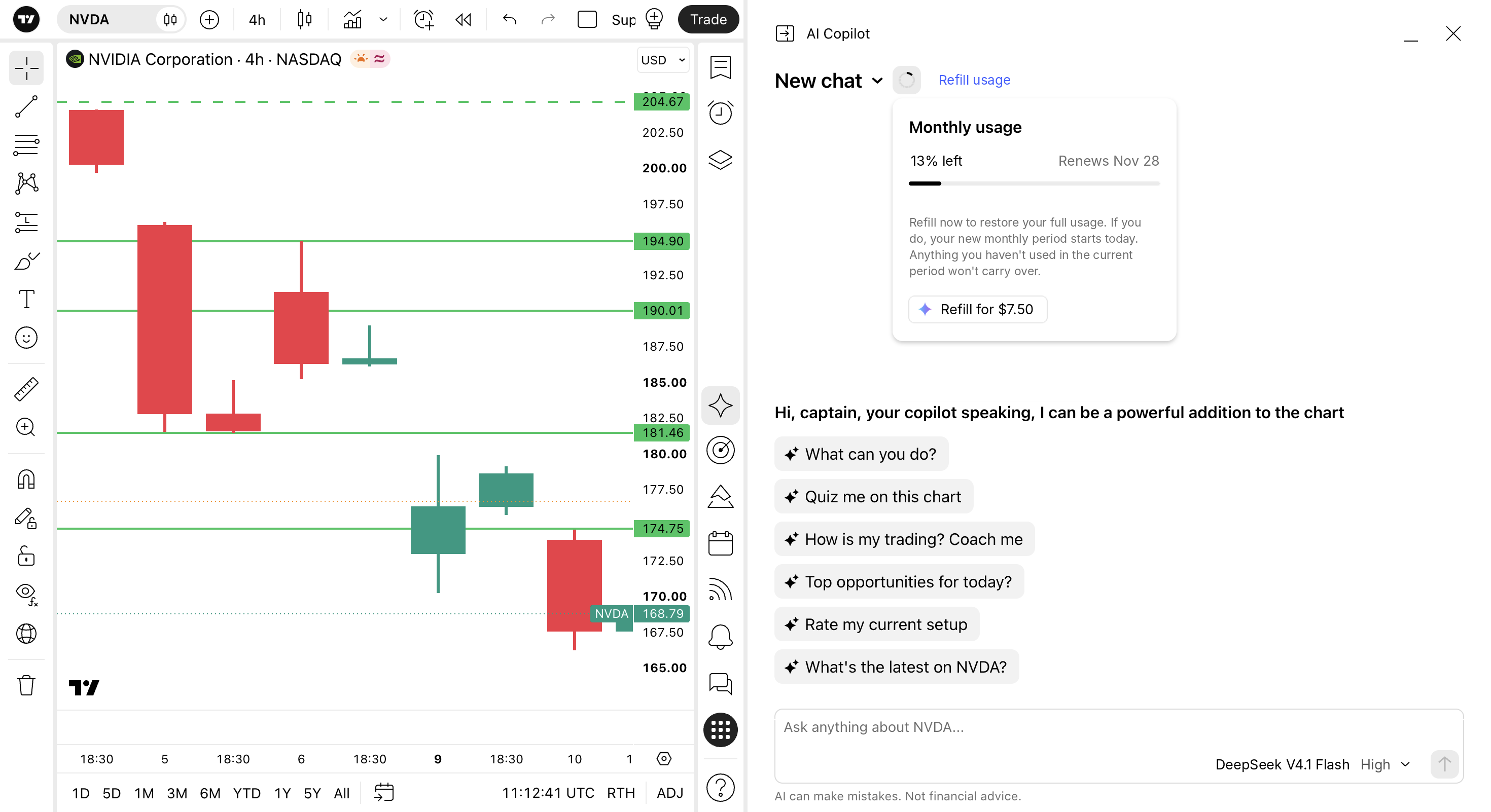
Stronger models and deeper reasoning use your budget faster. If you run out before your 30-day billing period ends, you can refill. A refill costs the same as your AI Copilot add-on and resets your usage to 100% right away.
The simplest way to keep costs predictable: stay on the default model for everyday work, switch up only for the tasks that need it, and keep an eye on the usage ring at the top of the chat.
How it works:
- The “Refill usage” link appears at the top of the chat, next to your conversations list and the usage ring, once your usage drops below 50%
- Click it and complete the payment. Same amount, same checkout as the add-on
- Your usage resets to 100% immediately
Keep in mind
- A refill resets usage, it doesn’t add to it. Whatever you had left is gone, so it pays to refill when you’re close to 0%
- Your billing date doesn’t move. The next regular payment happens as scheduled, at the full price, and resets usage to 100% again
- Refill is only available while auto-renewal is on. If you’ve turned it off, you won’t see the link
Open a chart, launch TradingView AI Copilot, and pick a model for your next request. If you don’t have the add-on yet, it’s available on every paid plan. To explore its full range of capabilities, see our Help Center articles.
Team TradingView