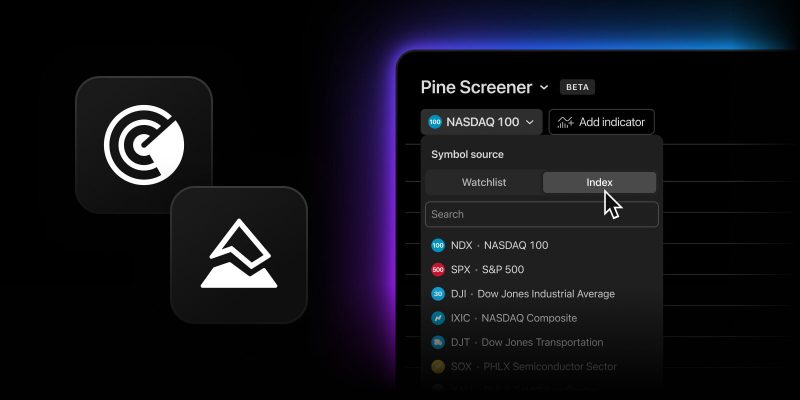
Before, using Pine Screener meant some prep work: building a watchlist by hand and adding a script to Favorites. Now, you can skip both steps and go straight to scanning. With this latest update, we’ve added a new symbol source option and expanded the range of scripts you can use. Let’s see what changed.
Indices as a symbol source
Until now, watchlists were the only symbol source you could use to run a scan. Now indices are an option too. To choose one:
- Open the symbol source selector in the toolbar
- Switch to the Index tab
- Find the index you need in the list or use search
- Run Scan
You get the same set of indices available in the Stock Screener: S&P 500, Nasdaq 100, DAX, Russell 2000, and many more. Scans run against the index constituents, including large universes of up to 3,500 symbols. Watchlists are still available, in case you want to use them.
One thing to keep in mind: only one symbol source can be selected at a time. Watchlists and indices are mutually exclusive, and multi-select isn’t supported yet. Switching sources clears your previous scan results, but your script, interval, and input parameters stay in place. Just hit Rescan.
More scripts to choose from
The second change is about choosing a Pine Script. Pine Screener used to show only your favorites, and the only way to add a script to Favorites was outside the screener, either in the Pine Editor or on Supercharts.
Now Pine Screener opens the same Indicators dialog you already know from the chart, with every section and full search:
- Personal: Favorites, My scripts, Invite-only, Purchased
- Built-in: Technicals
- Community: Editors’ picks, Top, Trending, Store
No need to add a script to Favorites first. Interval and input parameters now sit in the toolbar as separate controls, so you can change them without opening the script settings.
Compatibility is visible before you run
Pine Screener doesn’t support every script, and until now you’d only find out whether a script was compatible after trying to run it.
Now, scripts that aren’t supported by the screener appear as unavailable in the dialog, with a tooltip indicating this when you hover over them. Other actions remain available: you can still open such a script in the Pine Editor, for example.
An important limitation: we only flag scripts whose incompatibility can be determined in advance, meaning the scripts that aren’t indicators or don’t contain any plots. Every other script is available for selection, though some may still fail to run.
What’s next
Let us know which other Pine Screener limitations get in your way and what else you’re missing in order to get the most out of the Screener. Your feedback helps shape what we build next.
Team TradingView