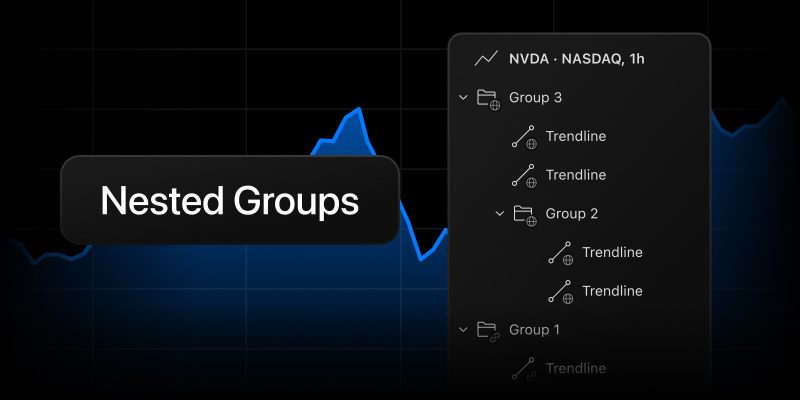
Until now, TradingView drawings could only be organized into a single folder level. That works as long as a chart has just a few drawings — but once a symbol carries support and resistance levels, several wave counts, and scenarios for different timeframes, one level is no longer enough. With this latest update, you can create groups inside groups.
Nested groups let you build a structure that matches how you think about the market. For example, create a “Weekly analysis” group with “Levels,” “Trendlines,” and “Patterns” subgroups, with individual scenario folders nested inside. You can nest groups as deep as you need.
How to create a nested group
In Supercharts, open the Object Tree from the right panel and choose one of these three methods:
- Toolbar button: Select one or more drawings and/or groups (hold Ctrl or Shift) and click the Create a group of drawings button on the top panel of the Object Tree
- Context menu: Select the objects, right-click, and choose Create a group of drawings
- Drag and drop: Drag a group and drop it inside another group. If you drop a drawing or a group right onto another group’s header, it lands at the top of that group, directly below the header.
How nested groups work
A group acts as a single unit together with everything nested inside it:
- Selecting: Selecting a group selects all of its contents, including nested groups and drawings at every level
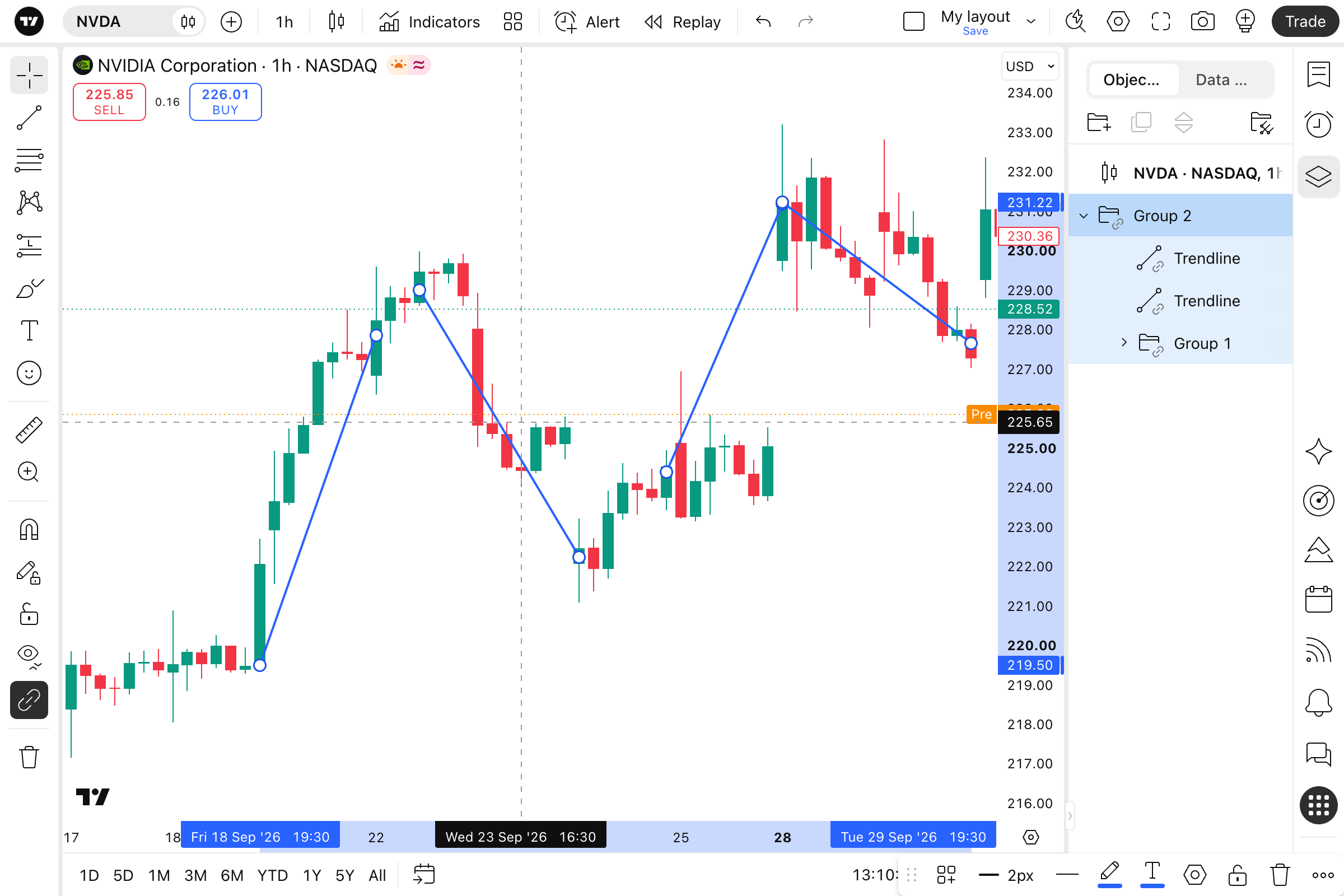
- Deleting: A group is deleted as a whole, with all its nested groups and drawings, just like regular groups today
- Empty groups: If you delete or move out everything inside a group, the group disappears on its own, at any nesting level
How nested groups sync
The top-level group in the hierarchy sets the sync mode. Everything inside it, including nested groups and drawings, always shares the same sync mode. This builds on the logic we introduced with drawings synchronization across layouts: a group and its objects are always in the same mode.
-
- Moving into another group: The group adopts the parent group’s sync mode, just as individual drawings do today. All of its contents switch along with it
- Moving to the root of the tree: If you move a nested group to the top level, its sync mode stays the same
For example, if you drag a group that isn’t synced into a group that syncs globally, all its drawings will appear on every layout with that symbol. If you later move it back to the root, it stays synced globally.
Nested groups are the next step for the Object Tree after grouping and naming drawings. We hope they make it easier to keep your charts in shape. Try them out and let us know how you organize your analysis.
Team TradingView