When trading options, checking the price of the underlying is the easy part. The harder part is knowing where other options traders are positioned — which strikes are loaded with calls, where the puts are stacked, and how that changes from one expiration to the next.
To bring that picture to where you already do your analysis, we’ve introduced Options volume profile — a new indicator on Supercharts. It plots the traded volume of call and put contracts directly on the chart of the underlying asset, strike by strike and expiration by expiration. Same symbol, same chart, one more layer of context.
Adding the indicator
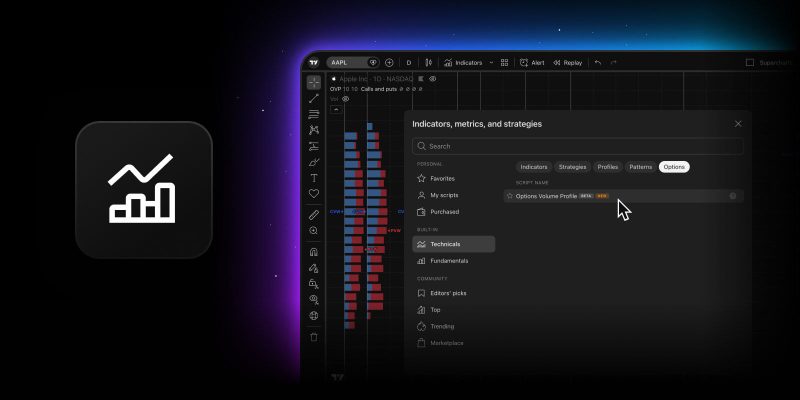
Open the chart of any underlying asset with listed options, click Indicators, go to Technicals → Options tab, and select Options volume profile. The indicator is added to the main chart pane, and its status line shows the abbreviation OVP together with the current inputs and display mode.
Reading the profile
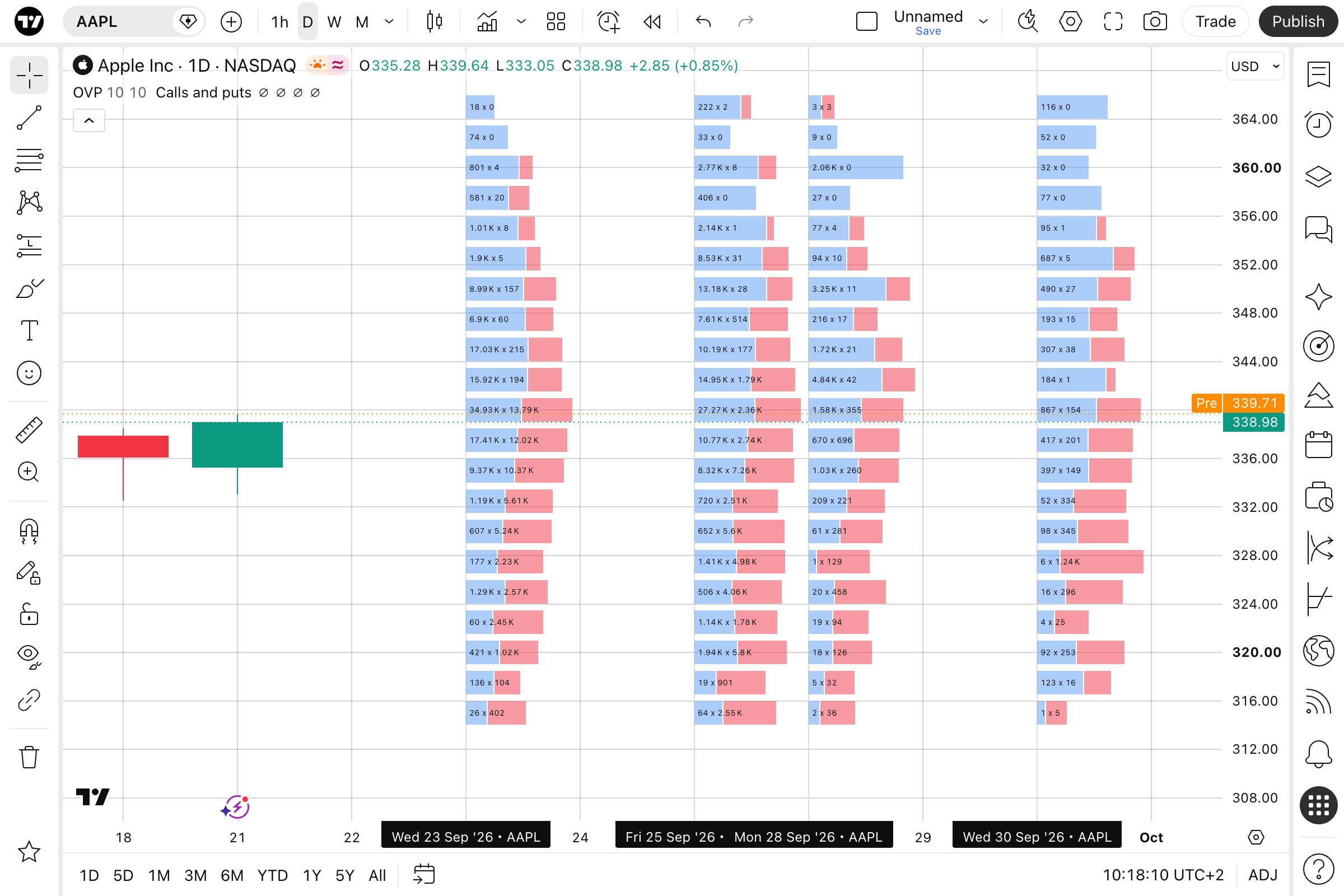
Every upcoming expiration gets its own profile, aligned with the expiration date on the time scale — the date label below the chart tells you which expiration you’re looking at. Inside a profile, each horizontal bar represents a strike, and its length reflects the volume traded there. Calls are plotted in blue and puts in red, with the exact values shown next to each bar in the format calls × puts. A dotted line at the current price separates in-the-money strikes from out-of-the-money ones at a glance.
Put it next to the price action and the picture speaks for itself: a cluster of calls above the current price, a block of puts below it, and the way that balance shifts as you look at expirations further out.
Configuring the profile
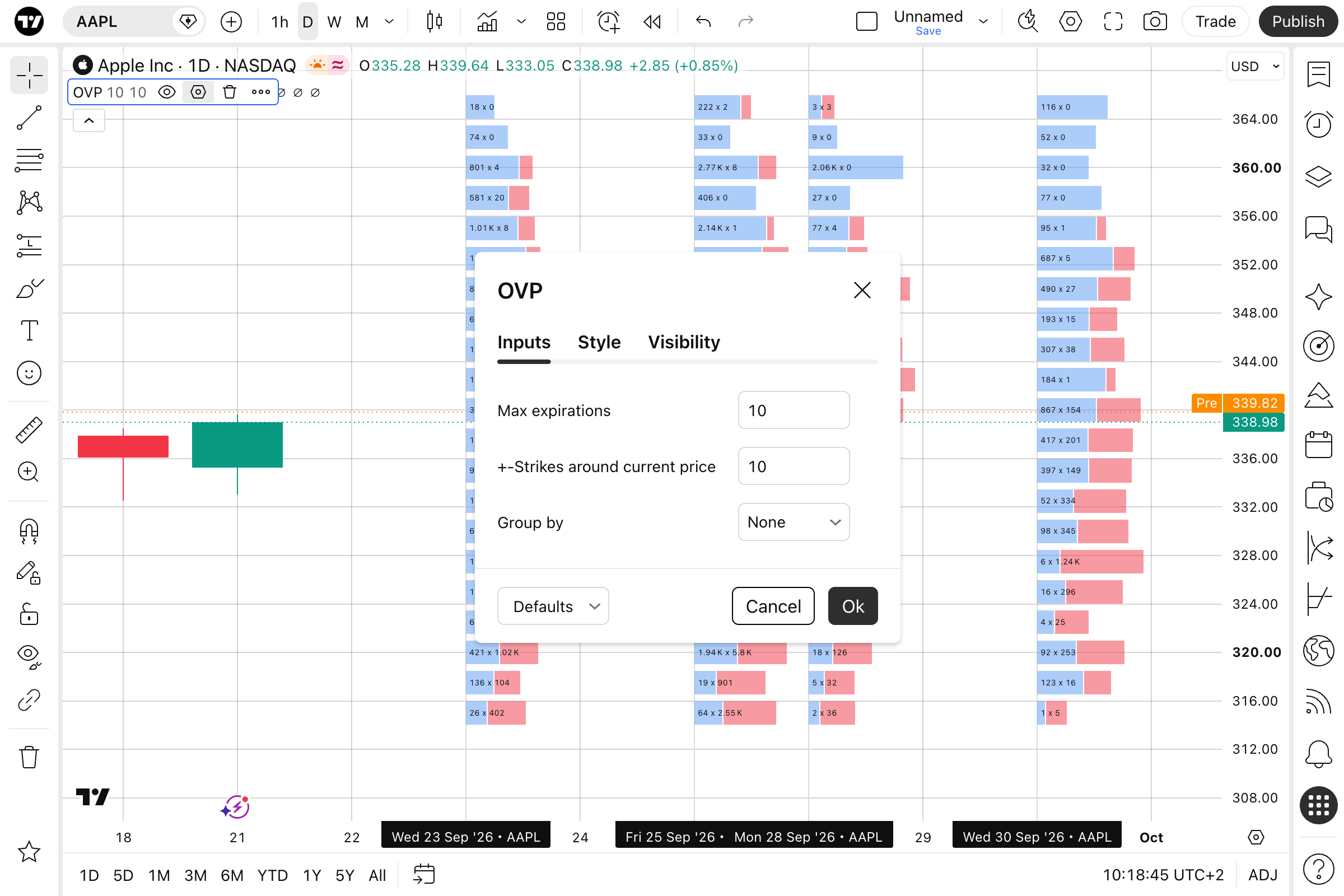
Options volume profile is built for scanning wide and then zooming in. Open the indicator settings to choose how much of the options market you want to see on the chart:
- Max expirations: Set how many upcoming expirations are plotted, counted from the nearest one. The default is 10
- ±Strikes around current price: Set how many strikes are shown above and below the current price. The default is 10 — raise it to reveal far out-of-the-money strikes where large positions tend to hide
- Group by: Merge expirations into larger periods instead of plotting each one separately, or keep every expiration on its own
Low values give you a clean, detailed view of the nearest expirations. High values show the overall shape of options activity across the whole curve.
Choose what the bars represent
Volume can be read in more than one way, so the indicator offers four display modes:
- Calls and puts: Call and put volume as separate bars
- Calls + puts: Total volume at each strike, for spotting the most active levels regardless of option type
- Calls − puts: The difference between the two, highlighting strikes where one side clearly dominates
- Puts / calls: The put/call ratio at each strike
Each mode has its own color settings, so you can switch between them without losing the look you’ve set up.
Spot the volume walls
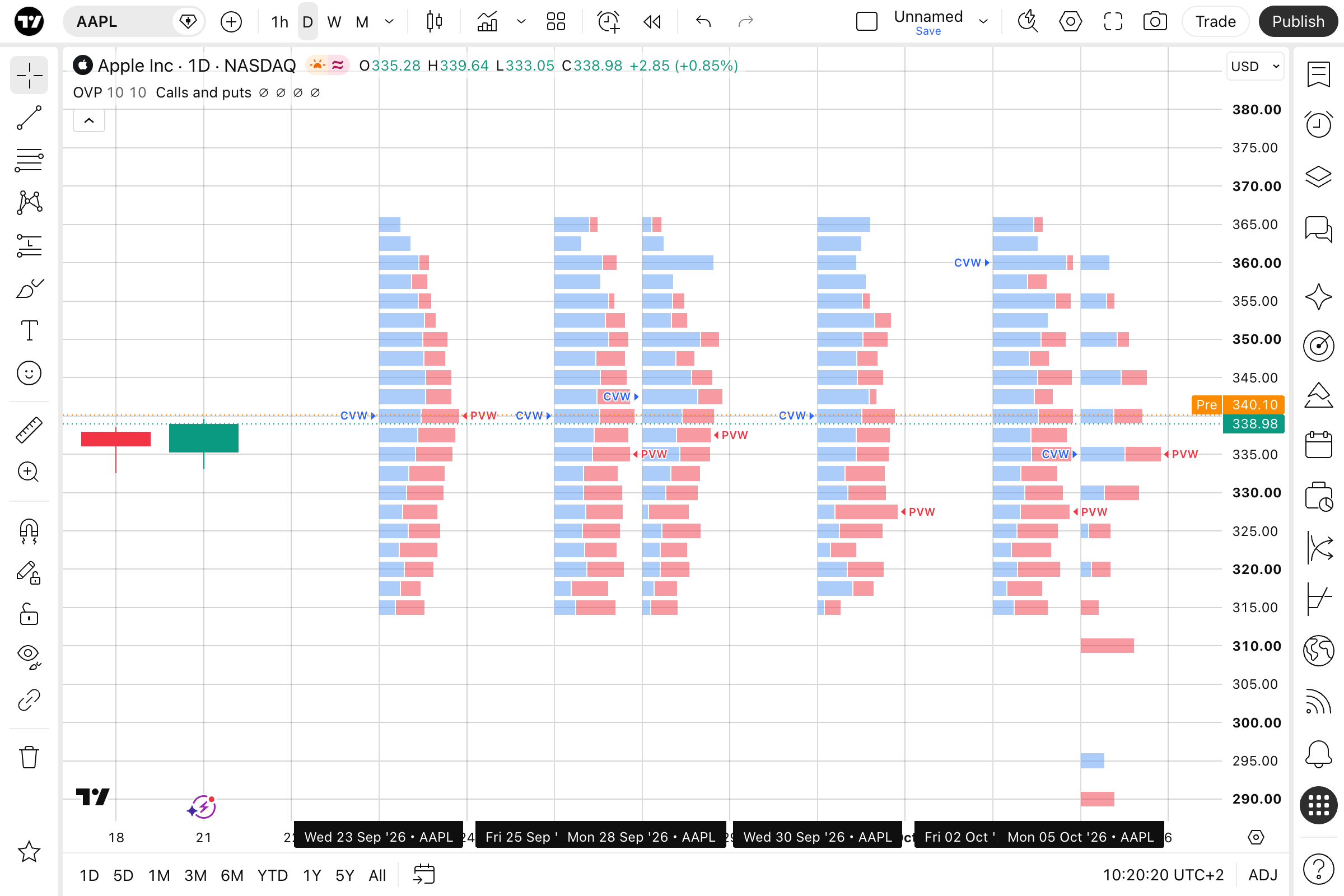
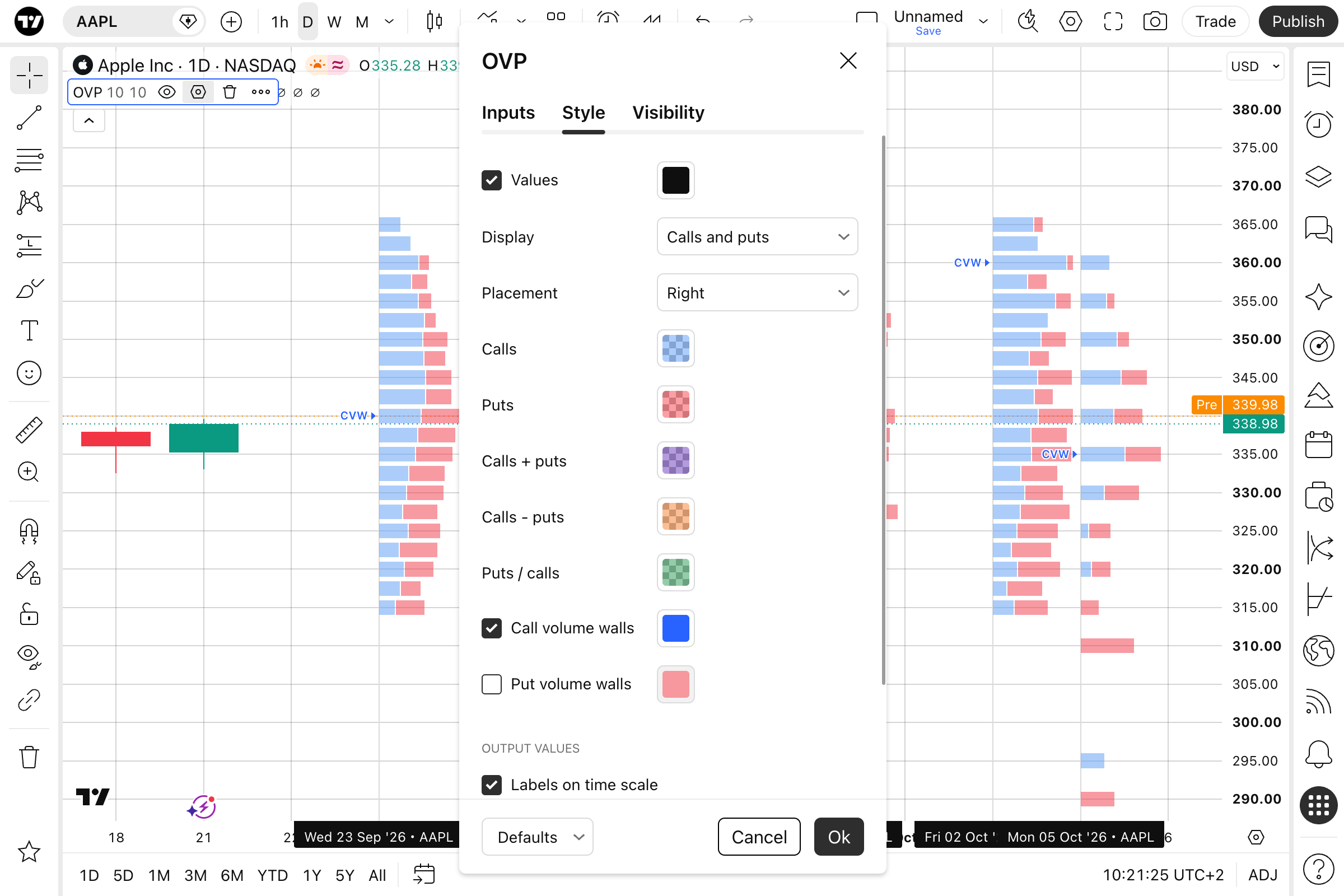
For each expiration, the strike with the highest call volume and the strike with the highest put volume are often the levels the market is watching. Turn on Call volume walls and Put volume walls in the Style tab, and the indicator marks those strikes with CVW and PVW labels for every expiration on the chart.
Heavy call volume above the price can point to where traders expect resistance or are writing covered calls. Heavy put volume below the price usually marks where hedges are concentrated. With walls on, you see both — and how they move from one expiration to the next — without opening a single options table.
Customize the look
In the Style tab, you can set colors for every display mode and for the volume walls, and choose which side of the expiration date the profile is placed on. Expiration labels on the time scale, as well as the values and inputs in the status line, can be turned on or off as well.
Keep in mind
Options volume profile works on daily, weekly, and monthly timeframes. On intraday intervals, the profiles are not displayed. The indicator is available on the chart of any underlying asset with listed options.
So open the chart, go to Indicators → Options → Options volume profile, and see where the options market is actually positioned — right next to the price.
As always, share with us what you think — your feedback helps us make TradingView better.
Team TradingView